
Introduction
The BANYUP CF-922AC is a high-speed dual-band USB 3.0 WiFi adapter designed to provide fast and reliable wireless connectivity for your desktop computer or laptop. This adapter supports the 802.11ac wireless standard, offering transmission rates up to 1200Mbps across both 2.4GHz and 5GHz frequency bands. Its compact design and adjustable antennas ensure optimal performance and portability.
Package Contents
Please verify that all items are present in your package:
- 1 x BANYUP CF-922AC Wireless Networking Card
- 1 x Quick Installation Guide (Physical Manual)
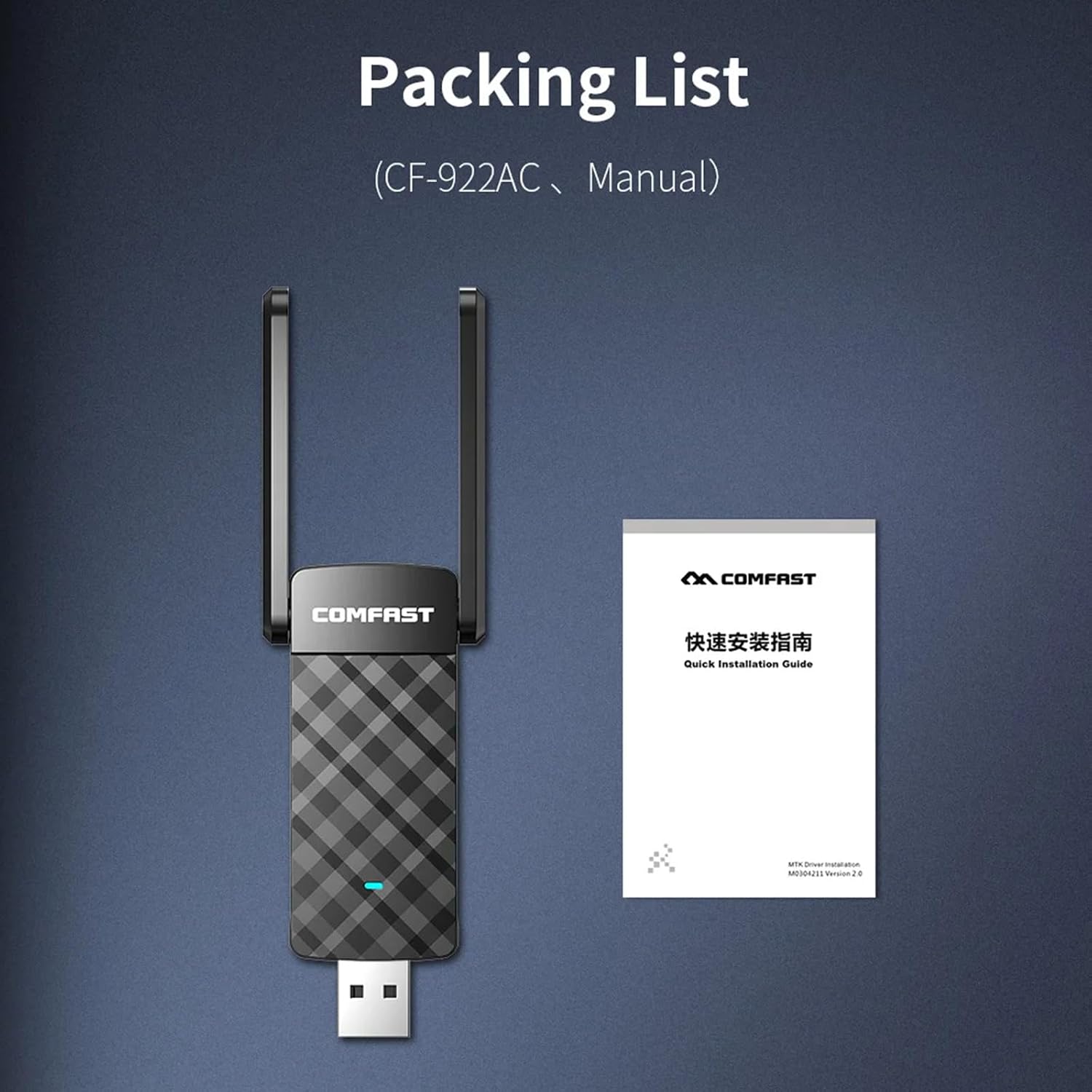
Figure 1: Package Contents - CF-922AC Adapter and Quick Installation Guide.
Product Overview
The CF-922AC adapter features a USB 3.0 interface for high-speed data transfer and dual adjustable antennas for enhanced signal reception. An indicator light shows operational status.

Figure 2: Front view of the CF-922AC adapter.

Figure 3: CF-922AC adapter dimensions (approximately 137x41x12mm).
The dual antennas can be rotated 180 degrees to optimize signal strength and coverage, allowing for better penetration through walls and improved reception.

Figure 4: Adjustable antenna design for stronger signal.
Setup Guide
1. Driver Installation
Before connecting the adapter, it is recommended to install the necessary drivers. The drivers are typically provided on a mini-CD included in the package or can be downloaded from the manufacturer's official website. Follow the on-screen instructions for installation.
- Insert the driver CD into your computer's CD-ROM drive. If no CD-ROM drive is available, download the latest drivers from the BANYUP support website.
- Run the setup file (e.g., "setup.exe" or "install.exe").
- Follow the prompts to complete the driver installation. Restart your computer if prompted.
2. Connecting the Adapter
Once the drivers are installed, connect the CF-922AC adapter to an available USB 3.0 port on your computer. For optimal performance, use a USB 3.0 port (often colored blue internally).

Figure 5: Adapter connected to a desktop computer's USB port.
The operating system should automatically detect the adapter and configure it. The indicator light on the adapter will illuminate when it is properly connected and functioning.
Operating Instructions
1. Connecting to a WiFi Network
After successful installation, you can connect to a wireless network:
- Click on the WiFi icon in your computer's system tray (usually in the bottom-right corner for Windows, or top-right for macOS).
- A list of available wireless networks will appear. Select your desired network (SSID).
- Click "Connect" and enter the network security key (password) if prompted.
- The adapter will establish a connection to the chosen network.
2. Dual-Band Operation (2.4GHz and 5GHz)
The CF-922AC supports both 2.4GHz and 5GHz frequency bands. You can choose the band that best suits your needs:
- 2.4GHz Band: Offers wider coverage and better penetration through obstacles (like walls). Ideal for general internet browsing and when distance from the router is significant. Typically provides speeds up to 300Mbps.
- 5GHz Band: Provides faster speeds and lower latency, ideal for HD video streaming, online gaming, and large file transfers. It has a shorter range and is more susceptible to obstacles. Typically provides speeds up to 867Mbps.
If your router broadcasts separate SSIDs for 2.4GHz and 5GHz, you can manually select which band to connect to. If your router uses a single SSID for both bands (band steering), the adapter will automatically connect to the optimal band.

Figure 6: Comparison of 2.4GHz and 5GHz WiFi bands.
3. Creating a WiFi Hotspot (Soft AP Mode)
The CF-922AC adapter can function as a software Access Point (Soft AP), allowing your computer to share its internet connection with other wireless devices. This feature typically requires specific software or settings within your operating system's network configuration.
- Ensure your computer has an active internet connection (e.g., via Ethernet).
- Open your operating system's network settings (e.g., "Mobile hotspot" in Windows 10/11, or specific utility for the adapter).
- Configure the hotspot name (SSID) and password.
- Enable the hotspot feature. Other devices can now connect to your computer's shared WiFi network.
Maintenance
To ensure the longevity and optimal performance of your CF-922AC WiFi adapter:
- Keep the adapter clean and free from dust. Use a soft, dry cloth for cleaning.
- Avoid exposing the adapter to extreme temperatures, humidity, or direct sunlight.
- Do not attempt to disassemble or repair the adapter yourself. This may void the warranty.
- Ensure the antennas are not bent or damaged.
Troubleshooting
If you encounter issues with your CF-922AC adapter, try the following solutions:
- No WiFi Connection:
- Ensure the adapter is securely plugged into a USB port.
- Verify that the drivers are correctly installed. Check Device Manager (Windows) or System Information (macOS) for any errors.
- Restart your computer and your wireless router.
- Try plugging the adapter into a different USB port.
- Confirm that your WiFi network is active and broadcasting.
- Slow Connection Speed:
- Ensure you are connected to the 5GHz band if available and within range for higher speeds.
- Adjust the adapter's antennas for optimal signal reception.
- Reduce interference by moving the adapter away from other electronic devices (e.g., microwaves, cordless phones).
- Update your router's firmware and adapter drivers to the latest versions.
- Check for network congestion; too many devices on the same network can reduce speed.
- Adapter Not Detected:
- Unplug and re-plug the adapter.
- Try a different USB port, preferably a USB 3.0 port.
- Reinstall the drivers.
- Check your computer's Device Manager for unrecognized devices or driver conflicts.
- Intermittent Connection:
- Ensure the adapter is not overheating.
- Check for strong interference sources.
- Update drivers.
- Ensure your router's signal is stable.
Specifications
| Feature | Description |
|---|---|
| Model | CF-922AC |
| Interface | USB 3.0 (backward compatible with USB 2.0/1.1) |
| Wireless Standards | IEEE 802.11a/b/g/n/ac |
| Transmission Rate | Up to 1200Mbps (2.4GHz: 300Mbps, 5GHz: 867Mbps) |
| Frequency Bands | 2.412-2.472GHz, 5.180-5.825GHz (Dual-Band) |
| Antenna | Dual Adjustable Antennas |
| Security Features | WPA-PSK/WPA2-PSK, WPA/WPA2, WEP |
| Operating System Support | Windows XP/7/8/8.1/10 (32-bit, 64-bit), macOS 10.9-10.14 |
| Dimensions | Approx. 137 x 41 x 12 mm (5.4 x 1.6 x 0.47 inches) |
| Color | Black |
Warranty and Support
BANYUP products are designed for reliability and performance. For specific warranty information, please refer to the warranty card included with your product or visit the official BANYUP website. For technical support, driver downloads, or further assistance, please contact BANYUP customer service through their official channels.
Keep your purchase receipt for warranty claims.