
Introduction
Thank you for choosing the TECH PAD R10 Tablet. This manual provides essential information for setting up, operating, and maintaining your device. The TECH PAD R10 features a 10.1-inch HD+ IPS display, an Allwinner A133 Quad Core processor, 4GB RAM, 64GB internal storage, and runs on Android 13. It includes 8.0MP rear and 2.0MP front cameras, Wi-Fi, Bluetooth connectivity, and a 6000mAh battery, all housed in a metallic casing.
Package Contents
Ensure all items are present in your package:
- TECH PAD R10 Tablet
- USB Type-C Charging Cable
- Power Adapter (may vary by region)
- Quick Start Guide (this document)
Device Layout
Familiarize yourself with the physical features of your TECH PAD R10 Tablet.
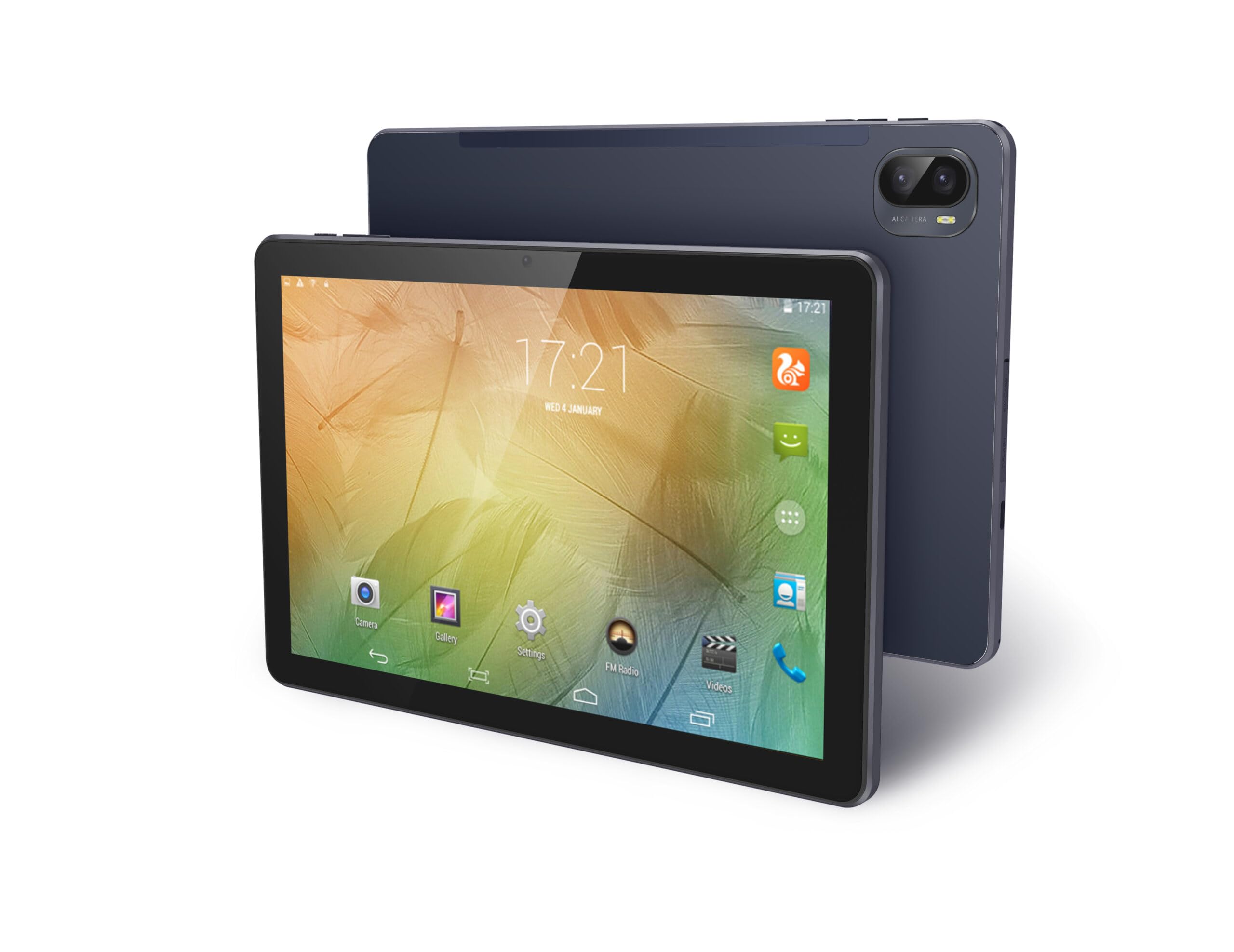
Figure 1: Front view of the TECH PAD R10 Tablet, showing the display and front camera.

Figure 2: Rear view of the TECH PAD R10 Tablet, featuring the 8.0MP main camera.
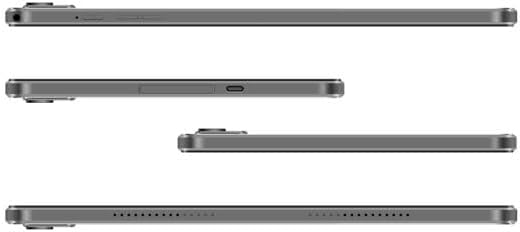
Figure 3: Side views illustrating the 3.5mm audio jack, USB Type-C port, and Micro SD card slot.
Setup
1. Charging the Battery
Before first use, fully charge your tablet. Connect the USB Type-C cable to the tablet's charging port and the other end to the power adapter. Plug the adapter into a wall outlet. The charging indicator will show the charging status. A full charge typically takes several hours.
2. Powering On/Off
- To Power On: Press and hold the Power button until the TECH PAD logo appears on the screen.
- To Power Off: Press and hold the Power button until a menu appears. Select 'Power off' and confirm.
- To Restart: Press and hold the Power button until a menu appears. Select 'Restart' and confirm.
3. Initial Setup
Upon first power-on, follow the on-screen prompts to configure your tablet:
- Select your preferred language.
- Connect to a Wi-Fi network.
- Set up your Google account (optional, but recommended for app downloads).
- Review and accept terms and conditions.
4. Inserting a Micro SD Card
The tablet supports Micro SD cards up to 256GB for expanded storage. Locate the Micro SD card slot on the side of the tablet. Gently insert the card with the gold contacts facing down until it clicks into place. To remove, push the card in slightly until it springs out.
Operating
1. Basic Navigation
The TECH PAD R10 uses a touch panel for interaction:
- Tap: To select an item or open an app.
- Tap and Hold: To access contextual menus or move icons.
- Swipe: To scroll through pages or lists.
- Pinch: To zoom in or out on images and web pages.
2. Connecting to Wi-Fi
To connect to a Wi-Fi network:
- Go to Settings > Network & internet > Wi-Fi.
- Toggle Wi-Fi On.
- Select your desired network from the list.
- Enter the password if prompted and tap Connect.
3. Bluetooth Pairing
To pair with a Bluetooth device:
- Go to Settings > Connected devices > Bluetooth.
- Toggle Bluetooth On.
- Ensure your Bluetooth device is in pairing mode.
- Select the device from the 'Available devices' list and follow any on-screen prompts to complete pairing.
4. Using the Cameras
The tablet features an 8.0MP rear camera and a 2.0MP front camera.
- Open the Camera app from the home screen or app drawer.
- Tap the camera switch icon to toggle between front and rear cameras.
- Tap the shutter button to take a photo or start/stop video recording.
5. Audio Features
The tablet is equipped with two integrated 1W speakers. For private listening, connect headphones to the 3.5mm audio jack.
Maintenance
1. Cleaning the Device
Use a soft, lint-free cloth to clean the screen and body of the tablet. Avoid using harsh chemicals, abrasive cleaners, or aerosol sprays, as these can damage the device's finish or screen coating.
2. Battery Care
To prolong battery life:
- Avoid extreme temperatures.
- Do not let the battery completely drain frequently.
- Use the original charger or a certified compatible charger.
3. Software Updates
Regularly check for and install system updates to ensure optimal performance, security, and access to new features. Go to Settings > System > System update.
Troubleshooting
If you encounter issues with your tablet, try the following solutions:
- Tablet not turning on: Ensure the battery is charged. Connect the charger and wait a few minutes before attempting to power on again.
- Wi-Fi connection issues: Restart your tablet and your Wi-Fi router. Ensure you are within range of the Wi-Fi signal and have entered the correct password.
- Slow performance: Close unused applications, clear cache, or restart the tablet. Consider uninstalling apps you no longer use.
- Apps crashing: Ensure apps are updated to their latest versions. Clear the app's cache and data in Settings > Apps > [App Name] > Storage & cache.
- Factory Reset (Last Resort): If problems persist, you may need to perform a factory reset. This will erase all data on your tablet. Go to Settings > System > Reset options > Erase all data (factory reset). Back up important data before proceeding.
Specifications
| Feature | Specification |
|---|---|
| Processor | Allwinner A133 Quad Core A-53 up to 1.5GHz |
| Display | 10.1" IPS HD+ LCD (800x1280 pixels), G+G Touch Panel |
| Memory (RAM) | 4GB |
| Storage (ROM) | 64GB |
| Expandable Storage | Micro SD card up to 256GB |
| Rear Camera | 8.0MP |
| Front Camera | 2.0MP |
| Connectivity | Wi-Fi b/g/n, Bluetooth |
| Ports | 1x 3.5mm Audio Jack, 1x USB Type-C (charging), 1x Micro SD Card Slot |
| Battery | 6000mAh |
| Operating System | Android 13 |
| Speakers | 2x 1W Integrated Speakers |
| Weight | 340 g |
Safety Information
Please read the following safety guidelines carefully to ensure safe and proper use of your tablet:
- Do not expose the tablet to extreme temperatures, direct sunlight, or high humidity.
- Avoid dropping or subjecting the tablet to severe impact.
- Do not attempt to disassemble or repair the tablet yourself. This may void your warranty and cause damage.
- Use only approved chargers and accessories.
- Keep the tablet away from water and other liquids.
- Dispose of the tablet and its battery responsibly according to local regulations.
Warranty and Support
For warranty information, please refer to the documentation included with your purchase or visit the official TECH PAD website. If you require technical support or have questions not covered in this manual, please contact TECH PAD customer service through their official channels.


