
1. Introduction
This manual provides detailed instructions for the installation, operation, and maintenance of your XTRONS DX120L 10.1" QLED Android Car Stereo. Please read this manual thoroughly before using the product to ensure proper operation and to prevent damage.
Safety Information
- Always operate the vehicle safely. Do not operate the car stereo in a manner that distracts you from driving.
- Ensure all connections are secure and correctly made to prevent short circuits or damage.
- Consult a professional for installation if you are unsure about any steps.
- Do not expose the unit to extreme temperatures, direct sunlight for prolonged periods, or excessive moisture.
2. Package Contents
Verify that all items are present in the package:
- XTRONS DX120L Main Unit
- GPS Antenna
- 4G SIM Card Reader
- Wiring Harnesses (Power, Speaker, etc.)
- USB Cables
- User Manual (this document)

This image shows the product packaging, including the XTRONS brand, product name 'Car Multimedia Player', manufacturer address in Shenzhen, China, and EU Representative details. A barcode with UPC 5055869158947 is visible.
3. Product Overview
The XTRONS DX120L is a single DIN car stereo featuring a large 10.1-inch QLED display with a rotatable design, powered by Android 13. It offers advanced connectivity and entertainment options for your vehicle.
Key Features:
- 10.1-inch QLED Rotatable Display: High-definition (1280x720) capacitive touchscreen that can rotate for optimal viewing.
- Android 13 Operating System: Provides a modern, intuitive interface with access to a wide range of applications.
- Octa-core Processor: Ensures smooth performance and multitasking.
- 4GB RAM & 64GB ROM: Ample memory for applications and storage, expandable via USB (up to 128GB).
- Integrated GPS: For precise navigation.
- Wi-Fi & 4G Connectivity: Built-in Wi-Fi and a 4G SIM card reader for internet access.
- Bluetooth 5.0: For hands-free calling and audio streaming.
- Apple CarPlay & Android Auto: Seamless smartphone integration.
- Built-in DSP: Digital Sound Processor for enhanced audio customization.
- Supports External Devices: Compatible with external microphone, rear camera (optional), DVR (optional), DAB+ (optional), and TPMS (optional).

This image displays the XTRONS DX120L car stereo, highlighting its 10.1-inch QLED rotatable display and Android operating system. The screen shows a typical car dashboard interface with speed, music playback, and a visualizer.
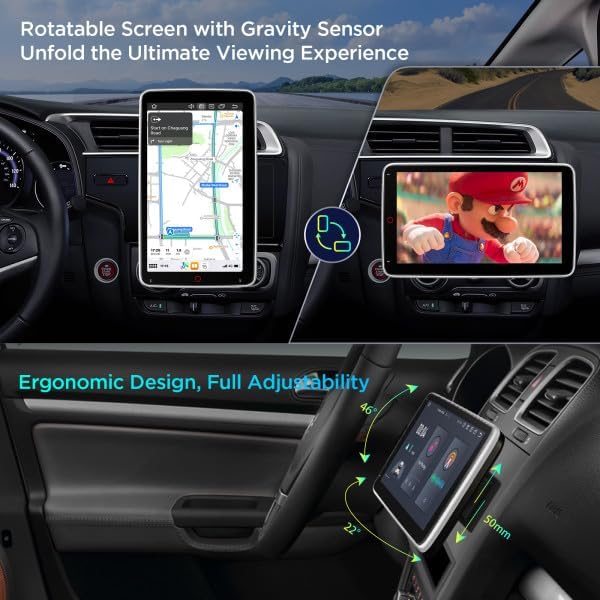
This image illustrates the rotatable screen feature of the DX120L, showing it in both vertical (portrait) mode for navigation and horizontal (landscape) mode for media viewing, emphasizing its ergonomic design and adjustability.
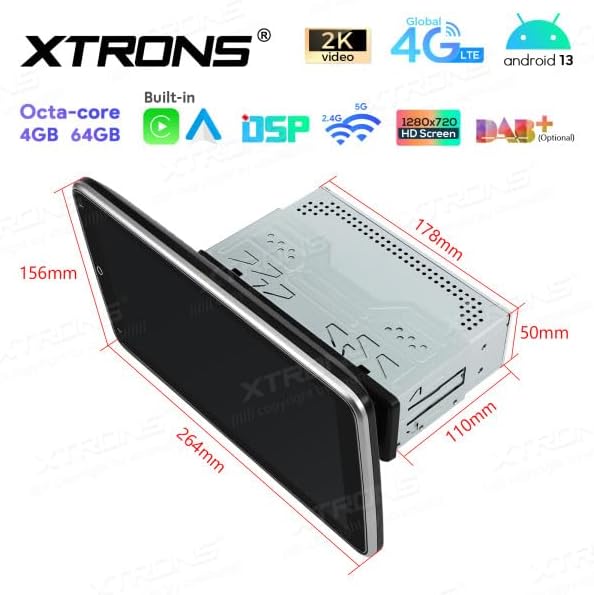
This image provides a detailed diagram of the XTRONS DX120L unit, showing its physical dimensions including screen size (264mm x 156mm), main unit depth (110mm), and height (178mm), crucial for installation planning.
4. Setup and Installation
The XTRONS DX120L is designed for 1 DIN installation. Professional installation is recommended.
4.1 Pre-Installation Checks
- Disconnect the vehicle's negative battery terminal before starting installation.
- Ensure the mounting location is suitable for a 1 DIN unit and can accommodate the 10.1-inch screen.
- Verify all included components are present.
4.2 Wiring Connections
- Power Connection: Connect the main power harness to the vehicle's power supply (constant 12V, accessory 12V, and ground).
- Speaker Connections: Connect the speaker wires from the unit to your vehicle's speakers, ensuring correct polarity.
- GPS Antenna: Mount the GPS antenna in a location with a clear view of the sky (e.g., dashboard, rear parcel shelf) and connect it to the unit.
- 4G SIM Card Reader: Insert your 4G SIM card into the provided reader and connect it to the unit.
- USB Connections: Connect any USB devices (e.g., USB drive, external microphone) to the provided USB ports.
- Optional Connections: If using a rear camera, DVR, DAB+ box, or TPMS, connect them according to their respective manuals.
4.3 Mounting the Unit
- Slide the 1 DIN chassis into the vehicle's dashboard opening.
- Secure the chassis using the provided mounting brackets and screws.
- Attach the 10.1-inch display to the main unit, ensuring it is securely locked in place.
- Reconnect the vehicle's negative battery terminal.
4.4 Initial Power-On
After installation, turn on your vehicle's ignition. The unit should power on automatically. Follow any on-screen prompts for initial setup, such as language selection and time zone.
5. Operating Instructions
5.1 Basic Operation
- Power On/Off: The unit typically powers on with the vehicle's ignition. Press and hold the power button (if available) to manually turn off or on.
- Volume Control: Adjust volume using the on-screen controls or steering wheel controls (if connected and configured).
- Screen Rotation: The 10.1-inch QLED screen can be manually rotated between portrait and landscape orientations. The system will automatically adjust the display.

This image shows the home screen of the XTRONS DX120L, featuring icons for Music, Navigation, Phone, Play Store, Radio, Settings, Torque, Video, and Voice Search, indicating the Android operating system's capabilities.

This image highlights the DX120L's screen in portrait orientation, specifically showing a navigation map, which can be beneficial for certain map views.
5.2 Android OS Navigation
- Home Screen: Tap the home icon to return to the main application screen.
- App Drawer: Swipe up or tap the app drawer icon to view all installed applications.
- Settings: Access system settings for Wi-Fi, Bluetooth, display, sound, and more.
- Notifications: Swipe down from the top of the screen to view notifications and quick settings.
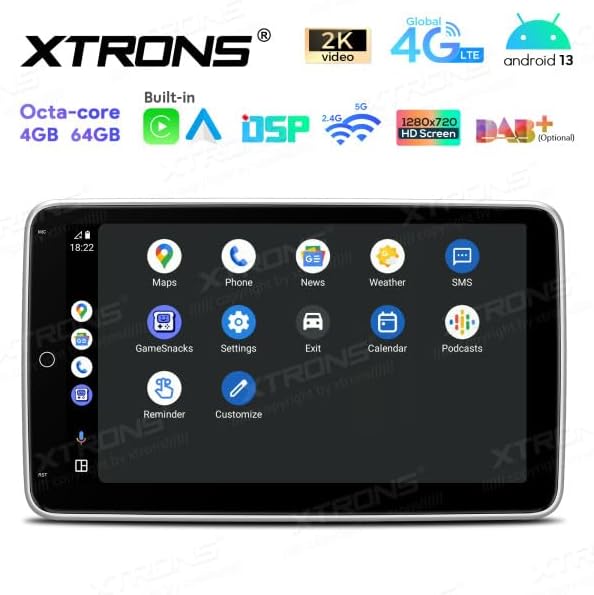
This image shows another view of the DX120L's Android interface, with icons for Maps, Phone, News, Weather, SMS, Gamesnacks, Settings, Exit, Calendar, Podcasts, and Reminders, demonstrating the breadth of available applications.
5.3 Navigation (GPS)
The unit comes with integrated GPS. Open the "Navigation" or "Maps" application to access mapping software. Ensure the GPS antenna has a clear view of the sky for optimal signal reception.
5.4 Radio
Access the "Radio" application to tune into AM/FM stations. Use the on-screen controls to scan for stations, save presets, and switch between bands.
5.5 Bluetooth
- Go to "Settings" > "Bluetooth".
- Enable Bluetooth on the unit and your mobile device.
- Search for available devices on your mobile phone and select "XTRONS DX120L" to pair.
- Once paired, you can make hands-free calls and stream audio.
5.6 Apple CarPlay / Android Auto
Connect your compatible iPhone or Android smartphone via USB or wirelessly (if supported by your phone and the unit's software). Follow the on-screen prompts to activate CarPlay or Android Auto, allowing access to your phone's apps, navigation, and media directly on the car stereo display.

This image presents the Apple CarPlay interface on the DX120L screen, showing common apps like Phone, Music, Maps, Messages, and Calendar, indicating seamless smartphone integration.
5.7 Media Playback
The unit supports various media formats via USB. Insert a USB drive into the designated port and use the "Music" or "Video" application to browse and play your media files.
5.8 Internet Connectivity (Wi-Fi & 4G)
- Wi-Fi: Go to "Settings" > "Wi-Fi" to connect to available Wi-Fi networks (e.g., mobile hotspot).
- 4G: Ensure a valid 4G SIM card is inserted into the SIM card reader. The unit will automatically connect to the 4G network.
5.9 DSP (Digital Sound Processor)
Access the DSP settings through the "Sound" or "Equalizer" application. Adjust audio parameters such as equalizer presets, balance, fader, and subwoofer settings to customize your listening experience.
6. Maintenance
- Cleaning the Screen: Use a soft, lint-free cloth to gently wipe the screen. For stubborn smudges, slightly dampen the cloth with water or a screen cleaner designed for electronics. Do not use harsh chemicals.
- Software Updates: Periodically check for software updates through the system settings or XTRONS official website to ensure optimal performance and access to new features.
- General Care: Avoid exposing the unit to extreme temperatures, direct sunlight for extended periods, or excessive moisture.
7. Troubleshooting
| Problem | Possible Cause | Solution |
|---|---|---|
| Unit does not power on. | Incorrect wiring; Blown fuse; Vehicle battery low. | Check power connections (constant 12V, accessory 12V, ground). Inspect vehicle fuses. Check vehicle battery voltage. |
| No sound from speakers. | Speaker wires incorrectly connected; Volume too low; Mute function active. | Verify speaker wiring. Increase volume. Check if mute is enabled. |
| GPS signal is weak or lost. | GPS antenna improperly placed or disconnected. | Ensure GPS antenna is mounted in a location with a clear view of the sky and is securely connected. |
| Bluetooth connection issues. | Bluetooth not enabled; Device not paired; Interference. | Ensure Bluetooth is enabled on both devices. Re-pair the device. Move closer to the unit. |
| Touchscreen unresponsive. | System freeze; Dirt on screen. | Restart the unit (if possible, by holding power button). Clean the screen. If issue persists, perform a factory reset (data will be lost). |
8. Specifications
| Feature | Detail |
|---|---|
| Model Name | DX120L |
| Brand | XTRONS |
| Operating System | Android 13 |
| Processor | Octa-core |
| Memory (RAM) | 4 GB |
| Storage (ROM) | 64 GB |
| Screen Size | 10.1 Inches |
| Screen Resolution | 1280 x 720 |
| Touchscreen Type | Capacitive |
| Connectivity | Wi-Fi, 4G (SIM card reader included), Bluetooth 5.0 |
| Navigation System | GPS |
| Audio Output Mode | Stereo, Built-in DSP |
| Special Features | Rotatable Screen, Apple CarPlay, Android Auto, Global 4G LTE, Automotive-grade hardware |
| Mounting Type | Dashboard Mount (1 DIN) |
| Compatible Devices | Smartphone (iOS/Android), Internet |
| Control Method | Touchscreen, Voice |
| Included Components | GPS Antenna, 4G SIM Card Reader |
9. Warranty and Support
Specific warranty information for the XTRONS DX120L is not provided in this manual. Please refer to the warranty card included with your product or visit the official XTRONS website for detailed warranty terms and conditions.
For technical support, product inquiries, or service, please contact XTRONS customer support through their official website or the contact information provided on the product packaging.
Manufacturer: XTRONS
Manufacturer Address: 602, Greater Mansion, NO.1018 Cha Guang Road, Shenzhen, China.
EU Representative: eVatmaster Consulting GmbH, Bettinastr. 30, 60325 Frankfurt am Main, Germany
EU Representative Email: contact@evatmaster.com


