
1. Introduction
Thank you for choosing the Trueque Wireless Keyboard and Mouse Combo. This product is designed to provide a comfortable, efficient, and quiet computing experience with its 2.4GHz wireless technology, full-size layout, and ergonomic design. This manual will guide you through the setup, operation, maintenance, and troubleshooting of your new device.
2. Setup
2.1 Unpacking and Contents
Carefully remove all components from the packaging. Ensure you have the wireless keyboard, wireless mouse, and the USB receiver. The USB receiver is typically stored within the mouse's battery compartment for safe keeping.
2.2 Battery Installation
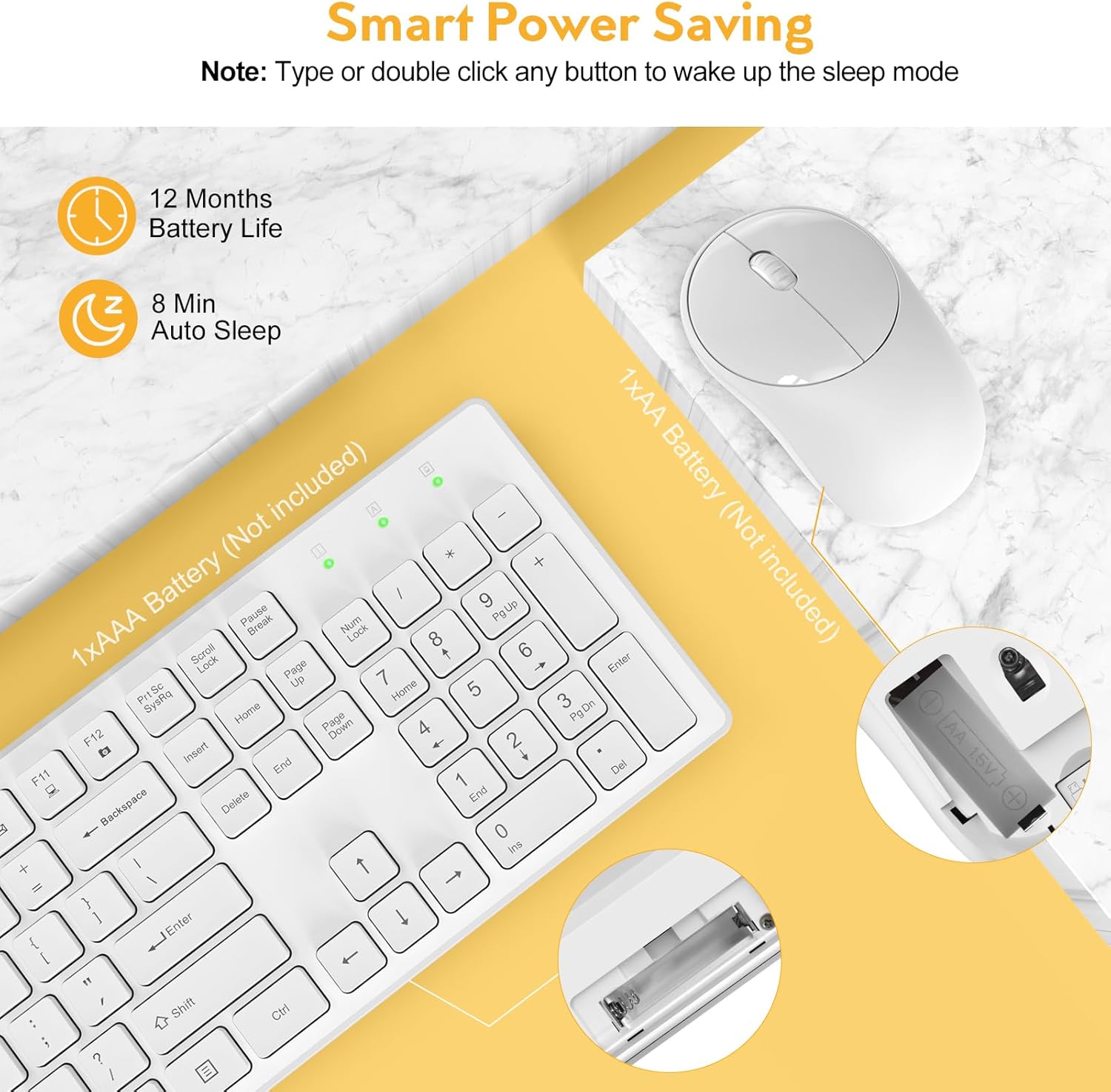
The keyboard requires one (1) AAA battery and the mouse requires one (1) AA battery (batteries are not included). Follow the steps below to install the batteries:
- Locate the battery compartment on the underside of the keyboard and mouse.
- Open the battery compartment cover.
- Insert the batteries, ensuring correct polarity (+/-).
- Close the battery compartment cover securely.
2.3 Connecting to Your Device
The Trueque Wireless Keyboard and Mouse Combo uses 2.4GHz wireless technology for a stable and lag-free connection. Both devices connect via a single USB receiver.
- Retrieve the USB receiver from the mouse's battery compartment.
- Plug the USB receiver into an available USB port on your computer, laptop, or compatible device.
- The keyboard and mouse should automatically connect within a few seconds. No additional drivers are typically required.


3. Operating Instructions
3.1 Basic Use
Once connected, the keyboard and mouse function like standard peripherals. The keyboard features a full 104-key U.S. QWERTY layout for familiar typing. The mouse provides precise cursor control.
3.2 Multimedia Hotkeys
The keyboard includes 12 multimedia hotkeys for quick access to common functions. These keys are activated by pressing the Fn key in combination with the corresponding F-key (F1-F12). Please note that multimedia keys may not be fully supported on Mac OS.
- Fn + F1: Media Player
- Fn + F2: Volume Down
- Fn + F3: Volume Up
- Fn + F4: Mute
- Fn + F5: Previous Track
- Fn + F6: Next Track
- Fn + F7: Play/Pause
- Fn + F8: Stop
- Fn + F9: Homepage
- Fn + F10: Email
- Fn + F11: My Computer
- Fn + F12: Favorites

3.3 Ergonomics and Typing Experience
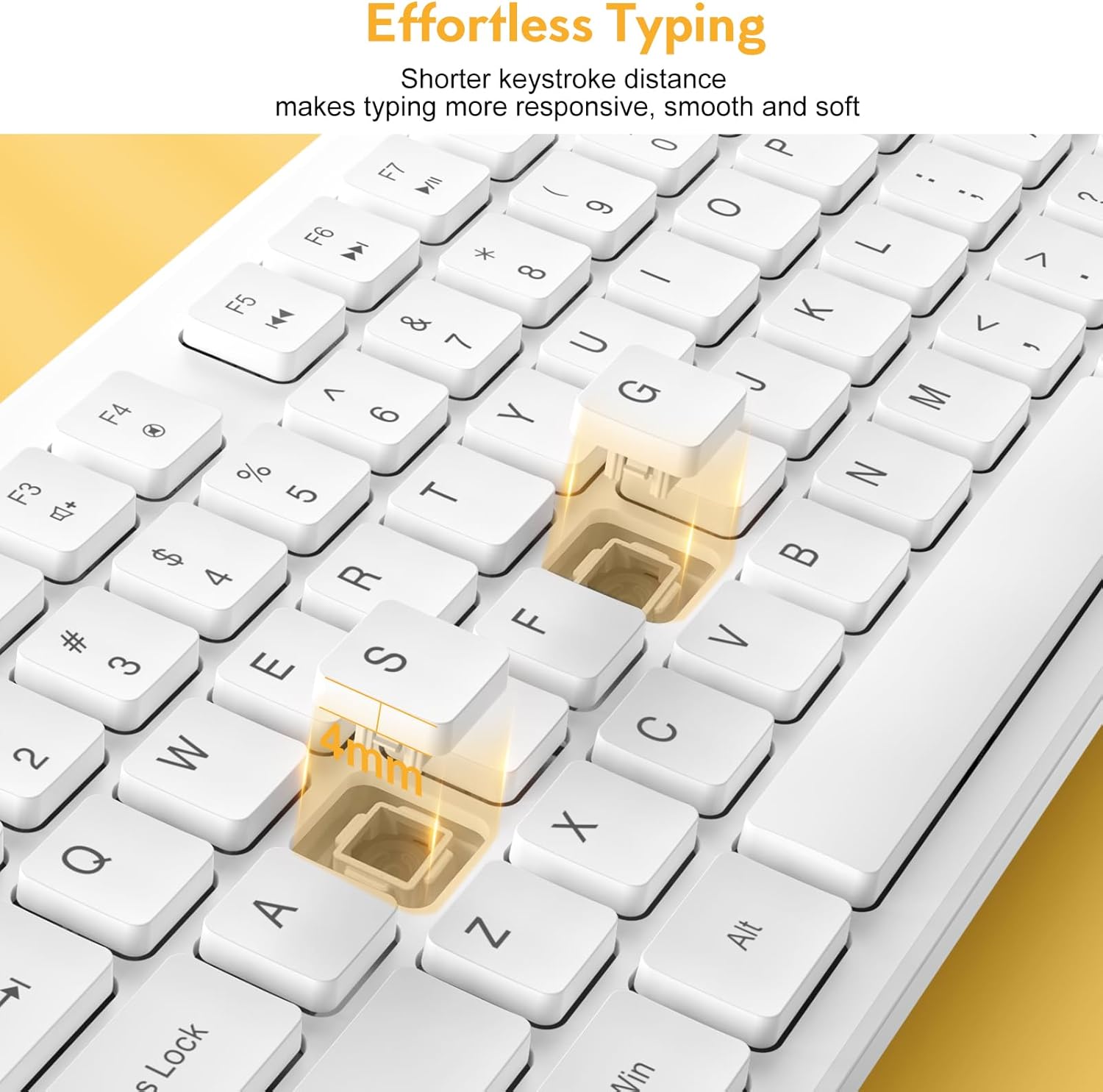
The keyboard features an ergonomic tilt angle to promote a more natural typing position, reducing wrist strain. The keys have a shorter keystroke distance, providing a responsive, smooth, and soft typing feel.

The mouse operates with 100% quiet clicks, ensuring no disruptive sounds. The keyboard is designed to be over 90% quieter than similar keyboards, allowing for a more peaceful working environment.

3.4 Indicator Lights
The keyboard features indicator lights for Num Lock, Caps Lock, and Power status, located above the numeric keypad.

4. Maintenance
4.1 Cleaning
To maintain the appearance and functionality of your keyboard and mouse, regularly wipe them with a soft, dry cloth. For stubborn dirt, a slightly damp cloth can be used, ensuring no liquid enters the device. Avoid harsh chemicals or abrasive cleaners.
4.2 Power Saving Features
The combo is designed with smart power-saving features to extend battery life:
- The keyboard will enter sleep mode after 8 minutes of inactivity.
- The mouse will enter sleep mode after 1 minute of inactivity.
To wake the devices, simply press any key on the keyboard or click/move the mouse. The standby time for both devices can be up to 365 days.

4.3 Spill-Resistant Design
The keyboard features a spill-resistant design, which helps protect against accidental liquid spills. The keycap letters are also designed to be non-fading, ensuring long-term legibility.

5. Troubleshooting
If you encounter issues with your Trueque Wireless Keyboard and Mouse Combo, please refer to the following common troubleshooting steps:
- No Connection or Lag:
- Ensure batteries are correctly installed and have sufficient charge. Replace if necessary.
- Re-plug the USB receiver into a different USB port on your device.
- Try the combo with another computer or laptop to determine if the issue is with the peripherals or the host device.
- Ensure the USB receiver is not too far from the keyboard and mouse (within 33ft/10m).
- Mouse Not Responding:
- Check if the mouse is in sleep mode. Click any button or move the mouse to wake it up.
- Verify battery status.
- Keyboard Not Responding:
- Check if the keyboard is in sleep mode. Press any key to wake it up.
- Verify battery status.
- USB Receiver Location:
- The single USB receiver for both devices is stored inside the mouse's battery compartment. Open the mouse's battery cover to find it.
If issues persist after following these steps, please contact Trueque customer support for further assistance.
6. Specifications
| Product Dimensions | 16.9 x 4.89 x 2.6 inches |
| Item Weight | 1.5 pounds |
| Connectivity Technology | 2.4GHz Wireless (USB Receiver) |
| Compatible Devices | Laptop, Gaming Console, Personal Computer (Windows, Linux, Chrome OS, Mac OS) |
| Special Features | Quiet Clicks, Independent Hotkeys, Smart Power-Saving, 104-Keys Full Size, Low Profile and Compact Design |

7. Warranty and Support
Trueque is committed to providing excellent customer service and product support. Your Wireless Keyboard and Mouse Combo comes with comprehensive support:
- After-Sales Support: 2 years
- Product Lifetime: 18 months
- Customer Service: 7 days a week, 24 hours a day
For any product-related issues, questions, or warranty claims, it is recommended to contact Trueque customer support directly. This ensures faster resolution and dedicated assistance.


