
1. Introduction
Thank you for choosing the LOFREE Touch PBT Wireless Mouse. This manual provides detailed instructions for setting up, operating, and maintaining your mouse to ensure optimal performance. Please read this manual thoroughly before use and retain it for future reference.
2. Package Contents
- LOFREE Touch PBT Wireless Mouse
- USB Receiver (2.4G)
- USB-C to USB-A Charging Cable
- User Manual
- Lithium Polymer Battery (pre-installed)
3. Product Overview
The LOFREE Touch PBT Wireless Mouse combines ergonomic design with advanced features for a superior user experience.

Figure 3.1: Top view of the LOFREE Touch PBT Wireless Mouse, showcasing its unique design and OLED screen.
3.1. PBT Material
The mouse features PBT material on the MB1, MB2 buttons, and the upper case. This material provides a non-glossy, non-sticky, and skin-friendly texture, ensuring a reliable grip and comfortable ergonomics during extended use.

Figure 3.2: Close-up view highlighting the PBT material used on the mouse buttons.
3.2. OLED Display
An integrated OLED screen provides real-time information including DPI settings, battery level, and current connectivity mode. This allows for quick monitoring and adjustment of mouse parameters.

Figure 3.3: The OLED display indicating DPI, battery status, and connection type.
3.3. Replaceable Buttons
The mouse features replaceable buttons, allowing for customization of its appearance. This design also facilitates easier cleaning and maintenance.

Figure 3.4: Demonstrating the replaceable button feature of the mouse.
3.4. Multi-Surface Tracking
Equipped with a PAW3805 sensor, the mouse is traceable on various surfaces, including clear glass. It features high-speed dynamic tracking with adaptive binding rate adjustment, suitable for diverse work and gaming environments.

Figure 3.5: The mouse tracking accurately on a clear glass surface.
4. Setup and Connection
The LOFREE Touch PBT Wireless Mouse supports three connection modes: Bluetooth 5.0, 2.4G Wireless (via USB receiver), and Wired (via USB-C cable).
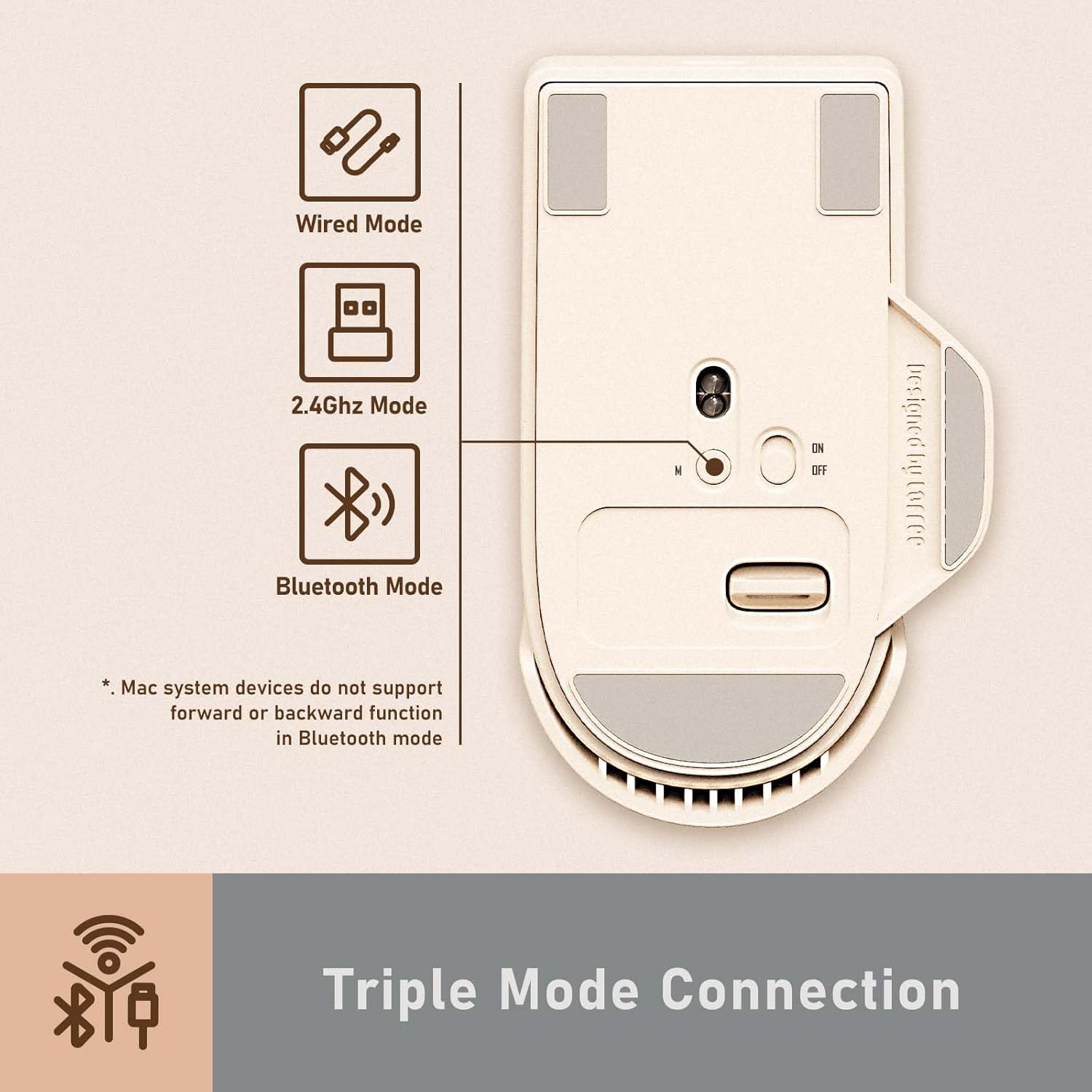
Figure 4.1: Overview of the triple mode connection options.
4.1. Power On/Off and Mode Selection
Locate the power switch and mode selector on the underside of the mouse. Use the switch to turn the mouse ON or OFF. The mode selector allows you to choose between 2.4G Wireless and Bluetooth modes.
4.2. 2.4G Wireless Connection
- Turn on the mouse and select the 2.4G mode using the switch on the underside.
- Remove the USB receiver from its magnetic storage slot on the mouse.
- Plug the USB receiver into an available USB port on your computer.
- The mouse should automatically connect. The OLED screen will indicate the 2.4G connection status.
4.3. Bluetooth Connection
- Turn on the mouse and select the Bluetooth mode using the switch on the underside.
- On your computer or device, navigate to Bluetooth settings.
- Search for new devices and select "LOFREE Touch Mouse" (or similar) from the list.
- Follow any on-screen prompts to complete pairing. The OLED screen will show the Bluetooth connection status.
Note: Mac system devices do not support the forward or backward function of the mouse in Bluetooth mode.
4.4. Wired Connection
- Connect the USB-C end of the charging cable to the mouse and the USB-A end to your computer.
- The mouse will automatically switch to wired mode and begin charging.
4.5. Compatibility
The LOFREE Touch PBT Wireless Mouse is compatible with various operating systems, including Windows, macOS, and Android.

Figure 4.2: The mouse is compatible with Windows, Android, and macOS devices.
5. Operating Instructions
5.1. DPI Adjustment
The mouse offers adjustable DPI settings from 800 to 4000 DPI. You can customize the DPI in increments of 200 DPI. The current DPI setting is displayed on the OLED screen.
- To adjust DPI, press the dedicated DPI button located near the scroll wheel.
- Each press cycles through preset DPI values (800/1600/2400/3200/4000).
- For custom adjustments, refer to the advanced settings section (if applicable, typically via software, but not specified in product data).

Figure 5.1: The OLED screen displaying the current DPI setting.
5.2. Battery Status
The OLED screen continuously displays the current battery level, allowing you to monitor power and recharge as needed.
5.3. Basic Button Functions
- Left Click (MB1): Primary action.
- Right Click (MB2): Secondary action/context menu.
- Scroll Wheel: Scroll up/down, middle click.
- DPI Button: Adjusts DPI settings.
- Side Buttons: Typically for forward/backward navigation in web browsers. (Functionality may vary by operating system and connection mode).
6. Maintenance
6.1. Cleaning
To maintain the mouse's performance and appearance:
- Use a soft, dry cloth to wipe the surface of the mouse.
- For stubborn dirt, slightly dampen the cloth with water or a mild, non-abrasive cleaner.
- The replaceable buttons can be removed for thorough cleaning underneath. Ensure they are dry before reattaching.
- Avoid using harsh chemicals or abrasive materials, as these can damage the PBT surface.
6.2. Charging
The mouse is equipped with a rechargeable Lithium Polymer battery. When the battery level is low, connect the mouse to a power source using the provided USB-C cable. The OLED screen will indicate charging status.
7. Troubleshooting
| Issue | Possible Cause | Solution |
|---|---|---|
| Mouse not responding | Low battery, incorrect connection mode, receiver not plugged in (2.4G), Bluetooth not paired. | Charge the mouse. Verify the mode switch is set correctly. Re-insert the USB receiver. Re-pair Bluetooth. |
| Lag or intermittent connection | Interference, distance from receiver/device, low battery. | Move closer to the receiver/device. Ensure no large metal objects are between the mouse and receiver. Charge the mouse. Try a different USB port. |
| Tracking issues | Dirty sensor, unsuitable surface. | Clean the optical sensor on the underside of the mouse. Use a clean, uniform surface. |
| Mouse enters sleep mode too quickly (2.4G) | Power saving feature. | The mouse is designed to wake up with button clicks or scroll wheel movement. Movement alone may not wake it in 2.4G mode. This is normal behavior. |
8. Specifications
| Feature | Detail |
|---|---|
| Model Number | OE909 |
| Connectivity | Bluetooth 5.0, 2.4G Wireless, Wired (USB-C) |
| DPI Range | 800 / 1600 / 2400 / 3200 / 4000 (adjustable in 200 DPI increments) |
| Sensor | PAW3805 Optical Sensor |
| Material | PBT (buttons and upper case) |
| Display | OLED (DPI, Battery, Connectivity) |
| Battery Type | Lithium Polymer (included) |
| Item Weight | 7.4 ounces (approximately 210 grams) |
| Package Dimensions | 5.12 x 3.78 x 2.13 inches |
9. Warranty and Support
LOFREE products are designed and manufactured to the highest quality standards. This product is covered by a limited warranty from the date of purchase. For detailed warranty terms and conditions, please refer to the warranty card included in your package or visit the official LOFREE website.
If you encounter any issues or have questions regarding your LOFREE Touch PBT Wireless Mouse, please contact LOFREE customer support through their official channels. Provide your product model number (OE909) and purchase details for efficient assistance.


