Download PDFFree PDF. The Save button below keeps a bookmark and private notes in your account.
Vibox V-178 Gaming PC Complete System User Manual
Comprehensive guide for setup, operation, and maintenance of your Vibox V-178 Gaming PC.
1. Introduction
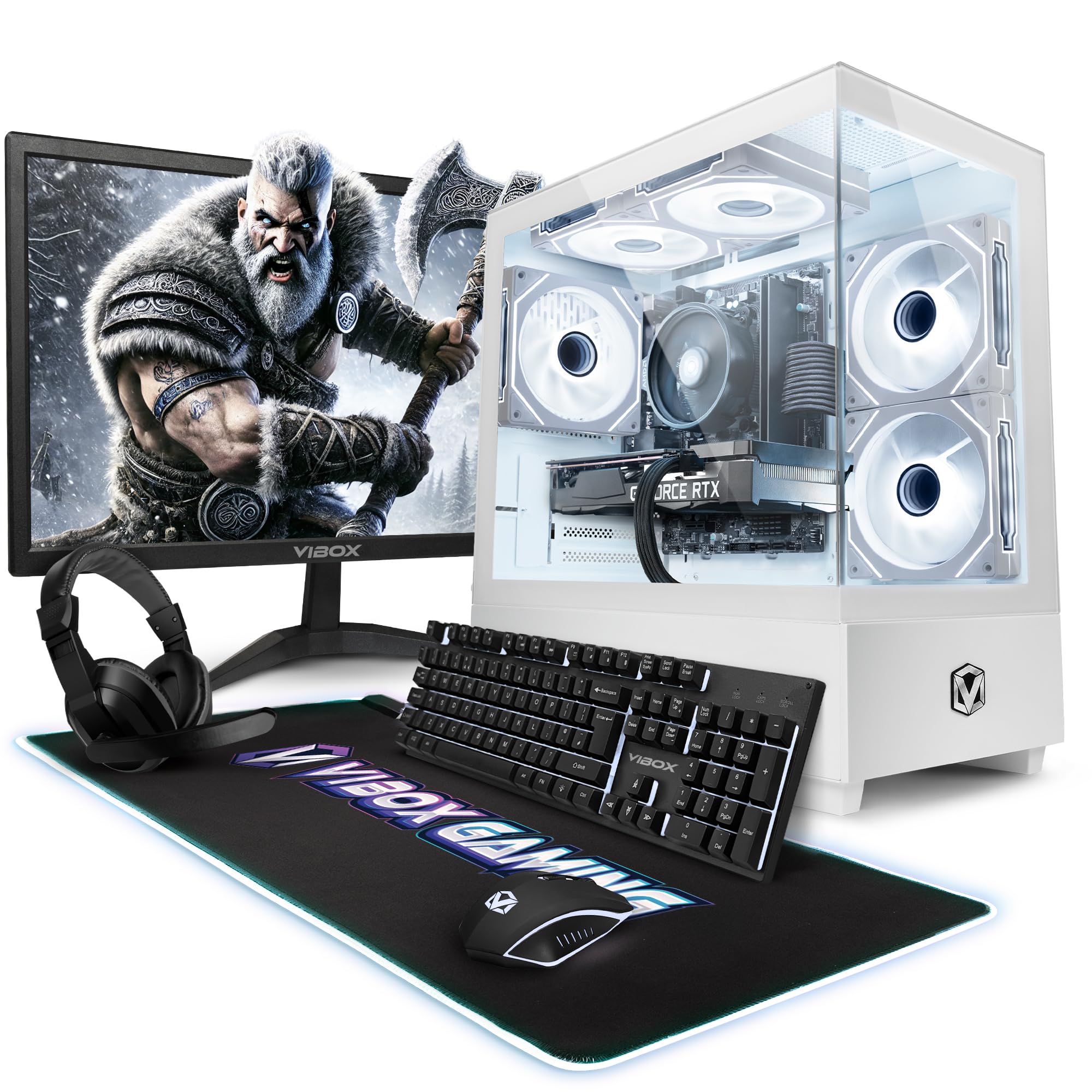
This manual provides essential information for setting up, operating, and maintaining your new Vibox V-178 Gaming PC. This mid-range gaming PC offers an ideal combination of performance and value, perfect for smooth gaming at 1080p and 1440p. It features a powerful multi-core AMD Ryzen 5 5500 processor and a dedicated Nvidia GeForce RTX 5060 Ti graphics card, designed to handle popular games with ease and allow for future upgrades. The system includes a 1TB SSD for ultra-fast storage, 16GB dual-channel DDR4 RAM for smooth multitasking, a 23-inch display, gaming keyboard and mouse, headset, LED mouse pad, and a 300 Mbit/s Wi-Fi adapter, all running on Windows 11.
Image 1.1: The Vibox V-178 Gaming PC, showcasing its white case and illuminated internal components.
2. Setup Guide
2.1 Unpacking and Placement
Carefully remove all components from the packaging.
Place the PC tower on a stable, flat surface with adequate ventilation. Ensure no vents are blocked.
Keep packaging materials for future transport or warranty claims.
2.2 Connecting Peripherals
Refer to the image below for port identification.
Image 2.1: Top panel connectivity ports of the Vibox V-178 PC, showing USB, audio jacks, and power/reset buttons.
Monitor: Connect the 23-inch monitor to the graphics card (Nvidia GeForce RTX 5060 Ti) using either an HDMI or DisplayPort cable. Ensure the cable is securely fastened.
Keyboard and Mouse: Connect the gaming keyboard and mouse to any available USB ports on the PC. USB 2.0 or USB 3.0 ports can be used.
Headset: Plug the headset into the dedicated audio jacks (headphone and microphone) on the front or top panel of the PC.
Power: Connect the power cable to the PC's power supply unit and then to a wall outlet.
Network (Optional Wired): For a wired internet connection, connect an Ethernet cable from your router to the Ethernet port on the back of the PC.
Wi-Fi: The PC includes a 300 Mbit/s Wi-Fi adapter. Ensure any external Wi-Fi antennas are attached if provided. Windows 11 will guide you through connecting to a wireless network during initial setup.
2.3 Initial Power On
Press the power button on the front or top of the PC.
Turn on the monitor.
Follow the on-screen instructions for the initial Windows 11 setup. This includes setting up your user account, network connection, and privacy settings.
3. Operating Instructions
3.1 Windows 11 Overview
Your Vibox V-178 PC comes pre-installed with Windows 11 Home. This operating system offers features optimized for gaming and productivity.
Image 3.1: Key features of Windows 11 Home, highlighting gaming and performance benefits.
Start Menu: Access applications, settings, and power options.
Taskbar: Pin frequently used apps and manage open windows.
Widgets: Get quick access to information like news, weather, and calendar.
Snap Layouts: Easily arrange multiple windows on your screen for efficient multitasking.
3.2 Gaming Performance
The AMD Ryzen 5 5500 processor and Nvidia GeForce RTX 5060 Ti graphics card are designed to deliver excellent gaming experiences.
Ensure your graphics drivers are up to date for optimal performance. You can download the latest drivers from the Nvidia website.
Adjust in-game settings to balance visual quality and frame rate according to your preference.
The 1TB SSD ensures fast game loading times.
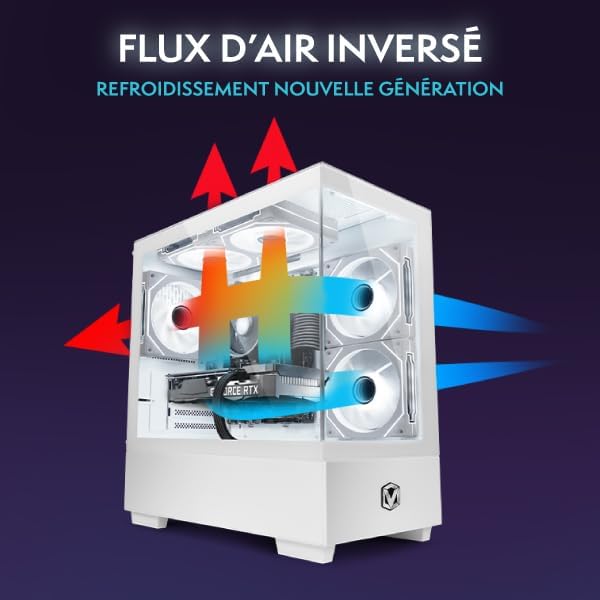
3.3 System Cooling
The PC case is designed with efficient airflow to maintain optimal temperatures during operation.
Image 3.2: Airflow diagram illustrating the cooling design of the PC case.
Ensure the PC is placed in an area with good air circulation.
Avoid blocking the intake and exhaust vents.
The system features Hex RVB Infinity 120mm fans for effective cooling.
4. Maintenance
4.1 Cleaning
Exterior: Use a soft, damp cloth to clean the exterior of the PC case. Avoid abrasive cleaners.
Dust Filters: Periodically clean the dust filters (if present) to maintain optimal airflow.
Internal Components: For internal cleaning, it is recommended to use compressed air to remove dust from fans and heatsinks. Ensure the PC is powered off and unplugged before performing internal cleaning.
4.2 Software Updates
Windows Updates: Regularly check for and install Windows updates to ensure system stability and security. Go to Settings > Windows Update.
Driver Updates: Keep your graphics card drivers updated. Visit the Nvidia website for the latest drivers for your RTX 5060 Ti.
5. Troubleshooting
5.1 No Power
Ensure the power cable is securely connected to both the PC and the wall outlet.
Check if the power switch on the back of the power supply unit (PSU) is in the 'On' position.
Try a different power outlet.
5.2 No Display on Monitor
Verify that the monitor is powered on and the correct input source is selected.
Ensure the video cable (HDMI/DisplayPort) is securely connected to both the graphics card on the PC and the monitor.
Try connecting the monitor to a different video output port on the graphics card, if available.
5.3 No Internet Connection
Wired: Check if the Ethernet cable is properly connected to both the PC and the router. Verify router functionality.
Wireless: Ensure Wi-Fi is enabled in Windows settings. Check if the Wi-Fi adapter is recognized in Device Manager. Re-enter your Wi-Fi password if necessary.
5.4 Peripherals Not Responding
Try connecting the keyboard, mouse, or headset to different USB/audio ports.
Ensure drivers for specialized gaming peripherals are installed.
6. Specifications
Below are the detailed technical specifications for the Vibox V-178 Gaming PC.
23-inch Monitor, Gaming Keyboard, Gaming Mouse, Headset, LED Mouse Pad
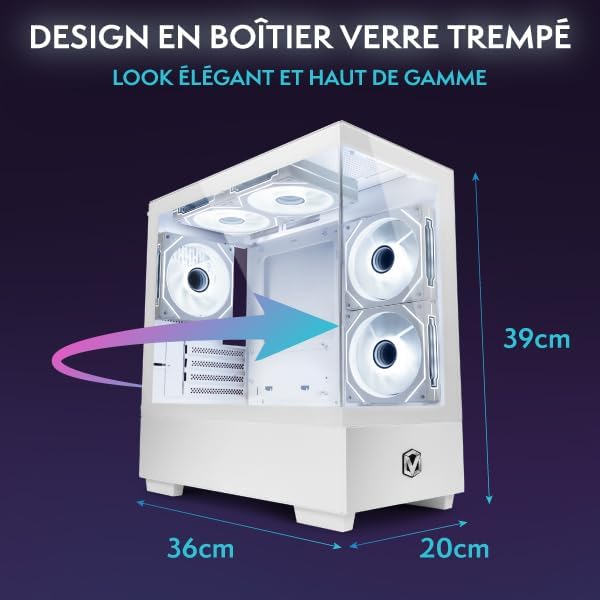
Dimensions (PC Tower)
36 x 20 x 41 cm; 17.6 kg
Power Plug Type
Type C/EF - 2-pin (Europlug/FR-DE hybrid)
Cooling Method
Air
Compliance
CE, RoHS
Image 6.1: Physical dimensions of the Vibox V-178 PC tower.
7. Warranty and Support
Your Vibox V-178 Gaming PC comes with a manufacturer's warranty.
Warranty Period: 2 years for parts, lifetime labor warranty.
Spare Parts Availability: Spare parts are guaranteed to be available in the EU for 2 years.
For technical support or warranty claims, please contact Vibox Gaming directly through their official website or the retailer where the product was purchased.
Ask about setup, troubleshooting, compatibility, parts, safety, or missing instructions. Manuals+ will review the question and use this page’s manual context to help answer it.