
1. Introduction
This manual provides detailed instructions for the installation, operation, and maintenance of your GEMBIRD ATX Semi-Tower PC Case, model CCC-FC-160. Please read this manual thoroughly before beginning any installation to ensure proper setup and safe use of the product. Retain this manual for future reference.
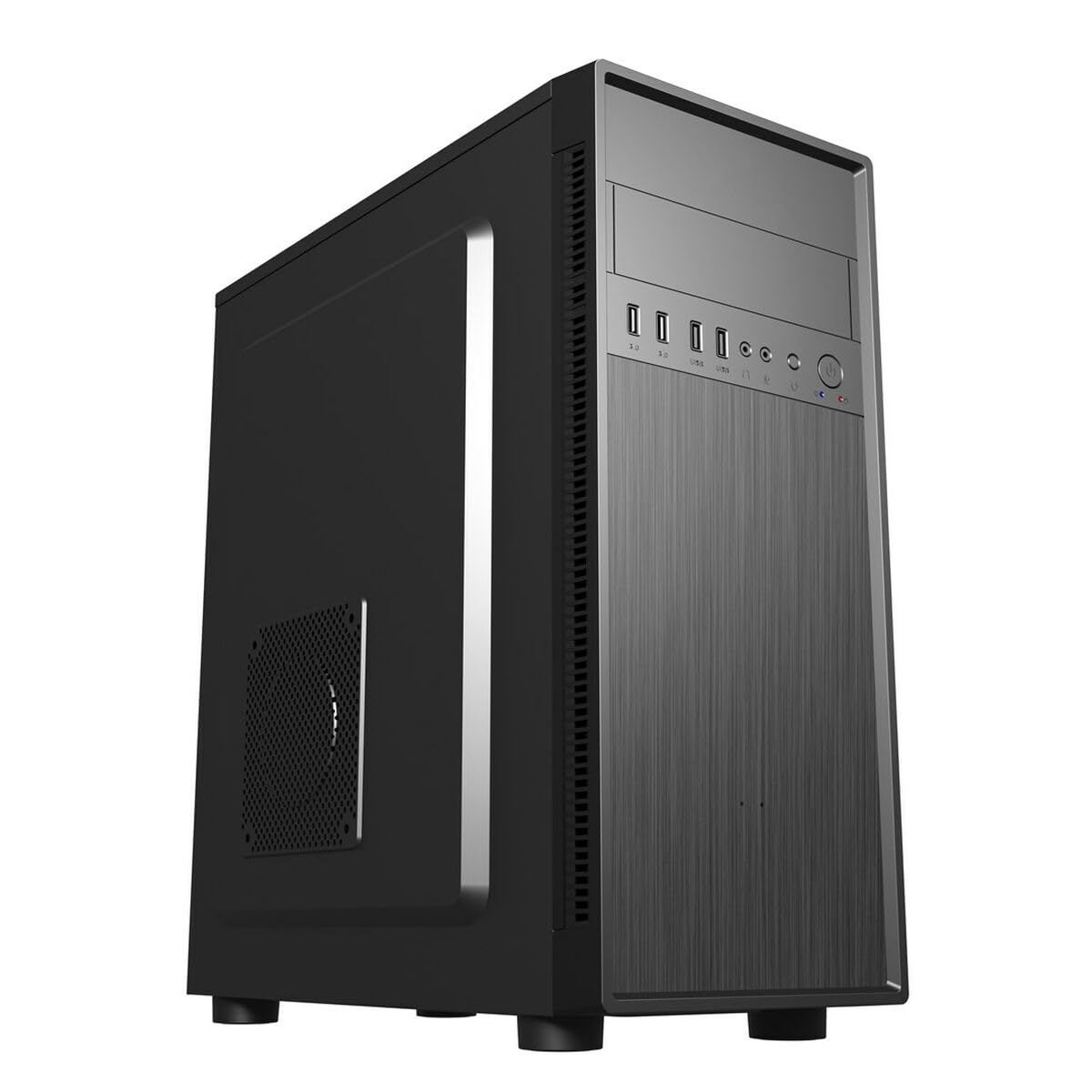
Figure 1: Front-side view of the GEMBIRD CCC-FC-160 ATX Semi-Tower PC Case. This image displays the overall design and form factor of the chassis, highlighting its semi-tower structure and black finish.
2. Safety Information
Always observe the following safety precautions to prevent injury and damage to your equipment:
- Disconnect all power cables from the wall outlet before opening the PC case or installing/removing any components.
- Wear an anti-static wrist strap to prevent electrostatic discharge (ESD) when handling internal components.
- Be aware of sharp edges inside the case. Handle components carefully to avoid cuts.
- Ensure proper ventilation around the PC case to prevent overheating.
- Do not expose the case to moisture or extreme temperatures.
3. Package Contents
Verify that all items are present in the package:
- GEMBIRD ATX Semi-Tower PC Case (CCC-FC-160)
- Accessory kit (screws, standoffs, cable ties)
- User Manual (this document)
If any items are missing or damaged, please contact your retailer.
4. Setup and Component Installation
4.1. Preparation
- Unpack the PC case from its packaging.
- Place the case on a stable, flat surface.
- Remove the side panels by unscrewing the thumbscrews at the rear of the case and sliding the panels backward.
- Gather necessary tools: Phillips head screwdriver, anti-static wrist strap.
4.2. Motherboard Installation
- Install the I/O shield (if not pre-installed) into the opening at the rear of the case.
- Align the motherboard with the pre-drilled standoffs inside the case. The CCC-FC-160 supports mATX and ATX motherboards.
- Secure the motherboard using the provided screws. Do not overtighten.
4.3. Storage Drive Installation (2.5" Bays)
The case features 3 x 2.5" drive bays.
- Locate the 2.5" drive bays.
- Slide the 2.5" SSD/HDD into the bay.
- Secure the drive with the provided screws.
4.4. Expansion Card Installation
The case provides 7 expansion slots.
- Remove the necessary slot covers from the rear of the case.
- Insert the expansion card (e.g., graphics card) into the corresponding PCI-E slot on the motherboard.
- Secure the card with a screw.
4.5. Power Supply Unit (PSU) Installation
Note: A power supply unit is not included with this case.
- Position the PSU in the designated area at the bottom rear of the case.
- Ensure the PSU fan is facing the correct direction for optimal airflow (typically downwards if there's a vent, or upwards if not).
- Secure the PSU to the case using the four screws provided with your PSU.
4.6. Cable Management
Utilize the cable routing cutouts and tie-down points behind the motherboard tray to manage cables. This improves airflow and aesthetics.
5. Operating Instructions
Once all components are installed and cables are connected, replace the side panels and secure them with the thumbscrews. Connect your peripherals (monitor, keyboard, mouse) and power cable to the PSU. Press the power button on the front panel to start your computer.
Ensure the case is placed in an area with adequate airflow to maintain optimal operating temperatures for your components.
6. Maintenance
Regular maintenance helps prolong the life of your components and ensures optimal performance.
- Dust Cleaning: Periodically clean dust from the case, especially from fan filters and vents, using compressed air or a soft brush.
- Exterior Cleaning: Wipe the exterior of the case with a soft, damp cloth. Avoid abrasive cleaners.
- Fan Check: Ensure all installed fans are operating correctly and are free from obstructions. The case supports a 12 cm fan.
7. Troubleshooting
This section addresses common issues related to the PC case itself.
- No Power: Ensure the PSU is correctly installed and connected to the motherboard and wall outlet. Check front panel power button connections to the motherboard.
- Overheating: Verify that all case fans are installed and functioning. Ensure proper airflow by checking for obstructions and maintaining clean dust filters.
- Loose Components: If you hear rattling, check that all installed components (motherboard, drives, expansion cards, PSU) are securely fastened with screws.
8. Specifications
Key technical specifications for the GEMBIRD CCC-FC-160 PC Case:
| Feature | Specification |
|---|---|
| Brand | Gembird |
| Model Number | S9137345 (CCC-FC-160) |
| Case Type | Semi-Tower (Mid-Tower) |
| Color | Black (Multicolore in some listings, but product image is black) |
| Material | SPCC (Steel Alloy) |
| Motherboard Support | ATX, mATX |
| Expansion Slots | 7 |
| Drive Bays | 3 x 2.5" |
| Cooling Method | Air |
| Fan Support | 1 x 12 cm (pre-installed or optional, based on typical configurations) |
| Compatible Devices | CPU, Motherboard |
| Power Supply | Not included |
| Dimensions | 45 x 48 x 24 cm (approximate, from product features) |
9. Warranty and Support
This product is covered by a limited warranty provided by Gembird. Please refer to the warranty card included with your purchase or visit the official Gembird website for detailed warranty terms and conditions.
For technical support or inquiries, please contact your retailer or the Gembird customer service department. Contact information can typically be found on the manufacturer's website or on your purchase receipt.