
Introduction
This manual provides essential information for the safe and efficient use of your YEELIGHT W4 Smart Bulb. Please read these instructions carefully before installation and operation. Keep this manual for future reference.
The YEELIGHT W4 Smart Bulb is an E27 base LED bulb featuring dimmable functionality, color changing capabilities, and connectivity via Wi-Fi and Bluetooth for smart control.
Safety Information
- Ensure the power is turned off before installing or removing the bulb.
- Do not use with standard dimmers. This bulb is designed for smart dimming via the app or compatible smart home systems.
- Suitable for dry locations only. Do not expose to water or moisture.
- Do not disassemble the bulb. This will void the warranty.
- Operate within the specified voltage range (230 Volts).
Package Contents
Verify that all items are present in your package:
- YEELIGHT W4 Smart Bulb (4 units)
- User Manual (this document)
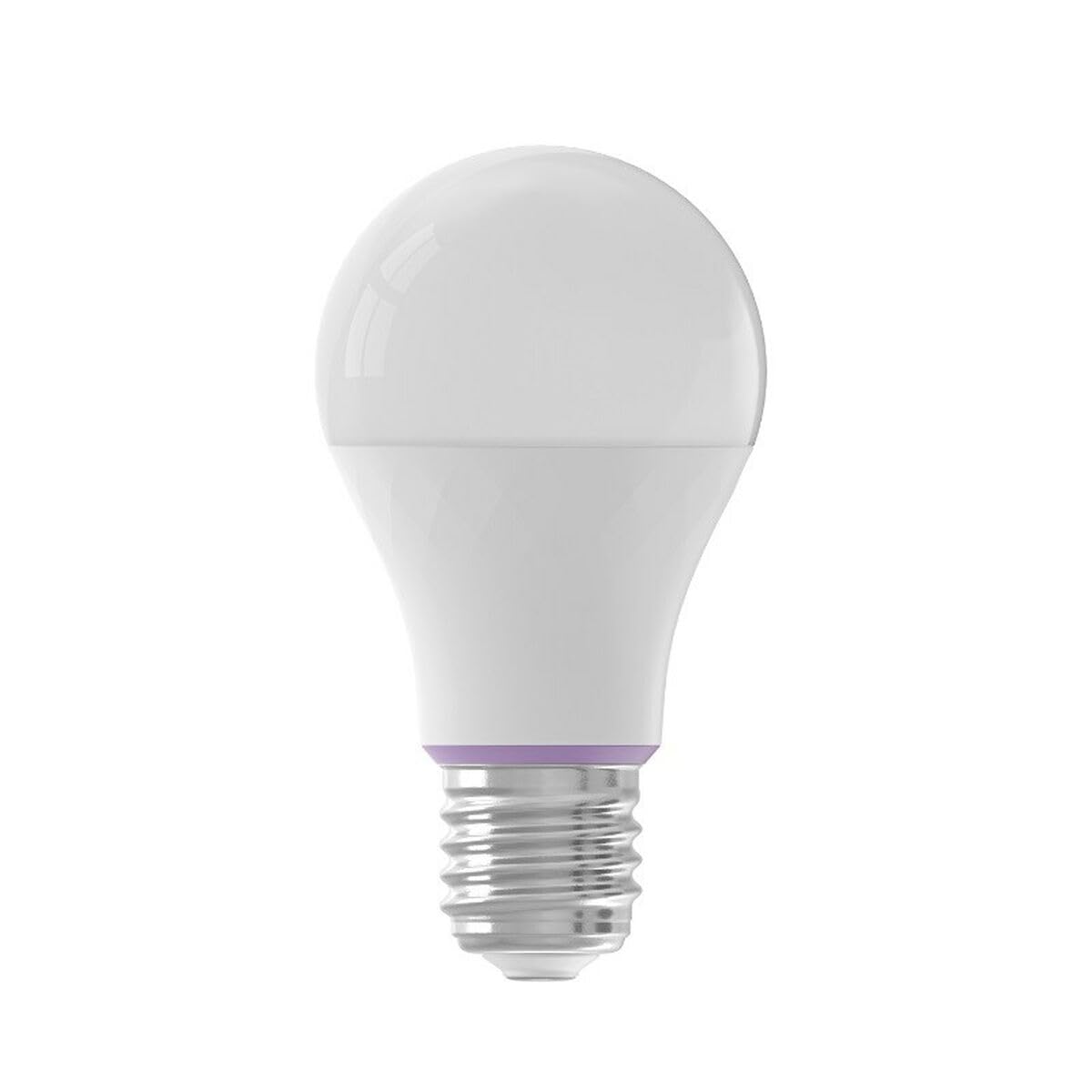
Image: YEELIGHT W4 Smart Bulb. This image displays the smart bulb, typically with an E27 screw base and a frosted or clear dome, indicating its design and form factor.
Specifications
| Feature | Specification |
|---|---|
| Model Number | YLQPD-0012 (S9144407) |
| Base Type | E27 |
| Connectivity | Wi-Fi, Bluetooth |
| Power | 9 Watts |
| Incandescent Equivalent | 60 Watts |
| Voltage | 230 Volts |
| Color Temperature | 6500 Kelvin (White) |
| Special Features | Dimmable, Color Changing |
| Dimensions (L x W x H) | 14.92 x 9.94 x 10.04 cm |
| Weight | 620 grams |
Setup
1. Hardware Installation
- Power Off: Ensure the power switch to the light fixture is in the OFF position before installation.
- Install Bulb: Screw the YEELIGHT W4 Smart Bulb into a standard E27 light socket. Do not overtighten.
- Power On: Turn the power switch to the ON position. The bulb should light up, indicating it is ready for pairing.
2. App Download and Pairing
- Download App: Download the official Yeelight App from the App Store (iOS) or Google Play Store (Android).
- Create Account: Open the Yeelight App and create a new account or log in to an existing one.
- Add Device: Tap the "+" icon in the app to add a new device. Select the YEELIGHT W4 Smart Bulb from the list of available devices.
- Connect to Wi-Fi: Follow the on-screen instructions to connect the bulb to your 2.4GHz Wi-Fi network. Ensure your phone is connected to the same 2.4GHz network during the pairing process.
- Bluetooth Pairing (Optional): The bulb also supports Bluetooth for local control. If Wi-Fi is unavailable or unstable, the app may prompt for Bluetooth pairing.
- Rename Bulb: Once connected, you can rename the bulb for easier identification (e.g., "Living Room Lamp").
Operating
Basic Control
- On/Off: Use the Yeelight App to turn the bulb on or off. You can also use the physical light switch, but this will cut power to the smart features.
- Dimming: Adjust the brightness level from 1% to 100% using the slider in the Yeelight App.
- Color Changing: Select from a wide spectrum of colors or choose from preset scenes within the app.
Advanced Features
- Scheduling: Set schedules for the bulb to turn on/off or change settings at specific times.
- Scenes: Create custom lighting scenes for different moods or activities.
- Group Control: Group multiple YEELIGHT W4 bulbs together to control them simultaneously.
- Voice Control: Integrate with compatible smart home assistants (e.g., Google Assistant, Amazon Alexa) for voice commands. Refer to your smart assistant's setup guide for integration instructions.
- Remote Control: Control your bulbs from anywhere with an internet connection via the Yeelight App.
Maintenance
- Cleaning: Ensure the bulb is off and cool before cleaning. Wipe with a soft, dry cloth. Do not use liquid cleaners or abrasive materials.
- Storage: If storing the bulb for an extended period, keep it in a cool, dry place away from direct sunlight.
- Firmware Updates: Periodically check the Yeelight App for firmware updates to ensure optimal performance and access to new features.
Troubleshooting
- Bulb not turning on:
- Check if the light fixture has power.
- Ensure the bulb is screwed in correctly and securely.
- Test the bulb in another working fixture.
- Bulb not connecting to Wi-Fi:
- Ensure your Wi-Fi network is 2.4GHz. The bulb does not support 5GHz networks.
- Check your Wi-Fi password.
- Move the bulb closer to your Wi-Fi router during setup.
- Reset the bulb by turning it off and on five times consecutively (1-2 second intervals). The bulb will flash, indicating it's in pairing mode.
- Restart your router.
- App cannot find the bulb:
- Ensure Bluetooth is enabled on your phone.
- Confirm the bulb is powered on and in pairing mode (if recently reset).
- Update the Yeelight App to the latest version.
- Dimming or color changing issues:
- Ensure the bulb is connected to the app and has a stable Wi-Fi connection.
- Avoid using external dimmers, as they can interfere with the bulb's smart dimming capabilities.
- Perform a bulb reset and re-pair if issues persist.
Warranty
YEELIGHT products are covered by a limited warranty. For detailed warranty terms and conditions, please refer to the official YEELIGHT website or contact customer support. Keep your purchase receipt as proof of purchase for warranty claims.
Support
For further assistance, technical support, or to report issues, please visit the official YEELIGHT support website or contact their customer service team. Contact information can typically be found on the YEELIGHT website or within the Yeelight App.
Website: www.yeelight.com


