
1. Introduction
This manual provides detailed instructions for the Uogic Stylus Pen F97. Please read this manual thoroughly before using the product to ensure proper operation and to maximize its lifespan.
1.1 Package Contents
- 1 x Uogic Stylus Pen (with one tip installed)
- 2 x Replacement Tips
- 1 x USB-C Charging Cable
- 1 x User Manual

Image 1.1: The Uogic Stylus Pen F97, shown with a colorful background.
2. Setup
2.1 Quick Start
The Uogic Stylus Pen F97 does not require Bluetooth pairing for basic functionality. Follow these steps to begin use:
- Press and hold the upper button on the stylus for 1 second to power it on.
- Once the indicator light illuminates, the stylus is ready for use.
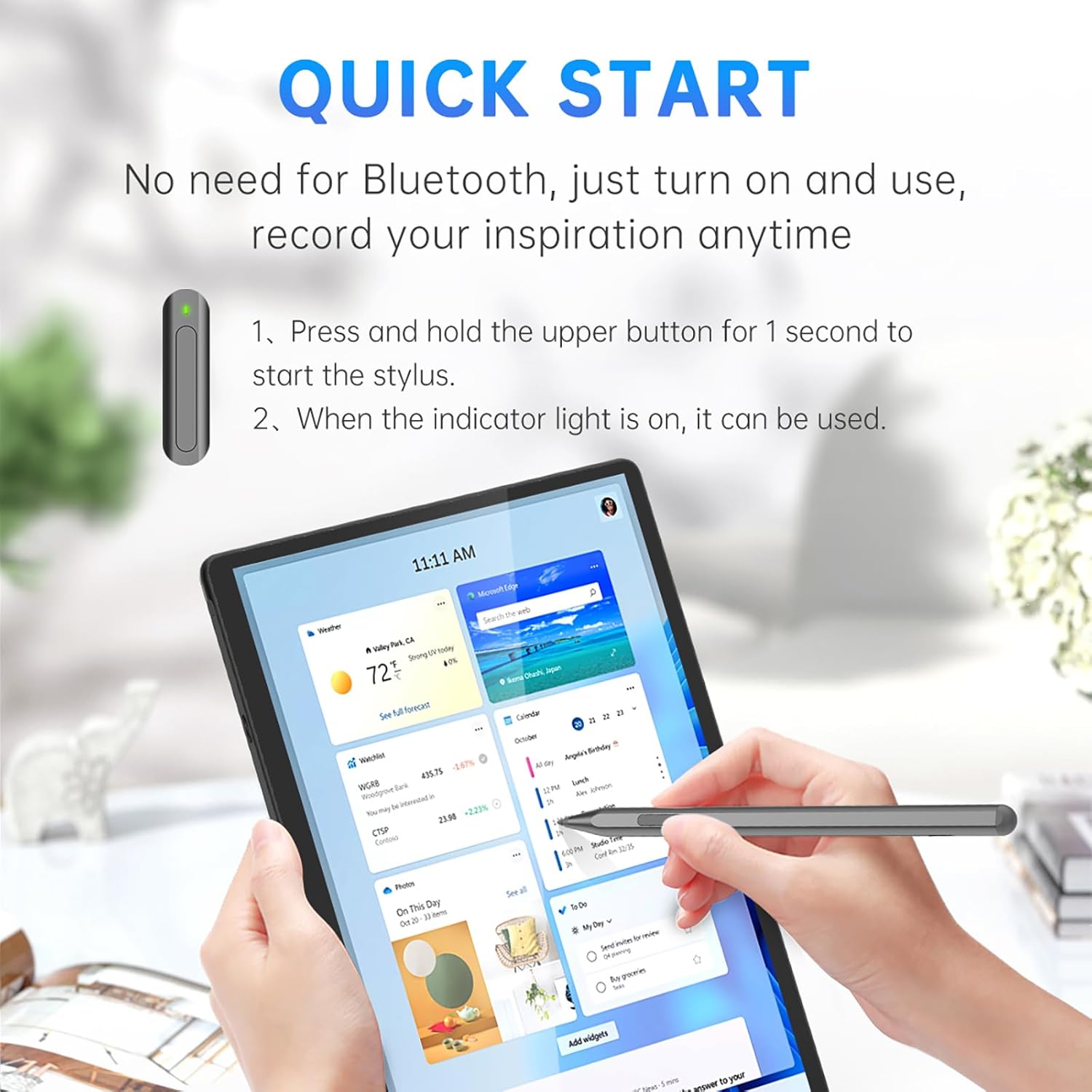
Image 2.1: Visual guide for quick start, showing the stylus being turned on and used with a tablet.
2.2 Initial Charging
Before first use, it is recommended to fully charge the stylus. Connect the provided USB-C charging cable to the stylus and a compatible USB power source.
- A full charge takes approximately 40 minutes.
- A 20-minute charge provides approximately 90% battery capacity.
- The stylus offers up to 80 hours of continuous use on a full charge.

Image 2.2: Diagram illustrating the USB-C charging port and battery life indicators for the stylus.
3. Operating Instructions
3.1 Smooth Writing and Pressure Sensitivity
The stylus supports 1024 levels of pressure sensitivity, allowing for varied line thickness and shading based on writing pressure. The CNC-crafted, gold-plated nib provides a smooth and precise writing experience.

Image 3.1: Close-up view of the stylus nib, highlighting its replaceable design and the smooth writing capability.
3.2 Eraser and Right-Click Functions
The stylus features two integrated buttons for enhanced functionality:
- The lower button functions as an eraser.
- The upper button serves as a right-click button. To activate right-click, press and hold this button before touching the pen to the tablet screen.

Image 3.2: Illustration of the stylus buttons, indicating the eraser and right-click functions.
3.3 Palm Rejection
The stylus incorporates palm rejection technology, allowing users to rest their hand naturally on the screen while writing or drawing without unintended input. This feature enhances comfort and precision.
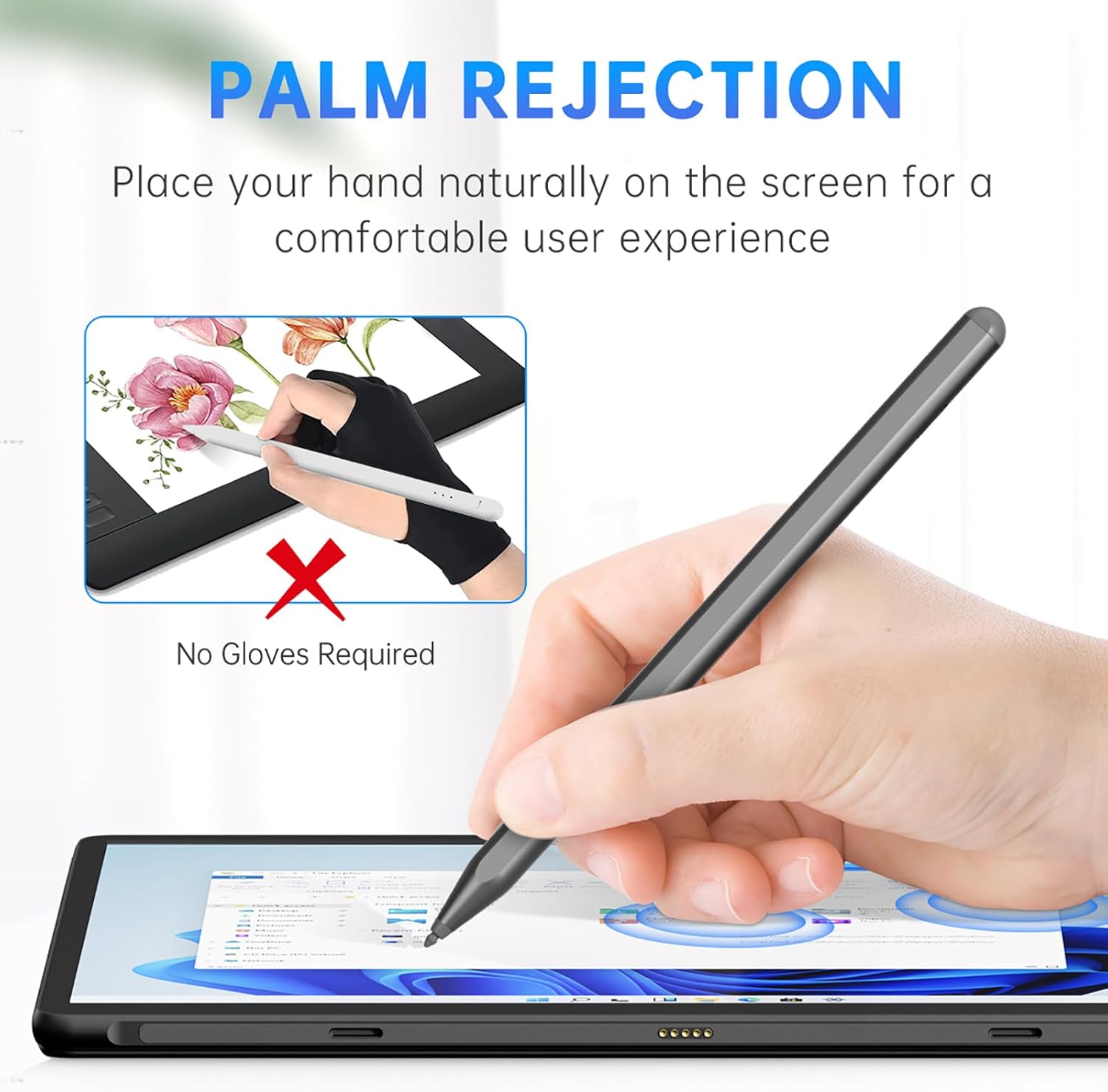
Image 3.3: Demonstrates palm rejection, showing a hand resting on a tablet screen while the stylus is in use, with no gloves required.
3.4 Magnetic Attachment
The stylus features two built-in magnets, allowing it to securely attach to compatible Surface devices for convenient storage and transport. It can typically be stored on the left side of Surface Pro, Surface Go, or Surface Book models.
4. Compatibility
The Uogic Stylus Pen F97 is compatible with Microsoft Surface devices and other touchscreen devices running Windows 10/11 that support Microsoft Pen Protocol (MPP) 1.5 or 2.0.
4.1 Compatible Microsoft Surface Models
- Surface Pro: 3rd Gen and later versions (4th, 5th, 6th, 7th, 7+, 8th, 9th, 10th, X generation)
- Surface Go: 1st, 2nd, 3rd Gen
- Surface Book: 1st, 2nd, 3rd Gen
- Surface Studio: 1st, 2nd, 2+ Gen
- Surface Laptop: 1st, 2nd, 3rd, 4th, 5th Gen
- Surface Laptop Studio
- Surface Duo: 1st, 2nd Gen
4.2 Other Compatible Devices
The stylus is also compatible with various models from HP, ASUS, and Dell that support MPP 1.5/2.0. Please refer to your device's specifications to confirm MPP compatibility.
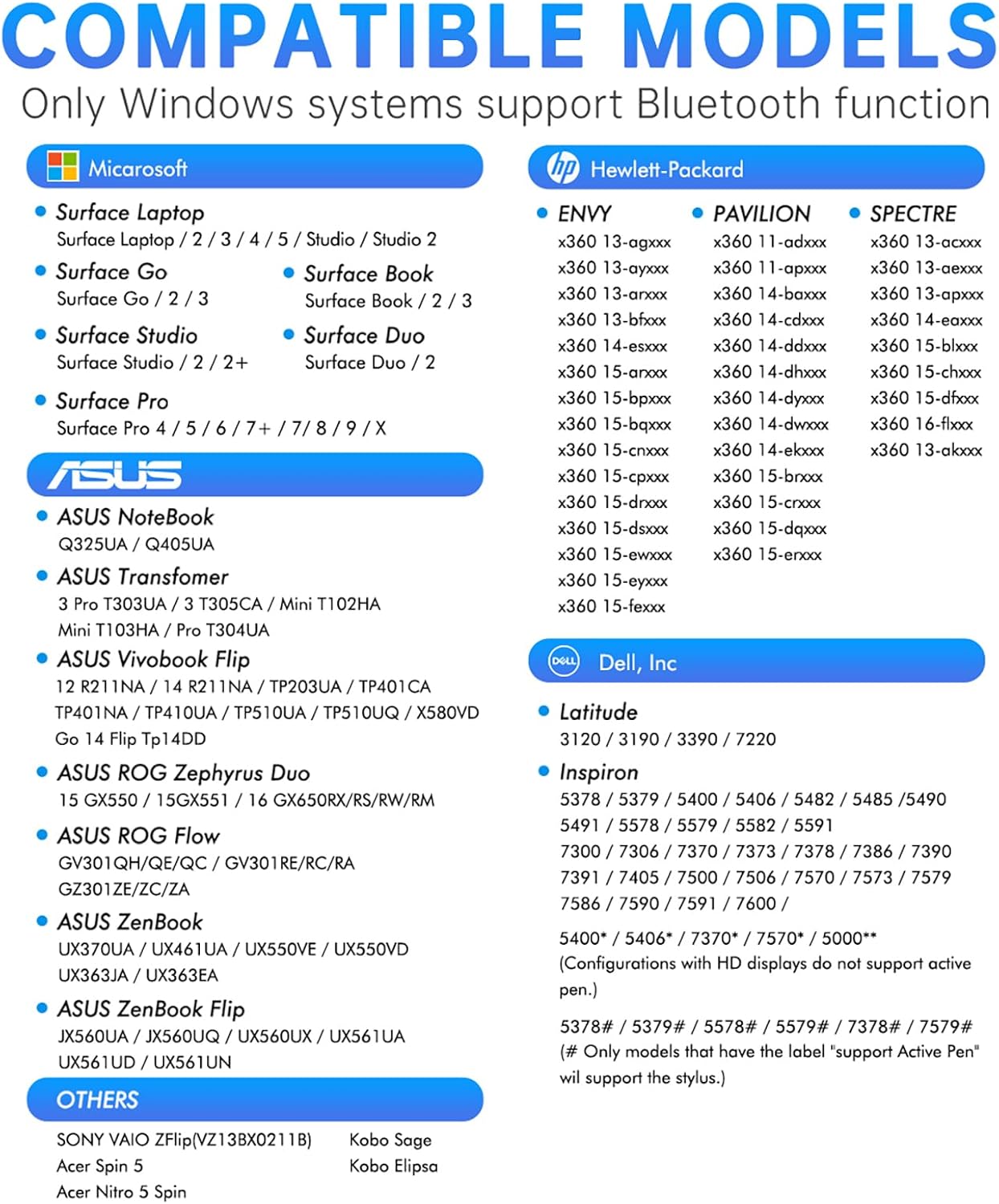
Image 4.1: A comprehensive list of compatible Microsoft, HP, ASUS, and Dell models for the Uogic Stylus Pen F97.
5. Maintenance
5.1 Charging
To maintain optimal performance, charge the stylus when the battery is low. The stylus automatically enters sleep mode after 10 minutes of inactivity to conserve power.
5.2 Replacing Tips
The stylus nib is replaceable. If the tip becomes worn or damaged, use the provided replacement tips. Gently pull out the old tip and insert a new one until it clicks into place.
6. Troubleshooting
- Stylus not responding: Ensure the stylus is powered on and fully charged. Verify your device is compatible with MPP 1.5/2.0.
- Inaccurate writing or lag: Ensure the stylus tip is clean and securely installed. Check for any software updates for your device's operating system or drawing applications.
- Palm rejection not working: Confirm your device's settings allow for pen input and palm rejection. Some applications may have specific settings for pen input.
- Buttons not functioning: Ensure the stylus is powered on. For right-click, remember to press and hold the upper button before touching the screen.
7. Specifications
| Feature | Specification |
|---|---|
| Model Number | F97 |
| Pressure Sensitivity | 1024 Levels |
| Palm Rejection | Yes |
| Buttons | Eraser, Right-Click |
| Charging Port | USB-C |
| Charging Time | Approx. 40 minutes (full charge) |
| Battery Life (Continuous Use) | Approx. 80 hours |
| Auto Sleep | After 10 minutes of inactivity |
| Material | Aluminum |
| Item Weight | 1.41 ounces |
| Compatible Devices | Microsoft Surface (MPP 1.5/2.0), Windows 10/11 devices with MPP 1.5/2.0 |
8. Warranty and Support
The Uogic Stylus Pen F97 comes with a 12-month worry-free warranty. For any inquiries or support needs, please contact UOGIC customer service. Responses are typically provided within 12 hours.
For further assistance, please refer to the contact information provided with your product packaging or visit the official UOGIC website.


