
Introduction
This manual provides essential information for the installation, operation, and maintenance of your NVIDIA GeForce RTX 4070 Super 12GB GDDR6X Graphics Card. Designed for high-performance gaming and creative applications, this graphics card leverages the NVIDIA Ada Lovelace architecture to deliver advanced features such as fast ray tracing and AI-accelerated performance with DLSS 3. Please read this guide thoroughly before proceeding with installation or use.
Setup
1. Unboxing and Package Contents
Carefully open the packaging and ensure all components are present. The package typically includes:
- NVIDIA GeForce RTX 4070 Super Graphics Card
- 16-pin (12VHPWR) to 2x 8-pin PCIe power adapter cable
- Quick Start Guide
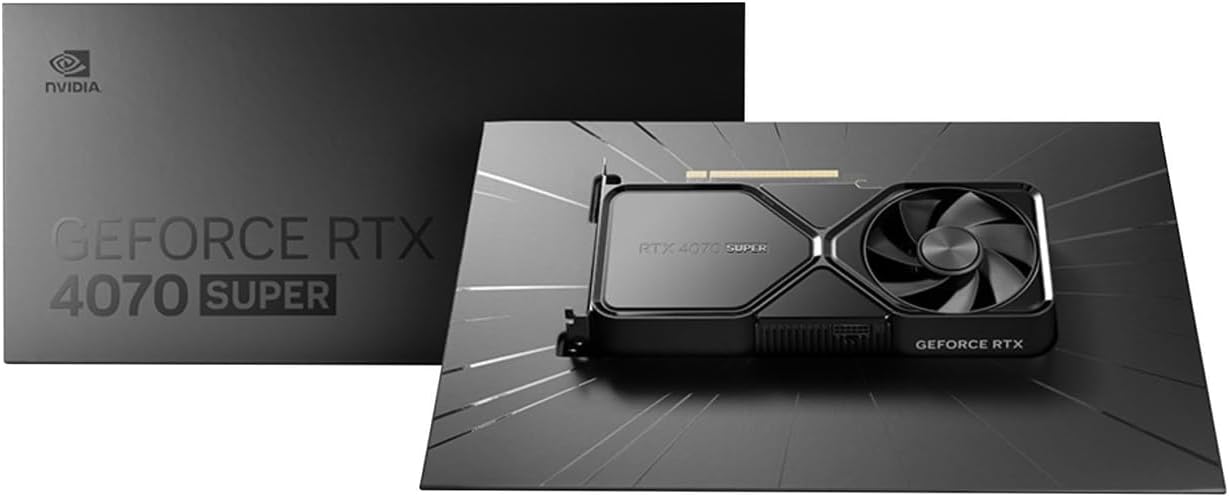
Image: Contents of the NVIDIA GeForce RTX 4070 Super package, including the graphics card and adapter cable.
2. Physical Installation
Before installation, ensure your computer is powered off and unplugged from the wall outlet. Ground yourself to prevent electrostatic discharge.
- Open your computer case.
- Locate an available PCI Express x16 slot on your motherboard.
- Remove the metal slot cover(s) corresponding to the chosen PCIe slot.
- Carefully align the graphics card with the PCIe slot and press down firmly until it is securely seated. A click may be heard.
- Secure the graphics card to the case with the retaining screw(s).

Image: Front angled view of the NVIDIA GeForce RTX 4070 Super Graphics Card, showing its cooling fans and shroud.
3. Power Connection
The GeForce RTX 4070 Super requires external power. Use the provided 16-pin (12VHPWR) to 2x 8-pin PCIe power adapter cable.
- Connect the 16-pin end of the adapter cable to the power connector on the graphics card. Ensure it is fully seated.
- Connect two separate 8-pin PCIe power cables from your power supply unit (PSU) to the two 8-pin connectors on the adapter cable. Do not use a single PCIe cable with a pigtail connector for both 8-pin inputs, as this may lead to insufficient power delivery and potential system instability or damage.
4. Driver Installation
After physical installation and power connection, close your computer case and reconnect all peripherals. Power on your computer.
- Once your operating system loads, navigate to the official NVIDIA website (www.nvidia.com/drivers).
- Select your product type (GeForce), product series (GeForce RTX 40 Series), product (GeForce RTX 4070 Super), and your operating system.
- Download the latest recommended drivers.
- Run the installer and follow the on-screen instructions to complete the driver installation. A system restart may be required.
Operating
The NVIDIA GeForce RTX 4070 Super is designed to enhance your computing experience, particularly for gaming, content creation, and professional applications. Once drivers are installed, the card will be fully operational.
- Gaming: Experience high frame rates and advanced visual fidelity in modern games with features like Ray Tracing and DLSS 3. Ensure your games are updated to support these technologies for optimal performance.
- Content Creation: Accelerate video editing, 3D rendering, and graphic design tasks with NVIDIA's powerful GPU architecture and dedicated AI cores.
- Display Connectivity: Connect your monitor(s) to the DisplayPort or HDMI outputs on the graphics card. The card supports multiple displays and high resolutions up to 7680x4320.
Maintenance
1. Cleaning
Regular cleaning helps maintain optimal performance and extends the lifespan of your graphics card.
- Periodically use compressed air to remove dust from the fans and heatsink fins. Ensure the computer is powered off and unplugged before cleaning.
- Hold the fan blades gently to prevent them from spinning rapidly during cleaning, which can damage the bearings.
- Avoid using liquid cleaners directly on the card.
2. Driver Updates
NVIDIA regularly releases new drivers that include performance optimizations, bug fixes, and support for new games and applications. It is recommended to keep your drivers updated.
- Use the NVIDIA GeForce Experience software (if installed) to automatically check for and install driver updates.
- Alternatively, manually check for updates on the NVIDIA website (www.nvidia.com/drivers).
Troubleshooting
If you encounter issues with your graphics card, consider the following common troubleshooting steps:
| Issue | Possible Solution |
|---|---|
| No display output |
|
| System instability or crashes |
|
| Poor gaming performance |
|
If issues persist, consult the NVIDIA support website or contact their customer service.
Specifications
Key technical specifications for the NVIDIA GeForce RTX 4070 Super Graphics Card:
- Graphics Coprocessor: NVIDIA GeForce RTX 4070 SUPER
- Brand: NVIDIA
- Graphics RAM Size: 12 GB
- GPU Clock Speed: 2.48 GHz
- Video Output Interface: DisplayPort, HDMI
- Graphics RAM Type: GDDR6X
- Compatible Devices: Desktop, Laptop
- Display Resolution Maximum: 7680x4320
- Graphics Card Interface: PCI Express
- Memory Clock Speed: 21 GHz
- Model Name: GeForce RTX 4070 SUPER
- UPC: 812674025575

Image: Top view of the NVIDIA GeForce RTX 4070 Super Graphics Card, highlighting its cooling design.
Warranty and Support
Warranty Information
NVIDIA graphics cards typically come with a limited manufacturer's warranty. The duration and terms of the warranty may vary by region and retailer. Please retain your proof of purchase for warranty claims. For detailed warranty information, refer to the official NVIDIA website or the documentation included with your product.
Customer Support
For technical assistance, driver downloads, or further information, please visit the official NVIDIA support resources:
- NVIDIA Support Website: www.nvidia.com/support
- Driver Downloads: www.nvidia.com/drivers


