
1. Important Safety Information
Please read these safety instructions carefully before operating your TV and retain them for future reference. This manual provides important information regarding the safe installation, use, and maintenance of your Sharp 40FH2EA television.
- Power Source: Connect the TV only to an AC 220-240V, 50Hz power supply.
- Ventilation: Ensure adequate ventilation around the TV. Do not block ventilation openings.
- Water and Moisture: Do not expose the TV to rain or moisture. Do not place objects filled with liquids, such as vases, on the TV.
- Heat Sources: Keep the TV away from heat sources like radiators, heat registers, stoves, or other apparatus that produce heat.
- Cleaning: Unplug the TV from the wall outlet before cleaning. Use a soft, dry cloth. Do not use liquid cleaners or aerosol cleaners.
- Mounting: When wall-mounting, ensure the wall mount is suitable for the TV's weight and installed by qualified personnel.
- Children: Supervise children to ensure they do not play with the TV.
2. Package Contents
Verify that all items are present in the packaging:
- Sharp 40FH2EA 40-inch Full HD LED Android TV
- Remote Control
- TV Stands (2x)
- Screws for TV Stands
- Power Cable
- Quick Start Guide
- Safety Information Leaflet

Image: Front view of the Sharp 40FH2EA television, showcasing its slim bezel design.
3. Setup
3.1 Attaching the TV Stands
- Carefully place the TV face-down on a soft, clean surface to prevent screen damage.
- Align each stand with the corresponding slots on the bottom of the TV.
- Secure the stands using the provided screws. Ensure they are tightened firmly.

Image: The Sharp 40FH2EA television viewed from an angle, showing the two attached stand feet supporting the unit.
3.2 Connecting External Devices
The Sharp 40FH2EA offers various connection options for your external devices.
- HDMI: Connect Blu-ray players, game consoles, or set-top boxes to the HDMI ports. This model features 3 HDMI inputs.
- USB: Insert USB drives for media playback or software updates into the 2 USB ports.
- Antenna/Cable: Connect your antenna or cable TV signal to the RF input.
- Ethernet (LAN): For a stable internet connection, connect an Ethernet cable to the LAN port.
- Audio Out: Use the optical digital audio output for connecting to a soundbar or home theater system.

Image: Side profile of the Sharp 40FH2EA TV, highlighting the accessible USB and HDMI ports on the left side.
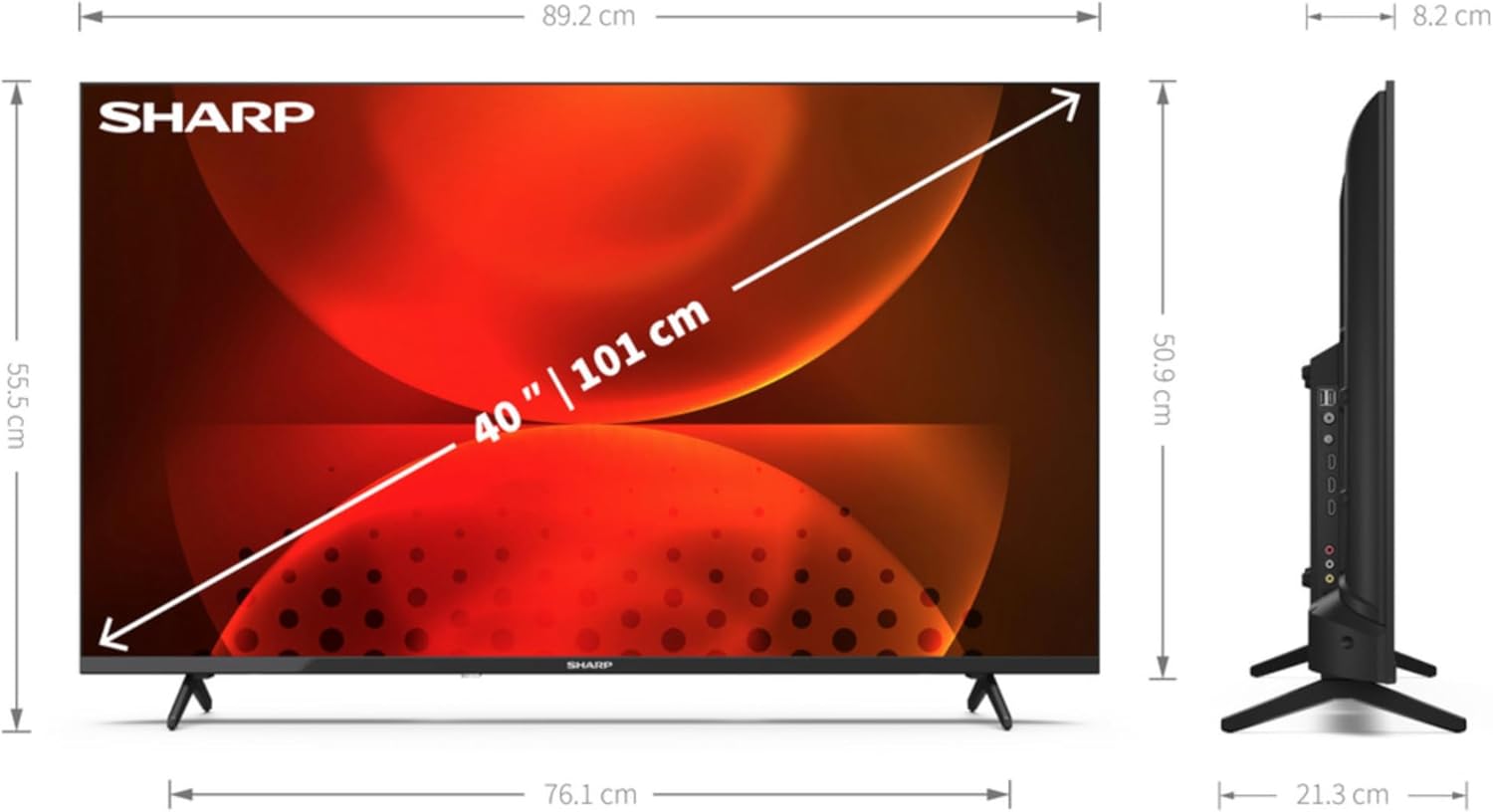
Image: Rear view of the Sharp 40FH2EA TV, displaying the various input and output ports including HDMI, USB, and antenna connections.
3.3 Initial Power-On and First-Time Setup
- Connect the power cable to the TV and then to a wall outlet.
- Press the power button on the remote control or on the TV.
- Follow the on-screen instructions to select your language, country, and network settings (Wi-Fi or Ethernet).
- Perform a channel scan for DVB-T/T2/C/S/S2 signals to find available TV channels.
- Log in with your Google account to access Android TV features and download apps.
4. Operating the TV
4.1 Remote Control Functions
The remote control allows you to navigate the TV's features. Familiarize yourself with the main buttons:
- Power (Red button): Turns the TV on or off.
- Source: Selects input sources (HDMI 1, HDMI 2, TV, etc.).
- Number Buttons (0-9): Direct channel selection.
- Volume (+/-): Adjusts the volume level.
- Channel (CH +/-): Changes TV channels.
- Navigation Pad (Up/Down/Left/Right/OK): Navigates menus and confirms selections.
- Back: Returns to the previous screen or menu.
- Home: Accesses the Android TV home screen.
- Netflix, Prime Video, YouTube, Google Play: Dedicated buttons for quick access to streaming services.

Image: The remote control for the Sharp 40FH2EA TV, showing its layout with navigation buttons and dedicated streaming service buttons.
4.2 Smart TV Features (Android TV)
Your Sharp 40FH2EA TV runs on Android TV, providing access to a wide range of apps and services.
- Home Screen: The central hub for your apps, recommended content, and settings.
- Google Play Store: Download additional apps, games, and content.
- Voice Control: Use the built-in Google Assistant (if available on your remote) to search for content, control smart home devices, and more.
- Chromecast Built-in: Cast content from your smartphone or tablet directly to the TV.
- Streaming Services: Access popular services like Netflix, YouTube, Amazon Prime Video, Hulu, Disney+, and more.

Image: The Android TV home screen displayed on the Sharp 40FH2EA, featuring various streaming app icons and content recommendations.
5. Maintenance
5.1 Cleaning the TV
- Always unplug the TV before cleaning.
- Use a soft, dry, lint-free cloth to wipe the screen and cabinet.
- For stubborn marks on the screen, lightly dampen the cloth with water or a specialized screen cleaner (ensure it's safe for LED screens) and wipe gently.
- Never spray cleaners directly onto the screen or cabinet.
5.2 Software Updates
Your Android TV may receive software updates periodically. It is recommended to keep your TV's software updated for optimal performance and security. Updates can usually be found in the TV's settings menu under 'About' or 'System Update'.
6. Troubleshooting
If you encounter issues with your TV, refer to the following common problems and solutions:
| Problem | Possible Cause / Solution |
|---|---|
| No power | Ensure the power cable is securely connected to the TV and the wall outlet. Check if the outlet is working. Try a different outlet. |
| No picture, but sound is present | Check the input source. Ensure external devices are powered on and connected correctly. Try a different HDMI cable. |
| No sound, but picture is present | Check the volume level. Ensure the TV is not muted. Check audio settings and external audio device connections. |
| Remote control not working | Replace the batteries. Ensure there are no obstructions between the remote and the TV's IR sensor. |
| Cannot connect to Wi-Fi | Ensure your Wi-Fi router is on and working. Re-enter the Wi-Fi password. Try restarting the TV and router. |
| Apps are slow or crashing | Close unused apps. Clear app cache (in TV settings). Restart the TV. Ensure sufficient internet speed. |
If the problem persists, consult the full user manual available on the Sharp support website or contact customer support.
7. Specifications
Detailed technical specifications for the Sharp 40FH2EA 40-inch Full HD LED Android TV:
| Feature | Specification |
|---|---|
| Model Name | 40FH2EA |
| Internal Model Number | 2T-C40FHx |
| Screen Size | 40 inches (101.6 cm) |
| Display Resolution | 1920 x 1080 pixels (Full HD) |
| Display Technology | LED |
| Screen Shape | Flat |
| Smart TV Platform | Android TV |
| Motion Interpolation Technology | AMR (Active Motion Rate) 400 |
| Native Aspect Ratio | 16:9 |
| Digital Signal Format | DVB, DVB-C, DVB-S, DVB-S2, DVB-T, DVB-T2 |
| Wireless Connectivity | Wi-Fi, Bluetooth |
| Wired Connectivity | Ethernet LAN |
| HDMI Ports | 3 |
| USB Ports | 2 |
| Color | Black |
| Supported Internet Services | Netflix, YouTube, Amazon Prime Video, Hulu, Disney+, etc. |
8. Warranty and Support
For warranty information, please refer to the warranty card included with your product or visit the official Sharp website for your region. For technical support, product registration, or to download the full user manual, please visit the Sharp support portal or contact their customer service department.
Online Support: www.sharpconsumer.com


