
Introduction
The SIXWIN 4.5-inch 1080P Mirror Dash Cam is designed to enhance driving safety and provide reliable video recording. It features a front and rear camera system, touch screen interface, night vision, parking assistance, loop recording, and a built-in G-sensor.
Package Contents

Image: Illustration of the SIXWIN Mirror Dash Cam package contents, showing the main mirror unit, rear view camera, power cord, extended line, bandages for mounting, small parts, and the user manual.
- SIXWIN 4.5-inch Mirror Dash Cam
- Rear View Camera
- Power Cord (6m)
- Extended Line for Rear Camera
- Bandages for Mounting
- Small Parts (screws, adhesive)
- User Manual
Product Overview
Key Features
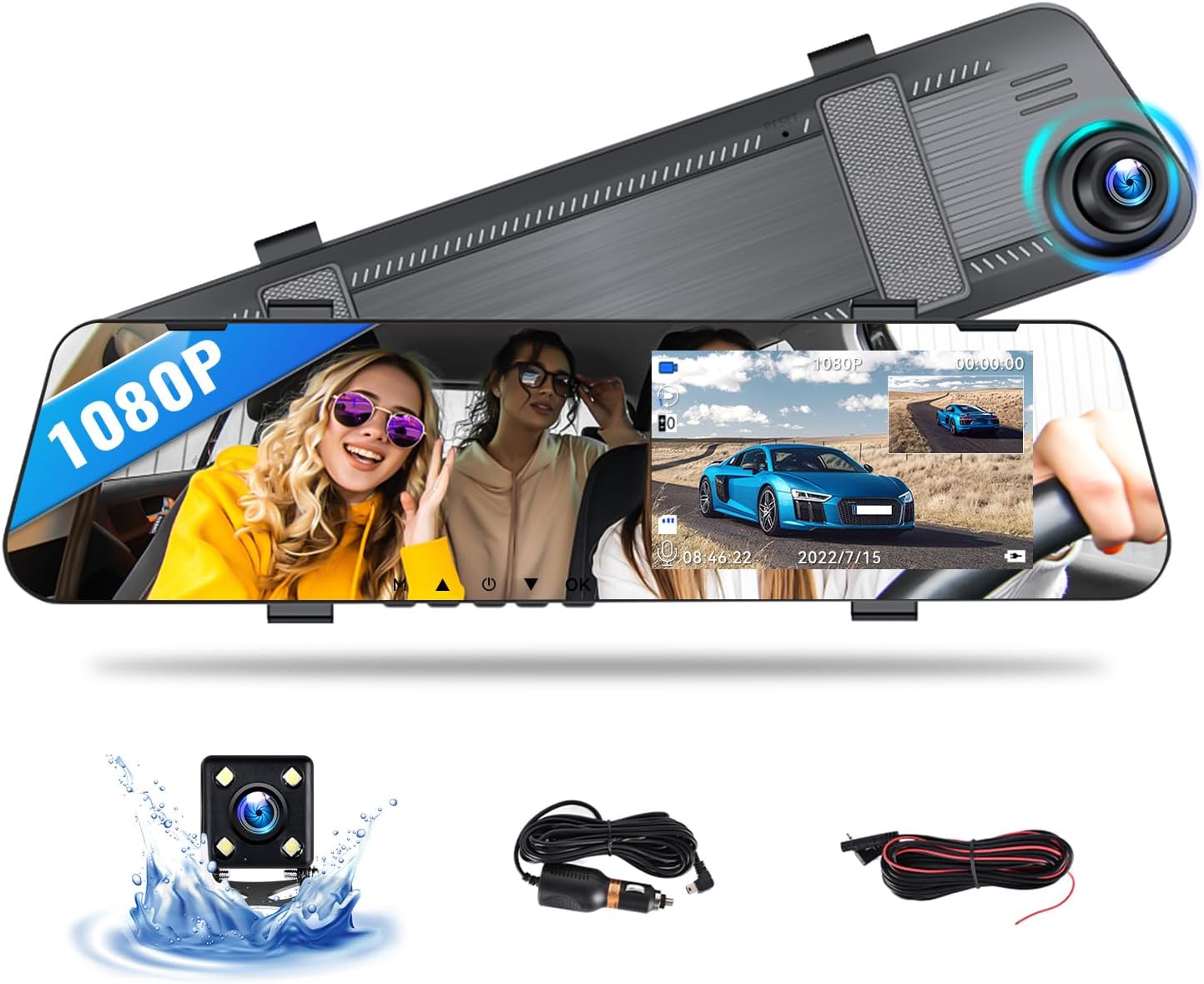
Image: The SIXWIN 4.5-inch 1080P Mirror Dash Cam, displaying its front camera, touch screen interface, and included rear camera and cables.
- 4.5-inch 1080P IPS Touch Screen
- Front and Rear Camera Recording
- Night Vision Capability
- Parking Assistance
- Loop Recording
- 24-Hour Parking Monitoring
- Built-in G-Sensor
- HDR High Dynamic Range
- 170° Wide Angle Lens
- Dual-Use Mirror Functionality
Device Components

Image: A detailed diagram showing the various components and control buttons of the SIXWIN Mirror Dash Cam, including the LCD screen, menu key, OK key, up/down selection buttons, power switch, back clip, TF card slot, USB data interface, and microphone.
The dash cam features an LCD screen, menu key, OK key, up/down selection buttons, and a power switch button on the front. On the back, it includes a back clip, TF card slot, USB data interface, and microphone.
Setup & Installation
The SIXWIN Mirror Dash Cam is designed for easy plug-and-play installation.
Step 1: Mount the Mirror Dash Cam
- Securely attach the mirror dash cam over your existing rearview mirror using the provided bandages. Ensure the front camera has a clear view of the road.
- Adjust the angle of the front camera for optimal recording.
Step 2: Install the Rear View Camera
- Mount the rear view camera at the back of your vehicle, typically above the license plate or on the rear window.
- Route the extended cable from the rear camera to the main mirror unit. Connect the cable to the "Back up camera interface" port on the dash cam.
- For parking assistance functionality, connect the red wire of the rear camera cable to your vehicle's reverse light power supply.
Step 3: Power Connection
- Plug the power cord into your vehicle's cigarette lighter socket.
- Connect the other end of the power cord to the USB power input on the mirror dash cam.
- Start your vehicle to power on the dash cam.

Image: The SIXWIN Mirror Dash Cam installed in a vehicle, displaying the front camera view on the left side of the screen and the rear camera view on the right side, demonstrating its dual recording capability.

Image: An illustration showing the SIXWIN Mirror Dash Cam mounted on the rearview mirror inside a car, with the power cable routed neatly along the windshield edge, indicating a 6.0m cable length.
Operating Instructions
Power On/Off
The dash cam will automatically power on and begin recording when your vehicle starts. To manually power on/off, press and hold the power switch button.
Touch Screen Interface
The 4.5-inch IPS touch screen allows for intuitive control and navigation through menus and settings.
Switching Camera Views
The dash cam supports three display modes:
- Front Camera Only: Displays only the view from the front camera.
- Front and Rear Split View: Shows both front and rear camera views simultaneously.
- Rear Camera Only: Displays only the view from the rear camera.

Image: A graphic illustrating the three available display perspectives on the SIXWIN Mirror Dash Cam: front camera view only, split view of front and rear cameras, and rear camera view only.
Loop Recording
The device continuously records video in segments (e.g., 1, 3, or 5 minutes). When the memory card is full, the oldest unlocked video files are automatically overwritten by new recordings. This ensures continuous recording without manual intervention.

Image: An icon representing loop recording, showing a circular flow of video segments around the dash cam, indicating that older files are overwritten by new ones.
G-Sensor (Emergency Recording)
The built-in G-sensor detects sudden impacts or collisions. When triggered, it automatically locks the current video file, preventing it from being overwritten by loop recording. This ensures critical incident footage is preserved.

Image: An icon representing the G-sensor feature, depicted with a padlock symbol and two cars after a collision, signifying automatic video locking upon impact detection.
Parking Monitoring (24-Hour Protection)
When the vehicle is shut down, the dash cam enters a sleep state. If a collision or vibration is detected, the device will automatically start recording within 2 seconds to capture the event. This feature requires a continuous power supply (e.g., hardwiring kit, not included).

Image: An icon representing 24-hour parking monitoring, showing a car with a glowing circle and the number 24, indicating continuous protection even when the vehicle is parked.
Night Vision
The dash cam is equipped with night vision technology to capture clear and bright video recordings in low-light conditions, improving visibility and safety during nighttime driving.

Image: An icon representing Super Night Vision, showing a car from behind at night with its license plate clearly illuminated, demonstrating enhanced visibility in low light.
Parking Assistance
When reversing, the rear camera view will automatically display on the screen, often with parking guidelines, to assist with safe parking maneuvers. This requires the rear camera's red wire to be connected to the reverse light power.

Image: The SIXWIN Mirror Dash Cam displaying the rear camera view with parking assistance lines, aiding in safe reversing and parking.
HDR High Dynamic Range
HDR technology synthesizes images captured at different exposure times to create a single image with improved detail in both bright and dark areas. This results in clearer and more balanced video recordings, especially in challenging lighting conditions.

Image: An icon representing HDR High Dynamic Range, illustrating a car on a winding road with three sections: bright, HDR compositing, and dark, demonstrating how HDR balances exposure for clearer images.
Maintenance
Care and Maintenance
- Regularly check and format the memory card to ensure optimal performance and prevent data corruption.
- Keep the camera lenses clean to ensure clear video recordings. Use a soft, lint-free cloth.
- Avoid exposing the device to extreme temperatures or direct sunlight for prolonged periods.
- Do not attempt to disassemble or repair the device yourself. Contact customer support for assistance.
Troubleshooting
Common Issues and Solutions
| Problem | Solution |
|---|---|
| Dash cam does not power on. | Check the power connection to the cigarette lighter socket. Ensure the vehicle's ignition is on. |
| "Memory Card Full" error. | Format the memory card. Ensure loop recording is enabled. Reduce G-sensor sensitivity if too many files are being locked. |
| Blurry or unclear video. | Clean the camera lenses. Ensure protective films are removed. Check video resolution settings. |
| Rear camera not displaying. | Check the connection of the rear camera cable to the main unit. Ensure the cable is not damaged. |
| Parking monitoring not working. | Ensure the dash cam is receiving continuous power (e.g., via a hardwiring kit) when the vehicle is off. |
Specifications
Technical Specifications
- Model: W7799
- Screen Size: 4.5 inches IPS Touch Screen
- Video Resolution: 1080P (Front and Rear)
- Field of View: 150 Degrees
- Connectivity: USB
- Special Features: Touch Screen, Night Vision, Parking Assistance, Loop Recording, G-Sensor, HDR
- Item Weight: 1.08 pounds
- Product Dimensions: 1 x 1 x 1 inches (Note: These dimensions are as provided in product data)
- Manufacturer: SIXWIN
Warranty & Support
Customer Support
For any issues, questions, or technical assistance, please contact SIXWIN customer support.
Email: sixwin_vip@163.com

Image: A customer support representative speaking on a landline phone, with text overlay "We offer online help and user manual: sixwin_vip@163.com".