
WUYJTIF X6
WUYJTIF X6 4.3-inch Handheld Portable Game Console User Manual
1. Introduction
This manual provides detailed instructions for the WUYJTIF X6 4.3-inch Handheld Portable Game Console. Please read this manual thoroughly before using the device to ensure proper operation and to maximize your experience.
2. Package Contents
Verify that all items listed below are included in your package:
- 1x WUYJTIF X6 Game Console
- 1x Charging Cable
- 1x User Manual (this document)
3. Product Overview and Features
The WUYJTIF X6 is a versatile handheld device designed for gaming and multimedia entertainment. Key features include:
- 4.3-inch LCD display
- Support for multiple game emulators
- Pre-loaded classic games
- Game archive function (save/load progress)
- Multimedia playback (music, video, e-books)
- TV-out support via AV cable
- Expandable storage via TF card (up to 64GB)
- Built-in rechargeable 1500mAh lithium battery

Figure 3.1: WUYJTIF X6 Handheld Game Console with its main menu interface.

Figure 3.2: Overview of the console's various functions including gaming, multimedia, and storage.
4. Setup
4.1 Initial Charging
Before first use, fully charge the console. Connect the provided charging cable to the console's charging port and a compatible USB power source (e.g., computer USB port, USB wall adapter). The charging indicator will illuminate during charging and turn off when fully charged.

Figure 4.1: Console charging indication and battery life.
4.2 Powering On/Off
To power on, press and hold the power button until the screen illuminates. To power off, press and hold the power button until the device shuts down.
4.3 Inserting a TF Card (Optional)
The console supports TF card expansion up to 64GB. Locate the TF card slot on the device. Gently insert the TF card with the metal contacts facing down until it clicks into place. To remove, push the card in slightly until it springs out.
5. Operating Instructions
5.1 Navigation
Use the directional pad (D-pad) or the analog stick (rocker) to navigate through menus and select options. The A/B/X/Y buttons and SELECT/START buttons are used for in-game actions and menu confirmations.
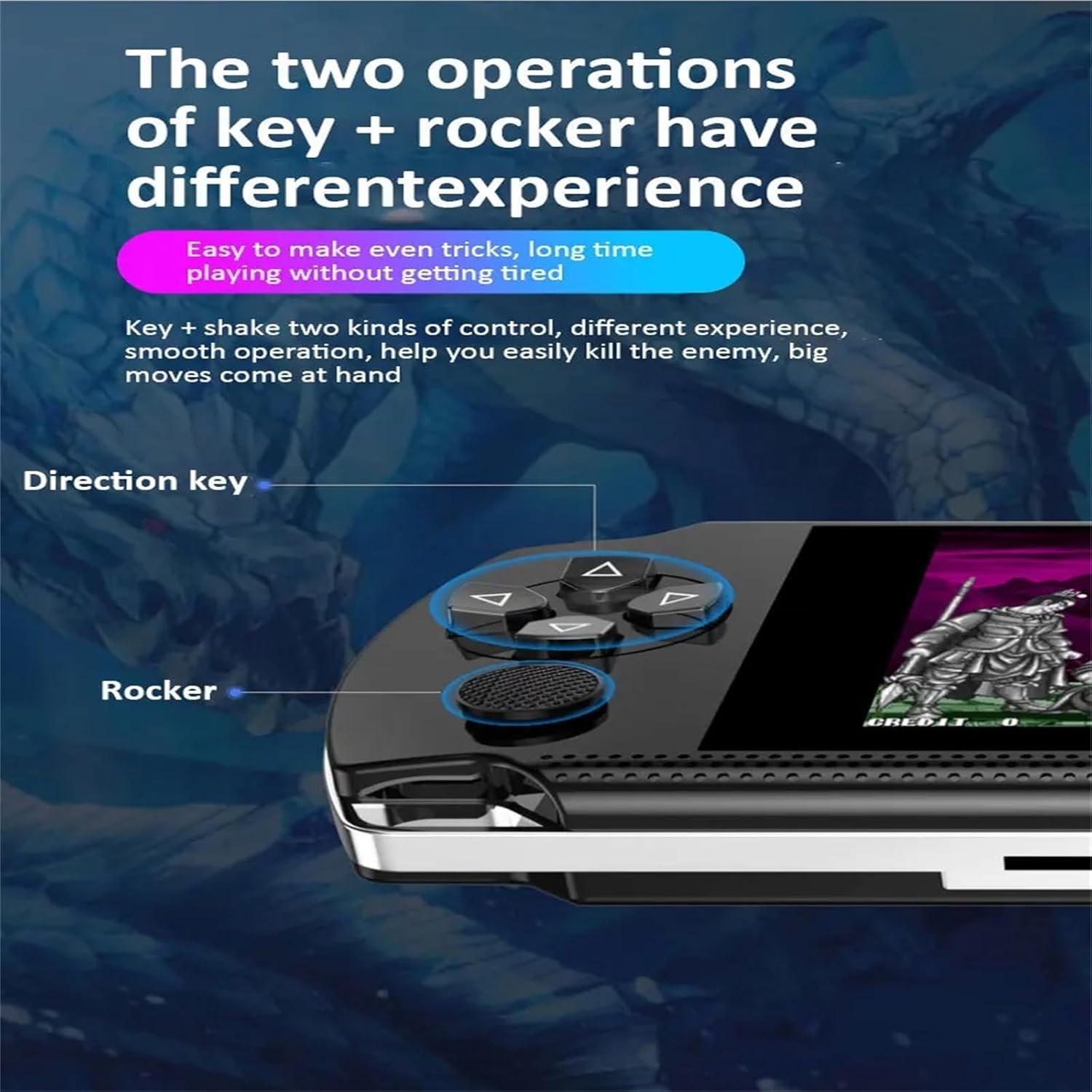
Figure 5.1: Directional keys and analog rocker for control.
5.2 Playing Games
From the main menu, navigate to the "Game Center" or the specific emulator icon to browse pre-loaded games. Select a game to start playing.
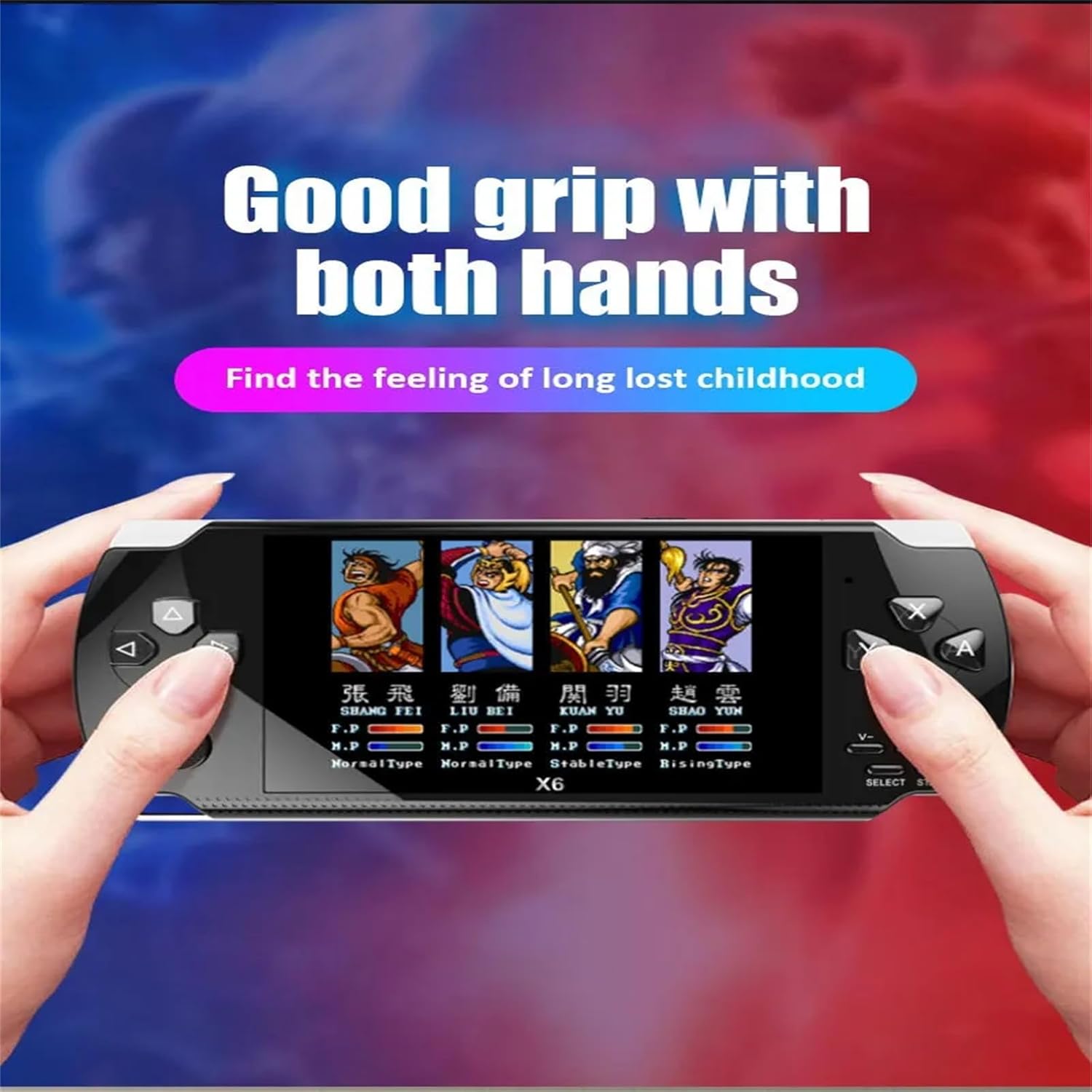
Figure 5.2: Console in use, demonstrating comfortable grip during gameplay.
5.2.1 Game Archiving (Save/Load Progress)
During gameplay, press the SELECT button to access the in-game menu. From this menu, you can save your game progress, quit the game, or restart. To continue a saved game, select the "Load" option from the in-game menu or the game selection screen.
5.2.2 Adding/Deleting Games
To manage games, connect the console to a computer using the provided USB cable. The console will appear as a removable storage device. Navigate to the "GAME" folder. You can add new game ROMs (compatible with supported emulators) or delete existing ones. You can also create new folders within the "GAME" directory to organize your titles.

Figure 5.3: Supported game emulators on the console.
5.3 Multimedia Functions
The X6 console supports various multimedia functions:
- Music Player: Supports APE, MP3, WMA, ACC, FLAC audio formats. Navigate to the "Music" icon to access your audio files.
- Video Player: Supports AV, RMVB, MP4, and other video formats. Navigate to the "Movie" icon to watch videos.
- E-book Reader: Access and read e-books.
- Recording: Utilize the built-in recording function.

Figure 5.4: Music playback feature with earphones.
5.4 TV Output
Connect the console to a television using an AV cable (not included, but supported). This allows you to play games or watch videos on a larger screen. Ensure your TV is set to the correct AV input channel.
6. Maintenance
6.1 Cleaning
Wipe the console with a soft, dry cloth. Do not use liquid cleaners or abrasive materials.
6.2 Battery Care
The console contains a built-in rechargeable lithium battery. For optimal battery life, avoid fully discharging the battery frequently. Charge the device regularly, even if not in use for extended periods.
6.3 Storage
Store the console in a cool, dry place away from direct sunlight and extreme temperatures.
7. Troubleshooting
- Console does not power on: Ensure the battery is charged. Connect the charging cable and try again.
- Screen is blank or frozen: Press and hold the power button for 10-15 seconds to force a shutdown, then restart the console.
- Games are not loading: Verify that the game files are in a supported format and located in the correct directory. If using a TF card, ensure it is properly inserted and not corrupted.
- No sound: Check the volume settings on the console. Ensure headphones are properly connected if in use.
- Cannot connect to TV: Ensure the AV cable is securely connected to both the console and the TV. Verify the TV is set to the correct AV input source.
8. Specifications
| Feature | Detail |
|---|---|
| Product Model | X6 |
| Screen Size | 4.3 inches |
| Game Formats | Supports twelve simulators (e.g., Arcade, FC, GBA, MD, NEOGEO, NES, SFC, GB, GBC) |
| Video Formats | AV, RMVB, MP4, and others |
| Battery Capacity | 1500mAh |
| Storage Expansion | Supports TF card capacity 1GB-64GB |
| Multimedia Functions | Games, music, movies, e-books, recording |
| Music Formats | APE, MP3, WMA, ACC, FLAC |
| Connectivity | USB for computer connection, TV-out (AV cable) |
| Archive Function | Breakpoint memory (save/load game progress) |
| Dimensions | Approximately 1 x 1 x 1 inches |
| Weight | 260g (including packaging) |
9. Warranty and Support
For warranty information or technical support, please refer to the retailer's policy or contact the manufacturer directly. Keep your purchase receipt for warranty claims.
Ask a question about this manual
Ask about setup, troubleshooting, compatibility, parts, safety, or missing instructions. Manuals+ will review the question and use this page’s manual context to help answer it.