
PQWT M200
PQWT M200 Water Detector Instruction Manual
Model: M200
1. Introduction
The PQWT M200 Water Detector is a geophysical instrument designed for underground water detection. It utilizes the natural electric field frequency selection system to analyze changes in the earth's electromagnetic field, providing millivolt data (Self-potential) to identify potential water sources.
2. Package Contents
Verify that all components are present in the package:
- Host Machine (PQWT M200 Detector)
- Electrode Bars
- Copper Electrodes
- Cable
- Belt
- Charger
- Carrying Case
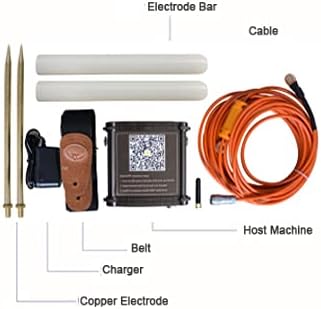
Figure 2.1: Included components of the PQWT M200 Water Detector kit.

Figure 2.2: The PQWT M200 Water Detector and its accessories stored in the carrying case.
3. Technical Specifications
| Parameter | Value |
|---|---|
| Product Model | PQWT-M100/200/400 (M200 variant) |
| Measuring Depth | 100/200/400 meters (M200: 200 meters) |
| Measurement Data Unit | Electric field component of different frequencies of the earth electromagnetic field ΔVs (mV) |
| Measuring Range | 0mV-1000mV, automatic range conversion |
| Measurement Accuracy | 0.001mV |
| Measuring Channel | 4 / 6 / 8 channels |
| Channel Gain | 1-200,000 times |
| Measurement Frequency | 30/36/48 frequency |
| Weight (Host) | 0.55kg |
| Power | 18650*2 3000mAh rechargeable lithium battery |
| Display | LED indicator |
| A/D Conversion | 8-bit 1Msps |
| Input Impedance | ≥10MΩ |
| Relative Humidity | ≤85% |
| Power Consumption | About 1W |
| Working Environment Temperature | -20°C ~ +50°C |
| Product Dimensions | 16.4"L x 6.1"W x 13.2"H |
| Control Method | App, Remote |
| Sensor Technology | Electric Field Sensor |
| Compatible Devices | Android devices |

Figure 3.1: Detailed technical specifications for the PQWT M-series water detectors.
4. Setup and Installation
4.1. Mobile App Installation
The PQWT M200 operates with a dedicated mobile application on Android devices. Follow these steps to install the app:
- Locate the QR code on the side of the host machine.
- Scan the QR code using your mobile device.
- Open the download link provided by the QR code in your browser.
- Install the application named "PQWT water finder" or "PQWT_MobileAPP_PRO.APK".
Alternatively, you can download the app directly from: http://www.pqwtcs.com/download/PQWT_MobileAPP_PRO.APK

Figure 4.1: Front view of the PQWT M200 device with the mobile app QR code visible.

Figure 4.2: Top and side views of the PQWT M200 device, highlighting the QR code for app download.

Figure 4.3: Detailed view of the QR code and instructions for mobile app installation.
4.2. Hardware Connection
- Connect the cable to the host machine.
- Connect the electrode bars and copper electrodes to the cable.
- Secure the host machine to your person using the provided belt for ease of use during surveys.
- Ensure the device is charged using the provided charger before use.
5. Operating Instructions
5.1. Powering On and Connecting
- Press and hold the white button on the host machine to turn it on.
- Open the "PQWT water finder" app on your Android device.
- The app should automatically connect to the device. Verify the connection status within the app.

Figure 5.1: Visual guide for initial setup and software interface navigation.
5.2. Conducting a Survey
The PQWT M200 offers high-speed and efficient detection of underground water sources. It is suitable for various geological structures including plains, hills, mountains, highlands, and basins.
- Select Measurement Mode: In the software operation interface, choose your desired measurement mode (e.g., "Three frequency" for rough tests or "Profile survey").
- Set Parameters: Adjust parameters such as "Lines", "Sites", and "Gain" as needed. Click "OK" to confirm.
- Start Measurement: Click "Record" to begin measuring the first point.
- Continue Measurement: After the data for the first point is measured and the app indicates "record completed", move to the next measurement point and click "Record" again. Repeat this process for all desired points.
- Data Analysis: The instrument automatically generates geological section drawings without the need for a computer (Android system only). Analyze the generated curves and maps to identify potential water locations.
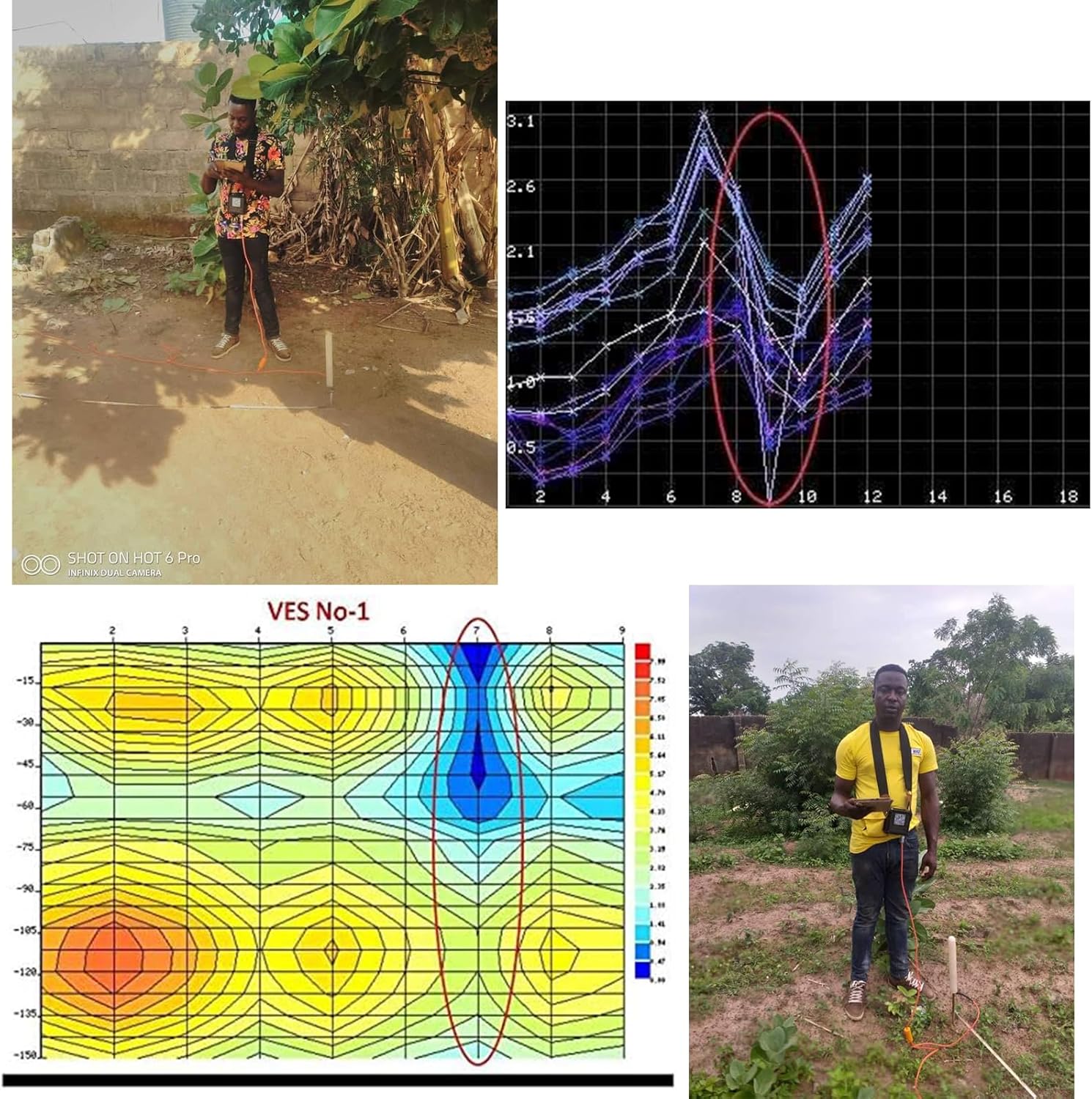
Figure 5.2: User conducting a water survey in the field with the PQWT M200.
Video 5.1: A demonstration of the PQWT M100 (similar model) in a real-world water survey application in Zambia, showing the process from survey to drilling.
6. Maintenance
- Keep the device clean and free from dust and moisture.
- Store the device and accessories in the provided carrying case when not in use to prevent damage.
- Charge the battery regularly, even during periods of inactivity, to maintain battery health.
- Avoid exposing the device to extreme temperatures or direct sunlight for prolonged periods.
- Inspect cables and electrodes for wear or damage before each use. Replace damaged components as necessary.
7. Troubleshooting
| Problem | Possible Cause | Solution |
|---|---|---|
| Device does not power on. | Low battery or power button not pressed correctly. | Charge the device. Press and hold the power button firmly for a few seconds. |
| App fails to connect to the device. | Bluetooth/wireless issue, app not installed correctly, or device not powered on. | Ensure the device is on. Restart the app and device. Check your Android device's wireless settings. Reinstall the app if necessary. |
| Inaccurate or inconsistent readings. | Poor electrode contact, environmental interference, or incorrect survey procedure. | Ensure electrodes are firmly inserted into the ground. Avoid areas with significant electromagnetic interference. Review operating instructions for correct survey methods. |
| App crashes or freezes. | Software bug or insufficient device resources. | Restart the app. Ensure your Android device meets the minimum system requirements. Check for app updates. |
For further assistance, refer to the support section or contact customer service.
8. Warranty and Support
The PQWT M200 Water Detector comes with a two-year instrument warranty and free maintenance. For any inquiries, concerns, or expert remote assistance regarding well position fixing, please contact our dedicated after-sales support group.
Contact Information: Refer to the product packaging or the official PQWT website for the most current support contact details.
Related documentsM200


Ask a question about this manual
Ask about setup, troubleshooting, compatibility, parts, safety, or missing instructions. Manuals+ will review the question and use this page’s manual context to help answer it.