
Product Overview
The HOU Keyboard Case is designed to enhance your iPad experience, offering a versatile and protective solution. It features a magnetic magic-stand for adjustable viewing angles, a floating design, durable spindles, a multi-touch trackpad, and a 7-color backlit keyboard. Crafted from stain-resistant PU material, this Bluetooth-enabled case provides a comfortable and efficient typing experience.

The HOU Keyboard Case with an iPad, demonstrating its floating design and illuminated keyboard. The case provides a stable platform for typing and viewing.
Compatibility
This keyboard case is exclusively compatible with specific iPad models. Please verify your iPad's model number before use to ensure proper fit and functionality.
- 2025 iPad 11 inch (A16): Models A3354, A3355, A3356
- 2022 iPad 10th Generation 10.9 inch: Models A2696, A2757, A2777, A3162
To find your iPad's model number, look for the small print on the back of your device, usually starting with 'A'.

Visual guide for locating your iPad's model number and a clear list of compatible iPad models for this keyboard case.
Setup Instructions
1. Attaching Your iPad
The keyboard case features a strong magnetic back panel designed to securely hold your iPad. Simply align your iPad with the magnetic area of the case, and it will snap into place. The magnetic connection ensures stability while allowing for easy attachment and detachment.
A detailed view of the magnetic mechanism that secures the iPad to the keyboard case, highlighting the strong and stable connection.
2. Initial Bluetooth Connection
To connect the keyboard to your iPad via Bluetooth for the first time, follow these steps:
- Ensure your iPad's Bluetooth is turned on.
- On the HOU Keyboard Case, press and hold the FN + CONTROL + R keys simultaneously for 3 seconds.
- The indicator light on the keyboard will turn on, indicating it is in pairing mode.
- On your iPad, go to Bluetooth settings and select 'HOU Keyboard' (or similar name) from the list of available devices.
- Once connected, the indicator light may change or turn off, and the keyboard will be ready for use.
3. Charging the Keyboard
The keyboard case is powered by an included C battery. To charge the keyboard, use the provided USB cable and connect it to the Type-C port on the keyboard and a suitable power source (e.g., USB wall adapter, computer USB port). The battery level can be visualized through an indicator.

An illustration of the keyboard's key features, including the battery indicator, Type-C charging port, and power switch location.
Operating Instructions
1. Keyboard Usage
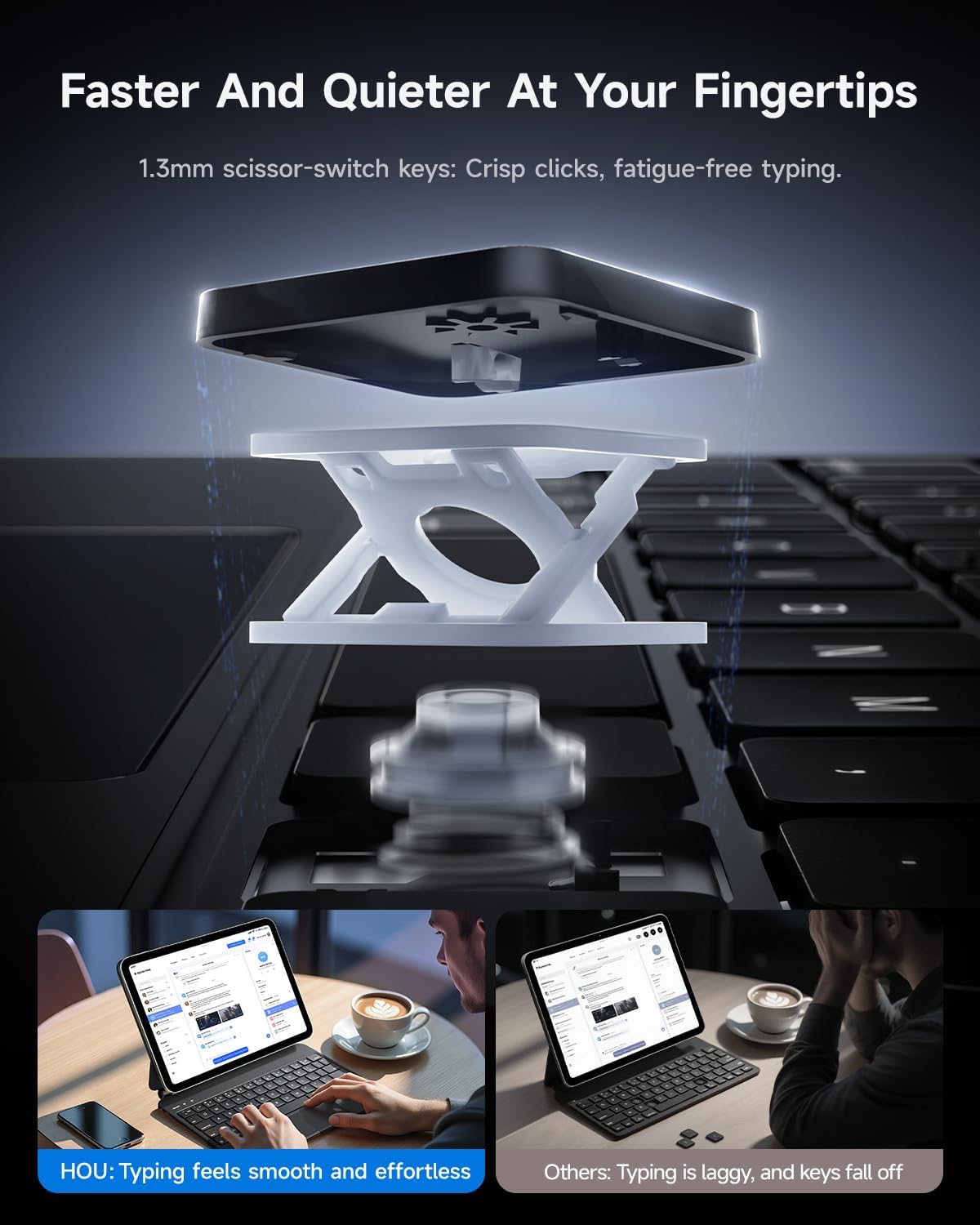
The keyboard features 1.3mm scissor-switch keys designed for comfortable and responsive typing. It includes a standard QWERTY layout.
Backlight Control
The keyboard offers 7 colors and 3 adjustable brightness levels for its backlight. This allows for personalized typing in various lighting conditions.
- To switch backlight colors: Use the dedicated key combination (refer to keyboard legends, typically a light bulb icon or Fn + specific key).
- To adjust brightness: Use the dedicated key combination (refer to keyboard legends, typically Fn + up/down arrow or similar).

The keyboard case with its backlit keys, demonstrating the illumination feature for improved visibility in low-light environments.

Instructions for controlling the 7-color backlight and 3 brightness levels, along with an overview of the 12 shortcut key combinations for efficient operation.
Shortcut Keys
The keyboard includes 12 shortcut key combinations for high-frequency operations, allowing for quick access to various functions. Refer to the keyboard layout for specific shortcut functions.
2. Multi-Touch Trackpad Usage
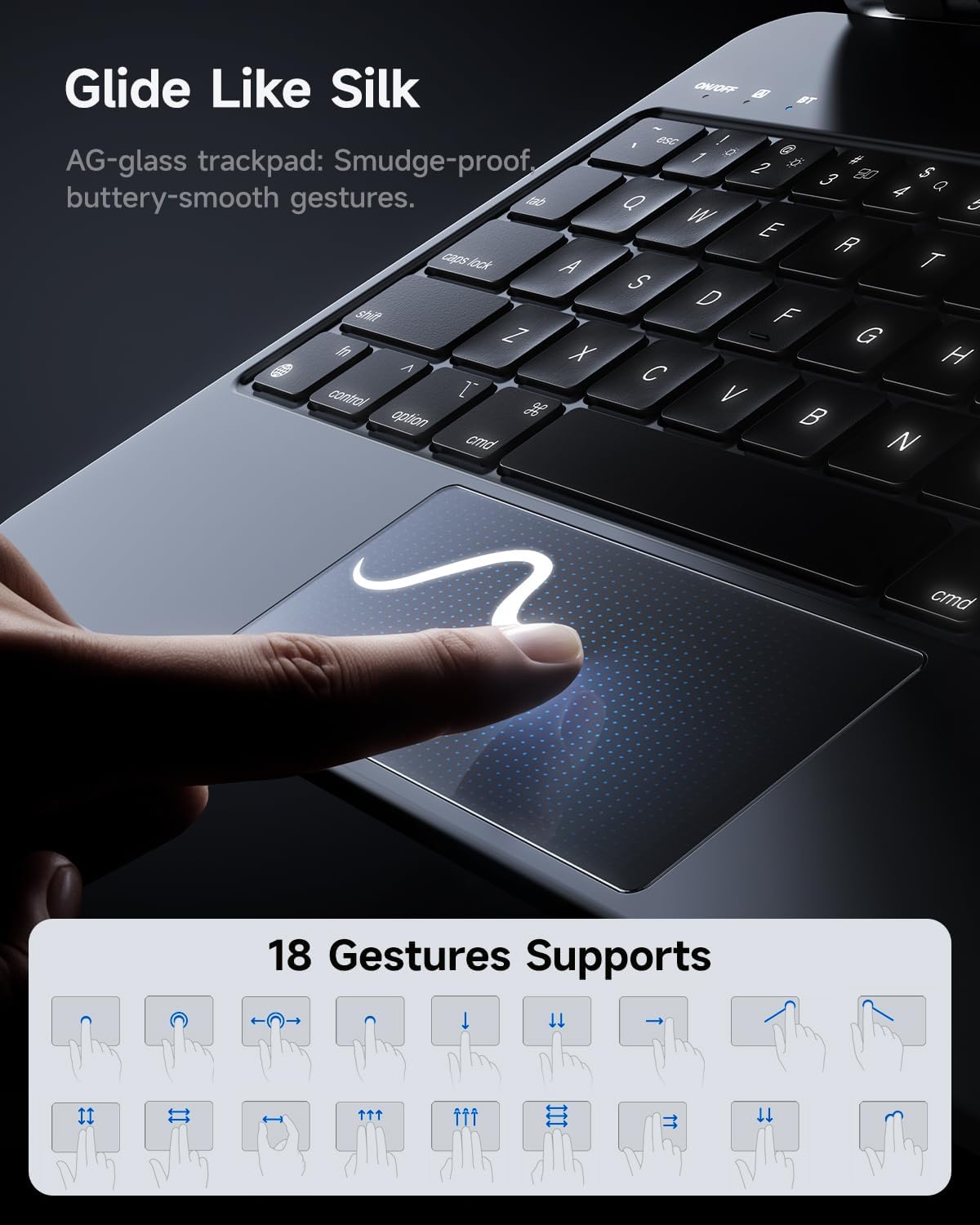
The integrated multi-touch trackpad provides precise control and supports various gestures for seamless navigation. Its etched glass surface offers a smooth, fingerprint-resistant touch.
Supported Gestures
The trackpad supports 18 different gestures for enhanced productivity. These gestures allow for intuitive control over your iPad's interface, including scrolling, swiping, and pressing movements.

A visual representation of the trackpad's smooth surface and a comprehensive guide to the 18 multi-touch gestures supported for efficient iPad navigation.
3. Adjustable Floating Stand
The case features a 135° adjustable floating stand, allowing you to find the perfect viewing angle for any activity, whether working, studying, or entertainment. The floating design ensures an unobstructed view of your iPad screen and provides direct visibility of power, caps lock, and Bluetooth indicators on the keyboard.
A user interacting with the HOU Keyboard Case, showcasing the flexibility of the 135-degree adjustable floating stand for optimal viewing comfort.
Maintenance
Cleaning the Case
The HOU Keyboard Case is crafted from an innovative semi-silicone leather material that is stain-resistant. To clean the surface, gently wipe it with a soft, damp cloth. Avoid using harsh chemicals or abrasive materials, as these may damage the finish.

Demonstration of the case's durable semi-silicone polymer leather, which is scratch/stain resistant and easy to clean with a simple wipe.
Storage
When not in use, store the keyboard case in a clean, dry environment away from extreme temperatures and direct sunlight. Ensure the iPad is securely attached or removed to prevent accidental damage.
Troubleshooting
Keyboard Not Connecting via Bluetooth
- Ensure the keyboard is charged.
- Verify that Bluetooth is enabled on your iPad.
- Repeat the initial pairing process: press and hold FN + CONTROL + R for 3 seconds until the indicator light turns on, then search for the device on your iPad.
- If previously paired, try 'forgetting' the device in your iPad's Bluetooth settings and then re-pairing.
- Restart both your iPad and the keyboard.
Keys or Trackpad Not Responding
- Check the keyboard's battery level and charge if necessary.
- Ensure the Bluetooth connection is stable. Disconnect and reconnect if needed.
- Clean the trackpad surface to remove any debris or fingerprints that might interfere with touch recognition.
- Ensure your iPad's software is up to date.
Specifications
| Feature | Detail |
|---|---|
| Model Number | MF-10 |
| Package Dimensions | 11.3 x 8.11 x 1.14 inches |
| Item Weight | 1.29 pounds |
| Batteries | 1 C battery (included) |
| Connectivity Technology | Bluetooth |
| Keyboard Layout | QWERTY |
| Special Features | Adjustable Stand, Ergonomic, Integrated Stand, Rechargeable, Scratch Resistant |
| Color | Black |
| Material | Acrylonitrile Butadiene Styrene, Polyurethane (PU) |
| Power Source | Battery Powered |
Package Contents
Upon opening the product packaging, you should find the following items:
- HOU Keyboard Case for iPad
- USB Cable (for charging)
- User Manual (this document)
Support Information
For any questions, concerns, or technical assistance regarding your HOU Keyboard Case, please contact the seller directly through your Amazon account. Navigate to 'Your Orders' and click on 'Contact the Seller' for the relevant purchase.
Please retain your proof of purchase for any warranty claims or support requests.