
ATOMSTACK A24 Pro
ATOMSTACK A24 Pro Laser Engraver User Manual
Model: A24 Pro | Brand: ATOMSTACK
1. Introduction
The ATOMSTACK A24 Pro is a professional-grade laser engraver and cutting machine designed for high precision and efficiency. Featuring a unibody frame, it requires no assembly, allowing for immediate use. This machine is equipped with a 24000mW output laser, making it suitable for engraving and cutting a wide range of materials including wood, metal, plastic, and more. Its advanced features ensure stable motion, high-speed operation, and precise results for both personal and professional projects.

Figure 1.1: The ATOMSTACK A24 Pro laser engraver showcasing its compact design and examples of intricate engravings on different materials like wood, metal, and plastic.
2. Safety Information
Operating a laser engraver involves inherent risks. Adhere strictly to all safety guidelines to prevent injury and damage to the equipment.
- Eye Protection: Always wear the provided UV-filtering eye protection when the laser is active. The machine includes a protective cover, but additional eyewear is recommended.
- Ventilation: Ensure adequate ventilation in the work area to dissipate fumes and smoke produced during engraving and cutting.
- Fire Hazard: Laser engraving can ignite flammable materials. Keep a fire extinguisher nearby and never leave the machine unattended during operation.
- Material Compatibility: Only engrave or cut materials specified as safe. Avoid materials that produce toxic fumes or are highly reflective.
- Emergency Stop: Familiarize yourself with the location and function of the emergency stop button.
- Children and Pets: Keep children and pets away from the operating area. The laser protective cover helps prevent accidental contact with the laser spot.
- Limit Switches: The A24 Pro is equipped with 4-way limit switches for enhanced safety and precise positioning.
- Tilt Detector: An integrated tilt detector with a 15-degree alarm provides an additional layer of safety, alerting users if the machine is not level.
3. Setup and First Use
The ATOMSTACK A24 Pro features an unibody design, eliminating the need for complex assembly. It is ready for use directly out of the box.
3.1 Unboxing and Placement
- Carefully remove the A24 Pro from its packaging.
- Place the machine on a stable, level, and non-flammable surface. Ensure there is sufficient space around the machine for ventilation and safe operation.
- Connect the power adapter to the machine and then to a suitable power outlet (100-240V AC, 50/60Hz).
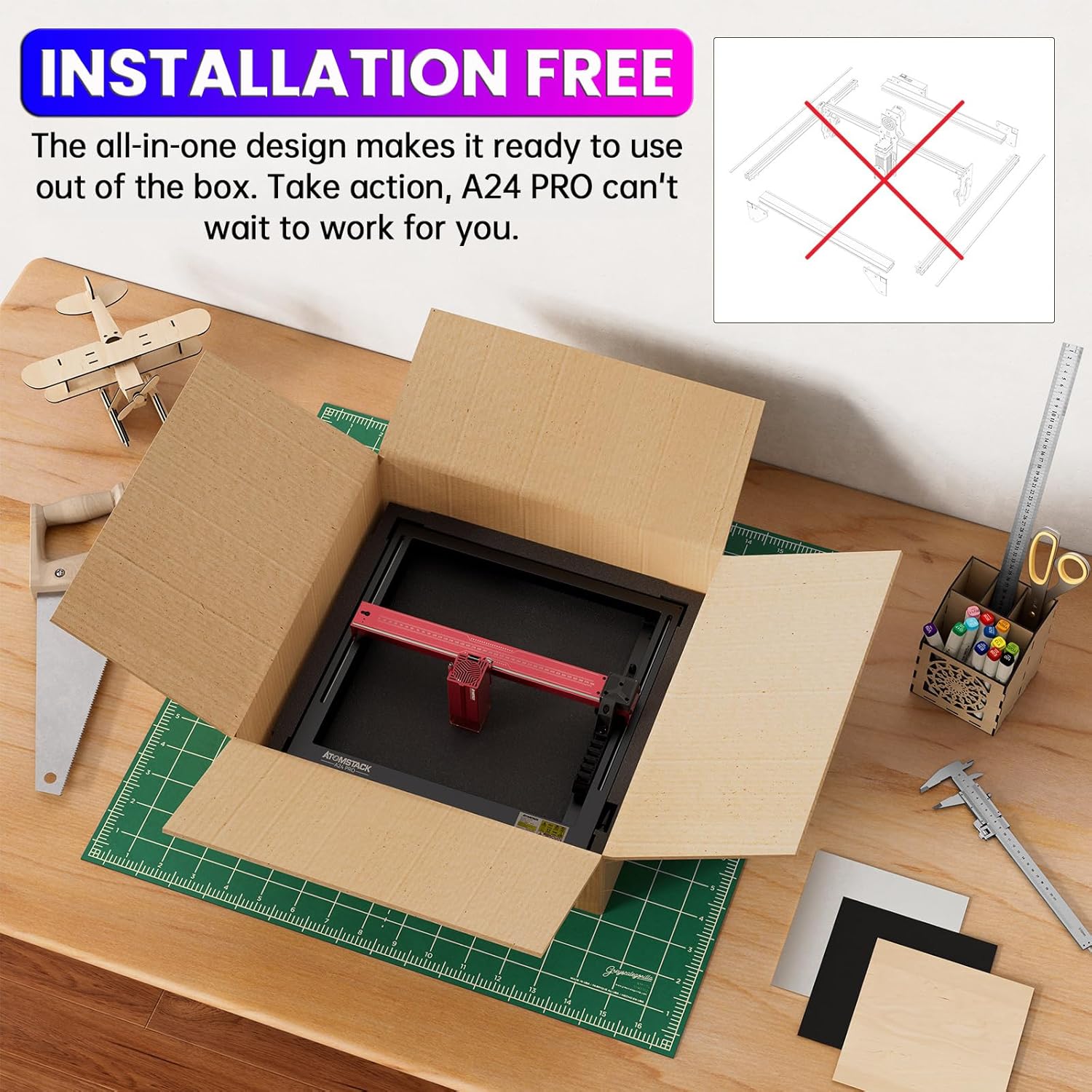
Figure 3.1: The ATOMSTACK A24 Pro laser engraver shown directly out of its packaging, highlighting its installation-free design, ready for immediate use.
3.2 Initial Focus Adjustment
The A24 Pro utilizes a fixed-focus laser, simplifying the focusing process. Rapid and precise focusing can be achieved in approximately 10 seconds.
- Place the material to be engraved or cut on the working surface.
- Follow the instructions in your chosen software (LaserGRBL, LightBurn, or ATOMSTACK PC software) for initial material height and focus calibration.
4. Operating the ATOMSTACK A24 Pro
4.1 Software and Connectivity
The A24 Pro offers multiple control methods for flexibility:
- PC Software: Compatible with LaserGRBL and LightBurn. ATOMSTACK also provides its own self-developed PC software for a more beginner-friendly experience.
- Smartphone APP: Control the machine via WiFi using the ATOMSTACK mobile APP, available on Android and Apple App Stores.
- Data Transfer: Connect to your computer via USB for data transfer.

Figure 4.1: Overview of the diverse control methods for the ATOMSTACK A24 Pro, including dedicated PC software, popular third-party software like LaserGRBL and LightBurn, and a mobile application for smartphone control via WiFi.
4.2 Supported File Formats
The machine supports common file formats for engraving and cutting projects:
- NC
- BMP
- JPG
- PNG
- DXF
4.3 Engravable and Cuttable Materials
The A24 Pro is versatile, capable of working with a wide array of materials:
| Category | Materials |
|---|---|
| Engraving Materials | Wood, Bamboo, Cardboard, Plastic, Leather, PCB Board, Anodized Aluminum, Non-reflective Electroplated and Painted Metals, 304 Mirror Stainless Steel, Glass, Ceramic, Cotton, Slate |
| Cutting Materials | Cardboard, Non-woven Fabric, Wood, Plywood, Acrylic (transparent needs to be coated black), Some thin plastic sheets, Sponge, Aluminum, and Stainless Steel thin sheets |

Figure 4.2: A visual representation of the diverse materials compatible with the ATOMSTACK A24 Pro, including acrylic, glass, metal, wood, paper, cardboard, stainless steel, food, leather, fabric, and rubber.
4.4 Engraving and Cutting Process
- Design Preparation: Create or import your design in one of the supported file formats using your chosen software.
- Material Placement: Place the material securely on the engraving bed. Utilize the cross-positioning system for accurate alignment.
- Parameter Settings: Adjust laser power, speed, and passes according to the material type and desired effect. Refer to the software's material library or conduct test engravings.
- Start Operation: Initiate the engraving or cutting process from the software or mobile app. Monitor the operation closely.
- Power Failure Recovery: The A24 Pro features an automatic power failure recovery system. In case of power interruption, it memorizes the exact engraving position and can resume from the paused point, minimizing material waste.

Figure 4.3: Demonstration of the cross-positioning system, which automatically aligns objects and locks to edges, ensuring precise horizontal carving and accurate object alignment.
5. Maintenance
Regular maintenance ensures optimal performance and extends the lifespan of your ATOMSTACK A24 Pro.
- Cleaning the Lens: Periodically clean the laser lens with a soft, lint-free cloth and lens cleaning solution to maintain laser efficiency.
- Cleaning the Machine: Wipe down the machine's frame and working area to remove dust and debris.
- Lubrication: Apply a small amount of lubricant to the guide rails as recommended in the detailed product manual (not provided here) to ensure smooth movement of the laser module.
- Firmware Updates: Check the ATOMSTACK website or app for any available firmware updates to ensure your machine has the latest features and improvements.
6. Troubleshooting
This section addresses common issues you might encounter with your ATOMSTACK A24 Pro.
6.1 Common Issues and Solutions
- Laser Not Firing:
- Check if the power cable is securely connected.
- Ensure the emergency stop button is not engaged.
- Verify that the laser module is properly seated and connected.
- Confirm that the software settings for laser power are not set to zero.
- Engraving/Cutting Quality is Poor:
- Blurry Engraving: Re-check the laser focus. Even with fixed focus, ensure the material height is correct.
- Weak Engraving/Incomplete Cuts: Increase laser power or reduce engraving/cutting speed. Ensure the laser lens is clean.
- Uneven Engraving: Check if the material is flat and securely placed. Ensure the machine is on a level surface.
- Machine Not Responding to Software:
- Verify USB connection. Try a different USB port or cable.
- Restart the software and the machine.
- Ensure correct COM port is selected in the software.
- Check for driver issues or software compatibility.
- Abnormal Noise During Operation:
- Check for any obstructions in the movement path of the laser module.
- Inspect the guide rails for debris or damage. Lubricate if necessary.
If you encounter issues not covered here, please refer to the official ATOMSTACK support resources or contact customer service.
7. Technical Specifications
| Feature | Specification |
|---|---|
| Product Model | ATOMSTACK A24 Pro |
| Engraving Size | 370 x 310 mm |
| Electric Power | 120W |
| Output Laser Power | 24000mW (24W) |
| Laser Class | Class 4 |
| Laser Wavelength | 455 ± 5nm |
| Engraving Accuracy | 0.02mm |
| Focus Method | Fixed-focus laser |
| Operating Software | LaserGRBL, LightBurn, ATOMSTACK PC software, ATOMSTACK Mobile APP (Win XP / Win 7 / Win 8 / XP / Win 10 compatible) |
| Supported File Formats | NC, BMP, JPG, PNG, DXF |
| Data Transfer Method | USB connection, WiFi (via APP) |
| Power Supply | Input: 100-240V AC, 50/60HZ; Output: 24V 5A |
| Product Dimensions | 23.22 x 23.22 x 7.08 inches |
| Item Weight | 18.74 pounds |
| Maximum Engraving Speed | Up to 600mm/s |

Figure 7.1: Illustration of the ATOMSTACK A24 Pro's laser module, highlighting its 24W optical power and the ultra-fine 0.06x0.06mm compressed laser spot for superior precision compared to ordinary spots.

Figure 7.2: Detailed chart demonstrating the enhanced laser cutting capabilities of the A24 Pro, showing maximum cutting thickness in a single pass for materials such as black acrylic (5mm), balsa (10mm), paulownia (8mm), MDF (3mm), basswood plywood (5mm), pine wood (6mm), stainless steel (0.02mm), and vinyl (3 layers).

Figure 7.3: Comparison illustrating the impressive working speed of the ATOMSTACK A24 Pro (up to 600mm/s), which is significantly faster (3-6 times) than traditional frame machines, demonstrating efficiency gains in engraving tasks.
8. Warranty and Support
ATOMSTACK provides professional technical and support teams available 24/7 to assist with any questions or concerns you may have regarding your A24 Pro laser engraver.
- Technical Support: For technical assistance, troubleshooting, or operational guidance, please contact ATOMSTACK customer service through their official channels.
- Warranty Information: Specific warranty terms and conditions are typically provided with your purchase documentation. Please refer to these documents for details on coverage and duration.
- Online Resources: Visit the official ATOMSTACK website for FAQs, software downloads, and additional resources.
Related documentsA24 Pro


Ask a question about this manual
Ask about setup, troubleshooting, compatibility, parts, safety, or missing instructions. Manuals+ will review the question and use this page’s manual context to help answer it.