
1. Product Overview
The SIXWIN Android 13 Car Stereo is a 10.1-inch touch screen head unit designed specifically for the Honda Accord 8th Generation (2008-2013). It integrates advanced features such as Android 13 operating system, 4G+64G memory, Bluetooth 5.0, wireless CarPlay and Android Auto, GPS navigation, WiFi connectivity, and a 32-band equalizer. This manual provides detailed instructions for installation, operation, and troubleshooting.

Image 1.1: Overview of the SIXWIN Android 13 Car Stereo and included accessories.
2. Setup and Installation
2.1 Package Contents
Verify that all components are present in the package:
- 1 x Car Stereo
- 1 x Power Cable
- 1 x GPS Antenna
- 1 x Rear Camera Input Cable
- 1 x RCA Cable
- 2 x USB Cables
- 2 x Mounting Brackets
- 1 x Backup Camera
- 1 x Microphone
- 1 x Radio Housing
- 1 x Extended Line
- 1 x Instruction Manual
- 4 x Screws

Image 2.1: All components included in the SIXWIN car stereo package.
2.2 Compatibility
This car stereo is designed for Honda Accord 8th Generation models from 2008 to 2013. It is intended for basic car configurations. Ensure your vehicle matches the specified model and year range for proper fitment and functionality.
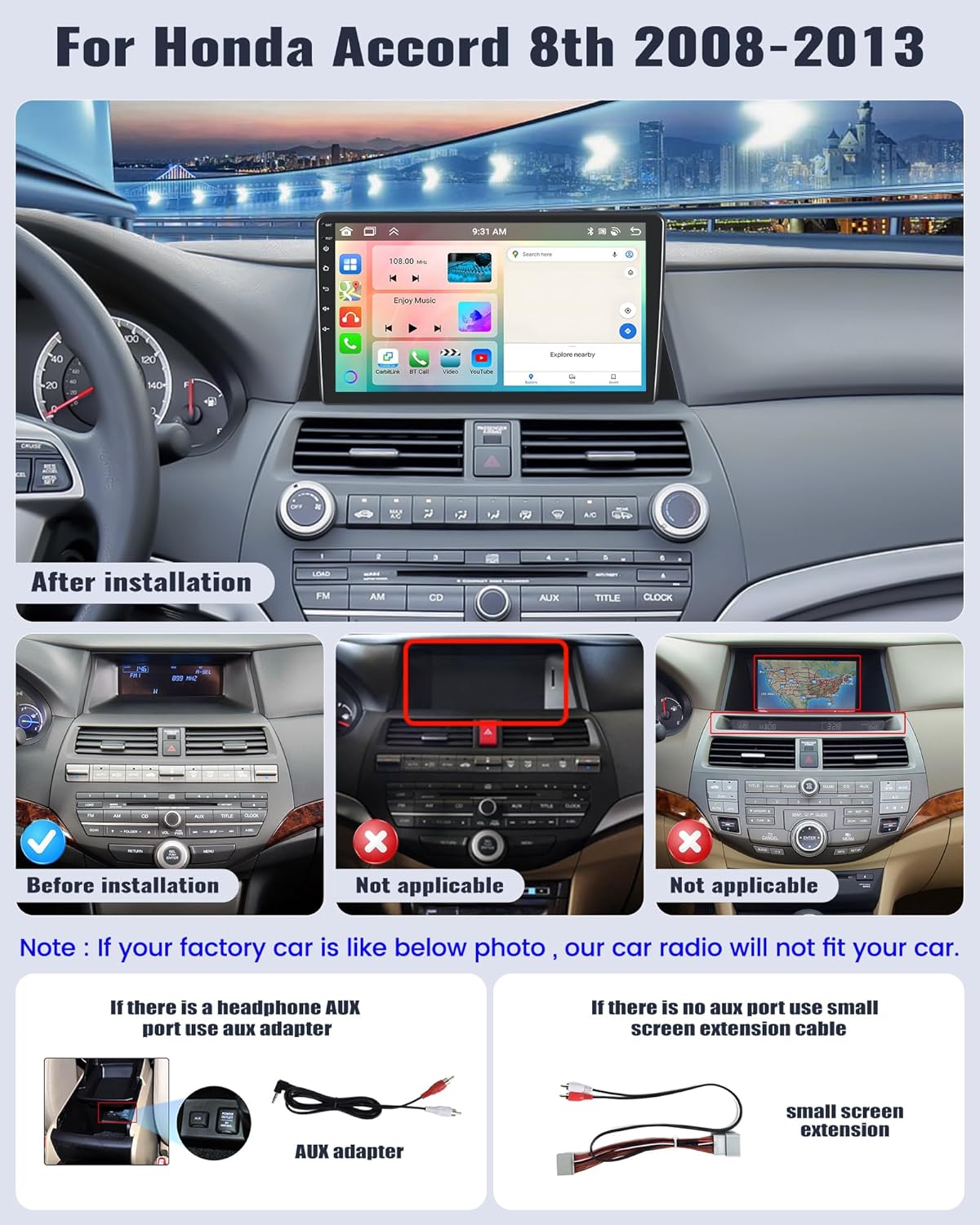
Image 2.2: Visual guide for compatibility and installation in a Honda Accord 8th Gen. Note: This radio is not compatible with vehicles having the factory navigation screen shown as 'Not applicable'.
2.3 Wiring Connections
Refer to the wiring diagram below for proper connection of the power, audio, and accessory cables. Incorrect wiring can lead to malfunction or lack of sound.

Image 2.3: Main wiring diagram for the car stereo.
2.3.1 AUX Audio Connection
If your vehicle has an AUX interface in the armrest box, connect the provided AUX adapter. If there is no AUX port, use the small screen extension cable to ensure audio functionality.

Image 2.4: AUX connection instructions.
2.3.2 Backup Camera Wiring
Connect the AHD backup camera as follows:
- Red Cable ①: Connect to the positive pole of the car reversing light cable.
- Black Cable ②: Connect to the negative pole of the car reversing light cable.
- The two other red extension cables (③ and ④) do not need to be connected.
- The white plug must be connected to the main device.
The reversing input must be plugged in even if the reversing camera is not used.
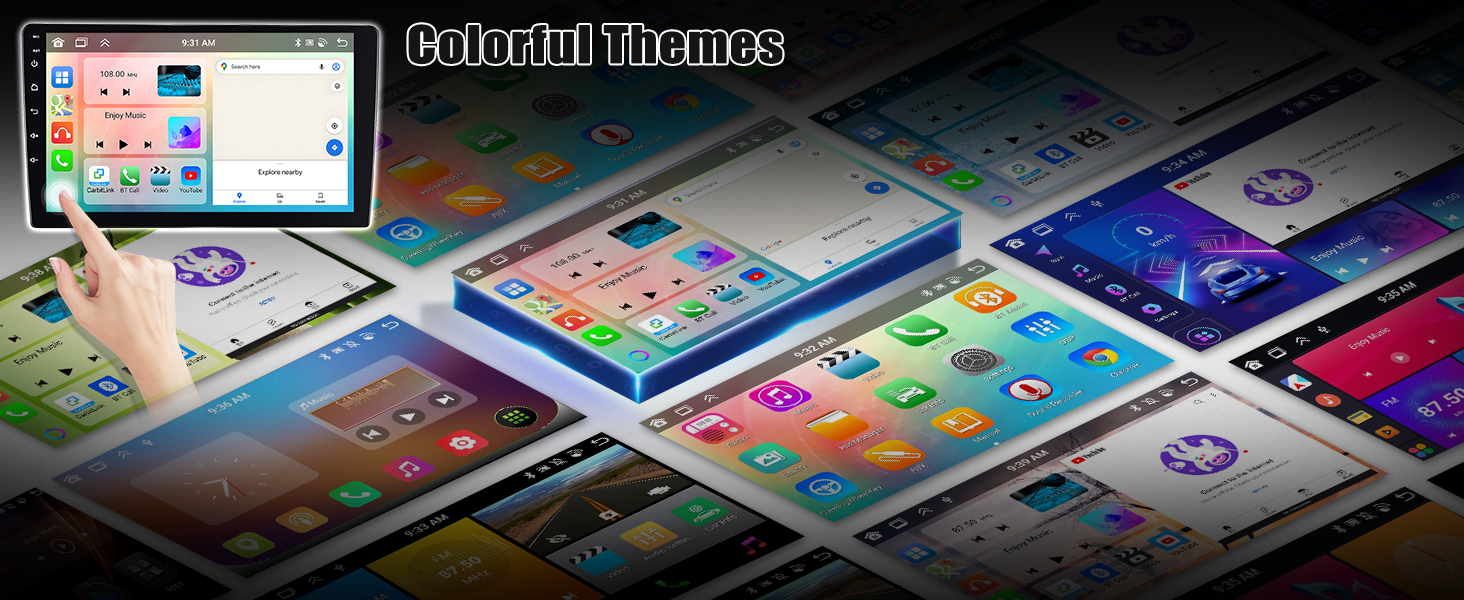
Image 2.5: Backup camera wiring instructions.
2.3.3 Steering Wheel Control (SWC)
Ensure the SWC cable is connected. After installation, you can configure steering wheel controls through the unit's settings (usually setting 8888) to assign functions like volume adjustment, track skipping, and call answering to your steering wheel buttons.
3. Operating Instructions
3.1 User Interface (UI)
The stereo features 59 customizable UI desktop themes and supports a three-split screen function for multitasking.

Image 3.1: Examples of Weather Forecast, Three Split Screen, and Wallpaper options.
3.2 Wireless CarPlay & Android Auto
Connect your smartphone wirelessly or via USB to access CarPlay or Android Auto. This allows integration of navigation, phone contacts, messages, and music directly on the car stereo screen. Voice control (Siri or Google Assistant) is supported.
- Note: Android Auto does not support Samsung phones.
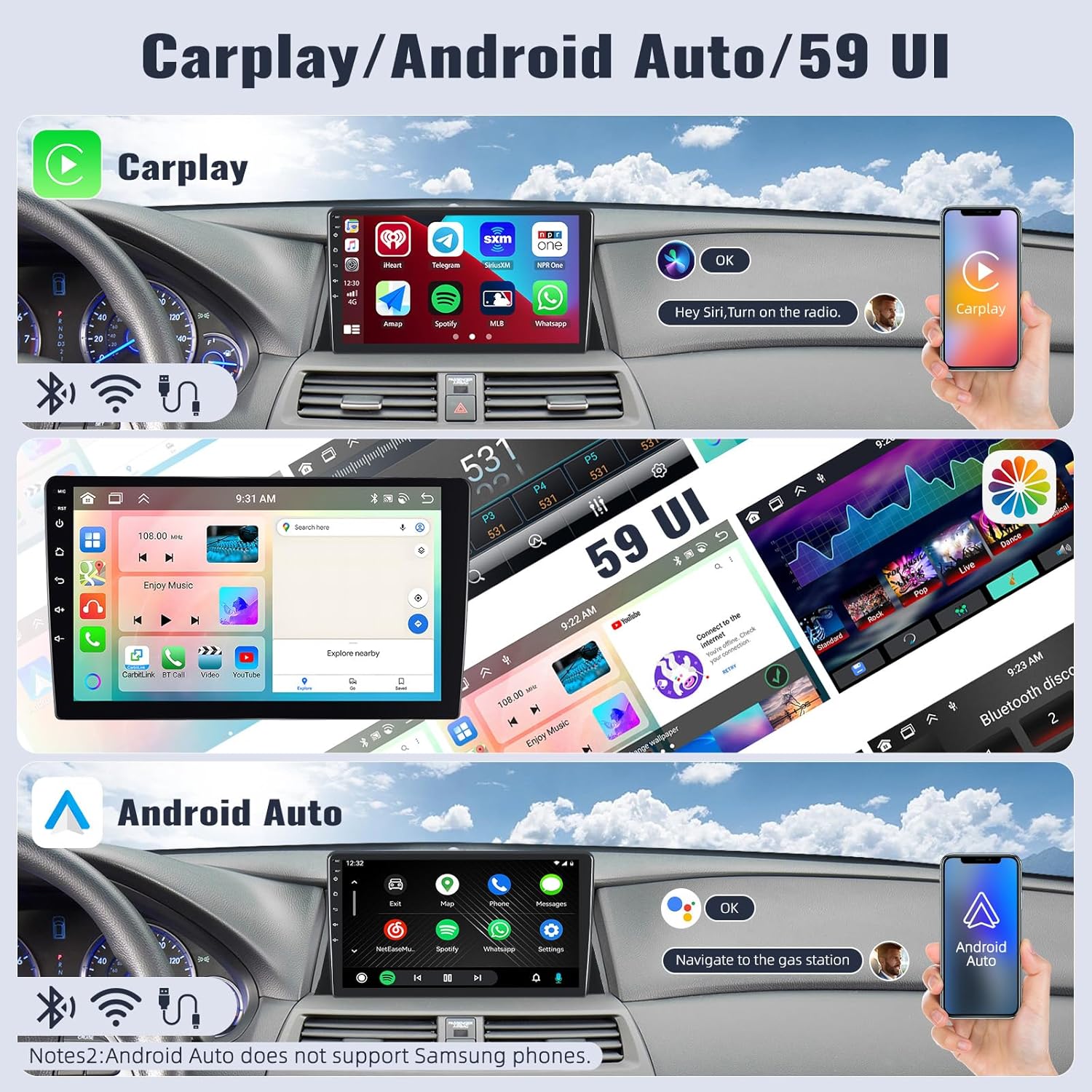
Image 3.2: CarPlay and Android Auto interfaces.
3.3 Bluetooth 5.0
The unit supports Bluetooth 5.0 for hands-free calling, Bluetooth music streaming, and phonebook synchronization. An external microphone is included for clear communication.
3.4 GPS Navigation
The stereo has built-in GPS navigation supporting both online and offline maps. The 'Here We Go' app is pre-installed, allowing you to download offline map data for navigation without an internet connection.
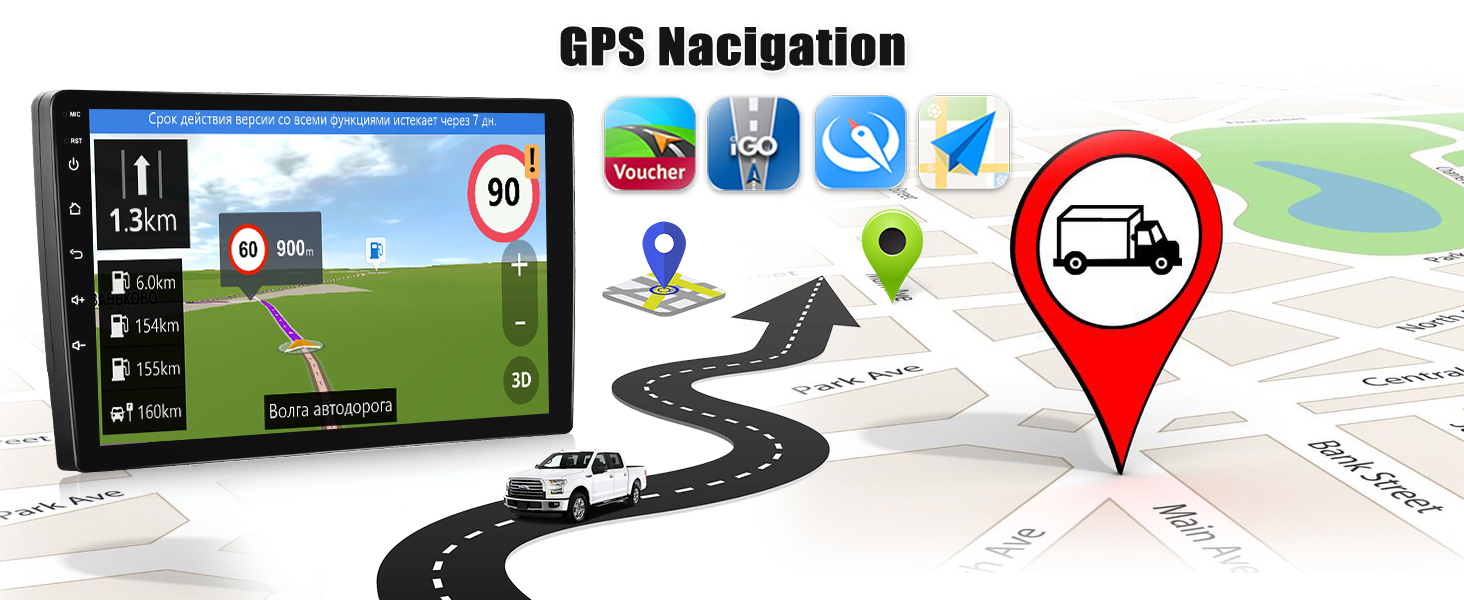
Image 3.3: GPS Navigation in use.
3.5 WiFi Connectivity
Connect the stereo to a WiFi network to access online navigation, download applications, stream online videos, and browse the internet, similar to a mobile phone experience.
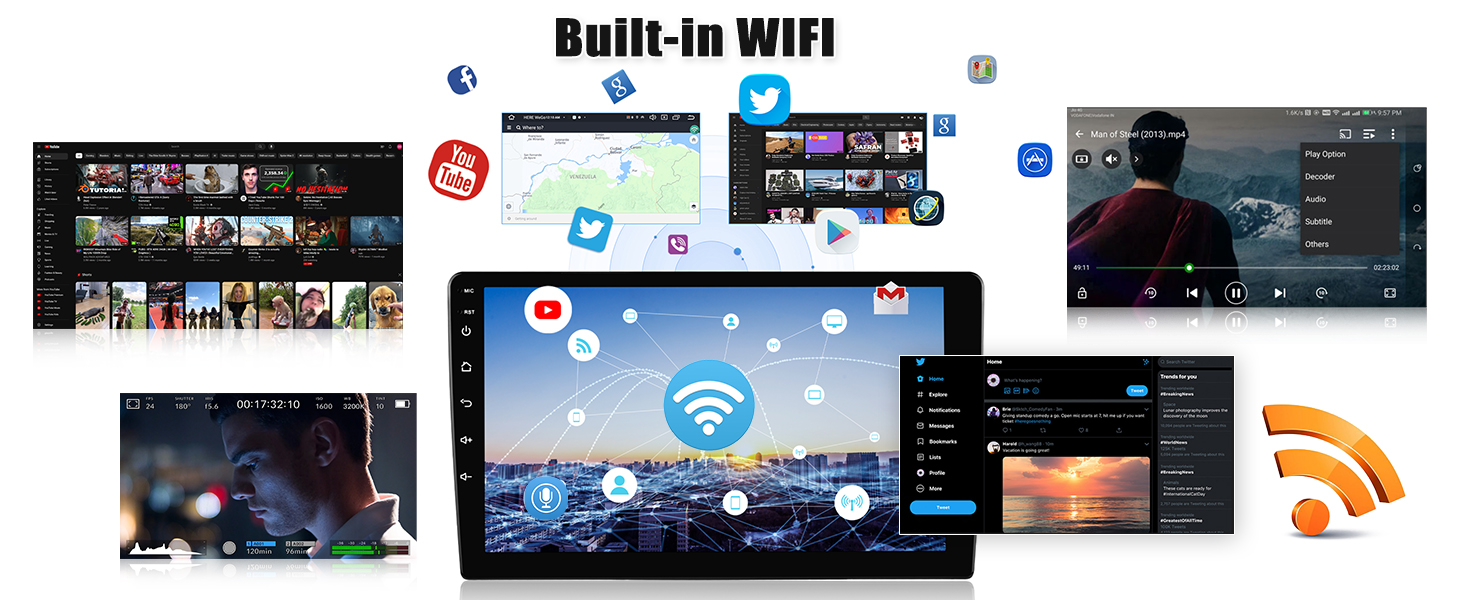
Image 3.4: Built-in WiFi functionality.
3.6 Network Radio
Access mainstream radio stations from various countries via the network radio feature, allowing you to listen to content beyond local broadcasts.
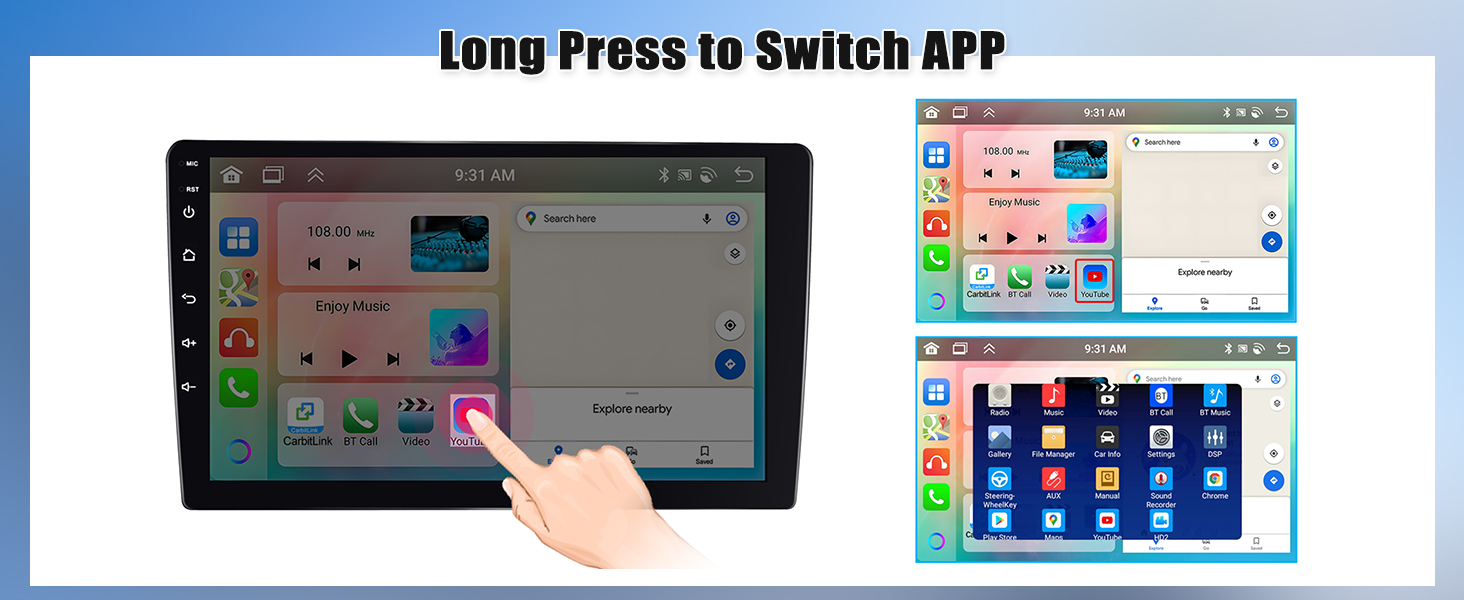
Image 3.5: Network Radio interface.
3.7 Weather Forecast
The unit can display a weekly weather forecast, providing convenient information for travel planning.
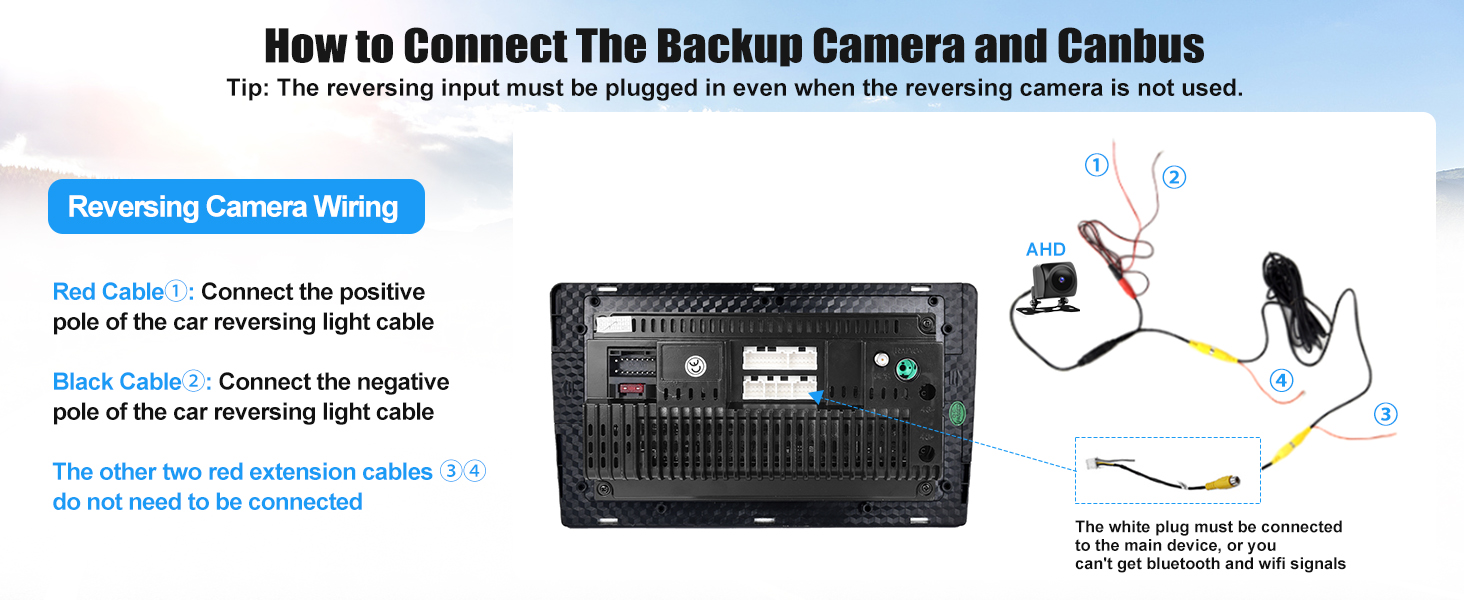
Image 3.6: Weather Forecast display.
3.8 Mirror Link
Mirror Link functionality allows you to display your smartphone screen on the car stereo. It supports one-way control for iOS devices (via WiFi) and two-way control for Android devices (via WiFi/USB).
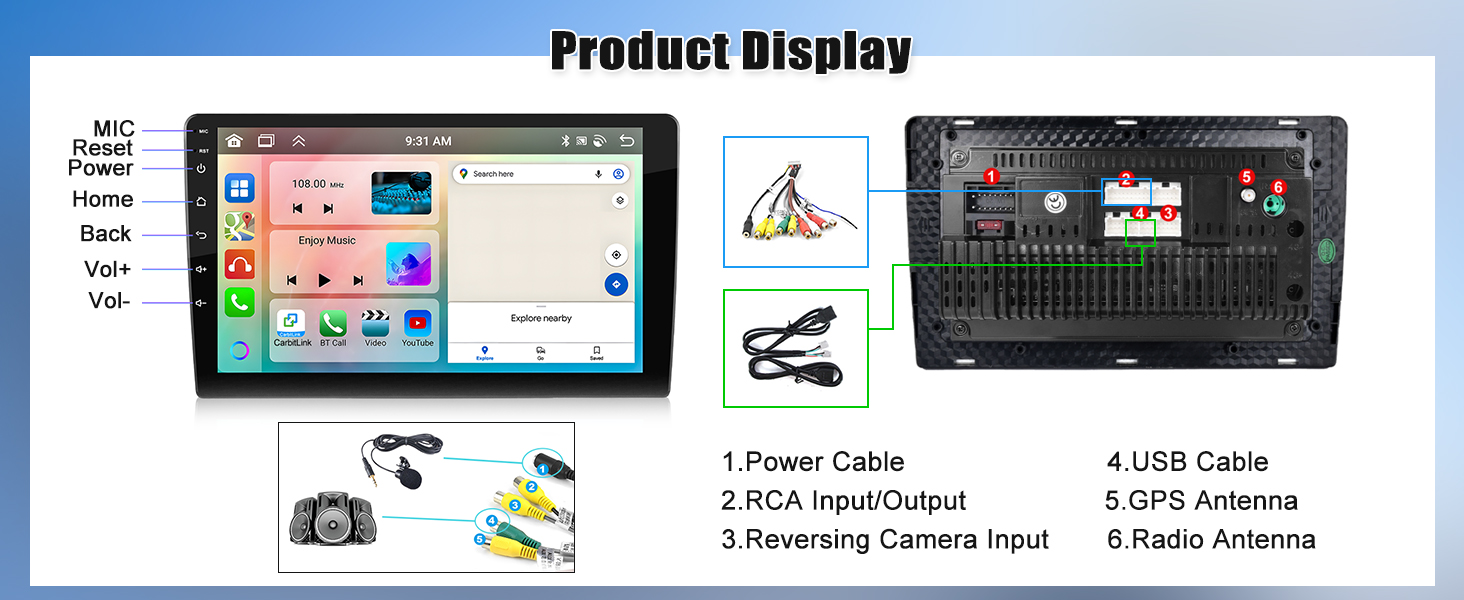
Image 3.7: Mirror Link for Android/iOS.
3.9 Audio Equalizer (32EQ)
Customize your audio experience with the built-in 32-band equalizer and Digital Sound Processor (DSP) for precise sound tuning.
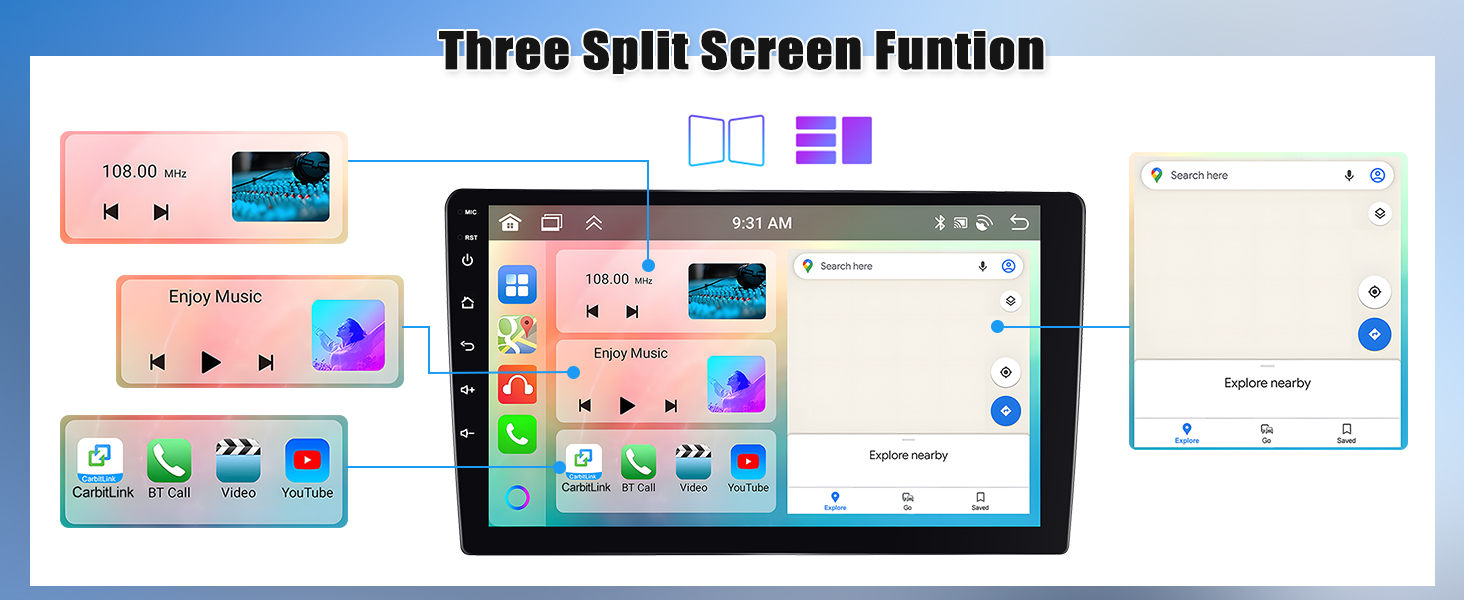
Image 3.8: 32-band Equalizer and DSP interface.
4. Maintenance
To ensure the longevity and optimal performance of your SIXWIN car stereo, follow these maintenance guidelines:
- Cleaning: Use a soft, dry cloth to clean the screen and exterior. Avoid abrasive cleaners or solvents.
- Temperature: Avoid exposing the unit to extreme temperatures, both hot and cold, for extended periods.
- Software Updates: Periodically check for software updates from the manufacturer to ensure the latest features and bug fixes.
- Wiring: Ensure all wiring connections remain secure and free from damage.
5. Troubleshooting
If you encounter issues with your car stereo, refer to the following common problems and solutions:
- No Sound: This is often caused by incorrect wiring. Double-check all audio connections, especially the AUX input if applicable.
- CarPlay/Android Auto Not Working: Ensure your phone is compatible (Android Auto does not support Samsung phones). Check USB cable connection if wired, or WiFi/Bluetooth connection if wireless. Restart both the stereo and your phone.
- Bluetooth/WiFi Connectivity Issues: Ensure Bluetooth and WiFi are enabled on both the stereo and your device. Try forgetting and re-pairing Bluetooth devices or re-entering WiFi passwords.
- Unit Not Powering On: Check the power cable connection and ensure the vehicle's fuse for the stereo is intact.
- Screen Unresponsive: Try restarting the unit. If the issue persists, a factory reset might be necessary (consult support before performing a factory reset).
6. Specifications
| Feature | Specification |
|---|---|
| Model Number | A7246A3454A4MI2 |
| Operating System | Android 13 |
| Memory | 4GB RAM + 64GB ROM |
| Display Size | 10.1 Inches |
| Connectivity | Bluetooth 5.0, WiFi, Wireless CarPlay, Wireless Android Auto |
| Navigation | Built-in GPS (Online/Offline maps) |
| Audio Features | 32-band EQ, DSP, Stereo Audio Output |
| Special Features | Rear View Camera Input, Touchscreen, Weather Forecast, 59UI Desktop Themes, 3 Split Screen Function, Intelligent Voice, Mirror Link |
| Item Weight | 4.22 pounds |
| Product Dimensions | 1 x 1 x 1 inches |
7. Warranty and Support
7.1 Warranty Information
The SIXWIN Android 13 Car Stereo comes with a 1-year warranty from the date of purchase. This warranty covers manufacturing defects and malfunctions under normal use. Please retain your proof of purchase for warranty claims.
7.2 Customer Support
For online assistance, user manual, or installation videos, please contact our support team:
- Email: sixwin_vip@163.com
Our support team can provide guidance on installation, operation, and troubleshooting any issues you may encounter.

Image 7.1: Contact information for customer support.