
ORDRO AE20
ORDRO 5K Video Camera Camcorder User Manual
Model: AE20
Brand: ORDRO
1. Introduction
This user manual provides comprehensive instructions for operating your ORDRO 5K Video Camera Camcorder (Model AE20). Please read this manual thoroughly before using the device to ensure proper operation and to maximize its features. This camcorder is designed for capturing high-quality video and photos, suitable for vlogging, home movies, and various outdoor activities.

Figure 1: ORDRO 5K Video Camera Camcorder and included accessories.
2. What's in the Box
Upon unboxing your ORDRO AE20 camcorder, verify that all the following items are included:
- ORDRO 5K Video Camera Camcorder (AE20)
- 32GB SD Card
- Remote Control
- 2 x Lithium Ion Batteries
- USB Cable
- HDMI Cable
- Lens Cover
- User Manual
Figure 2: All components included with the ORDRO AE20 camcorder.
3. Setup Guide
3.1 Battery Installation and Charging
- Open the battery compartment cover located at the bottom of the camcorder.
- Insert the provided Lithium Ion battery, ensuring correct polarity.
- Close the battery compartment cover securely.
- Connect the camcorder to a power source using the USB cable for charging. The charging indicator will illuminate.
- Allow the battery to fully charge before first use (approximately 2-3 hours).
3.2 SD Card Insertion
- Locate the SD card slot, typically near the battery compartment or on the side.
- Insert the 32GB SD card with the metal contacts facing down until it clicks into place.
- To remove, gently press the card inward until it pops out.
3.3 Attaching Accessories (Optional)
The camcorder supports external accessories like microphones and fill lights via its hot shoe mount.
- External Microphone: Connect the external microphone to the dedicated microphone input port.
- Mount/Handle: Attach the provided mount or handle to the bottom tripod screw hole for improved grip and stability during handheld shooting.
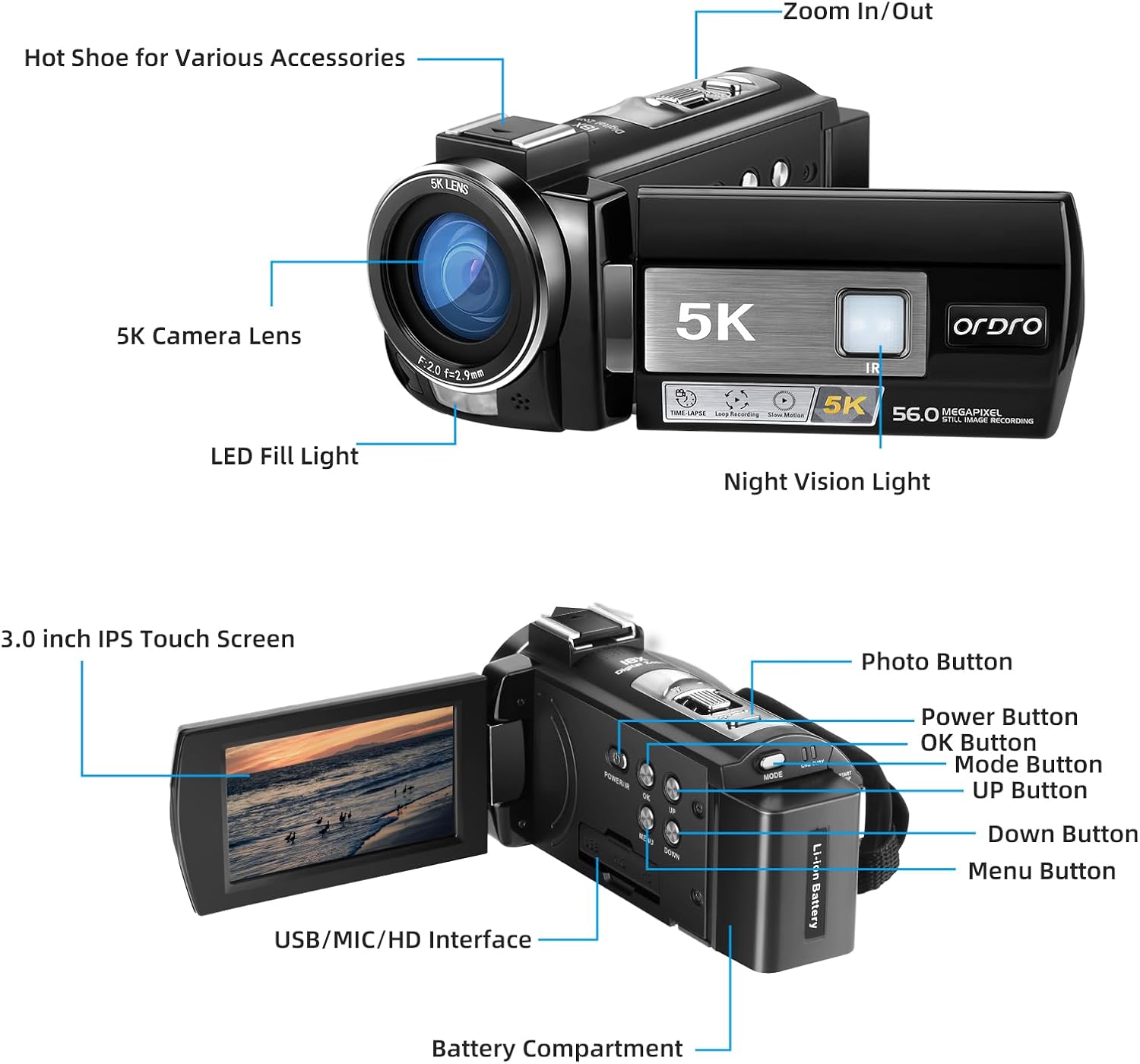
Figure 3: Key components and interfaces of the ORDRO AE20 camcorder.
4. Operating Instructions
4.1 Power On/Off
Press and hold the Power Button to turn the camcorder on or off. The 3-inch IPS HD touchscreen will illuminate.
4.2 Basic Recording
- To start recording video, press the Record Button (usually a red circle). Press again to stop.
- To take a photo, press the Photo Button.
- Use the Zoom In/Out controls to adjust the 18X digital zoom.

Figure 4: Capturing Ultra HD 5K video and 56MP photos with WiFi connectivity.
4.3 Night Vision Function
Activate the Infrared Night Vision mode for clear black and white recording in low-light or dark environments. The built-in LED fill light can also be used to enhance illumination.

Figure 5: Utilizing Infrared Night Vision and LED Fill Light for diverse lighting conditions.
4.4 WiFi Connectivity and Webcam Function
- WiFi Connection: Download the dedicated ORDRO app on your smartphone. Connect your phone to the camcorder's WiFi network to enable real-time viewing, image/video transfer, and remote control via your smartphone.
- Webcam Mode: Connect the camcorder to your computer via the USB cable. Select the "Webcam" option on the camcorder's screen to use it as a high-quality webcam for video calls or live streaming on platforms like YouTube or Zoom.
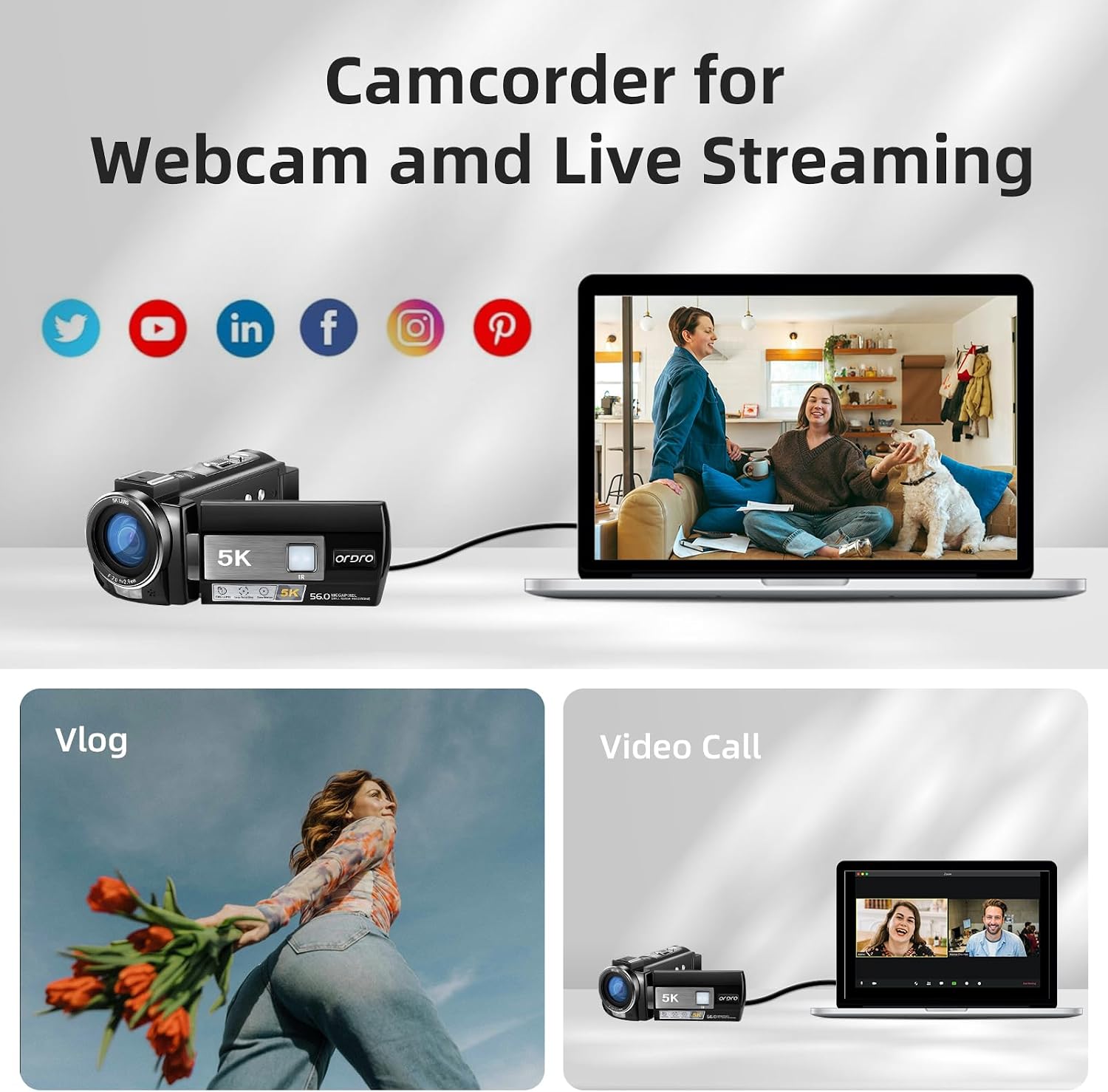
Figure 6: Camcorder functioning as a webcam for live streaming and video calls.
4.5 Remote Control Operation
The included 2.4G wireless remote control allows for convenient operation from up to 40 feet away, ideal for self-recording or group shots.

Figure 7: Advanced features including remote control, pause function, HD selfie moment, recording while charging, and time-lapse.
4.6 Advanced Features
- Auto-Focus (AF): Ensures subjects remain sharp and clear.
- Anti-Shake (EIS Stabilization): Reduces blur from camera movement, especially useful for handheld recording.
- Time-Lapse Function: Capture sequences of images over time to create time-lapse videos.
- Pause Function: Pause and resume recording within the same file.
- Recording while Charging: Continue recording even when connected to a power source.
Video 1: Demonstration of the ORDRO 5K Video Camera Camcorder's features, including 5K video resolution, 56MP image quality, microphone, 18x digital zoom, and touchscreen. This video also showcases the accessories included in the box, such as the mount, cables, chargers, batteries, SD card, and remote control. It highlights the 6-axis stabilization for improved stability during shooting, night vision for low-light conditions, and WiFi connectivity for easy file transfer and sharing on social media.
5. Specifications
| Feature | Detail |
|---|---|
| Brand Name | ORDRO |
| Model Number | LM-AE20(Set1) |
| Video Capture Resolution | 5K (up to 25FPS) |
| Photo Resolution | 56MP |
| Digital Zoom | 18X |
| Screen Size | 3 Inches IPS HD Touchscreen |
| Connectivity Technology | Wi-Fi, USB, HDMI |
| Special Features | Night Vision, Time Lapse, Built-In Light, Anti-Shake (EIS), Auto-Focus, Pause Function, Recording while Charging |
| Storage Media | Micro SD (up to 256GB, 32GB included) |
| Batteries | 2 Lithium Ion batteries (included) |
| Item Weight | 1.59 pounds |
| Country of Origin | China |
6. Maintenance
- Cleaning: Use a soft, dry cloth to clean the camera body. For the lens, use a specialized lens cleaning cloth and solution. Avoid abrasive materials.
- Storage: Store the camcorder in a cool, dry place away from direct sunlight and extreme temperatures. Remove batteries if storing for extended periods.
- Battery Care: Fully charge batteries before storage and periodically recharge them if not used for a long time to maintain battery health.
- SD Card Care: Regularly back up your data from the SD card to a computer or external storage. Format the SD card periodically within the camera to maintain optimal performance.
7. Troubleshooting
Common Issues and Solutions:
- Camera not turning on: Ensure the battery is fully charged and correctly inserted. Try using the second included battery.
- Poor image/video quality:
- Check lens for smudges or dirt and clean if necessary.
- Ensure adequate lighting conditions.
- Verify resolution settings are set to 5K/56MP.
- Enable Anti-Shake (EIS) for handheld recording.
- WiFi connection issues:
- Ensure the ORDRO app is installed and updated on your smartphone.
- Restart both the camcorder and your smartphone.
- Ensure you are within the effective range of the camcorder's WiFi signal.
- Remote control not working:
- Check the remote control's battery.
- Ensure there are no obstructions between the remote and the camcorder.
- SD card error:
- Reinsert the SD card.
- Try formatting the SD card (this will erase all data, so back up first).
- Test with a different compatible SD card.
If problems persist, please refer to the warranty and support section for further assistance.
8. Warranty and Support
Your ORDRO 5K Video Camera Camcorder is covered by a manufacturer's warranty. For specific warranty terms and conditions, please refer to the documentation provided with your purchase or visit the official ORDRO website.
For technical support, troubleshooting assistance, or warranty claims, please contact the seller or ORDRO customer service. Contact information can typically be found on the product packaging or the brand's official website.
"If you have any issues during using video camera, please feel free to contact us, we will get back to you within 24 hours."
Related documentsAE20


Ask a question about this manual
Ask about setup, troubleshooting, compatibility, parts, safety, or missing instructions. Manuals+ will review the question and use this page’s manual context to help answer it.