
Ctronics CTIPC-640C-M12B
Ctronics 4K 8MP Wi-Fi PTZ Outdoor Security Camera
User Manual
1. Introduction
Thank you for choosing the Ctronics 4K 8MP Wi-Fi PTZ Outdoor Security Camera. This manual provides detailed instructions for the installation, operation, and maintenance of your new security camera. Please read this manual thoroughly before use to ensure proper functionality and safety.
This camera is designed to provide comprehensive outdoor surveillance with advanced features such as 4K Ultra HD resolution, Pan-Tilt-Zoom capabilities, intelligent detection, and versatile storage options.

Image: The Ctronics 4K 8MP Wi-Fi PTZ Outdoor Security Camera, showcasing its sleek black design and dual antennas.
2. Safety Information
Please observe the following safety precautions to prevent damage to the product or injury to yourself and others:
- Ensure the power supply matches the camera's specifications (12 Volts, 24 Watts).
- Do not expose the camera to extreme temperatures outside its operating range.
- Avoid direct exposure to strong sunlight for prolonged periods, which may affect image quality.
- Keep the camera away from strong magnetic fields.
- Do not attempt to disassemble or modify the camera. Refer all servicing to qualified personnel.
- Ensure all cables are properly secured to prevent tripping hazards or accidental disconnection.
3. Package Contents
Verify that all items are included in your package:
- Ctronics 4K 8MP Wi-Fi PTZ Outdoor Security Camera
- Power Adapter
- Mounting Screws and Wall Plugs
- Waterproof Kit for Network Cable
- Quick Start Guide
4. Product Overview
Familiarize yourself with the main components of your camera:
- Lens: Captures video footage.
- IR LEDs: Provide infrared illumination for night vision.
- Spotlights: Enhance color night vision and act as deterrents.
- Microphone: Captures audio for two-way communication.
- Speaker: Outputs audio for two-way communication and alarms.
- Antennas: For Wi-Fi connectivity.
- Micro SD Card Slot: For local storage (supports up to 256GB, not included).
- Reset Button: Used to reset the camera to factory settings.
- Power Port: Connects to the power adapter.
- Ethernet Port: For wired network connection (optional).
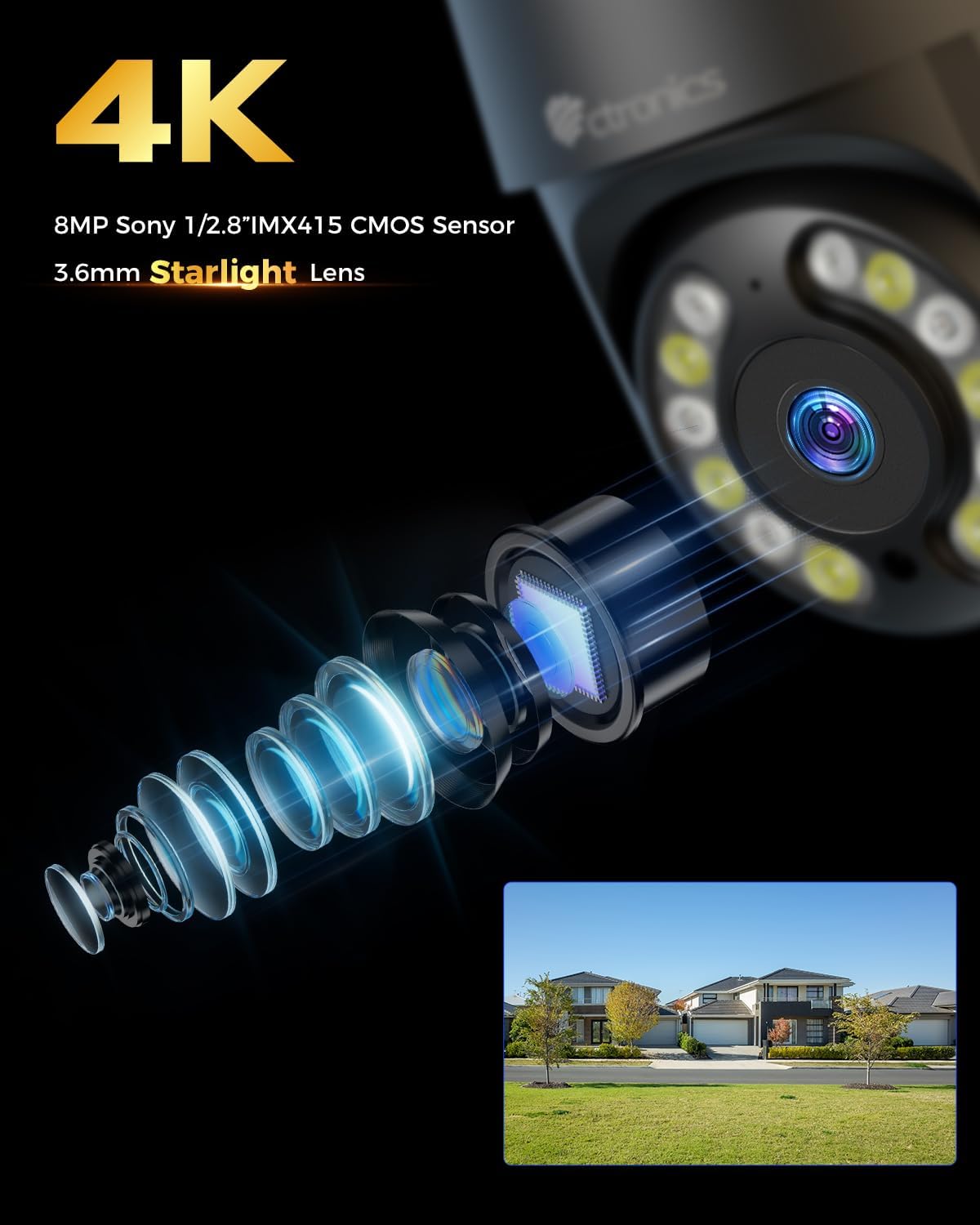
Image: Close-up view of the camera's 4K 8MP Sony 1/2.8" IMX415 CMOS Sensor and 3.6mm Starlight Lens, highlighting its advanced optical components.
5. Setup
5.1 Physical Installation
The camera supports both ceiling and wall mounting. Choose a location that provides the desired viewing angle and is within Wi-Fi range or near an Ethernet port.
- Mark Drilling Positions: Use the mounting template (if provided) or the camera base to mark the screw holes on the wall or ceiling.
- Drill Holes: Drill holes at the marked positions and insert the wall plugs.
- Secure the Camera: Align the camera base with the drilled holes and secure it with the provided screws.
- Connect Power: Connect the power adapter to the camera's power port and plug it into a power outlet.

Image: Illustrates two flexible installation methods for the Ctronics camera: wall-mounted and ceiling-mounted, demonstrating its versatility.
5.2 Network Connection
The camera supports dual-band Wi-Fi (2.4GHz and 5GHz) for flexible connectivity.
- Wi-Fi Connection: For wireless setup, ensure your Wi-Fi network is active. The camera will connect to your chosen network during the app setup process.
- Ethernet Connection (Optional): For a stable wired connection, connect an Ethernet cable from your router to the camera's Ethernet port.
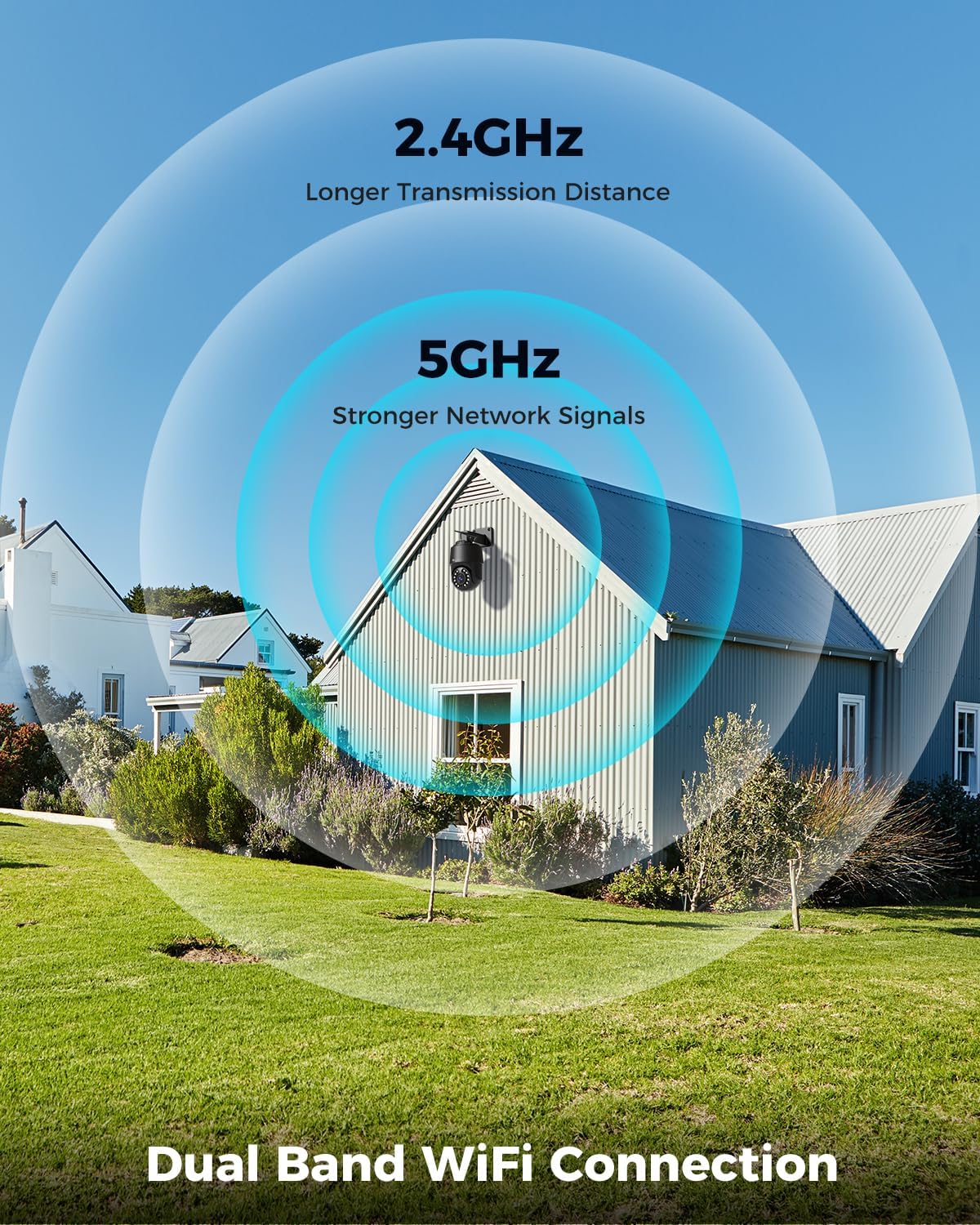
Image: Depicts the camera's dual-band Wi-Fi capability, showing 2.4GHz for longer transmission distance and 5GHz for stronger network signals, ensuring reliable connectivity.
5.3 App Installation and Initial Setup
Download the 'Ctronics PRO' or 'HIP2P' app from your mobile app store (iOS/Android) or the Ctronics website for PC/Mac clients.
- Download App: Search for "Ctronics PRO" or "HIP2P" in the App Store or Google Play Store and install it.
- Register Account: Open the app and register a new account or log in if you already have one.
- Add Device: Tap the "+" icon to add a new device. Follow the on-screen instructions to scan the QR code on the camera or manually enter the device ID.
- Configure Network: If connecting via Wi-Fi, select your Wi-Fi network and enter the password. The camera will then connect.
- Set Password: Create a strong password for your camera for security.

Image: Shows the broad compatibility of the Ctronics camera with various operating systems and platforms, including iOS, Android, Mac OS, Windows, Ctronics Pro app, and HiP2P client.
6. Operating the Camera
6.1 Live View
Once connected, you can access the live video feed from your camera through the app. This allows you to monitor your property in real-time.
6.2 PTZ Control (Pan, Tilt, Zoom)
The camera features 355° pan and 90° tilt capabilities, along with 5x optical zoom.
- Pan/Tilt: Use the directional controls in the app to move the camera horizontally and vertically.
- Zoom: Use the zoom controls in the app to optically zoom in or out on objects.
- Preset Positions: Set up to 8 preset positions for quick navigation to specific areas.

Image: Illustrates the camera's PTZ (Pan-Tilt-Zoom) functionality, showing its 355° pan and 90° tilt range for comprehensive coverage.
6.3 Detection Features & Auto Tracking
The camera can accurately detect people, vehicles, and pets, and automatically track them.
- Enable Detection: In the app settings, enable person, vehicle, or pet detection.
- Auto Tracking: When enabled, the camera will automatically follow detected subjects within its field of view.
- Alarm Notifications: Receive real-time alarm notifications on your mobile device when motion is detected.
- Sound and Light Alarm: The camera can activate a sound and red/blue light alarm at night to deter intruders. This feature can be toggled on/off in the app.

Image: Demonstrates the camera's advanced detection capabilities, highlighting its ability to identify and auto-track humans, vehicles, and pets, keeping them in focus.
6.4 Night Vision
The camera offers both infrared (IR) and color night vision modes.
- IR Night Vision: Provides clear black and white images up to 50 meters in low light or complete darkness.
- Color Night Vision: Utilizes built-in spotlights to provide full-color images up to 45 meters at night.

Image: Shows the camera's 4K Color/IR Night Vision capabilities, with bright spotlights illuminating a dark scene, available for audio and red & blue light alarm.
6.5 Two-Way Audio
Communicate with visitors or deter intruders using the built-in microphone and speaker.
- Speak: Tap the microphone icon in the app to speak through the camera's speaker.
- Listen: The camera's microphone captures audio from its surroundings.
6.6 Recording Options
The camera supports various recording methods:
- Micro SD Card: Insert a Micro SD card (up to 256GB, not included) into the camera's slot for continuous 24/7 recording or scheduled recordings.
- NVR/NAS: Connect the camera to a Network Video Recorder (NVR) or Network Attached Storage (NAS) for extended recording and management.
- Cloud Storage: Optional cloud storage services may be available through the app for secure off-site backup of your footage.

Image: Displays the camera's versatile storage options, including support for up to 256GB Micro SD card (not included), NVR/NAS for 24/7 recording, FTP, and Ctronics Cloud storage.
6.7 Multi-User Sharing and Remote Access
Share camera access with family and friends, and view footage remotely from anywhere.
- Sharing: Share access to the camera feed with up to four users simultaneously through the app.
- Remote Access: Access live view and recorded videos from your iOS, Android, Mac, or Windows devices via the Ctronics PRO or HIP2P app/software.
7. Maintenance
To ensure optimal performance and longevity of your Ctronics camera, follow these maintenance guidelines:
- Cleaning: Regularly wipe the camera lens and body with a soft, dry cloth to remove dust and dirt. Do not use harsh chemicals or abrasive cleaners.
- Firmware Updates: Check the app periodically for firmware updates. Keeping your camera's firmware up-to-date ensures you have the latest features and security enhancements.
- Cable Inspection: Periodically inspect all cables and connections for any signs of wear or damage. Ensure waterproof connections are sealed properly.
- Storage Management: If using a Micro SD card, regularly back up important footage and consider formatting the card periodically to maintain performance.
8. Troubleshooting
If you encounter issues with your camera, refer to the following common problems and solutions:
| Problem | Possible Cause | Solution |
|---|---|---|
| Camera offline | No power; Wi-Fi signal weak/disconnected; Router issue | Check power connection; Move camera closer to router or use Ethernet; Restart router |
| Poor image quality | Dirty lens; Insufficient lighting; Network bandwidth issue | Clean lens; Ensure adequate lighting or enable color night vision; Check network speed |
| Motion detection not working | Detection sensitivity too low; Detection zone not set; Obstructions | Adjust sensitivity in app; Configure detection zones; Clear obstructions |
| Two-way audio not working | Microphone/speaker disabled in app; Volume too low; Network delay | Enable audio in app; Adjust volume; Check network stability |
| Cannot connect to 5GHz Wi-Fi | Router settings; Distance from router | Ensure router supports 5GHz and is configured correctly; 5GHz has shorter range, move camera closer |
If the problem persists, please contact Ctronics customer support for assistance.
9. Specifications
| Feature | Specification |
|---|---|
| Model Number | CTIPC-640C-M12B |
| Resolution | 4K (3840x2160p), 8 Megapixels |
| Optical Zoom | 5X |
| Pan/Tilt Range | Pan: 355°, Tilt: 90° |
| Night Vision Range | IR: 50m, Color: 45m |
| Wi-Fi Connectivity | 2.4GHz / 5GHz Dual-Band |
| Storage Options | Micro SD (up to 256GB), NVR/NAS, Cloud |
| Water Resistance | IP66 (Waterproof) |
| Power Supply | 12 Volts, 24 Watts |
| Material | Metal |
| Dimensions (L x W x H) | 21.99 x 15.99 x 22 cm |
| Weight | 1.28 kg |
| Compatible Devices | Computer, Laptop, Tablet, Smartphone |
| Operating Systems | iOS, Android, Mac OS, Windows |
10. Warranty and Support
Ctronics products come with a standard warranty. Please refer to the warranty card included in your package or visit the official Ctronics website for detailed warranty terms and conditions.
For technical support, troubleshooting assistance, or any inquiries regarding your product, please contact Ctronics customer service through the following channels:
- Official Website: Visit the Ctronics official website for FAQs, support articles, and contact information.
- Email Support: Send an email to the support team (email address typically found on the website or quick start guide).
- In-App Support: Some issues can be resolved directly through the support features within the Ctronics PRO app.
When contacting support, please have your product model number (CTIPC-640C-M12B) and purchase information ready.
Related documentsCTIPC-640C-M12B


Ask a question about this manual
Ask about setup, troubleshooting, compatibility, parts, safety, or missing instructions. Manuals+ will review the question and use this page’s manual context to help answer it.