
1. Introduction
Thank you for choosing the NGS Roller Furia 1 portable speaker. This device is designed to provide high-quality audio with advanced features such as Bluetooth 5.0 connectivity, True Wireless Stereo (TWS) functionality, RGB lighting, and IPX6 water resistance. This manual provides essential information for the safe and efficient use of your speaker.
2. Package Contents
Please check the package for the following items:
- NGS Roller Furia 1 Portable Speaker
- USB Type-C Charging Cable
- Carrying Strap
- Instruction Manual (this document)
3. Product Overview
Familiarize yourself with the speaker's components and controls.
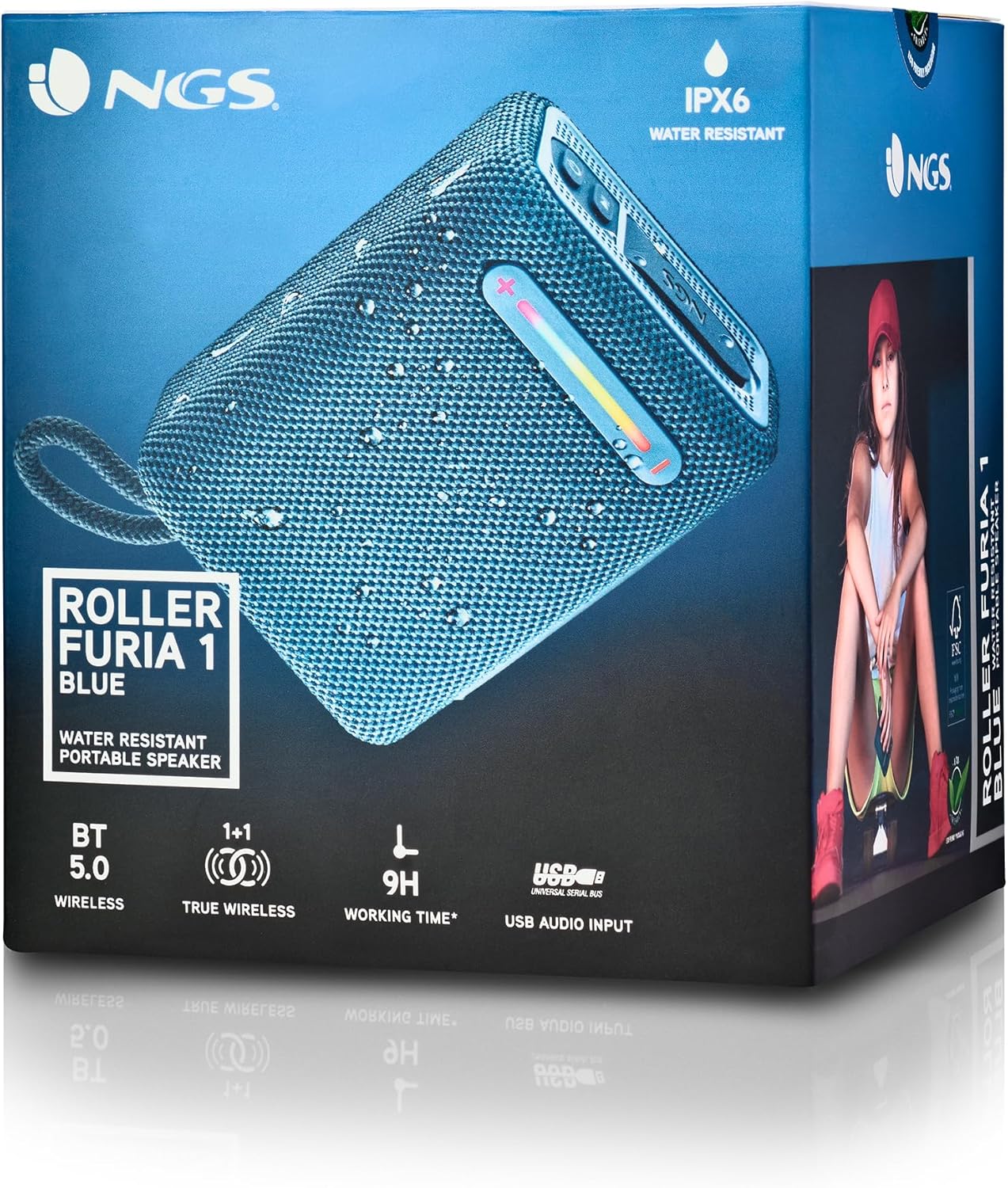
This image provides a detailed view of the NGS Roller Furia 1 speaker, indicating its approximate dimensions (10cm length, 7.5cm height) and labeling the USB input and AUX input ports. It also highlights the RGB light strip and the power button.
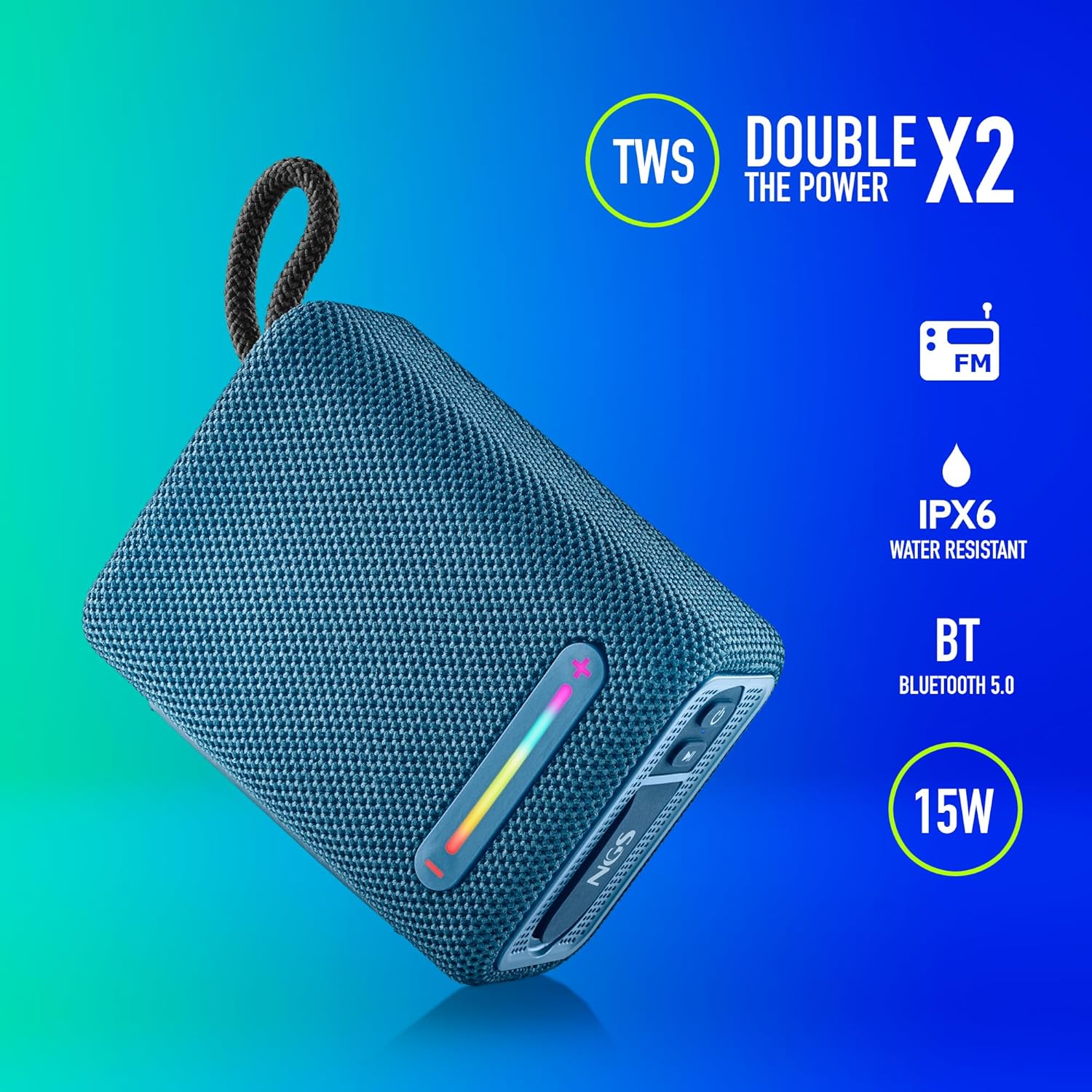
This image illustrates the NGS Roller Furia 1 Blue speaker from an angled view, emphasizing its key features: True Wireless Stereo (TWS) for pairing two speakers, IPX6 water resistance, Bluetooth 5.0 connectivity, and 15 Watts of audio power.
Controls and Ports:
- Power Button: Press and hold to turn the speaker on or off. Short press to play/pause audio.
- Volume Up / Next Track Button (+): Short press to increase volume. Long press to skip to the next track.
- Volume Down / Previous Track Button (-): Short press to decrease volume. Long press to go to the previous track.
- Mode Button (M): Short press to switch between Bluetooth, USB, and AUX input modes.
- RGB Light Button: Press to cycle through different RGB light modes or turn them off.
- USB Input Port: For playing audio from USB memory devices (up to 32GB).
- AUX Input Port: For connecting external audio devices via a 3.5mm audio cable (not included).
- USB Type-C Charging Port: For charging the speaker's internal battery.
4. Setup
4.1 Charging the Speaker
- Connect the provided USB Type-C charging cable to the speaker's charging port.
- Connect the other end of the cable to a USB power adapter (not included) or a computer's USB port.
- The charging indicator light will illuminate. Once fully charged, the light will change or turn off (refer to the speaker's LED behavior).
- A full charge provides approximately 9 hours of playback at 50% volume.
4.2 Powering On/Off
- To power on, press and hold the Power Button until you hear an audible prompt and the indicator lights illuminate.
- To power off, press and hold the Power Button again until you hear an audible prompt and the indicator lights turn off.
5. Operating Instructions
5.1 Bluetooth Pairing
- Ensure the speaker is powered on and in Bluetooth mode (the indicator light will flash, indicating it's ready for pairing). If not, press the Mode Button (M) to switch to Bluetooth mode.
- On your mobile device, enable Bluetooth and search for available devices.
- Select "NGS ROLLER FURIA 1" from the list of devices.
- Once paired, the speaker will emit an audible confirmation, and the Bluetooth indicator light will stop flashing and remain solid.
- The speaker will automatically attempt to reconnect to the last paired device when powered on.
5.2 True Wireless Stereo (TWS) Pairing
TWS allows you to pair two NGS Roller Furia 1 speakers together for a stereo sound experience.
- Ensure both NGS Roller Furia 1 speakers are powered on and in Bluetooth pairing mode (indicator lights flashing).
- On one of the speakers (this will be the primary speaker), double-press the Mode Button (M). The speaker will emit a sound, indicating it's searching for another TWS speaker.
- The two speakers will automatically connect to each other. Once connected, you will hear a confirmation sound, and the indicator light on the primary speaker will flash slowly, while the secondary speaker's light will remain solid.
- Now, connect your mobile device to the primary speaker via Bluetooth as described in section 5.1.
5.3 USB Playback
- Insert a USB memory device (up to 32GB) containing MP3 audio files into the USB Input Port.
- The speaker will automatically switch to USB mode and begin playing audio. If not, press the Mode Button (M) to select USB mode.
- Use the Volume Up (+) and Volume Down (-) buttons for track control and volume adjustment.
5.4 AUX Input
- Connect one end of a 3.5mm audio cable (not included) to the AUX Input Port on the speaker.
- Connect the other end of the cable to the audio output jack of your external device.
- The speaker will automatically switch to AUX mode. If not, press the Mode Button (M) to select AUX mode.
- Control playback and volume from your external device.
5.5 RGB Light Modes
The speaker features an integrated RGB light strip.
- Press the RGB Light Button to cycle through various light patterns and colors.
- Continue pressing the button to turn the lights off.
5.6 Volume Control and Call Management
- Volume Adjustment: Short press the Volume Up (+) or Volume Down (-) buttons.
- Answer/End Call: When a call comes in while connected via Bluetooth, short press the Power Button to answer or end the call.
- Reject Call: Long press the Power Button to reject an incoming call.
6. Maintenance
6.1 Cleaning
- Wipe the speaker with a soft, dry cloth.
- Do not use abrasive cleaners, alcohol, benzene, or other chemical solvents, as these may damage the surface or components.
6.2 Storage
- Store the speaker in a cool, dry place away from direct sunlight and extreme temperatures.
- If storing for an extended period, charge the battery periodically to maintain its lifespan.
6.3 Water Resistance (IPX6)
- The NGS Roller Furia 1 is IPX6 water resistant, meaning it can withstand powerful water jets. It is suitable for outdoor use and can resist rain or splashes.
- Do not submerge the speaker in water.
- Ensure the rubber flap covering the ports is securely closed to maintain water resistance.
7. Troubleshooting
| Problem | Possible Cause | Solution |
|---|---|---|
| Speaker does not turn on. | Battery is depleted. | Charge the speaker using the provided USB Type-C cable. |
| No sound. | Volume is too low or muted. Incorrect input mode. Device not paired. | Increase volume on speaker and connected device. Press the Mode Button (M) to select the correct input. Re-pair the Bluetooth device. |
| Bluetooth pairing fails. | Speaker is not in pairing mode. Device is too far. Interference. | Ensure speaker is in pairing mode (flashing light). Move device closer (within 10m). Turn off other Bluetooth devices. |
| TWS pairing fails. | Speakers are too far apart. One speaker is already paired to a device. | Ensure both speakers are close to each other. Disconnect any Bluetooth devices from both speakers before initiating TWS pairing. |
| Sound distortion. | Volume too high. Low battery. | Reduce volume. Charge the speaker. |
8. Specifications
| Feature | Detail |
|---|---|
| Model Name | Roller Furia 1 |
| Model Number | ELEC-SPK-0865 |
| Brand | NGS |
| Connectivity Technology | Bluetooth 5.0, Auxiliary, USB |
| Speaker Output Power | 15 Watts |
| Frequency Response | 2480 MHz |
| Signal-to-Noise Ratio | 80 dB |
| Water Resistance Rating | IPX6 |
| Battery Type | 3.7V/2500mAh Lithium Battery |
| Battery Average Life | Up to 9 hours (at 50% volume) |
| Wireless Range | Up to 10 meters |
| USB Support | Up to 32GB memory devices |
| Dimensions (D x W x H) | 5D x 9.9W x 7.5H centimetres (approximate) |
| Material | Stoff (Fabric) |
9. Warranty and Support
The NGS Roller Furia 1 portable speaker comes with a limited warranty. Please refer to the warranty card included in your package or visit the official NGS website for detailed warranty terms and conditions.
For technical support, troubleshooting assistance, or inquiries about your product, please contact NGS customer service through their official website or the contact information provided in your product documentation.


