
MANBASNAKE Attack Shark X3 Pro
MANBASNAKE Attack Shark X3 Pro User Manual
Model: Attack Shark X3 Pro
Introduction
The MANBASNAKE Attack Shark X3 Pro is a high-performance gaming mouse designed for precision and speed. Featuring tri-mode connectivity (2.4G wireless, Bluetooth, and wired), an ultra-lightweight design, and the PixArt PAW3395 flagship sensor, it offers unparalleled responsiveness for competitive gaming. This manual provides detailed instructions for setting up, operating, maintaining, and troubleshooting your X3 Pro gaming mouse.
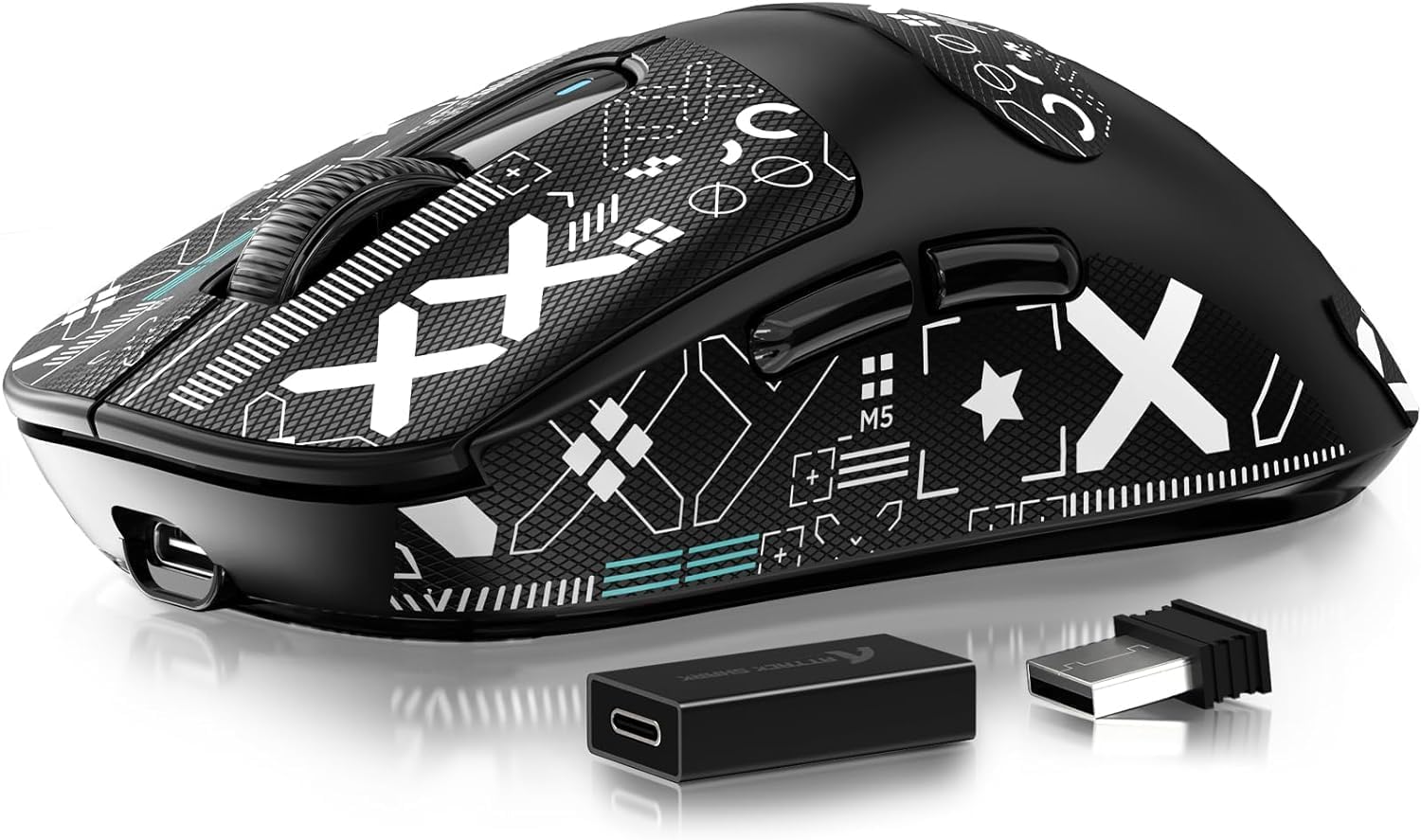
Image: The MANBASNAKE Attack Shark X3 Pro gaming mouse, showcasing its sleek design and included wireless dongle.
Setup
Package Contents
- MANBASNAKE Attack Shark X3 Pro Gaming Mouse
- Nano Dongle (USB Receiver)
- Flexible Paracord Cable (USB-C to USB-A)
- Type-C to USB-A Adapter
- 6 Pcs Non-Slip Grip Tape

Image: Bottom view of the X3 Pro mouse, illustrating the location of the DPI button, mode switch, USB receiver storage, and charging port.
Connecting Your Mouse
The X3 Pro supports three connectivity modes: 2.4G Wireless, Bluetooth, and Wired.
- 2.4G Wireless Mode:
- Locate the Nano Dongle stored in the compartment on the bottom of the mouse.
- Plug the Nano Dongle into an available USB-A port on your computer.
- Slide the mode switch on the bottom of the mouse to the '2.4G' position.
- The mouse will automatically connect to the dongle.
- Bluetooth Mode:
- Slide the mode switch on the bottom of the mouse to the 'BT' position.
- On your device (PC, tablet, phone), enable Bluetooth and search for new devices.
- Select 'Attack Shark X3 Pro' from the list of available devices to pair.
- Wired Mode:
- Connect the USB-C end of the provided paracord cable to the front port of the mouse.
- Connect the USB-A end of the cable to an available USB port on your computer.
- The mouse will function immediately and charge simultaneously.
Charging the Mouse
Connect the mouse to your computer using the provided USB-C to USB-A paracord cable. The mouse will charge while in wired mode or when connected to a power source. A full charge provides up to 200 hours of playtime.
Applying Grip Tape
The included 6 pieces of pre-cut 0.5mm grip tape can be applied to the mouse surface to enhance grip and comfort, especially during intensive gaming sessions. Ensure the mouse surface is clean and dry before applying the tape. The 3M adhesive ensures a strong hold without leaving residue upon removal.

Image: The X3 Pro mouse with anti-slip grip tape applied, highlighting the textured surface for improved handling.
Operating Instructions
DPI Adjustment
The X3 Pro mouse features a PixArt PAW3395 sensor with up to 26,000 programmable DPI. The DPI button on the bottom of the mouse allows you to cycle through preset DPI levels. An indicator light will show the current DPI setting. For precise control, use the driver software to customize DPI levels.
Polling Rate
The mouse supports a polling rate of up to 4000Hz in wireless mode and 8000Hz in wired mode, significantly reducing response time. This high polling rate ensures more responsive cursor movements and faster trigger response.

Image: A chart illustrating the reduced delay at higher polling rates (1000Hz vs. 4000Hz vs. 8000Hz), demonstrating improved responsiveness.
Connectivity Modes and Performance
Utilize the mode switch on the bottom of the mouse to select your preferred connection type:
- 2.4G Mode: Provides blazing-fast performance with minimal lag, ideal for competitive gaming.
- Bluetooth Mode: Offers seamless pairing with various devices (phones, tablets) for general use and longer battery life (Efficiency Mode).
- Wired Mode: Allows for play while charging and ensures the highest polling rate (8000Hz) for ultimate responsiveness.

Image: Diagram showing the three connectivity options: 2.4G Performance Mode, Bluetooth Efficiency Mode, and Wired USB-C Mode.
Customizing Buttons and Settings
The X3 Pro features programmable buttons and customizable settings through its dedicated driver software. This software allows you to:
- Program buttons for specific functions or macros.
- Adjust DPI settings and create custom profiles.
- Set polling rate.
- Configure lift-off distance.
- Save customized settings to the onboard memory.
Download the latest driver software from the official MANBASNAKE website for full customization capabilities.

Image: Screenshot of the X3 Pro driver software interface, showing options for button programming, DPI settings, and other parameters.
Maintenance
- Cleaning: Use a soft, dry cloth to wipe the mouse surface. For stubborn dirt, a slightly damp cloth can be used, ensuring no moisture enters the internal components. Avoid harsh chemicals or abrasive materials.
- Storage: When not in use for extended periods, store the mouse in a cool, dry place away from direct sunlight and extreme temperatures.
- Battery Care: To prolong battery life, avoid fully discharging the mouse frequently. Charge it when the battery indicator suggests low power.
Troubleshooting
| Problem | Possible Cause | Solution |
|---|---|---|
| Mouse not responding in 2.4G wireless mode. | Dongle not properly connected; mouse not in 2.4G mode; low battery. | Ensure dongle is securely plugged in. Slide mode switch to '2.4G'. Charge the mouse. |
| Mouse not pairing via Bluetooth. | Mouse not in Bluetooth mode; device's Bluetooth is off; interference. | Slide mode switch to 'BT'. Ensure device's Bluetooth is on and discoverable. Try re-pairing. |
| Cursor movement is erratic or unresponsive. | Dirty sensor; incorrect surface; low battery; software issue. | Clean the optical sensor. Use on a clean, non-reflective mouse pad. Charge the mouse. Check driver software settings. |
| Buttons not functioning as expected. | Incorrect software configuration; driver not installed or updated. | Open the driver software and verify button assignments. Update or reinstall the driver. |
| Mouse frequently disconnects. | Low battery; excessive distance from receiver/device; wireless interference. | Charge the mouse. Reduce distance to receiver/device. Minimize other wireless devices nearby. |
Specifications
| Feature | Detail |
|---|---|
| Brand | MANBASNAKE |
| Model Number | Attack Shark X3 Pro |
| Connectivity Technology | Bluetooth, Wired, 2.4G Wireless |
| Movement Detection Technology | Optical (PixArt PAW3395 Sensor) |
| Max DPI | 26,000 DPI (Programmable) |
| Max Polling Rate | 8000Hz (Wired), 4000Hz (Wireless) |
| Acceleration | 50G |
| IPS Speed | 650 IPS |
| Switches | Kailh GM 8.0 (80 Million Clicks) |
| Encoder | TTC Encoder |
| Weight | 2.08 ounces (59g) |
| Product Dimensions | 4.67 x 2.4 x 1.56 inches (11.85 x 6.1 x 3.97 cm) |
| Battery Life | Up to 200 hours playtime |
| Included Accessories | Paracord cable, Grip tape |
Warranty and Support
MANBASNAKE products are manufactured to high quality standards. For information regarding warranty coverage and technical support, please refer to the warranty card included with your product or visit the official MANBASNAKE website. Keep your proof of purchase for warranty claims.
Ask a question about this manual
Ask about setup, troubleshooting, compatibility, parts, safety, or missing instructions. Manuals+ will review the question and use this page’s manual context to help answer it.