
Jimveo J61
Jimveo J61 4K WiFi6 Bluetooth Projector User Manual
Model: J61
1. Introduction
Thank you for choosing the Jimveo J61 4K WiFi6 Bluetooth Projector. This manual provides essential information for setting up, operating, and maintaining your projector. Please read it thoroughly before use to ensure optimal performance and safety.
The Jimveo J61 is designed to deliver a high-quality home cinema experience with its native 1080P resolution, 4K support, and advanced features like automatic focus, 4D keystone correction, and obstacle avoidance. Enjoy seamless connectivity with dual-band WiFi6 and bidirectional Bluetooth 5.2.
2. Safety Instructions
- Power Supply: Use only the specified power adapter. Ensure the voltage matches the projector's requirements.
- Ventilation: Do not block the ventilation openings. Ensure adequate airflow around the projector to prevent overheating.
- Water and Moisture: Do not expose the projector to rain, moisture, or any liquids. Avoid placing objects filled with liquids, such as vases, on or near the projector.
- Cleaning: Unplug the projector before cleaning. Use a soft, dry cloth. Do not use liquid or aerosol cleaners.
- Heat Sources: Keep the projector away from heat sources such as radiators, heat registers, stoves, or other apparatus (including amplifiers) that produce heat.
- Eye Safety: Do not look directly into the projector lens when the lamp is on. The bright light can cause eye damage.
- Repairs: Do not attempt to repair this product yourself. Refer all servicing to qualified service personnel.
3. Package Contents
Please check that all items are present upon unpacking:
- Jimveo J61 Projector
- Power Adapter
- HDMI Cable
- Remote Control
- User Manual (this document)
4. Product Overview
Familiarize yourself with the projector's components and ports.

Figure 4.1: Front view of the Jimveo J61 Projector, illustrating its compact design and highlighting features such as 4K support, WiFi6 connectivity, 750 ANSI lumens brightness, and 4D+4P correction capabilities.
4.1. Front Panel
- Projection Lens: Emits the image.
- Auto-Focus Sensor: Detects projection distance for automatic focus adjustment.
4.2. Rear Panel
- Power Port: Connects to the power adapter.
- HDMI Port: Connects to HDMI-enabled devices (laptops, game consoles, media players).
- USB Port: Connects to USB storage devices for media playback.
- 3.5mm Audio Jack: Connects to external audio devices like headphones or speakers.
4.3. Top Panel
- Control Buttons: Power, navigation, menu, and source selection.
5. Setup
5.1. Placement
Place the projector on a stable, flat surface. Ensure there are no obstructions blocking the lens or ventilation openings. For optimal viewing, position the projector directly in front of the projection surface (wall or screen).

Figure 5.1: Illustration of projector placement, demonstrating projection distances for screen sizes from 50 to 300 inches. The image also highlights the automatic adjustment features: Auto Focus, 4D Keystone Correction, Screen Adjustment, and Obstacle Avoidance.
The Jimveo J61 supports projection sizes from 50 to 300 inches, depending on the distance from the screen. Refer to the diagram above for recommended distances.
5.2. Power Connection
- Connect the power adapter to the projector's power port.
- Plug the power adapter into a wall outlet.
- The power indicator light on the projector will illuminate.
5.3. Initial Power On
- Press the power button on the projector or the remote control to turn on the device.
- The projector will initiate its startup sequence.
5.4. Automatic Focus and Keystone Adjustment
The Jimveo J61 features an intelligent auto-adaptation system for image correction:
- Auto Focus: The projector will automatically adjust the image clarity based on its distance from the screen.
- Auto 4D Keystone Correction: The projector automatically corrects distorted images, ensuring a rectangular picture even if the projector is placed at an angle.
- Obstacle Avoidance: The system can detect and adjust the projection area to avoid obstacles on the wall, such as light switches or decorations.
- Screen Adaptation: The projector can precisely recognize the screen range and align the image automatically.
These adjustments typically occur automatically upon startup or when the projector's position changes. Manual adjustments can also be made via the settings menu if needed.
6. Operating Instructions
6.1. Connecting Devices
6.1.1. HDMI Connection
- Connect one end of the HDMI cable to the HDMI port on your source device (e.g., laptop, game console, media player).
- Connect the other end of the HDMI cable to the HDMI port on the projector.
- Select the HDMI input source from the projector's menu using the remote control.
6.1.2. USB Connection
- Insert a USB storage device (e.g., USB flash drive) into the USB port on the projector.
- The projector will typically prompt you to access the media player. If not, select the USB input source from the menu.
- Navigate through your files to play videos, view photos, or listen to music.
6.1.3. Bluetooth Connection (Bidirectional)
The J61 features bidirectional Bluetooth 5.2, allowing it to connect to external speakers or act as a Bluetooth speaker itself.
- Connecting to External Bluetooth Speakers:
- Go to the Bluetooth settings in the projector's menu.
- Enable Bluetooth and search for available devices.
- Select your Bluetooth speaker from the list to pair.
- Using as a Bluetooth Speaker:
- Switch the projector to Bluetooth speaker mode (refer to the on-screen instructions or specific button on the remote).
- On your smartphone or other Bluetooth device, search for "Jimveo J61" (or similar name) and connect.
- Audio from your device will now play through the projector's built-in 8W Hi-Fi speaker.
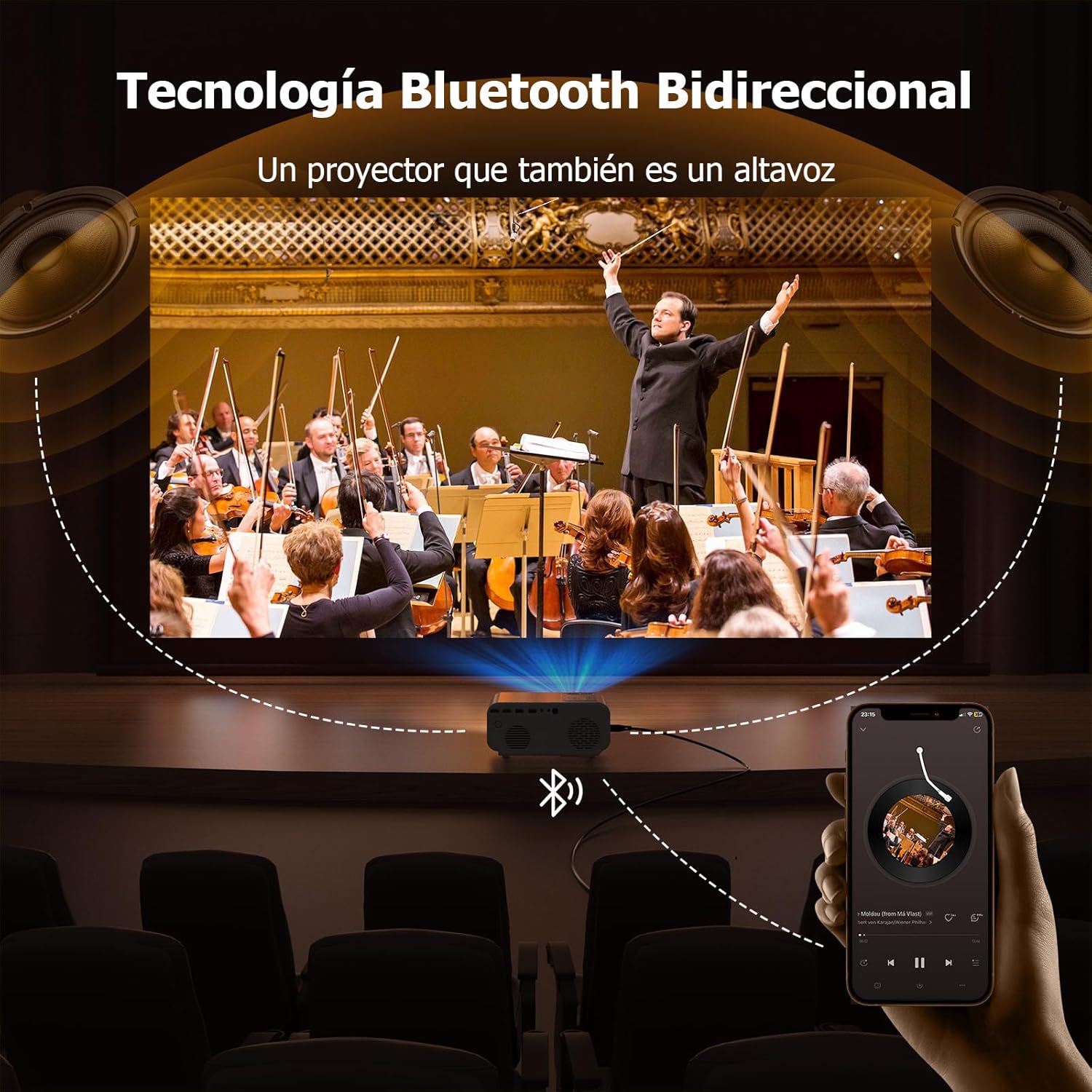
Figure 6.1: The Jimveo J61 Projector demonstrating its bidirectional Bluetooth capability, allowing it to function as a standalone Bluetooth speaker. An image of a conductor and orchestra is projected, while a smartphone is shown connected via Bluetooth, playing music through the projector's integrated speaker system.
6.1.4. WiFi6 Connection (Dual-Band 2.4G/5G)
Connect the projector to your wireless network for online content and screen mirroring.
- Go to the Network settings in the projector's menu.
- Select "WiFi" and turn it on.
- Choose your desired WiFi network (2.4GHz or 5GHz) from the list.
- Enter the password and connect.
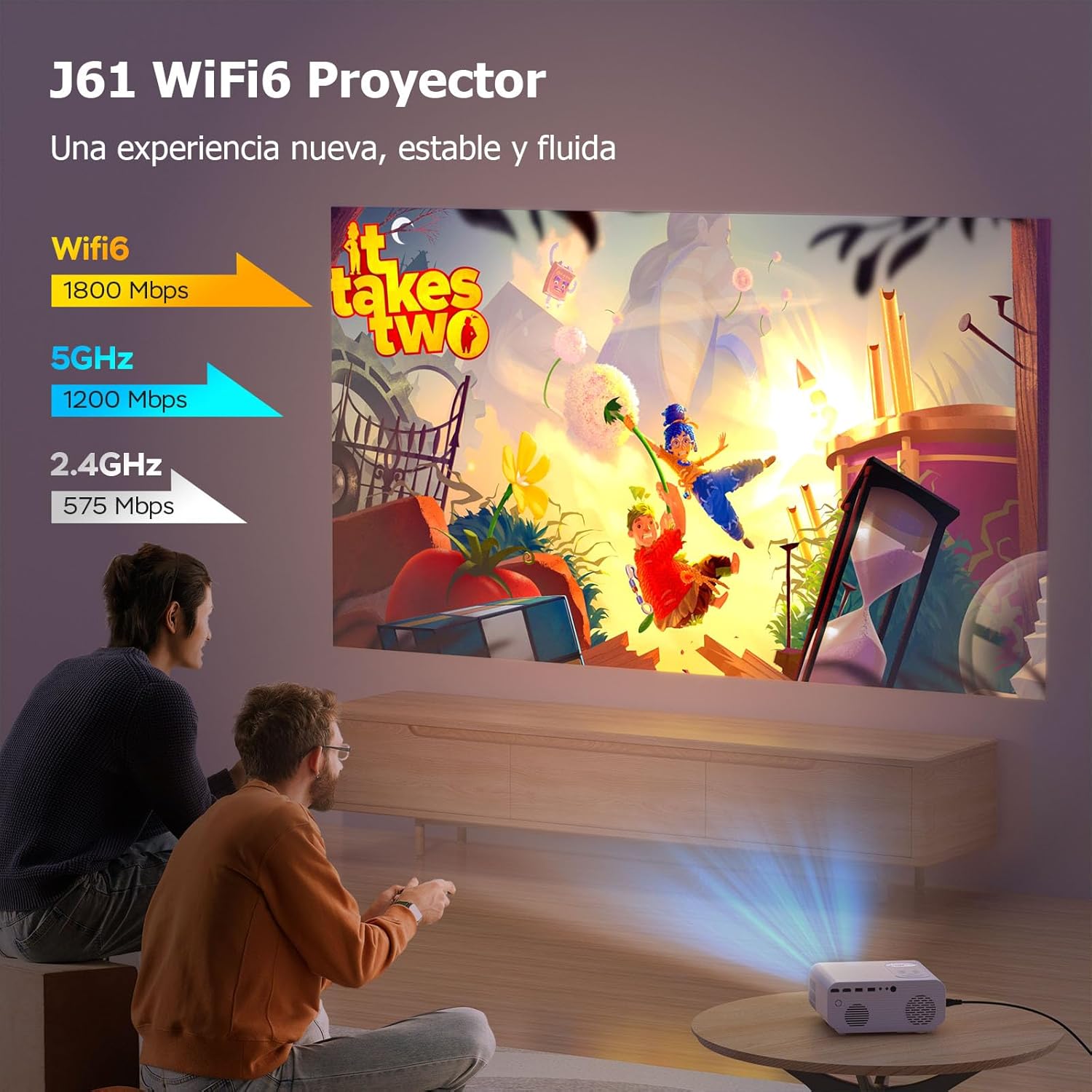
Figure 6.2: The Jimveo J61 Projector showcasing its WiFi6 dual-band connectivity (2.4GHz and 5GHz) for stable and fluid streaming. The image depicts two individuals enjoying a projected video game, emphasizing the high-speed network capabilities.
6.2. Screen Mirroring (iOS/Android)
The projector supports wireless screen mirroring from iOS and Android devices.
- Ensure your projector and mobile device are connected to the same WiFi network.
- On the projector, select the "Screen Mirroring" or "Wireless Display" option from the main menu.
- For iOS devices (AirPlay): Open Control Center, tap "Screen Mirroring," and select your projector from the list.
- For Android devices (Miracast/Wireless Display): Go to your device's settings, find "Cast," "Smart View," or "Wireless Display," and select your projector.
6.3. Image and Sound Settings
Access the projector's settings menu to customize image and sound preferences.
- Picture Mode: Adjust brightness, contrast, color, and sharpness.
- Aspect Ratio: Select between 16:9, 4:3, or auto.
- Digital Zoom: Adjust the image size without moving the projector.
- Sound Mode: Choose from preset audio modes or customize equalizer settings.
- Volume Control: Adjust the output volume of the internal speaker or connected Bluetooth device.
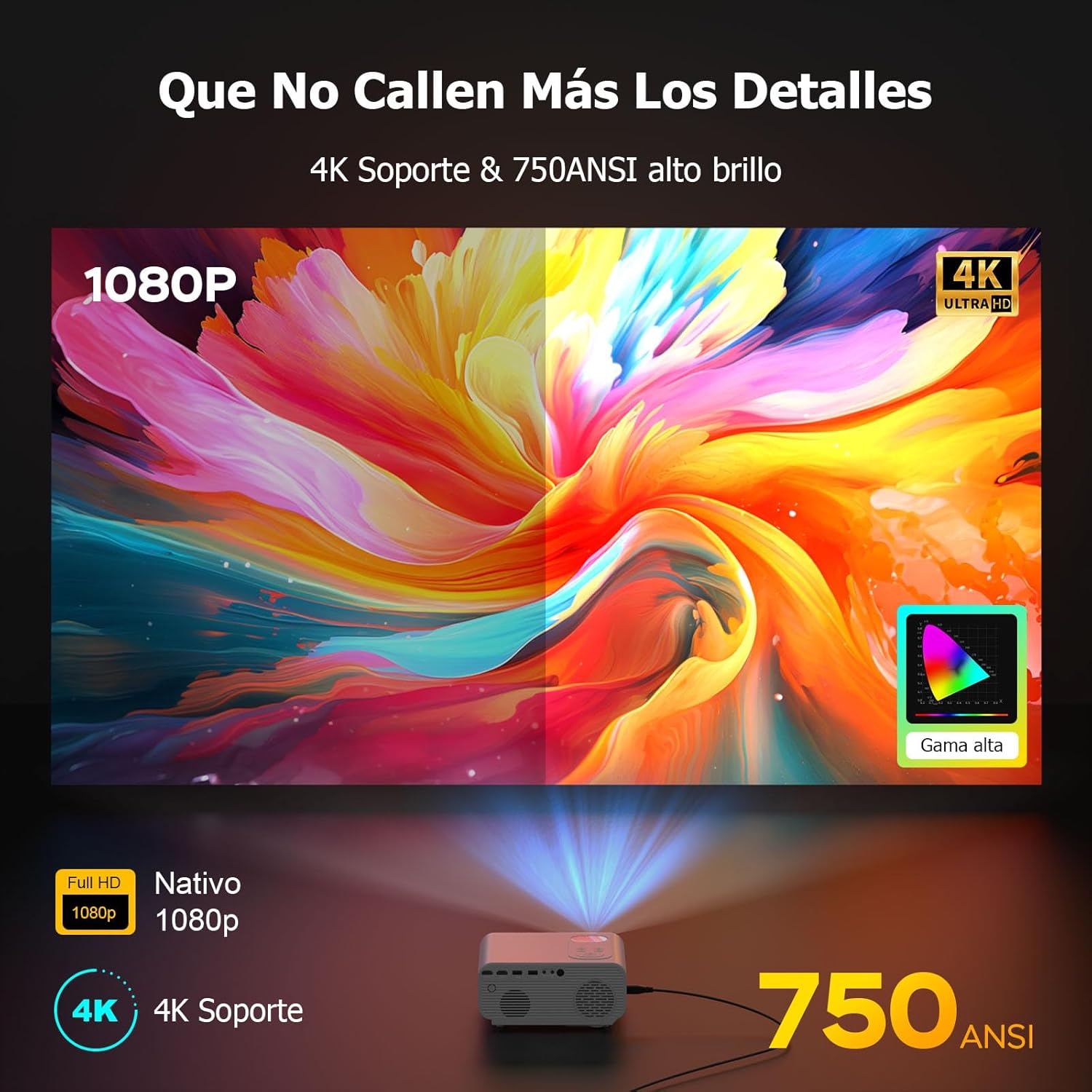
Figure 6.3: The Jimveo J61 Projector showcasing its native 1080P resolution with 4K support and 750 ANSI lumens brightness. The image highlights the vibrant color reproduction and high contrast ratio, ensuring detailed and vivid picture quality.
7. Maintenance
7.1. Cleaning the Lens
Use a soft, lint-free cloth specifically designed for optical lenses. Gently wipe the lens in a circular motion. Do not use abrasive cleaners or excessive force.
7.2. Cleaning the Projector Body
Wipe the exterior of the projector with a soft, dry cloth. For stubborn marks, slightly dampen the cloth with water. Ensure no liquid enters the ventilation openings or ports.
7.3. Storage
When not in use for extended periods, store the projector in a cool, dry place, away from direct sunlight and extreme temperatures. It is recommended to use the original packaging for storage to protect it from dust and physical damage. The J61 features a closed optical machine with IP5X dust-proof technology, which helps in prolonging its lifespan and reducing maintenance needs.

Figure 7.1: Illustration of the Jimveo J61 Projector's advanced eye protection technology, which reduces blue light output and projects a soft, natural spectrum. This feature helps alleviate eye fatigue, making it suitable for prolonged viewing.
8. Troubleshooting
| Problem | Possible Cause | Solution |
|---|---|---|
| No power | Power cable not connected; Power outlet faulty | Ensure power cable is securely connected; Try a different outlet. |
| No image | Incorrect input source; Source device not connected; Projector in standby mode | Select the correct input source (HDMI, USB); Check cable connections; Press power button to wake up. |
| Blurred image | Out of focus; Projector moved | Allow auto-focus to adjust; Manually adjust focus via menu if needed. |
| Distorted image (trapezoid) | Projector not perpendicular to screen | Allow auto 4D keystone correction to adjust; Manually adjust keystone via menu if needed. |
| No sound | Volume too low; Muted; Incorrect audio output selected; Bluetooth not connected | Increase volume; Unmute; Check audio output settings; Reconnect Bluetooth device. |
| WiFi connection issues | Incorrect password; Router too far; Network interference | Verify password; Move projector closer to router; Try connecting to 2.4GHz or 5GHz band. |
9. Specifications
| Feature | Detail |
|---|---|
| Brand | Jimveo |
| Model | J61 |
| Color | White |
| Native Resolution | 1920 x 1080 (Full HD) |
| Max Display Resolution | 3840 x 2160 (4K Supported) |
| Brightness | 750 ANSI Lumens |
| Contrast Ratio | Up to 18,000:1 |
| Color Gamut | 98% |
| Connectivity Technology | HDMI, USB, 3.5mm Audio Jack |
| Wireless Connectivity | WiFi6 (Dual-band 2.4G/5G), Bluetooth 5.2 (Bidirectional) |
| Special Features | AI-assisted Auto Focus, Auto 4D Keystone Correction, Automatic Obstacle Avoidance, Screen Adaptation, Closed Optical Machine (IP5X dust-proof), Eye Protection Technology |
| Compatible Devices | Game Console, Media Player, Laptop, Smartphone |
| Recommended Use | Home Cinema |
| Form Factor | Portable |
| Mounting Type | Tripod Mount |
| Included Components | HDMI Cable |
10. Warranty and Support
Jimveo provides comprehensive support for your J61 projector:
- Warranty: 3-year warranty from the date of purchase.
- Technical Support: Lifetime technical support is available.
- Customer Service: 24-hour customer service is provided.
For any questions or assistance, please contact Jimveo customer service via the email address provided in your product packaging or on the official Jimveo website.
Related documentsJ61


Ask a question about this manual
Ask about setup, troubleshooting, compatibility, parts, safety, or missing instructions. Manuals+ will review the question and use this page’s manual context to help answer it.