
1. Introduction
The ATTACK SHARK X3PRO is a high-performance lightweight wireless gaming mouse designed for precision and responsiveness. Featuring tri-mode connectivity, a flagship optical sensor, and durable switches, it offers an exceptional gaming experience for PC and Mac users.

Figure 1: ATTACK SHARK X3PRO Wireless Gaming Mouse (Red)
2. Product Features
- 4K/8K Wireless Gaming Mouse: Equipped with wireless 4K polling and wired 8K polling, the X3PRO sends signals to the computer 4 to 8 times faster than standard gaming mice, ensuring best-in-class precision and responsiveness.
- Pixart PAW3395 Flagship Sensor: Utilizes a Pixart 3395 optical sensor, offering 6 adjustable DPI levels (800/1600/2400/3200/5000/26000), 650 IPS tracking speed, 4000/8000Hz response speed, and 50G acceleration limit for precise positioning.
- Tri-Mode Connection: Supports USB-C wired mode, 2.4G wireless mode, and Bluetooth 5.2 mode for versatile use across different scenarios and up to 4 devices simultaneously.
- Kailh GM8.0 Switch & TTC Encoder: Features high-end Kailh Black Mamba GM8.0 Micro switches for crisp clicks, fast rebound, and quick trigger, with an 80 million click lifespan. The TTC scroll wheel encoder provides precise positioning.
- 60g Ultralight & Ergonomic Design: Weighing only 49g, the X3PRO's ergonomic design ensures a natural grip, reducing fatigue during extended gaming sessions and providing agility.
- 5 Programmable Buttons: Total of 5 programmable buttons allow customization of DPI, polling rate, LOD, shortcuts, and macros via the dedicated driver software.
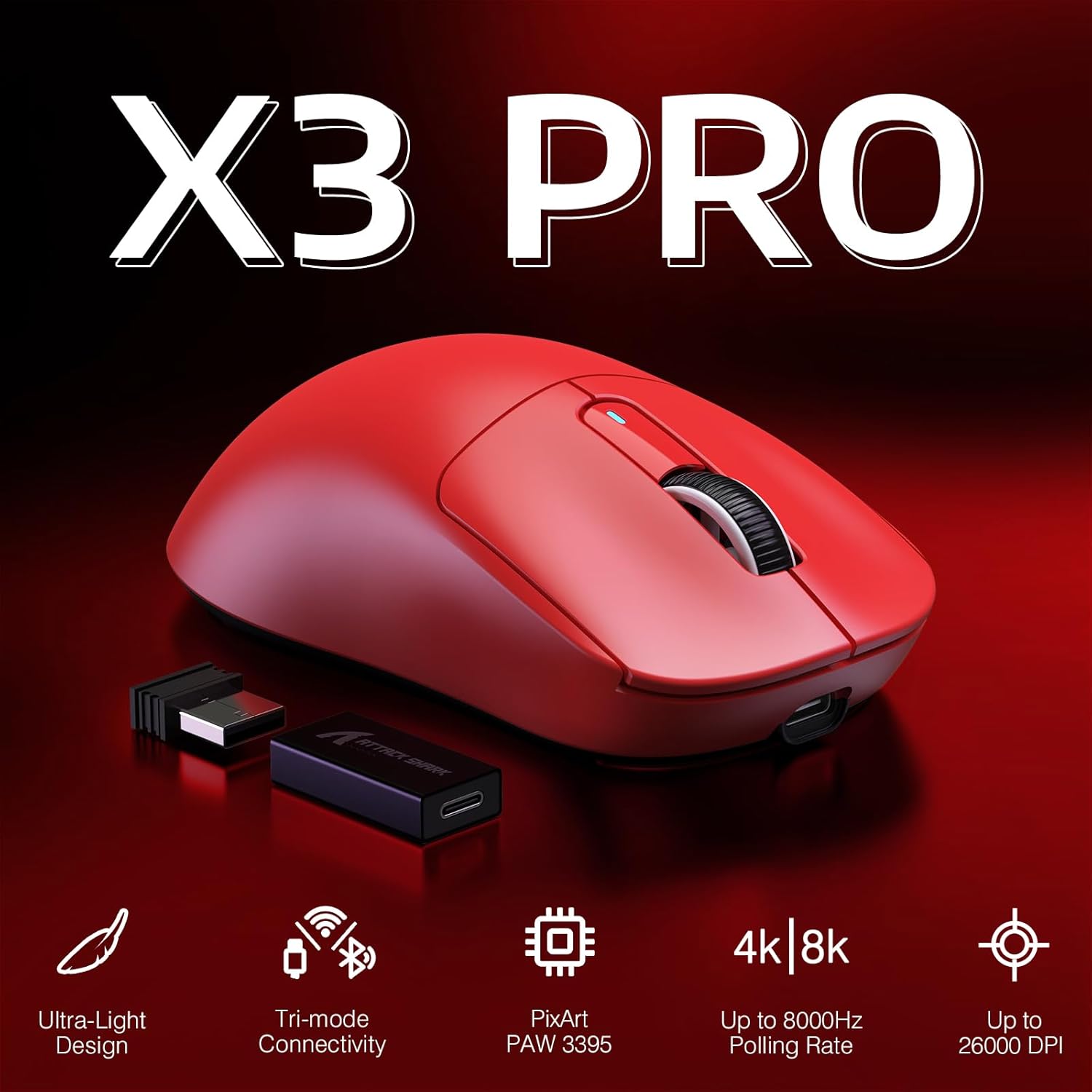
Figure 2: Key Features of the X3PRO Mouse

Figure 3: Ultra-Light Design for Effortless Action
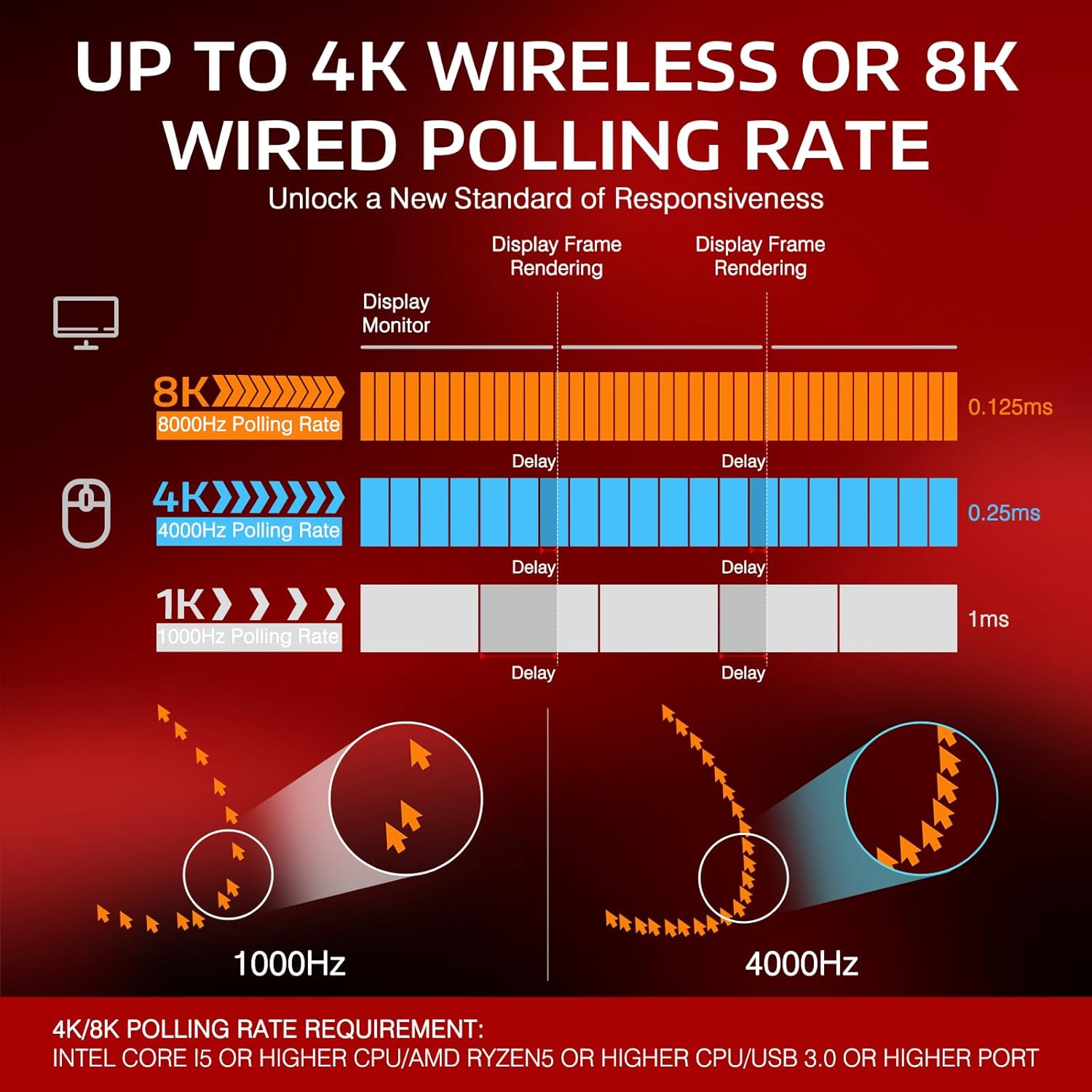
Figure 4: Polling Rate Comparison (1K, 4K, 8K)

Figure 5: Pixart PAW3395 Flagship Sensor

Figure 6: Kailh GM8.0 Switches & TTC Encoder
Product Overview Video
This video provides a comprehensive overview of the ATTACK SHARK X3PRO 4K/8K Lightweight Wireless Gaming Mouse, highlighting its key features and benefits.
3. Package Contents
Please ensure all items are present in the package:
- ATTACK SHARK X3PRO Wireless Gaming Mouse
- USB Receiver (located at the bottom of the mouse)
- USB-C Charging Cable (Flexible Paracord Cable)
- Type-C to USB A Adapter

Figure 7: Product Parameters and Components
4. Setup
4.1. Connecting the Mouse
The X3PRO mouse offers three connection modes:
- 2.4G Wireless Mode:
- Locate the USB receiver on the bottom of the mouse. Open the cover and take out the receiver.
- Plug the USB receiver into an available USB port on your computer. For optimal performance, use a USB 3.0 or higher port.
- Switch the mode selector on the bottom of the mouse to '2.4G'. The mouse will automatically connect.
- Bluetooth 5.2 Mode:
- Switch the mode selector on the bottom of the mouse to 'BT'.
- On your computer, go to Bluetooth settings and search for new devices.
- Select 'ATTACK SHARK X3PRO' from the list of available devices to pair.
- USB-C Wired Mode:
- Connect the provided USB-C cable to the front port of the mouse.
- Connect the other end of the USB-C cable (or use the Type-C to USB A adapter if needed) to an available USB port on your computer.
- Switch the mode selector on the bottom of the mouse to 'OFF' or leave it in '2.4G'/'BT' mode; the mouse will function as a wired device and charge simultaneously.

Figure 8: Flashspeed Connectivity Modes
4.2. Driver/Software Installation
To unlock the full potential of your X3PRO mouse, including programmable buttons, DPI settings, polling rate adjustments, and macro functions, please download and install the official ATTACK SHARK driver software from the manufacturer's website. The software is compatible with Windows XP / VISTA / 7 / 8 / 10 / MAC.
5. Operating Instructions
5.1. DPI Adjustment
The mouse features 6 adjustable DPI levels. You can cycle through these levels using the dedicated DPI button on the bottom of the mouse or customize them via the driver software. The default DPI levels are 800/1600/2400/3200/5000/26000.
5.2. Polling Rate Adjustment
The polling rate can be adjusted to 4000Hz (wireless) or 8000Hz (wired) for maximum responsiveness. This setting is typically adjusted within the driver software.
5.3. Button Customization
The X3PRO has 5 programmable buttons. Use the ATTACK SHARK driver software to assign custom functions, macros, or shortcuts to these buttons according to your preferences and gaming needs.
5.4. Charging the Mouse
The mouse is equipped with a long-lasting lithium battery. To charge, connect the USB-C charging cable to the mouse and a USB power source (e.g., computer USB port, wall adapter). The mouse can be used while charging in wired mode.

Figure 9: Extended Battery Life
6. Maintenance
To ensure the longevity and optimal performance of your ATTACK SHARK X3PRO mouse, follow these maintenance guidelines:
- Cleaning: Regularly wipe the mouse surface with a soft, dry cloth. For stubborn dirt, slightly dampen the cloth with water. Avoid using harsh chemicals or abrasive materials.
- Sensor Care: Keep the optical sensor on the bottom of the mouse clean and free from dust or debris. Use a cotton swab or compressed air if necessary.
- PTFE Feet: The mouse features 100% virgin grade PTFE feet for consistent glide. Avoid scratching or damaging them. Replacement feet may be available from the manufacturer if worn.
- Storage: When not in use for extended periods, store the mouse in a cool, dry place away from direct sunlight and extreme temperatures.

Figure 10: 100% Virgin Grade PTFE Feet
7. Troubleshooting
If you encounter issues with your ATTACK SHARK X3PRO mouse, please refer to the following common troubleshooting steps:
- Mouse Not Responding:
- Ensure the mouse is charged. Connect it via USB-C cable to charge and test in wired mode.
- Check the mode switch on the bottom of the mouse (2.4G, BT, OFF) and ensure it's set to the desired connection type.
- For 2.4G wireless, ensure the USB receiver is securely plugged into a working USB port. Try a different USB port.
- For Bluetooth, ensure Bluetooth is enabled on your computer and the mouse is paired correctly. Try unpairing and re-pairing the device.
- Restart your computer.
- Intermittent Disconnections (2.4G/Bluetooth):
- Ensure the mouse is within range of the receiver/Bluetooth adapter and there are no significant obstructions.
- Avoid strong electromagnetic interference from other wireless devices.
- Ensure the mouse battery is not critically low.
- Update your computer's USB or Bluetooth drivers.
- If using 2.4G, try connecting the USB receiver to a different USB port, preferably a USB 3.0 or higher port.
- DPI/Polling Rate Issues:
- Ensure the ATTACK SHARK driver software is installed and up to date.
- Verify settings within the software.
- Buttons Not Functioning:
- Check button assignments in the driver software.
- Ensure no other software is conflicting with mouse button functions.
If the issue persists after trying these steps, please contact ATTACK SHARK customer support for further assistance.
8. Specifications
| Feature | Specification |
|---|---|
| Brand | ATTACK SHARK |
| Model | X3PRO |
| Connectivity Technology | Bluetooth, USB (Wired, 2.4G Wireless, BT 5.2) |
| Movement Detection Technology | Optical (PAW3395 Sensor) |
| DPI Levels | 800/1600/2400/3200/5000/26000 (Adjustable) |
| Polling Rate | Up to 4000Hz (Wireless), Up to 8000Hz (Wired) |
| Switches | Kailh GM8.0 Micro Switches (80 Million Clicks) |
| Encoder | TTC Scroll Wheel Encoder |
| Programmable Buttons | 5 |
| Item Weight | 1.73 ounces (approx. 49g) |
| Package Dimensions | 6.5 x 4.53 x 1.77 inches |
| Compatibility | Windows XP / VISTA / 7 / 8 / 10 / MAC |
9. Warranty and Support
For warranty information and technical support regarding your ATTACK SHARK X3PRO gaming mouse, please refer to the official ATTACK SHARK website or contact their customer service directly. Keep your purchase receipt as proof of purchase for any warranty claims.
ATTACK SHARK US Store: Visit Store


