
Introduction
The MT-VIKI 4x2 HDMI KVM Matrix Switch is designed to provide seamless control over four computers using a single set of keyboard, mouse, and two monitors. This device supports high-resolution video up to 4K@30Hz and offers multiple switching methods for convenience. It is ideal for environments requiring efficient management of multiple systems.

Figure 1: MT-VIKI 4x2 HDMI KVM Matrix Switch setup, demonstrating shared peripherals across multiple computers and monitors.
Key Features:
- 4-in-2-out HDMI KVM Matrix: Allows switching between four input devices to two output displays, sharing one set of keyboard, mouse, or other USB peripherals. Supports both matrix and extended display modes.
- Multiple Control Methods: Switch sources via mouse, panel buttons, infrared (IR) remote control, hotkeys, or RS232 serial port.
- UHD 4K Video: Supports resolutions up to 4K x 2K @ 30Hz, 3D, Full HD 1080P, and Deep Color 36-bit.
- Integrated USB Hubs: Features 2 USB 1.1 ports for keyboard and mouse, one USB 2.0, and one USB 3.0 port for additional USB devices.
- 3.5mm Audio Support: Includes audio repair functionality, with audio following OUT1. Supports digital HD audio formats like Dolby, TrueHD, STS-HD, and PCM Audio.
- Wide Compatibility & Adaptive EDID: Compatible with various devices including computers, Xbox One, PS3, PS4 Pro, Fire Stick, Blu-Ray DVD players, and Roku. Features integrated adaptive EDID for optimal display settings.
Package Contents
Verify that all items listed below are included in your package. If any items are missing or damaged, please contact customer support.
- 1 x MT-VIKI HDMI Matrix KVM Switch (MT-KH42)
- 4 x USB 3.0 Cables (1.5 meters each)
- 1 x DC 12V Power Adapter
- 1 x IR Remote Control
- 1 x Phoenix Terminal
- 1 x User Manual
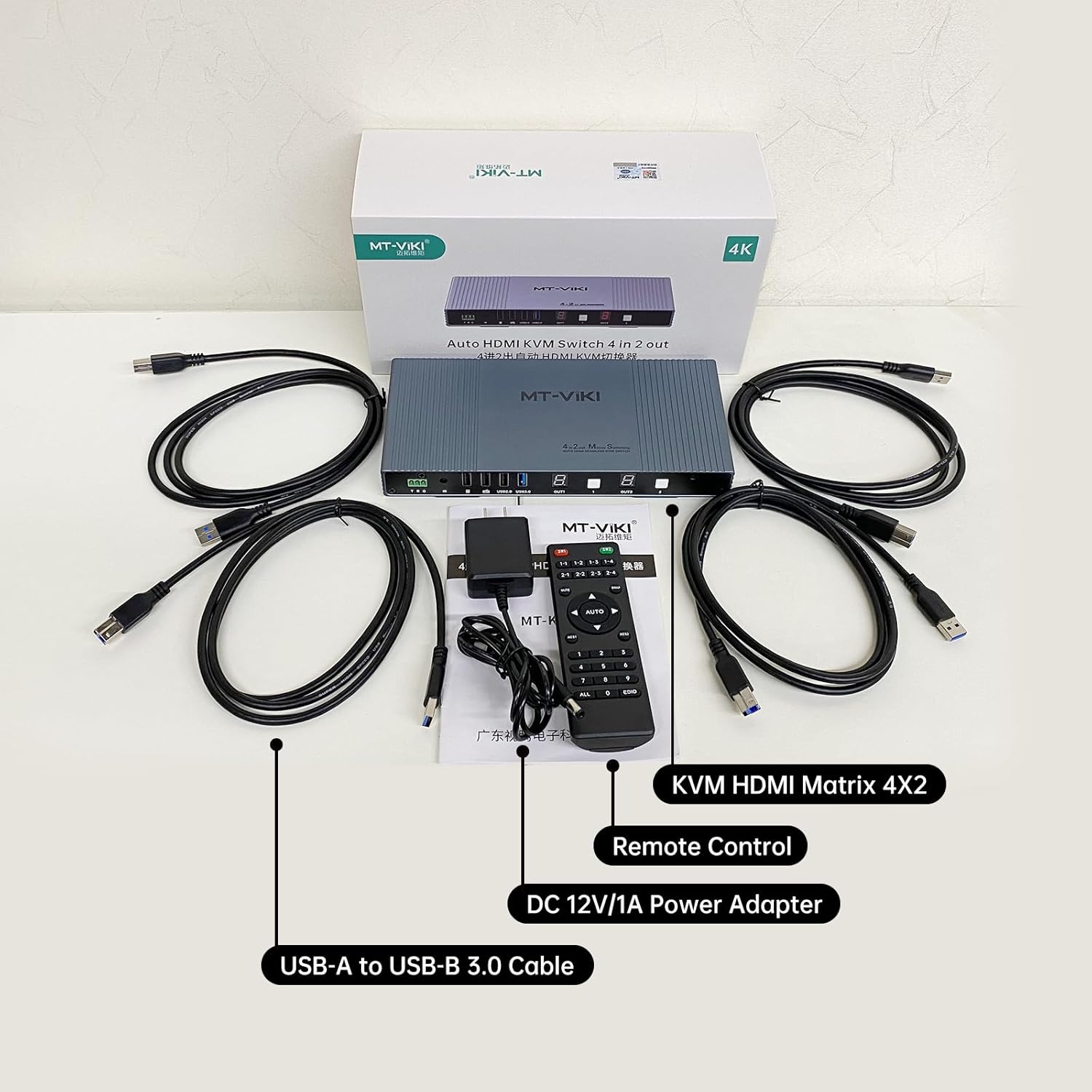
Figure 2: Package contents of the MT-VIKI 4x2 HDMI KVM Matrix Switch.
Setup Instructions
Follow these steps to properly set up your MT-VIKI 4x2 HDMI KVM Matrix Switch.

Figure 3: Connection Diagram for the KVM Matrix Switch.
- Power Off Devices: Ensure all computers, monitors, and the KVM switch are powered off before making any connections.
- Connect Monitors: Connect your two monitors to the HDMI OUT1 and HDMI OUT2 ports on the KVM switch using HDMI cables.
- Connect Computers (HDMI): Connect the HDMI output of each of your four computers to the HDMI IN1, IN2, IN3, and IN4 ports on the KVM switch.
- Connect Computers (USB): For each computer, connect one end of the provided USB 3.0 cable to a USB port on the computer and the other end to the corresponding USB-B port (labeled IN1, IN2, IN3, IN4) on the KVM switch. These connections enable keyboard, mouse, and other USB peripheral sharing.
- Connect Keyboard and Mouse: Connect your USB keyboard to the dedicated USB 1.1 keyboard port and your USB mouse to the dedicated USB 1.1 mouse port on the KVM switch.
- Connect Other USB Devices: If you have other USB peripherals (e.g., USB drive, printer, scanner), connect them to the USB 2.0 or USB 3.0 ports on the KVM switch.
- Connect Audio: If using external speakers, connect them to the 3.5mm Audio OUT port on the KVM switch. Note that audio follows OUT1.
- Connect Power: Plug the DC 12V power adapter into the KVM switch's power input and then into a power outlet.
- Power On: Power on the KVM switch, then power on your monitors, and finally power on your computers.
Operating Instructions
The MT-VIKI KVM Matrix Switch offers several methods for switching between connected computers.

Figure 4: Multiple Switching Methods.
1. Panel Button Switching:
Press the corresponding input button (1, 2, 3, or 4) on the front panel of the KVM switch to select the desired computer for output to OUT1 and OUT2.
2. IR Remote Control Switching:
Point the IR remote control at the KVM switch and press the desired input button (1, 2, 3, or 4) to switch between computers. Ensure there are no obstructions between the remote and the KVM switch's IR receiver.
3. Hotkey Switching:
Use keyboard hotkeys to switch between inputs. The default hotkey sequence is typically [Home] + [Home] + [1-4] to switch to the corresponding PC. Refer to the detailed hotkey list in the included user manual for advanced commands.

Figure 5: Hotkey Switching Example.
4. Mouse Switching:
The KVM switch supports mouse switching across two monitors. Move your mouse cursor to the edge of one monitor and continue moving it in the same direction to seamlessly switch to the adjacent monitor connected to a different PC. This feature allows for intuitive control across multiple systems.

Figure 6: Mouse Switching between PCs.
5. RS232 Serial Port Switching:
For advanced control, the KVM switch can be controlled via RS232 commands. Connect a serial cable to the RS232 port on the KVM switch and use appropriate software to send commands for switching inputs. Refer to the full user manual for RS232 command protocols.
Seamless Switching and 4K Resolution:
The KVM switch is designed for seamless transitions between sources, minimizing delay and picture loss. It supports 4K@30Hz resolution for clear and vibrant visuals.

Figure 7: Seamless 4K@30Hz Switching.
Maintenance
Proper maintenance ensures the longevity and optimal performance of your KVM switch.
- Cleaning: Use a soft, dry cloth to clean the exterior of the device. Avoid liquid cleaners or abrasive materials.
- Ventilation: Ensure the KVM switch is placed in a well-ventilated area to prevent overheating. Do not block any ventilation openings.
- Cable Management: Keep cables organized and free from kinks or excessive bending to prevent damage and ensure stable connections.
- Firmware Updates: Check the manufacturer's website periodically for any available firmware updates. Follow the provided instructions carefully for any update process.
Troubleshooting
If you encounter issues with your KVM switch, refer to the following common troubleshooting steps.
- No Video Output:
- Ensure all HDMI cables are securely connected to both the KVM switch and the monitors/computers.
- Verify that the correct input source is selected on the KVM switch.
- Test monitors and computers directly without the KVM switch to confirm they are functioning correctly.
- Try using different HDMI cables.
- Keyboard/Mouse Not Responding:
- Ensure the USB 3.0 cables are properly connected between the computers and the KVM switch.
- Verify that the keyboard and mouse are connected to the dedicated USB 1.1 ports on the KVM switch.
- Try connecting the keyboard and mouse directly to the computer to confirm functionality.
- Restart the KVM switch and the connected computers.
- Audio Issues:
- Ensure speakers are connected to the 3.5mm Audio OUT port.
- Confirm that the audio output is set to follow OUT1.
- Check audio settings on the connected computer.
- Remote Control Not Working:
- Check the battery in the remote control and replace if necessary.
- Ensure there are no obstructions between the remote and the KVM switch's IR receiver.
- Intermittent Connection:
- Ensure all cables are high-quality and securely connected.
- Check for any electromagnetic interference from other devices.
- Verify that the power adapter is providing stable power.
Specifications
| Feature | Detail |
|---|---|
| Model Number | MT-KH42 |
| Brand | MT-VIKI |
| Dimensions (Package) | 27.94 x 12.7 x 10.16 cm |
| Weight (Package) | 1.09 kilograms |
| Manufacturer | MT-VIKI |
| Origin | China |
| Operating Mode | ON-ON-ON |
| Current Rating | 1 A |
| Operating Voltage | 12 Volts (DC) |
| Contact Type | Normally Open |
| Connector Type | Phoenix Terminal |
| Switch Type | Matrix Switch and Hotkey Combination |
| Terminal | Quick Connector |
| Material | Copper Brass |
| Circuit Type | 4-way |
| Mounting Type | Rack Mount |
| Actuator Type | Push Button |
| Number of Positions | 6 |
| Control Method | Remote Control |
| Connectivity Protocol | HDMI |
| Power | 24 Watts |
| Compatible Devices | Computer, Xbox One, PS3, PS4 Pro, Fire Stick, Blu-Ray DVD Player, Roku, etc. |
| Color | Grey |
| Material Type | Copper Brass |
| Contact Material | Copper, Brass |
| Compliance | CE |
Warranty and Support
MT-VIKI products are designed for reliability and performance. For warranty information and technical support, please refer to the official MT-VIKI website or contact your local distributor.
- Warranty: Please retain your proof of purchase for warranty claims. Warranty terms and conditions may vary by region.
- Technical Support: For assistance with setup, troubleshooting, or general inquiries, visit the MT-VIKI support page or contact their customer service team.
- Online Resources: Additional resources, including updated manuals and FAQs, may be available on the manufacturer's website.


