Introduction
This manual provides essential information for setting up, operating, maintaining, and troubleshooting your Lenovo Legion Slim 5 16AHP9 laptop. Please read this manual thoroughly to ensure proper use and to maximize the performance and longevity of your device. Keep this manual for future reference.

Figure 1: Lenovo Legion Slim 5 16AHP9 Laptop Overview
What's in the Box
Verify that all items are present in the package:
- Lenovo Legion Slim 5 16AHP9 Laptop
- Power Adapter and Cable
- Documentation (Quick Start Guide, Warranty Information)
Setup
1. Unpacking and Initial Inspection
Carefully remove the laptop and all accessories from the packaging. Inspect the laptop for any signs of physical damage. If any damage is found, contact your retailer immediately.
2. Connecting the Power Adapter
Connect the power adapter to the laptop's power input port, typically located on the rear or side. Plug the power cable into a wall outlet. It is recommended to fully charge the battery before the first use.

Figure 2: Laptop Side View with Ports
3. Initial Boot and Windows Setup
Press the power button to turn on the laptop. Follow the on-screen instructions to complete the Windows operating system setup. This includes selecting your region, language, accepting terms, and creating a user account.
- Power Button: Usually located on the keyboard deck or side.
- Network Connection: Connect to a Wi-Fi network or use an Ethernet cable during setup for updates.
- Updates: Allow Windows to download and install necessary updates after initial setup.
Operating Instructions
1. Power On/Off and Sleep Mode
- Power On: Press the power button.
- Shut Down: Click the Start button, then Power > Shut down.
- Restart: Click the Start button, then Power > Restart.
- Sleep: Close the lid or click the Start button, then Power > Sleep.
2. Keyboard and Touchpad
The laptop features a full-sized keyboard and a precision touchpad. Refer to the image below for a visual representation.
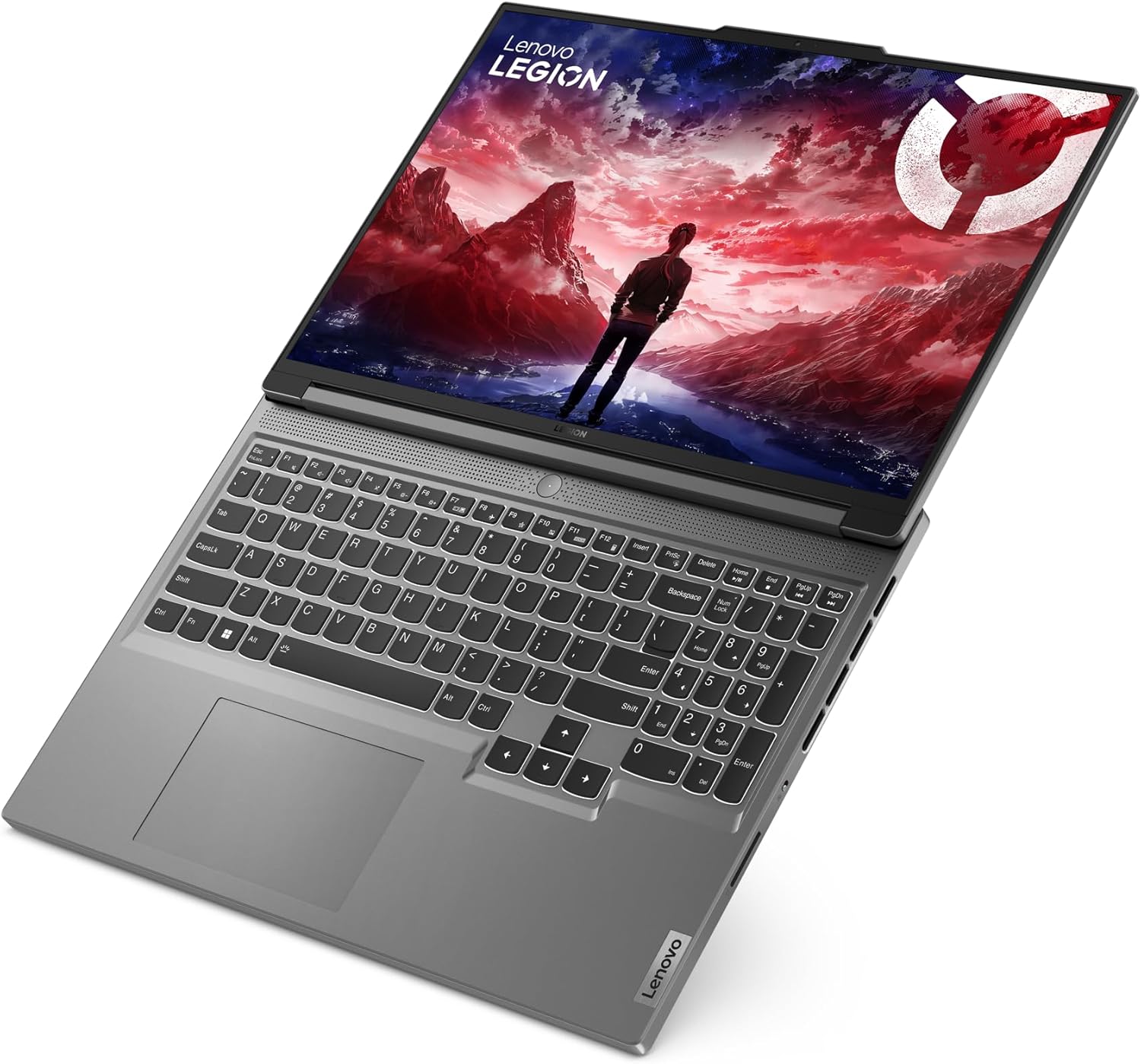
Figure 3: Keyboard and Touchpad Layout
- Function Keys (Fn): Use the Fn key in combination with F1-F12 for special functions like volume control, brightness adjustment, and Wi-Fi toggle.
- Touchpad Gestures: Supports multi-touch gestures for scrolling, zooming, and switching applications. Customize these in Windows Settings.
3. Connecting Peripherals
Your laptop is equipped with various ports for connecting external devices:
- USB Ports: For mice, keyboards, external drives, etc.
- HDMI Port: Connect to external monitors or TVs.
- Audio Jack: For headphones or external speakers.
- Wi-Fi/Bluetooth: Connect to wireless networks and Bluetooth devices.

Figure 4: Laptop Right Side Ports
Maintenance
1. Cleaning the Laptop
- Screen: Use a soft, lint-free cloth lightly dampened with water or a screen cleaner. Do not spray liquid directly onto the screen.
- Keyboard and Chassis: Use a soft cloth. For stubborn dirt, a slightly damp cloth with mild soap can be used, ensuring no liquid enters openings.
- Vents: Periodically clean dust from the cooling vents using compressed air to maintain optimal airflow.
2. Battery Care
- Avoid extreme temperatures.
- Do not fully discharge the battery frequently.
- If storing the laptop for an extended period, charge the battery to about 50-60%.
3. Software Updates
Regularly update your operating system, drivers, and applications to ensure security and optimal performance. Check for updates via Windows Update and Lenovo Vantage software.
Troubleshooting
- Laptop does not power on:
- Ensure the power adapter is securely connected to both the laptop and a working power outlet.
- Try a different power outlet.
- If the battery is completely drained, allow it to charge for a few minutes before attempting to power on.
- Display issues (no image, flickering):
- Ensure the laptop is powered on.
- Adjust screen brightness using the function keys.
- If an external monitor is connected, try disconnecting it or switching display modes (Fn + F7 or similar).
- Slow performance:
- Close unnecessary applications running in the background.
- Check for and install any pending Windows or driver updates.
- Ensure adequate free space on the SSD.
- Run a virus scan.
- Wi-Fi connection problems:
- Ensure Wi-Fi is enabled (Fn + F5 or similar).
- Restart your router and modem.
- Check network settings in Windows.
- Update Wi-Fi drivers.
Specifications
| Brand: | Lenovo |
| Model Number: | 83DH001FGE |
| Series: | Lenovo Legion Slim 5 16AHP9 |
| Color: | Grey |
| Form Factor: | Ultra-portable |
| Processor Brand: | AMD |
| Processor Type: | Ryzen 7 8845HS |
| Processor Speed: | 3.4 GHz |
| Screen Size: | 16 inches (40.6 cm) |
| Screen Resolution: | 2560 x 1600 pixels (WQXGA) |
| RAM Size: | 16 GB DDR5-SDRAM |
| Hard Drive Type: | SSD |
| Hard Drive Size: | 1 TB |
| Graphics Coprocessor: | NVIDIA GeForce RTX 4060 |
| Graphics Memory Type: | GDDR6 |
| Graphics Memory Size: | 8 GB |
| Operating System: | Windows 11 |
| Wireless Type: | 802.11ac, 802.11ax, 802.11n (Wi-Fi 6E compatible) |
| USB 2.0 Ports: | 1 |
| USB 3.0 Ports: | 1 |
| HDMI Ports: | 1 |
| Battery: | 1 Lithium Ion battery (included), 4 cells |
| Item Weight: | 4.1 Kilograms |
Warranty and Support
Your Lenovo Legion Slim 5 16AHP9 laptop comes with a standard manufacturer's warranty. For detailed warranty terms and conditions, please refer to the warranty documentation included with your product or visit the official Lenovo support website.
For technical support, driver downloads, and service information, please visit support.lenovo.com.


