
1. Introduction
This manual provides detailed instructions for the installation, operation, and maintenance of your XTRONS DIE123L 10.1-inch Android Car Stereo. Please read this manual thoroughly before using the product to ensure proper functionality and to prevent damage. Keep this manual for future reference.
2. Safety Information
Always observe the following safety precautions to avoid injury or damage to the unit:
- Do not attempt to disassemble or modify the unit. This may cause electric shock, fire, or other malfunctions.
- Ensure proper wiring connections. Incorrect wiring can cause damage to the unit or the vehicle's electrical system.
- Avoid operating the unit in a manner that distracts you from driving. Always prioritize road safety.
- Consult a qualified professional for installation if you are unsure about any steps.
- Keep the unit away from water and excessive moisture.
3. Package Contents
Verify that all items are present in the package before installation:
- XTRONS DIE123L Head Unit
- Power Cable
- GPS Antenna
- USB Cables
- RCA Cables
- 4G Antenna
- User Manual
- Installation Tools (keys)
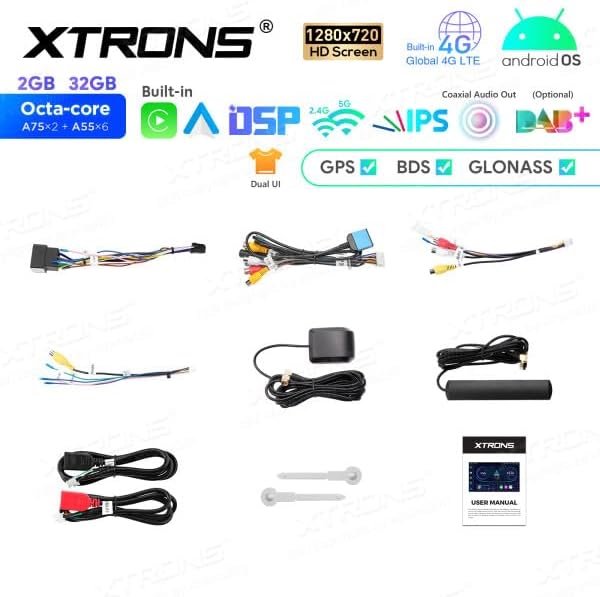
Image: Overview of the XTRONS DIE123L package contents, including the head unit, various cables (power, USB, RCA), GPS antenna, 4G antenna, and installation tools.
4. Product Overview
The XTRONS DIE123L is a 1 DIN car stereo featuring a 10.1-inch HD touchscreen display, powered by an Android operating system. It integrates advanced connectivity and audio processing capabilities for an enhanced in-car experience.
Key Features:
- Display: 10.1-inch 1280x720 HD IPS Screen
- Operating System: Android OS
- Processor: Octa-core (A75*2 + A55*6)
- Memory/Storage: 2GB RAM, 32GB ROM
- Connectivity: Built-in 4G LTE, Dual Band WiFi (2.4G/5G), Bluetooth, USB
- Navigation: GPS, BDS, GLONASS support
- Audio: Built-in DSP (Digital Sound Processor), Coaxial Audio Out (Optional)
- Smartphone Integration: Wireless Apple CarPlay, Wireless/Wired Android Auto
- User Interface: Dual UI options
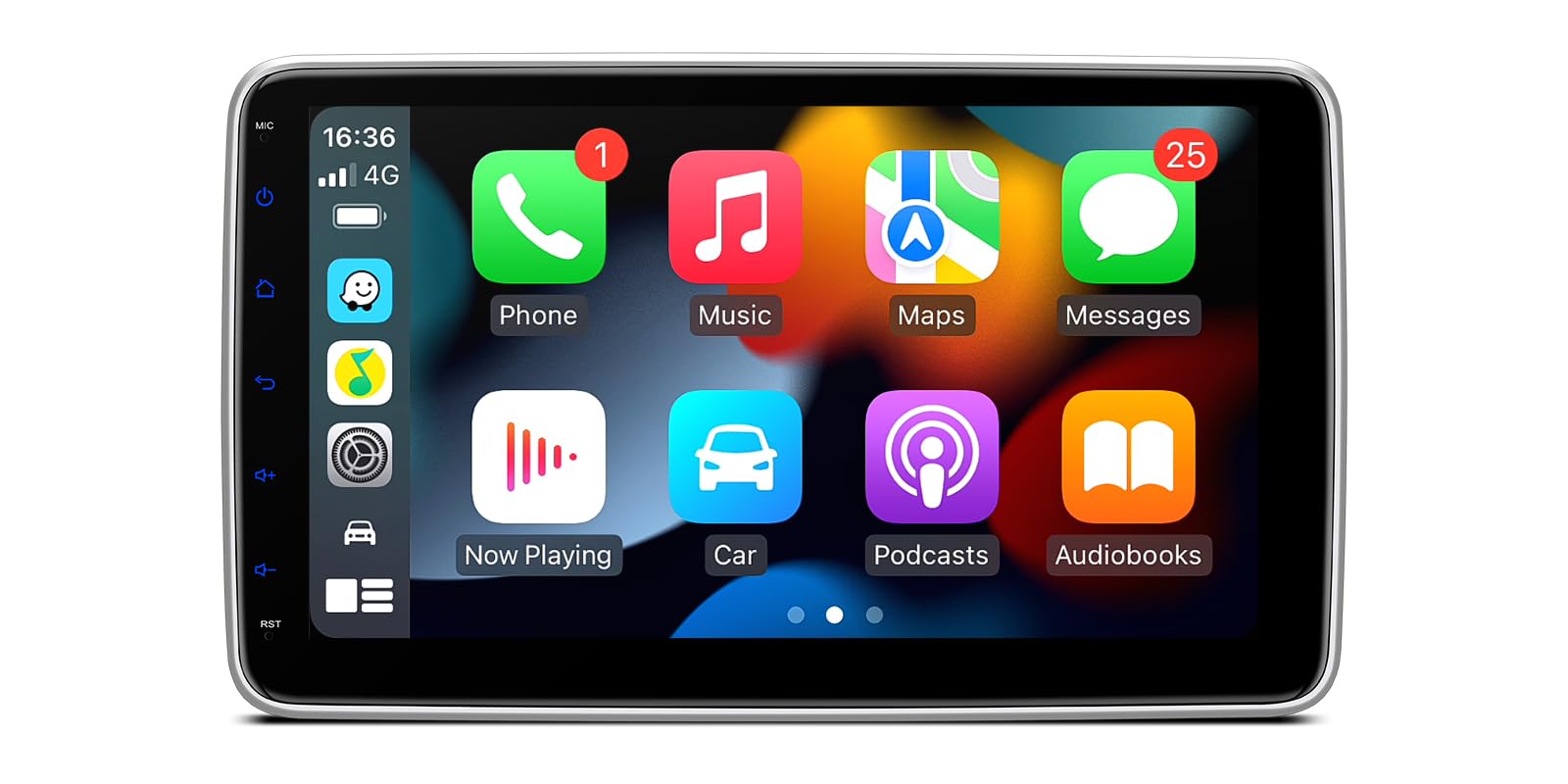
Image: The XTRONS DIE123L head unit displaying its main interface with navigation, media controls, and vehicle speed information.

Image: A visual summary of the XTRONS DIE123L's core features, including 2GB RAM, 32GB storage, Octa-core processor, 1280x720 HD screen, built-in 4G LTE, Android OS, DSP, GPS, BDS, and GLONASS.

Image: The XTRONS DIE123L home screen, showing various application icons such as Navigation, Radio, Video, Music, and other system utilities.
5. Setup & Installation
Professional installation is highly recommended for this product. Incorrect installation can lead to damage to the unit or the vehicle. Ensure the vehicle''s battery is disconnected before beginning installation.
5.1 Physical Dimensions
Refer to the diagram below for the unit's dimensions to ensure compatibility with your vehicle's dashboard.
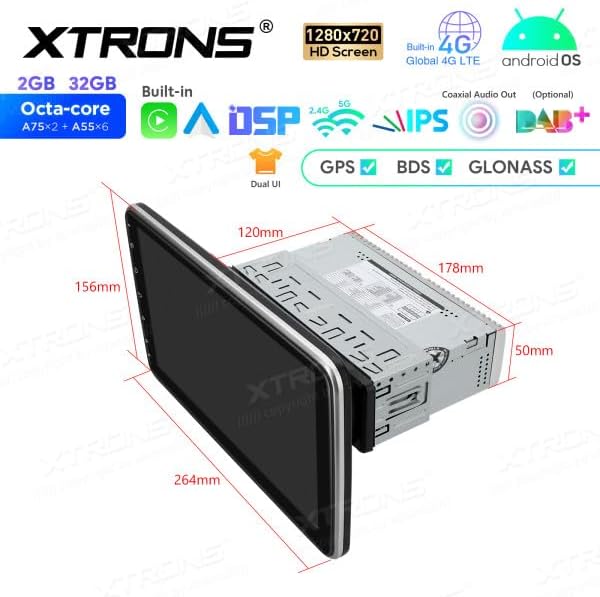
Image: A technical drawing illustrating the dimensions of the XTRONS DIE123L head unit, including screen size (264mm width, 156mm height) and chassis size (178mm width, 50mm height, 120mm depth).
5.2 Wiring Connections
Connect the provided cables according to your vehicle's wiring harness. Ensure all connections are secure to prevent intermittent issues.
- Power Cable: Connect to the vehicle's power supply (ACC, B+, Ground).
- Speaker Wires: Connect to your vehicle's speakers.
- GPS Antenna: Mount in a location with a clear view of the sky.
- 4G Antenna: Mount for optimal signal reception.
- USB Cables: For external USB devices or wired Android Auto.
- RCA Cables: For external amplifiers, subwoofers, or video input/output.
5.3 Initial Power On
After installation, reconnect the vehicle's battery. Turn on the ignition. The unit should power on automatically. Follow the on-screen prompts for initial setup, including language selection and time zone.
6. Operating Instructions
6.1 Basic Operation
- Power On/Off: Press and hold the power button on the front panel or use the vehicle's ignition.
- Volume Control: Adjust using the physical buttons or the on-screen controls.
- Touchscreen: Navigate the interface by tapping, swiping, and pinching.
6.2 Navigation
The unit supports GPS, BDS, and GLONASS for accurate positioning. Pre-installed navigation apps or downloaded apps can be used. Ensure the GPS antenna is properly installed for optimal performance.
6.3 Connectivity
- Bluetooth: Pair your smartphone for hands-free calling and audio streaming. Go to Settings > Bluetooth to enable and pair devices.
- Wi-Fi: Connect to a Wi-Fi hotspot (e.g., from your phone or a dedicated car hotspot) to access online features, download apps, and browse the internet. Go to Settings > Network & Internet > Wi-Fi.
- 4G LTE: Insert a compatible SIM card (if applicable) to enable 4G connectivity for internet access without an external Wi-Fi hotspot.
- USB: Connect USB drives for media playback or use for wired Android Auto.
6.4 Apple CarPlay & Android Auto
The XTRONS DIE123L supports both Apple CarPlay and Android Auto for seamless smartphone integration.

Image: A split image demonstrating both Apple CarPlay (wireless via Bluetooth) and Android Auto (wireless via Bluetooth, wired via USB) interfaces on the XTRONS DIE123L screen, showing typical app layouts.
- Apple CarPlay: Connect wirelessly via Bluetooth. Once paired, CarPlay will launch automatically or can be selected from the main menu.
- Android Auto: Connect wirelessly via Bluetooth or via a USB cable. Follow the on-screen prompts to set up Android Auto.
6.5 Audio Features
- DSP: Utilize the built-in Digital Sound Processor to customize audio settings, including equalizer, balance, fader, and subwoofer controls. Access these settings through the 'Sound' or 'DSP' app.
- Media Playback: Play audio and video files from USB drives, SD cards, or streaming services via connected internet.
- Radio: Access FM/AM radio stations.
7. Maintenance
- Cleaning: Use a soft, dry cloth to clean the screen and unit exterior. For stubborn marks, slightly dampen the cloth with water. Avoid harsh chemicals or abrasive materials.
- Software Updates: Periodically check for software updates via the system settings or the XTRONS official website to ensure optimal performance and access to new features.
- Data Backup: Regularly back up important data if stored on the unit.
8. Troubleshooting
If you encounter issues, refer to the following common problems and solutions:
| Problem | Possible Cause | Solution |
|---|---|---|
| Unit does not power on. | Incorrect power wiring, blown fuse, vehicle ignition off. | Check power connections, inspect vehicle fuses, ensure ignition is on. |
| No sound from speakers. | Incorrect speaker wiring, volume too low, mute activated, amplifier issues. | Verify speaker connections, increase volume, check mute status, test external amplifier if used. |
| GPS signal is weak or absent. | GPS antenna not properly installed or obstructed. | Ensure GPS antenna has a clear view of the sky and is securely connected. |
| Bluetooth device cannot connect. | Bluetooth not enabled, device not in pairing mode, interference. | Enable Bluetooth on both devices, put device in pairing mode, try pairing in a different location. |
| Touchscreen unresponsive. | System freeze, temporary software glitch. | Restart the unit (power cycle), perform a factory reset if necessary (note: this will erase data). |
If the problem persists after attempting these solutions, contact XTRONS customer support or a qualified service technician.
9. Specifications
| Feature | Detail |
|---|---|
| Brand | XTRONS |
| Model Number | DIE123L |
| Screen Size | 10.1 Inches |
| Screen Resolution | 1280x720 HD |
| Operating System | Android |
| Processor | Octa-core |
| RAM | 2GB |
| Internal Storage | 32GB |
| Connectivity Technology | Bluetooth, USB, Wi-Fi, 4G |
| Special Features | Android Auto, Apple CarPlay, Built-in DSP |
| Compatible Devices | Smartphone |
| Control Method | Touch |
10. Warranty & Support
XTRONS products are covered by a limited warranty. For specific warranty terms and conditions, please refer to the warranty card included with your product or visit the official XTRONS website. For technical support, troubleshooting assistance, or service inquiries, please contact XTRONS customer service through their official channels.


