1. Introduction
This manual provides essential information for the safe and efficient operation of your YIWENG MHT-P11 Portable Thermal Receipt Printer. Please read this manual thoroughly before using the device and keep it for future reference.
2. Safety Information
- Do not expose the printer to water or excessive moisture.
- Avoid dropping the printer or subjecting it to strong impacts.
- Use only the specified charging cable and power adapter.
- Do not attempt to disassemble or repair the printer yourself. Contact qualified service personnel.
- Keep out of reach of children.
- Ensure proper ventilation during operation and charging.
3. Product Overview
The YIWENG MHT-P11 is a compact and portable thermal receipt printer designed for various applications. It features thermal printing technology, eliminating the need for ink cartridges or ribbons.

Image: Front view of the YIWENG MHT-P11 Portable Thermal Receipt Printer, showcasing its compact design.
Key Features:
- Thermal Printing: No ink cartridges or carbon ribbons required, reducing consumable costs.
- Connectivity: Supports both wired USB and wireless Bluetooth connections.
- Portability: Small size and lightweight design for easy carrying.
- Battery: Integrated 1800 mAh lithium polymer battery for extended use.
- Durability: Designed to be drop-proof, shock-proof, and splash-proof.
- Compatibility: Compatible with Android, iOS, and Windows operating systems.
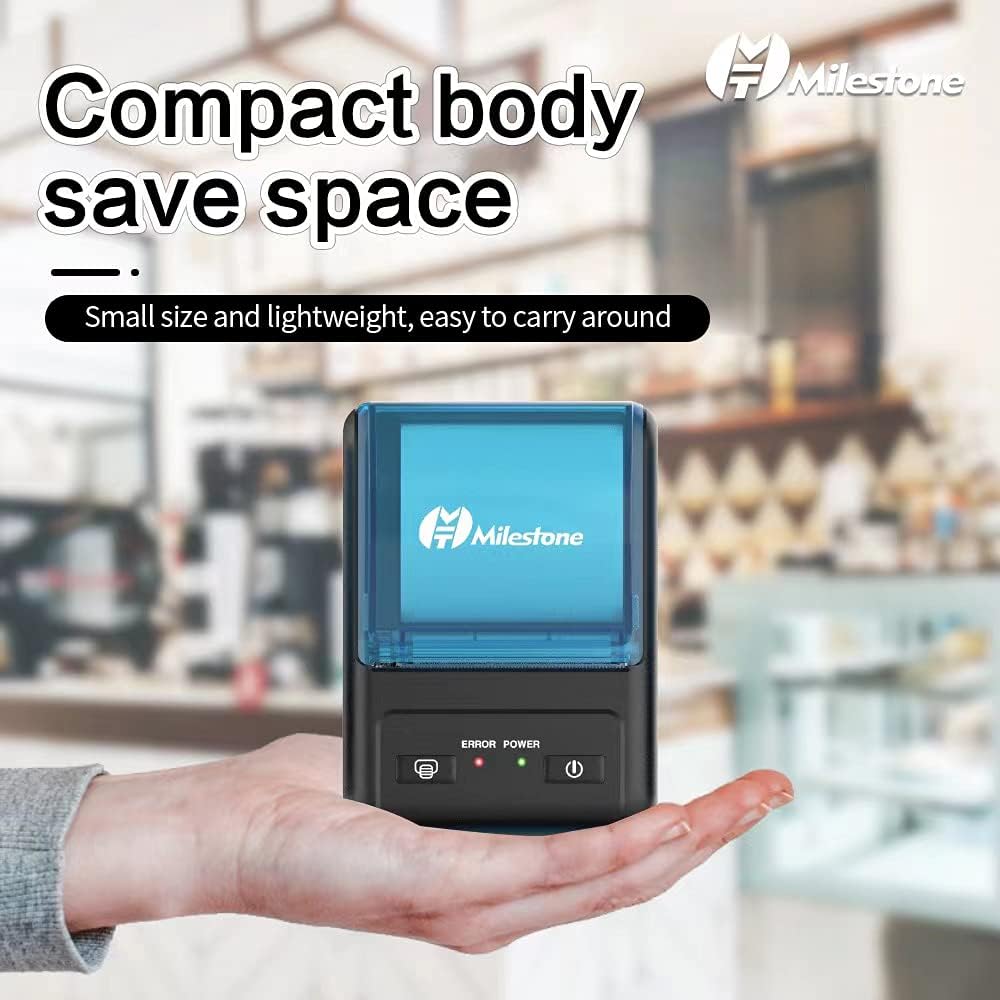
Image: The MHT-P11 printer held in a hand, demonstrating its compact and portable size.
4. Setup
4.1 Unpacking the Printer
Carefully remove all components from the packaging. Ensure the following items are present:
- YIWENG MHT-P11 Thermal Printer
- USB Charging Cable (Type-C)
- One roll of thermal paper (57 x 30 mm)
- User Manual (this document)
4.2 Charging the Battery
Before initial use, fully charge the printer's battery. Connect the USB Type-C charging cable to the printer's charging port and the other end to a compatible USB power adapter (DC 5V-1A). The charging time is approximately 3 hours.
4.3 Loading Thermal Paper
- Open the paper compartment cover.
- Insert the thermal paper roll with the printing surface facing the print head. Ensure the paper feeds smoothly.
- Close the paper compartment cover, leaving a small amount of paper protruding.

Image: The MHT-P11 printer with its paper compartment open, showing how to load a thermal paper roll.
5. Operating Instructions
5.1 Powering On/Off
- To power on: Press and hold the power button until the indicator light illuminates.
- To power off: Press and hold the power button until the indicator light turns off.
5.2 Connecting to Devices
The MHT-P11 supports both Bluetooth and USB connections.
Bluetooth Connection:
- Ensure the printer is powered on.
- On your device (Android, iOS, or Windows), enable Bluetooth and search for available devices.
- Select "MHT-P11" (or similar name) from the list of devices.
- If prompted, enter the pairing code (usually "0000" or "1234").
- Once paired, the printer is ready for wireless printing.
USB Connection:
- Connect the USB Type-C cable from the printer to your computer.
- Install the necessary printer drivers on your Windows operating system (if not automatically detected). Drivers are typically available from the manufacturer's website.
- The printer will be recognized as a standard receipt printer.

Image: The MHT-P11 printer demonstrating its compatibility with multiple operating systems via USB and Bluetooth connections.
5.3 Printing
Once connected, you can send print commands from your application. The printer supports ESC print commands and has an effective print width of 48mm on 58mm wide thermal paper. Printing speed ranges from 60-90 mm/s.

Image: The MHT-P11 printer actively printing a thermal receipt, showing the output quality.
6. Maintenance
6.1 Cleaning the Printer
- Turn off the printer and disconnect it from power before cleaning.
- Use a soft, dry cloth to wipe the exterior of the printer.
- For the print head, use a cotton swab lightly dampened with isopropyl alcohol. Gently wipe the print head to remove any dust or paper residue. Allow it to dry completely before use.
- Do not use abrasive cleaners or solvents.
6.2 Paper Management
- Always use high-quality thermal paper to ensure optimal print quality and prolong print head life.
- Store thermal paper in a cool, dry place away from direct sunlight.
- Replace paper rolls promptly when they run out to avoid printing interruptions.
7. Troubleshooting
7.1 Common Issues and Solutions
| Problem | Possible Cause | Solution |
|---|---|---|
| Printer not powering on | Low battery; Power button not pressed correctly | Charge the battery; Press and hold the power button firmly. |
| No print output | Paper loaded incorrectly; Out of paper; Connection issue; Driver not installed (USB) | Reload paper correctly; Replace paper roll; Re-establish Bluetooth/USB connection; Install printer drivers. |
| Poor print quality | Low battery; Dirty print head; Low-quality thermal paper | Charge the battery; Clean the print head; Use recommended thermal paper. |
| Bluetooth connection fails | Printer not in pairing mode; Device Bluetooth off; Incorrect pairing code | Ensure printer is discoverable; Turn on device Bluetooth; Re-enter pairing code (0000 or 1234). |
8. Specifications
| Model | MHT-P11 |
| Printing Method | Thermal Line Printing |
| Effective Print Width | 48 mm |
| Print Command | ESC |
| Print Speed | 60-90 mm/s |
| Print Density | 384 dots/line |
| Character Size | 12x24, 24x24 |
| Print Interface | Bluetooth + USB (Type-C) |
| Paper Width (Max) | 58 mm |
| Supported Paper | Thermal Paper |
| Paper Roll Diameter | ≤ 50 mm |
| Paper Thickness | 0.05-0.15 mm |
| Barcode Types | Code39, CODE128 |
| Battery Capacity | 1800 mAh Lithium Polymer |
| Charging Time | Approx. 3 hours |
| Paper Detection | Optocoupler Detection |
| Supported Systems | Android, iOS, Windows |
| Dimensions (L x W x H) | 11.2 x 8.1 x 5.6 cm |
| Mechanical Behavior | Drop-proof, Shock-proof, Splash-proof |
| Print Head Life | 50-100 km |
| Processor Frequency | 120M |
| Voltage/Current | DC 5V-1A |
Image: A table summarizing the technical specifications of the MHT-P11 printer, including dimensions and features.
9. Warranty and Support
For warranty information and technical support, please refer to the documentation provided with your purchase or contact your retailer. Keep your proof of purchase for warranty claims.
Manufacturer: YIWENG
Model Number: AHDEC11711XSJ


