
Dexnor DK004
Dexnor Keyboard Case User Manual
Model: DK004 | Brand: Dexnor
For Samsung Galaxy Tab S8/S7 11 Inches
Introduction
Thank you for choosing the Dexnor Keyboard Case for your Samsung Galaxy Tab S8/S7. This manual provides detailed instructions for setting up, operating, and maintaining your new keyboard case, ensuring you get the most out of its features. This case transforms your tablet into a versatile laptop-like device, enhancing productivity and convenience.
Compatibility
This keyboard case is designed exclusively for the following 11-inch Samsung Galaxy Tab models:
- Samsung Galaxy Tab S8 2022 (Models: SM-X700, SM-X706)
- Samsung Galaxy Tab S7 2020 (Models: SM-T870, SM-T875, SM-T876)
Note: This case is NOT compatible with the Tab S7+/S8+/S7 FE 12.4-inch models. Please verify your tablet model before use.
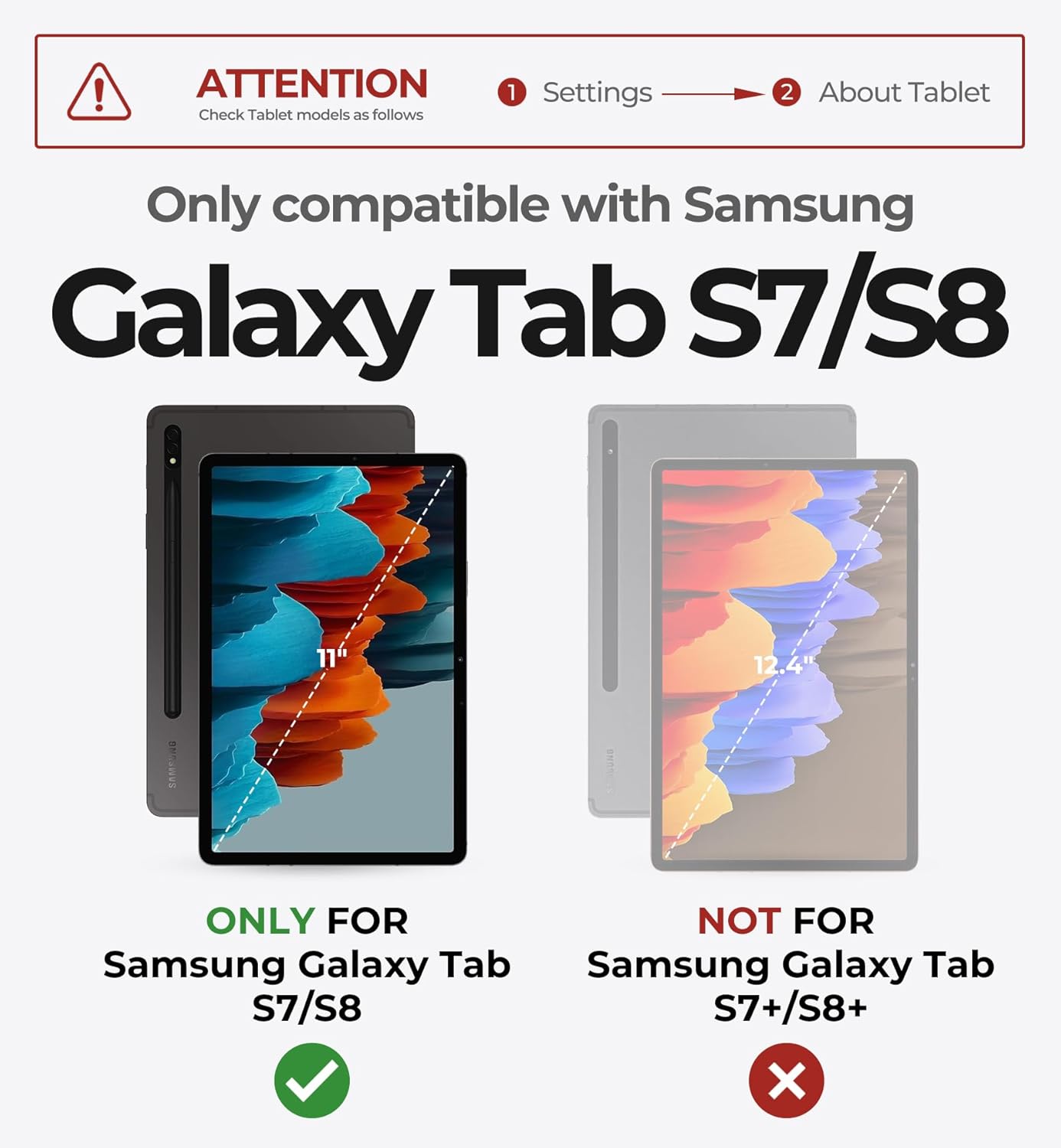
Image: Visual guide for tablet model compatibility.
What's in the Box
Upon opening your package, please ensure all the following items are present:
- 1 x Dexnor Bluetooth Keyboard Case
- 1 x USB-C Charging Cable
- 1 x User Manual (this document)
- 1 x Quick-start Guide
Setup Guide
1. Attaching Your Tablet
The Dexnor Keyboard Case features a sturdy aluminum alloy hinge with embedded magnets for secure attachment. Simply align your Samsung Galaxy Tab with the magnetic back panel of the case. The magnets will automatically snap the tablet into place, transforming it into a laptop-like setup.

Image: Demonstrates the magnetic attachment and adjustable viewing angle.

Image: Illustrates the floating cantilever mechanism for optimal viewing angles.
2. Charging the Keyboard
Before first use, fully charge the keyboard. Connect the included USB-C charging cable to the keyboard's charging port and a power source. The keyboard has a 650mAh battery, providing long working and standby times.
- Charging Time: Approximately 3.5 hours for a full charge.
- Working Time: Up to 200 hours on a single charge (without backlight).
- Standby Time: Up to 1200 hours.

Image: Visual representation of the keyboard's extended battery life.
3. Bluetooth Pairing
- Turn on the keyboard by sliding the power switch. The Bluetooth indicator light will begin to flash.
- On your Samsung Galaxy Tab, go to Settings > Connected devices > Bluetooth.
- Ensure Bluetooth is enabled on your tablet.
- Select "Dexnor Keyboard" from the list of available devices.
- Follow any on-screen prompts to complete the pairing process. The indicator light on the keyboard will turn solid or off once successfully paired.
Video: Demonstrates the setup and use of the Dexnor Keyboard Case, including pairing and various functionalities.
Operating Instructions
Keyboard Functions
- Backlit Keys: The keyboard features 7 solid color backlights and 3 adjustable brightness levels. Use the dedicated backlight key (often a lightbulb icon or Fn + a specific key) to cycle through colors and brightness settings.
- Shortcut Keys: A full row of shortcut keys is available for quick access to common functions, enhancing productivity. These may include media controls, volume, and screen brightness.
- Scissor Mechanisms: The keys are designed with scissor mechanisms for a comfortable and responsive typing experience.
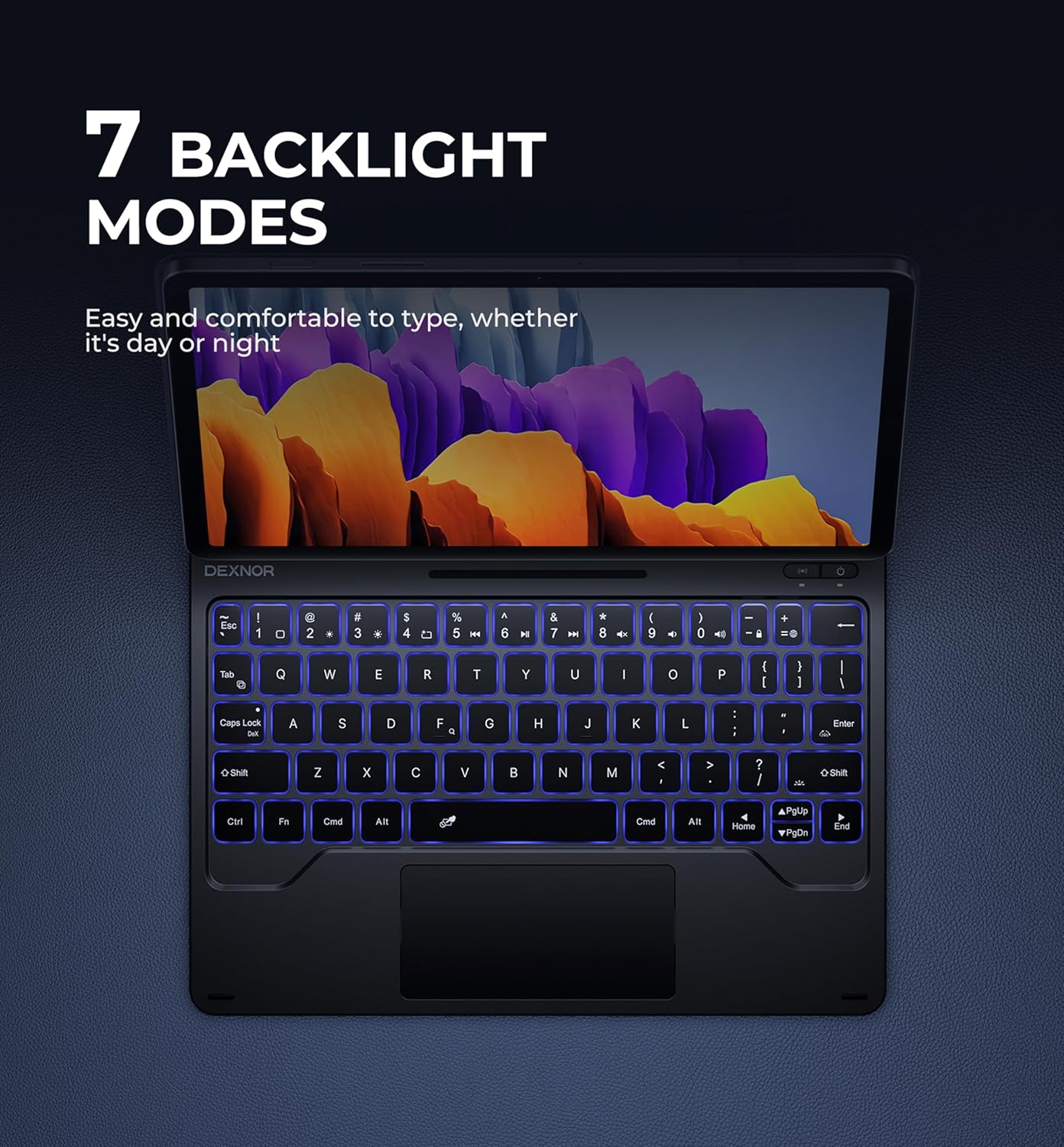
Image: Displays the keyboard with its various backlight color options.

Image: Highlights the dedicated row of shortcut keys for quick access to functions.
Multi-Touch Trackpad
The integrated high-precision multi-touch trackpad supports various gestures for efficient navigation, similar to a laptop. This allows for precise control when editing documents, browsing the web, or building presentations.
- Single-finger tap: Left-click.
- Two-finger tap: Right-click.
- Two-finger scroll: Scroll up/down or left/right.
- Pinch to zoom: Zoom in/out on content.
- Three-finger swipe: Navigate between open applications or desktops (functionality may vary based on tablet OS settings).

Image: Features the multi-touch trackpad, Type-C charging port, and highlights the anti-scratch PU leather and auto wake/sleep function.
S Pen Holders
The case provides two convenient locations for your S Pen:
- Built-in Magnetic Holder: Located within the keyboard section for secure storage when not in use.
- Cut-out Slot: On the back cover, designed for both charging and storage of your S Pen, ensuring quick access and preventing loss.

Image: Illustrates the two dedicated S Pen storage options for convenience and security.
Auto Wake/Sleep Function
The case supports an auto wake/sleep function. Opening the case will automatically wake your tablet, and closing it will put your tablet to sleep, conserving battery power for both the tablet and the keyboard.
Maintenance
To ensure the longevity and optimal performance of your Dexnor Keyboard Case, follow these maintenance guidelines:
- Cleaning: Use a soft, lint-free cloth to gently wipe the keyboard and case surfaces. For stubborn marks, slightly dampen the cloth with water or a mild, non-abrasive cleaner. Avoid harsh chemicals or abrasive materials.
- Storage: When not in use for extended periods, store the keyboard case in a cool, dry place. Ensure the case is closed to protect the tablet and keyboard.
- Avoid Liquids: Keep the keyboard case away from liquids to prevent damage to the electronic components.
- Handle with Care: While durable, avoid dropping the case or subjecting it to excessive force, which could damage the hinge or internal components.
Troubleshooting
If you encounter any issues with your Dexnor Keyboard Case, please refer to the following common solutions:
- Keyboard Not Connecting:
- Ensure the keyboard is charged and powered on.
- Verify Bluetooth is enabled on your tablet.
- Forget the device in your tablet's Bluetooth settings and attempt to re-pair.
- Restart both your tablet and the keyboard.
- Keys Not Responding:
- Check if the keyboard is properly connected via Bluetooth.
- Ensure the keyboard is charged.
- Clean any debris from around the keys.
- Trackpad Not Working:
- Ensure the keyboard is connected.
- Check tablet settings for trackpad or mouse options to ensure it's enabled.
- Clean the trackpad surface.
- Backlight Issues:
- Press the backlight key (or Fn + backlight key) to cycle through settings.
- Ensure the keyboard has sufficient charge.
If problems persist after trying these steps, please contact Dexnor customer support for further assistance.
Specifications
| Feature | Detail |
|---|---|
| Product Dimensions | 10.2 x 8.07 x 0.75 inches |
| Item Weight | 1.53 pounds |
| Manufacturer | Dexnor |
| Item Model Number | DK004 |
| Batteries | 1 Lithium Ion battery (included) |
| Compatible Devices | Samsung Galaxy Tab S7 11 inches Tablet, Samsung Galaxy Tab S8 11 inches Tablet |
| Connectivity Technology | Bluetooth |
| Keyboard Description | Multi Functional |
| Number of Keys | 64 |
| Keyboard Backlighting | RGB (7 colors, 3 brightness levels) |
| Style | Magic Style (Floating Cantilever) |
Warranty and Support
Dexnor provides a 1-year manufacturer's warranty for this product, covering defects in materials and workmanship under normal use. Additionally, lifetime technical support is available.
For warranty claims, technical assistance, or any other inquiries, please contact Dexnor customer support through the retailer's platform or visit the official Dexnor website.
Please retain your proof of purchase for warranty purposes.
Related documentsDK004


Ask a question about this manual
Ask about setup, troubleshooting, compatibility, parts, safety, or missing instructions. Manuals+ will review the question and use this page’s manual context to help answer it.