
1. Introduction
The GREENKINDER Kids Instant Print Camera KC05 is designed to capture and instantly print memories. This digital camera features photo and video recording capabilities, a rotating lens for selfies, and thermal printing technology for immediate black and white prints. It is suitable for children aged 3-12 years.
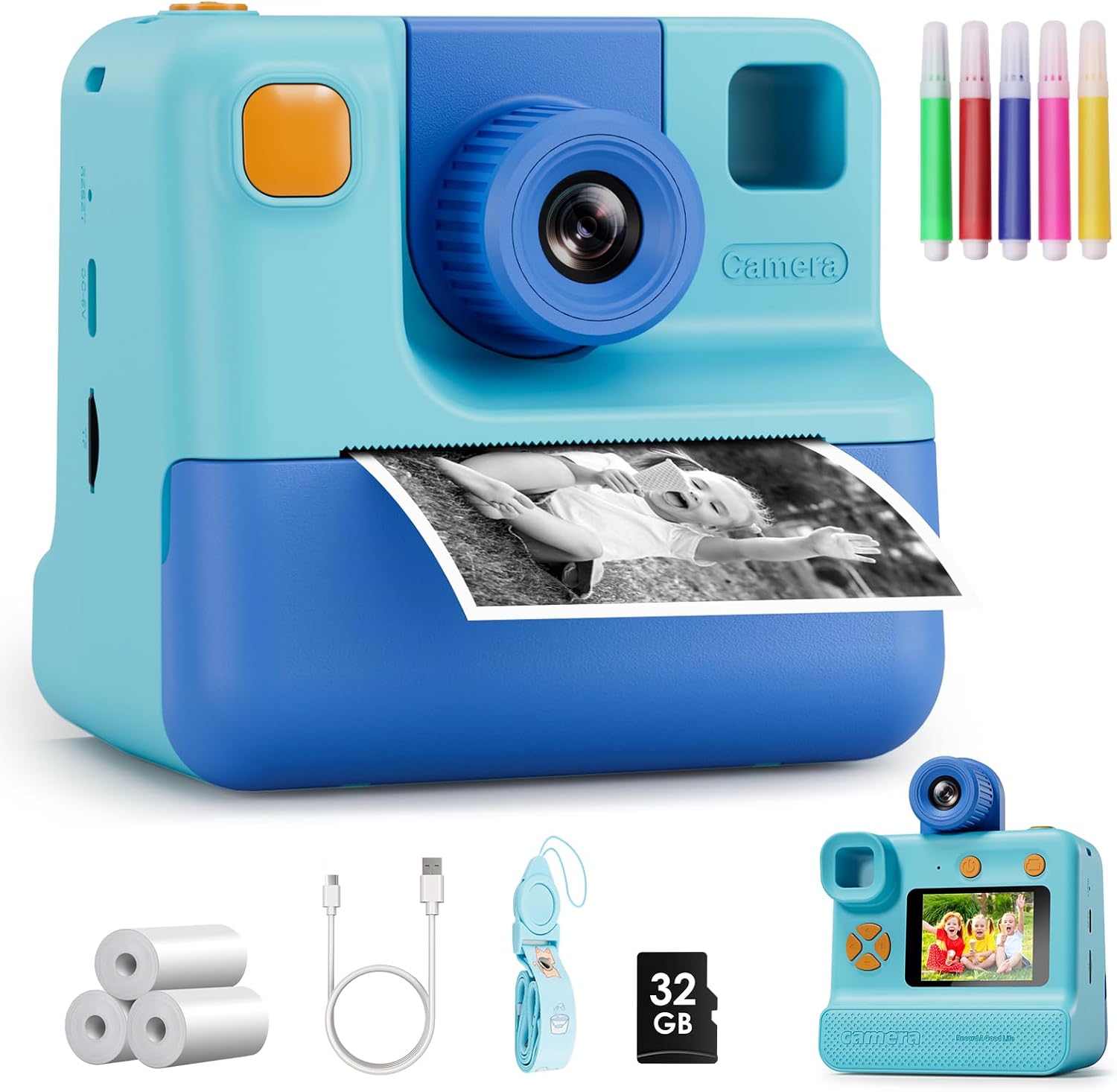
Image 1.1: The GREENKINDER Kids Instant Print Camera KC05, illustrating its instant print function.
2. Setup
2.1. Unboxing and Components
Verify that all components are present in the package:
- Kids Instant Print Camera KC05
- 3 rolls of thermal print paper
- 1x 32GB MicroSD card
- 1x Lanyard
- 1x USB Type-C charging cable
- 1x Sheet of cartoon stickers
- 1x Set of 5 colored pencils
Video 2.1: A seller's review demonstrating the unboxing and contents of the Kids Instant Print Camera.
2.2. Charging the Camera
Connect the provided USB Type-C cable to the camera's charging port and to a compatible USB power source. The camera features a 1000mAh battery, providing approximately 3-4 hours of continuous use on a full charge.
2.3. Installing Print Paper
- Gently pull out the film guides on the front of the camera.
- Insert a roll of thermal print paper into the designated compartment, ensuring the paper feeds correctly. Leave about 1 to 2 inches of paper extending from the slot.
- Close the film door securely.

Image 2.1: Step-by-step guide for installing the thermal print paper.
2.4. Inserting the MicroSD Card
Locate the MicroSD card slot on the side of the camera. Insert the provided 32GB MicroSD card until it clicks into place. This card stores photos and videos.
3. Operating Instructions
3.1. Power On/Off
Press and hold the power button (usually located on the top or side) for a few seconds to turn the camera on or off. A welcome screen will appear upon startup.
3.2. Navigation
Use the directional buttons (up, down, left, right) to navigate through the menu options displayed on the 2.0-inch screen. The menu typically includes options for Photo, Video, Gallery, and Settings.
3.3. Taking Photos
Select the 'Photo' icon from the main menu. Frame your shot using the screen. Press the shutter button (usually a prominent button on top) to capture a 24MP photo.
3.4. Recording Videos
Select the 'Video' icon from the main menu. Press the shutter button to start recording 1080p video. Press it again to stop recording.
3.5. Selfie Mode
The camera features a 180-degree rotating lens. Flip the lens to face forward for regular photos or backward for selfies. This makes capturing self-portraits easier.

Image 3.1: The camera's 180-degree rotating lens facilitates easy selfies.
3.6. Instant Printing
After taking a photo, you can choose to print it instantly. The camera uses thermal printing technology, producing black and white prints in approximately 3 seconds without the need for ink cartridges. You can adjust print density in the settings for desired lightness or darkness.
Video 3.1: Demonstration of the instant printing function of the camera.
3.7. Creative Features
Explore various built-in photo frames and filters to add fun effects to your pictures. Use the included colored pencils to customize your black and white prints.

Image 3.2: Children can personalize their instant prints using the provided colored pencils.
4. Maintenance
4.1. Replacing Print Paper
When the print paper runs out, follow the steps in Section 2.3 to install a new roll. The camera comes with 3 rolls, each capable of printing up to 60 photos.
4.2. Cleaning the Camera
Use a soft, dry cloth to clean the exterior of the camera. Avoid using liquid cleaners or abrasive materials. Keep the lens clean for optimal photo quality.
5. Troubleshooting
5.1. Camera Not Turning On
- Ensure the battery is charged. Connect the camera to a power source using the USB-C cable.
- Try pressing and holding the power button for a longer duration (5-10 seconds).
5.2. Printing Issues
- Check if the print paper is installed correctly and not jammed. Refer to Section 2.3.
- Ensure there is enough paper in the roll.
- Adjust print density in the camera settings if prints are too light or too dark.
5.3. Photo/Video Storage Issues
- Verify that the MicroSD card is properly inserted.
- Check if the MicroSD card has sufficient storage space. Delete unnecessary files if needed.
6. Specifications
| Feature | Detail |
|---|---|
| Product Dimensions | 7.76 x 4.5 x 3.03 inches |
| Item Weight | 13.1 ounces |
| Model Number | KC05 |
| Batteries | 1 Lithium Polymer batteries required (included) |
| Manufacturer | GREENKINDER |
| Special Feature | Instant Print |
| Film Format Type | 35mm (Thermal Paper) |
| Film Color | Black and White |
| Compatible Devices | Camera |
| Included Components | Camera Body & Accessories |
7. Warranty and Support
The GREENKINDER Kids Instant Print Camera KC05 includes a 2-year guarantee. For any product inquiries, technical support, or warranty claims, please refer to the contact information provided in your product packaging or visit the official GREENKINDER website.