
1. Introduction
This manual provides detailed instructions for the setup, operation, maintenance, and troubleshooting of your Rapoo V500Pro Full-Size Mechanical Gaming Keyboard. Please read this manual thoroughly before using the product to ensure optimal performance and longevity.
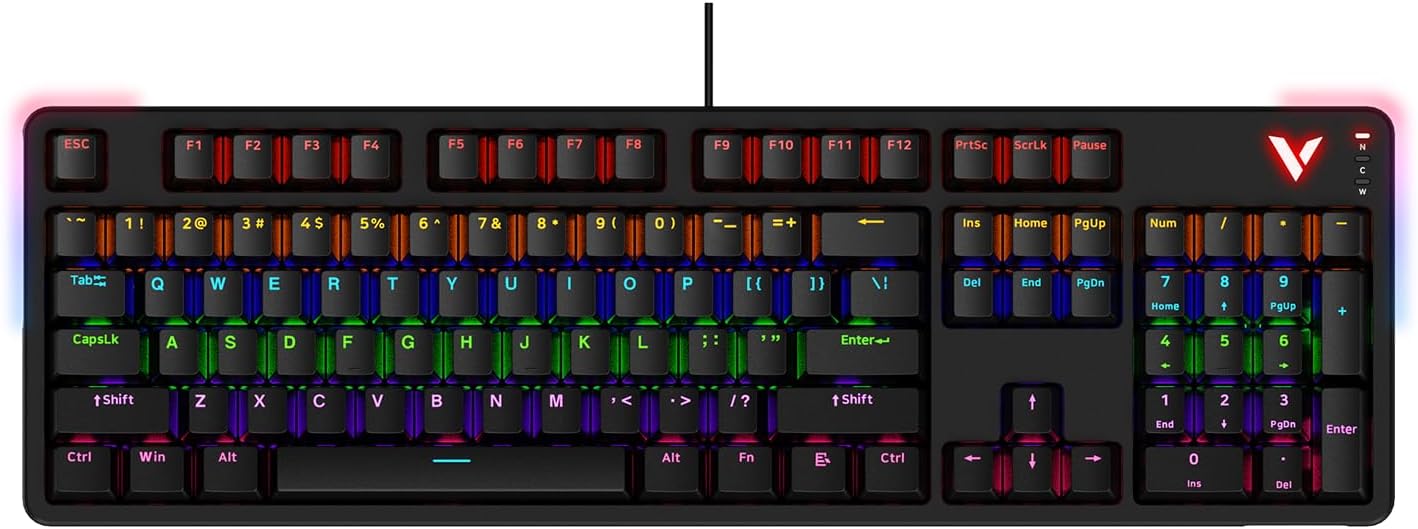
Image: The Rapoo V500Pro Full-Size Mechanical Gaming Keyboard, showcasing its full layout and RGB backlighting.
2. Package Contents
Please verify that all items are present in the package:
- 1 x Mechanical Gaming Keyboard
- 1 x USB Cable
- 1 x User Manual
- 1 x Keycap Puller
3. Setup
To set up your Rapoo V500Pro keyboard, follow these simple steps:
- Connect the USB Cable: Locate the USB-C port on the keyboard and connect one end of the provided USB cable. Connect the other end (USB-A) to an available USB port on your computer.
- Driver Installation: The keyboard is plug-and-play and typically does not require additional drivers for basic functionality. For advanced customization, such as macro programming and detailed RGB settings, please download the official Rapoo V500Pro software from the Rapoo website. The keyboard driver is available for Windows operating systems only.
- Placement: Position the keyboard comfortably on your desk. The integrated cable management system allows you to route the cable to the left, center, or right for a tidy setup.

Image: Underside view of the keyboard showing channels for optimized cable management, allowing routing to the left, center, or right.
4. Operating Instructions
4.1. RGB Backlighting Customization
The Rapoo V500Pro features customizable RGB backlighting with 20 lighting modes. You can adjust brightness, speed, and create custom effects directly from the keyboard.
- FN + PGUP/PGDN: Switch between different backlight modes.
- FN + INS: Switch side lights modes (RGB/solid color/solid breathing/off).
- FN + DEL: Switch side lights color (red/orange/yellow/green/cyan/blue/purple/white).
- FN + ↑: Increase brightness.
- FN + ↓: Decrease brightness.
- FN + ←: Decrease breathing frequency/speed.
- FN + →: Increase breathing frequency/speed.
- FN + ESC (short press): Restore default lighting settings.
- FN + V: Switch logo lighting (on/breathing/off).
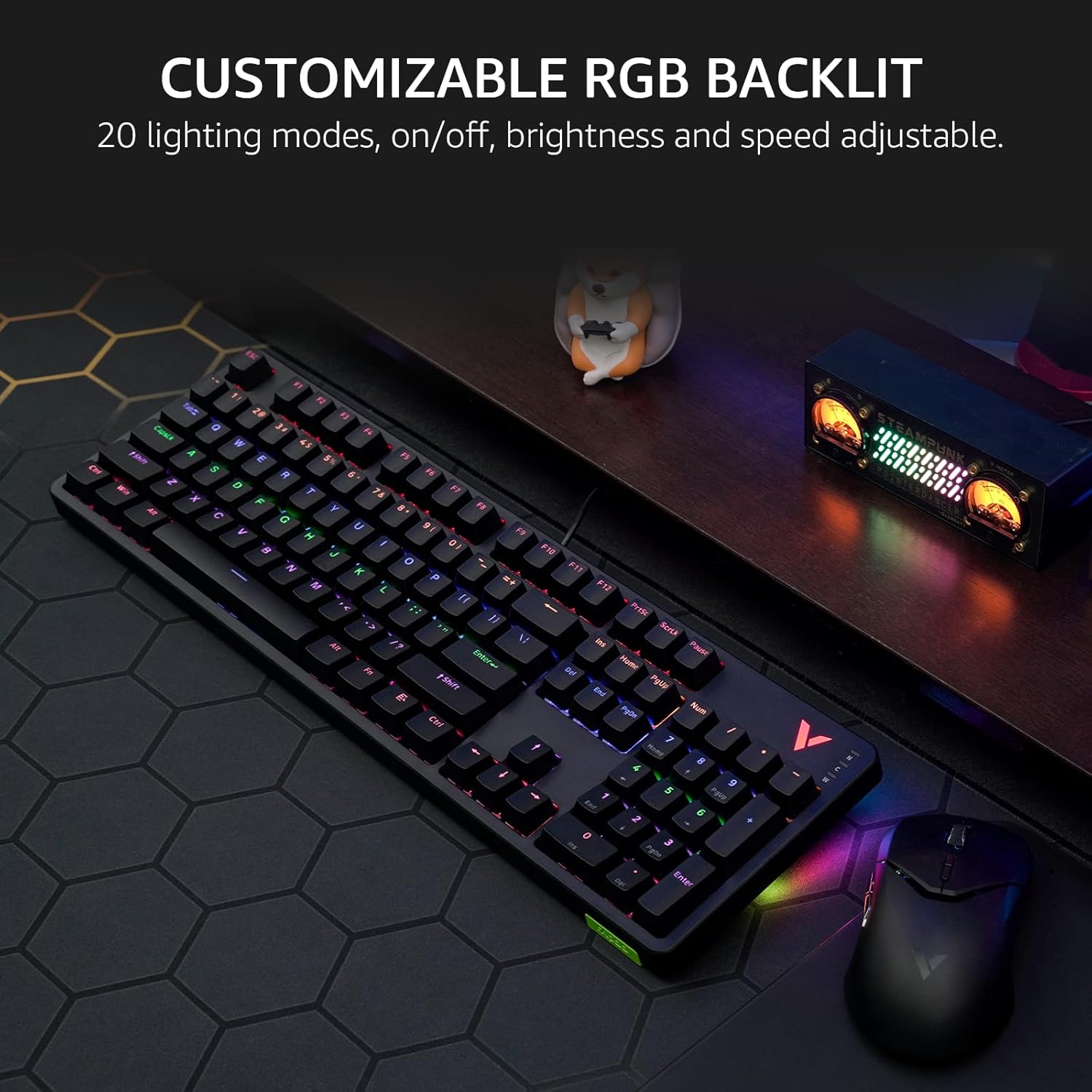
Image: The Rapoo V500Pro keyboard displaying its vibrant customizable RGB backlighting, highlighting the various color options.
4.2. Multimedia Hotkeys
The keyboard includes 12 multimedia hotkeys for quick access to common functions. These are activated by pressing the Fn key in combination with the corresponding function key (F1-F12).
| Combination | Function |
|---|---|
| Fn + F1 | Computer |
| Fn + F2 | Calculator |
| Fn + F3 | Mailbox |
| Fn + F4 | Homepage |
| Fn + F5 | Search |
| Fn + F6 | Media Player |
| Fn + F7 | Previous Track |
| Fn + F8 | Next Track |
| Fn + F9 | Play/Pause |
| Fn + F10 | Volume - |
| Fn + F11 | Volume + |
| Fn + F12 | Mute |
| Fn + Win | Windows Key Lock |

Image: Diagram illustrating the Fn key combinations for multimedia hotkeys on the Rapoo V500Pro keyboard.
4.3. Anti-Ghosting
The V500Pro supports full 104-key anti-ghosting, ensuring that every keypress is registered accurately, even when multiple keys are pressed simultaneously. This is particularly beneficial for gaming, allowing for complex skill combos without input conflicts.

Image: A visual representation of the 104-key anti-ghosting capability, showing multiple simultaneous key presses being registered.
4.4. Programmable Keys with On-board Memory
You can assign commands and macros to 103 of the keys (excluding the Fn key) using the dedicated software. This allows for simplified complex actions and improved efficiency. Your custom profiles can be saved to the keyboard's on-board memory, allowing them to be used on different devices without re-configuration.

Image: Screenshot of the Rapoo V500Pro software interface, demonstrating options for creating and managing programmable key assignments and macros.
4.5. Switchable High/Low Profile
The V500Pro features a removable top case, allowing you to switch between two profiles:
- Sinking Format (Low Profile): Offers lower keycaps and reduced noise, ideal for productive typing environments.
- Floating Format (High Profile): Provides longer switch travel for a more tactile and crisp gaming experience.
The removable top case also facilitates easier cleaning of the keyboard.

Image: Two views of the Rapoo V500Pro keyboard, one in low profile (sinking format) and one in high profile (floating format), demonstrating the effect of the removable top case.
5. Key Features Overview
- Versatile Brown Switches: Provides a tactile bump with lower audible feedback, suitable for both gaming and office use.
- Aircraft-grade Aluminum Alloy Frame: Designed for durability and prolonged use.
- USB-C Connectivity: Ensures a stable and reliable wired connection.

Image: A close-up view of the brown mechanical switch used in the Rapoo V500Pro keyboard, highlighting its internal structure.
6. Maintenance
Proper maintenance ensures the longevity and performance of your keyboard:
- Cleaning: Regularly clean the keyboard using a soft, dry cloth. For deeper cleaning, especially under the keycaps, use the provided keycap puller to remove keycaps and a can of compressed air to remove dust and debris. The removable top case also aids in cleaning.
- Avoid Liquids: Do not expose the keyboard to liquids. In case of accidental spills, immediately disconnect the keyboard from your computer and allow it to dry completely before reconnecting.
- Storage: When not in use for extended periods, store the keyboard in a dry, cool place away from direct sunlight.
7. Troubleshooting
If you encounter issues with your Rapoo V500Pro keyboard, refer to the following common problems and solutions:
| Problem | Solution |
|---|---|
| Keyboard is not responding. |
|
| RGB backlighting is not working or is incorrect. |
|
| Certain keys are not responding. |
|
| Macros or custom settings are not saving/working. |
|
8. Specifications
| Feature | Detail |
|---|---|
| Product Dimensions | 17.4 x 5.29 x 1.58 inches (44.2 x 13.4 x 4 cm) |
| Item Weight | 2.42 pounds (1.1 kg) |
| Manufacturer | Shenzhen Rapoo Technology Co., Ltd. |
| Model Number | V500Pro_2024 Edition |
| Number of Keys | 104 |
| Switch Type | Mechanical Brown Switch |
| Connectivity Technology | USB-C Wired |
| Backlighting | Customizable RGB |
| Anti-Ghosting | All 104 Keys |
| Special Features | Removable Top Case (High/Low Profile), Programmable Keys, On-board Memory, Multimedia Hotkeys |
| Compatible Devices | Gaming Console, Laptop, PC, Smart TV |
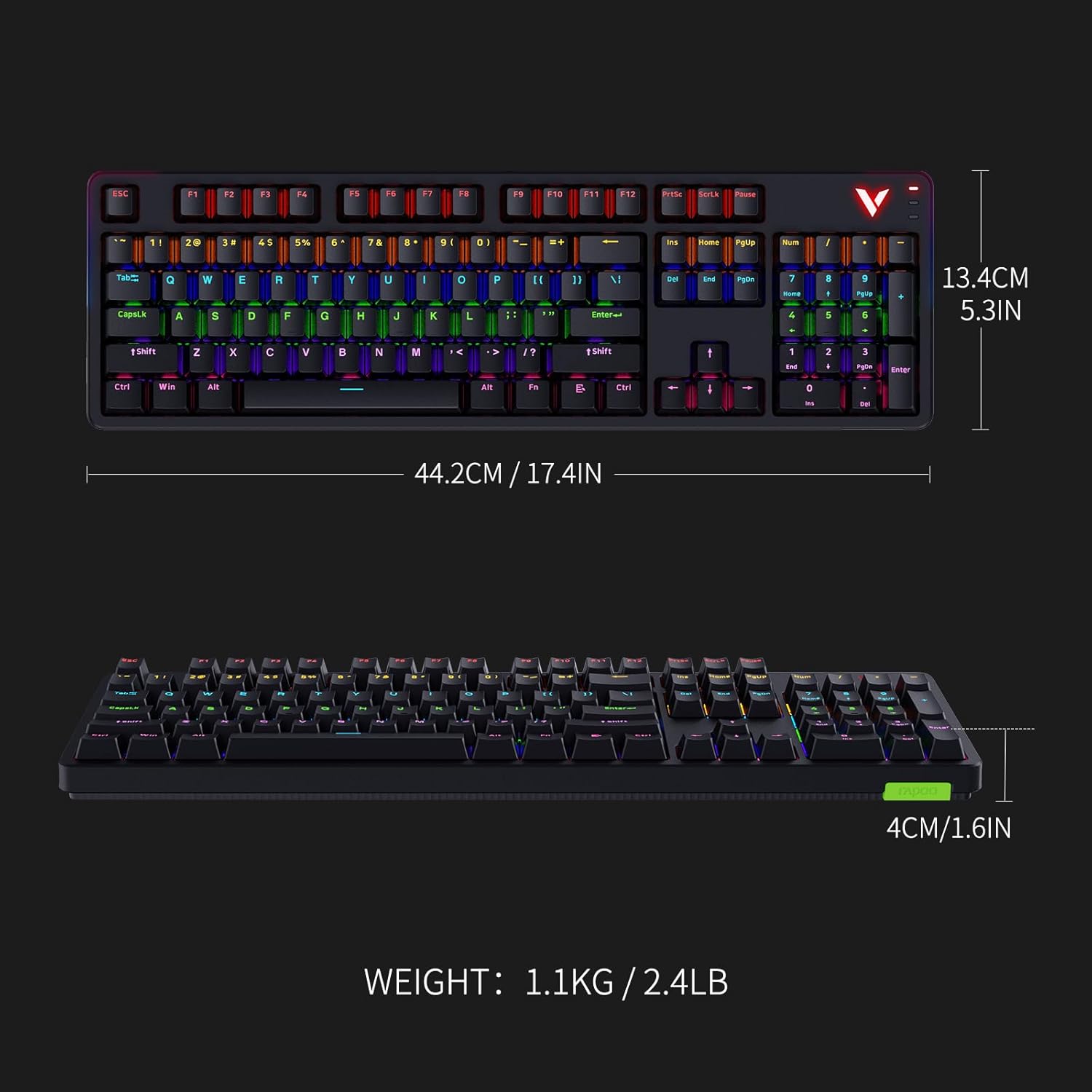
Image: Technical drawing showing the dimensions (length, width, height) and weight of the Rapoo V500Pro keyboard.
9. Warranty and Support
Rapoo products are designed for reliability and performance. For warranty information and technical support, please refer to the warranty card included in your product packaging or visit the official Rapoo website. You may also contact Rapoo customer support for assistance with product issues or inquiries.
Note: The product comes with a 30-day return window as per Amazon's policy if purchased through Amazon's buy box winner.