
Introduction
This manual provides detailed instructions for the installation, operation, and maintenance of your ICUIXIAN 16x16 HDMI Matrix Switch, Model DC-16x16. This professional device is designed for switching and distributing multiple HDMI digital signals to multiple display terminals, supporting HDMI 1.4a standard and EDID management up to 1080P resolutions.
Safety Information
Please read and understand all safety instructions before operating this device. Failure to do so may result in injury or damage to the equipment.
- Ensure proper ventilation around the device to prevent overheating.
- Use only the provided power adapter.
- Do not expose the device to water or excessive moisture.
- Avoid placing heavy objects on top of the device.
- Disconnect power before cleaning or servicing.
Product Overview
The ICUIXIAN 16x16 HDMI Matrix Switch allows you to connect up to 16 HDMI input sources and distribute them to 16 HDMI output displays. It features various control options and supports advanced video management.

Image: Front and rear panels of the ICUIXIAN 16x16 HDMI Matrix Switch, highlighting 16 HDMI inputs, 16 HDMI outputs, RS-232, LAN, and power ports.
Front Panel Features:
- Power LED: Indicates power status.
- Input/Output Selection Buttons: For local control of source and display routing.
- LCD Display: Shows current input/output status and menu options.
- IR Receiver: For remote control commands.
Rear Panel Features:
- DC 5V Power Input: Connect the provided power adapter.
- RS-232 Port (IN/OUT): For serial communication control.
- RJ45 (LAN) Port: For network-based control via Web GUI.
- HDMI Input Ports (1-16): Connect your HDMI source devices.
- HDMI Output Ports (1-16): Connect your HDMI display devices.
Setup and Connection
Follow these steps to set up your HDMI Matrix Switch:
- Power Off Devices: Ensure all HDMI source devices, display devices, and the matrix switch are powered off before making connections.
- Connect HDMI Sources: Connect your HDMI source devices (e.g., Blu-ray players, PCs, game consoles) to the HDMI Input ports (1-16) on the rear panel of the matrix switch using high-quality HDMI cables.
- Connect HDMI Displays: Connect your HDMI display devices (e.g., TVs, projectors, monitors) to the HDMI Output ports (1-16) on the rear panel of the matrix switch using high-quality HDMI cables.
- Connect Control Cables (Optional):
- For RS-232 control, connect an RS-232 cable from your control system to the RS-232 IN port.
- For LAN control, connect an Ethernet cable from your network router/switch to the RJ45 LAN port.
- Power On: Connect the provided DC 5V power adapter to the matrix switch and then plug it into a power outlet. Power on the matrix switch, followed by your display devices, and then your source devices.
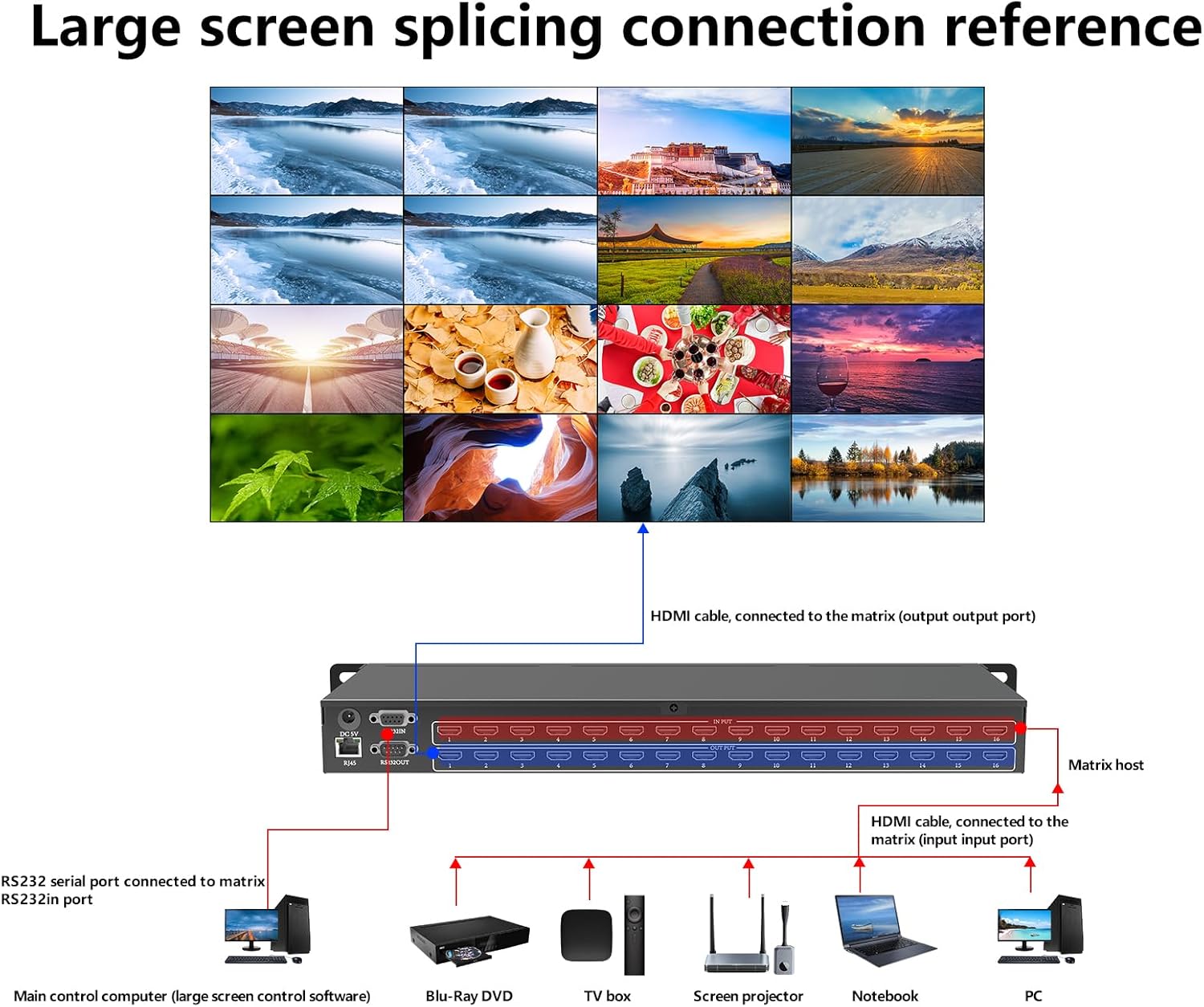
Image: A connection diagram illustrating how to connect various HDMI sources (PC, Notebook, Screen projector, TV box, Blu-ray DVD) to the input ports and how the output ports connect to a large screen display, along with RS-232 serial port connection.
Operating Instructions
The ICUIXIAN 16x16 HDMI Matrix Switch offers multiple control methods for flexible operation.
1. Local Button Control
Use the buttons on the front panel to select inputs and outputs. Refer to the front panel layout in the Product Overview section for button locations.
- Input Selection: Press the corresponding input button (1-16) to select a source.
- Output Selection: Press the corresponding output button (1-16) to select a display.
- Switching: After selecting an input and output, confirm the switch using the designated button (e.g., "OK" or "Switch").
2. IR Remote Control
The included IR remote control allows for convenient wireless operation. Point the remote directly at the IR receiver on the front panel of the matrix switch.
- Use the numeric buttons to select input and output channels.
- Dedicated buttons for switching, menu navigation, and other functions are available on the remote.
3. RS-232 Serial Control
For integration with professional control systems, the matrix switch can be controlled via RS-232 commands. Connect your control system to the RS-232 IN port.
- Refer to the detailed RS-232 command protocol document (usually provided separately or available for download) for specific commands and syntax.
- Default baud rate: 9600, Data bits: 8, Stop bit: 1, No parity.
4. Web GUI Control (LAN Port)
The Web Graphical User Interface (GUI) provides a user-friendly way to control the matrix switch from a computer, mobile phone, or tablet connected to the same network.
- Connect to Network: Ensure the matrix switch's LAN port is connected to your network.
- Find IP Address: The IP address of the matrix switch can usually be found on the device's LCD display or through network scanning tools.
- Access Web GUI: Open a web browser on a device connected to the same network and enter the IP address of the matrix switch in the address bar.
- Login: If prompted, enter the default username and password (refer to the separate network configuration guide or contact support if unknown).
- Control: Use the intuitive interface to switch inputs to outputs, manage EDID settings, and configure scenes.

Image: Screenshots demonstrating the web control interface, showing input/output selection grids and system settings for easy operation.
EDID Management
The matrix switch supports EDID (Extended Display Identification Data) management to ensure optimal compatibility between sources and displays. This feature allows you to select the best EDID settings for your connected devices, preventing resolution or audio issues.
- EDID settings can typically be configured via the Web GUI or RS-232 commands.
- Options may include copying EDID from a specific output, using a default EDID, or custom EDID settings.
Scene Management
The device includes a built-in pre-plan management system that allows you to save and recall up to 32 different input/output configurations (scenes). This is useful for quickly switching between complex setups.
- Saving a Scene: Configure your desired input-to-output routing, then use the control interface (Web GUI, RS-232, or local buttons) to save this configuration as a scene.
- Recalling a Scene: Select the desired scene number from the control interface to instantly apply the saved configuration.
Video Switching Modes
The matrix switch supports various display configurations:
- Independent Switching: Each display can show a different input source.
- Shared Input: Multiple displays can share the same input source.
- Partial Sharing: Some displays show independent sources, while others share a common source.

Image: Visual examples of different screen configurations: each display showing an independent source, all displays sharing the same source, and some displays sharing a source while others are independent.
Video: This video demonstrates common switching modes and configurations possible with the ICUIXIAN HDMI Matrix Switch/Splitter, showcasing how different inputs can be routed to various outputs.
Maintenance
To ensure the longevity and optimal performance of your ICUIXIAN HDMI Matrix Switch, follow these maintenance guidelines:
- Cleaning: Use a soft, dry cloth to clean the exterior of the device. Do not use liquid or aerosol cleaners.
- Ventilation: Ensure that the ventilation openings are not blocked.
- Cable Management: Keep cables organized and free from kinks or excessive tension.
- Firmware Updates: Check the manufacturer's website periodically for firmware updates that may improve performance or add new features.
Troubleshooting
If you encounter issues with your HDMI Matrix Switch, refer to the following common problems and solutions:
| Problem | Possible Cause | Solution |
|---|---|---|
| No video output on display. |
|
|
| Poor video quality or flickering. |
|
|
| Remote control not working. |
|
|
| Cannot access Web GUI. |
|
|
Specifications
Technical specifications for the ICUIXIAN 16x16 HDMI Matrix Switch (Model DC-16x16):
| General | |
|---|---|
| Inputs | 16 |
| Outputs | 16 |
| Interface Width | 13.5 Gbps |
| Resolution Support | 1920*1080@60Hz (backward compatible) |
| HDMI Standard | HDMI 1.4a |
| HDCP Decoding | Supported |
| 3D Support | Supported |
| Control | |
| Control Methods | Web GUI, RS-232, IR Remote, Local Buttons |
| Serial Control Interface | RS-232, 9-pin female D-type connector with 9-pin male D-type connector |
| Baud Rate | 9600 |
| Data Bits | 8 |
| Stop Bit | 1 |
| Parity | None |
| Environmental & Physical | |
| System Operating Power Supply | 100VAC ~ 240VAC, 50/60Hz (International adaptive) |
| Storage, Operating Temperature | 0 ~ +50°C |
| Storage, Working Humidity | 20% ~ 70% |
| Enclosure Size | 1U Rackmount |
| Chassis Weight | 3 kg (approx. 6.6 lbs) |
| Dimensions (without lugs) | 435 x 182 x 47 mm (17.1 x 7.2 x 1.85 inches) |
| Dimensions (with lugs) | 496 x 182 x 47 mm (19.5 x 7.2 x 1.85 inches) |
| Mean Time Between Failures (MTBF) | 30,000 hours |

Image: A table summarizing the technical specifications of the ICUIXIAN 16x16 HDMI Matrix Switch, including inputs, outputs, resolution, control interfaces, power, and physical dimensions.
Warranty and Support
ICUIXIAN products are designed for reliability and performance. For warranty information, technical support, or service inquiries, please refer to the contact information provided with your purchase or visit the official ICUIXIAN website.
For product quality assurance, each unit undergoes thorough testing before shipment. Professional technical staff are available to assist with any product-related issues.
Online Resources: Visit the ICUIXIAN Store on Amazon

