
Introduction
This manual provides detailed instructions for setting up and operating your blurams 3MP 2.4/5GHz WiFi Indoor PTZ Security Camera (Model A31). This camera is designed for versatile indoor monitoring, offering features such as high-resolution video, pan-tilt-zoom functionality, two-way audio, and intelligent detection capabilities. Please read this manual thoroughly before use to ensure proper installation and optimal performance.
Package Contents
Verify that all items listed below are included in your package:
- Camera Unit
- Power Adapter
- USB Cable
- Screw Set (for mounting)
- Mounting Sheet
- Japanese Instruction Manual

Image: All components included in the blurams A31 package, including the camera, power adapter, USB cable, mounting accessories, and manual.
Product Overview
Familiarize yourself with the main components of your blurams A31 camera:
- Lens: Captures video and images.
- MicroSD Card Slot: For local video storage (supports up to 256GB, sold separately).
- Power Port: Connects to the power adapter.
- Reset Button: Used for resetting the camera to factory settings.
- Indicator Light: Displays the camera's status (e.g., red/blue flashing for pairing, solid blue for connected).
- Speaker/Microphone: For two-way audio communication.

Image: Front and rear views of the blurams A31 camera, highlighting the lens, microSD card slot, power port, reset button, and indicator light.
Setup
1. App Installation
Download the "blurams" app from the App Store (iOS) or Google Play Store (Android). The app is compatible with iOS 10+ and Android 5+.

Image: Screenshots illustrating the process of downloading and installing the blurams app from an app store.
2. Power Connection
Connect the camera to a power source using the provided USB cable and power adapter. The indicator light will illuminate.
3. Wi-Fi Connection
- Open the blurams app and create an account or log in.
- Tap the "+" icon to add a new device.
- Select your camera model (A31) and choose "Bluetooth Wi-Fi Connection".
- Follow the on-screen prompts to connect the camera to your 2.4GHz or 5GHz Wi-Fi network. The camera supports both frequencies for stable connection.
- Once connected, the indicator light will turn solid blue.
Video: A step-by-step guide on how to connect the blurams camera to Wi-Fi using Bluetooth pairing via the app.
4. MicroSD Card Installation
To enable 24-hour continuous recording, insert a microSD card (up to 256GB, sold separately) into the camera's card slot. Gently push the lens upwards to reveal the slot.

Image: A hand inserting a microSD card into the designated slot on the camera.
Operating Instructions
1. Live View
After successful setup, you can view the live feed from your camera anytime, anywhere through the blurams app.
2. Pan/Tilt/Zoom (PTZ) Control
The camera features 360° horizontal and 110° vertical rotation. Use the app to remotely control the lens direction and digitally zoom up to 4x to view details.

Image: The blurams A31 camera rotating horizontally and vertically, showcasing its PTZ capabilities within a room setting.
3. Two-Way Audio
Engage in real-time two-way conversations through the app. This feature is ideal for communicating with family members or pets.
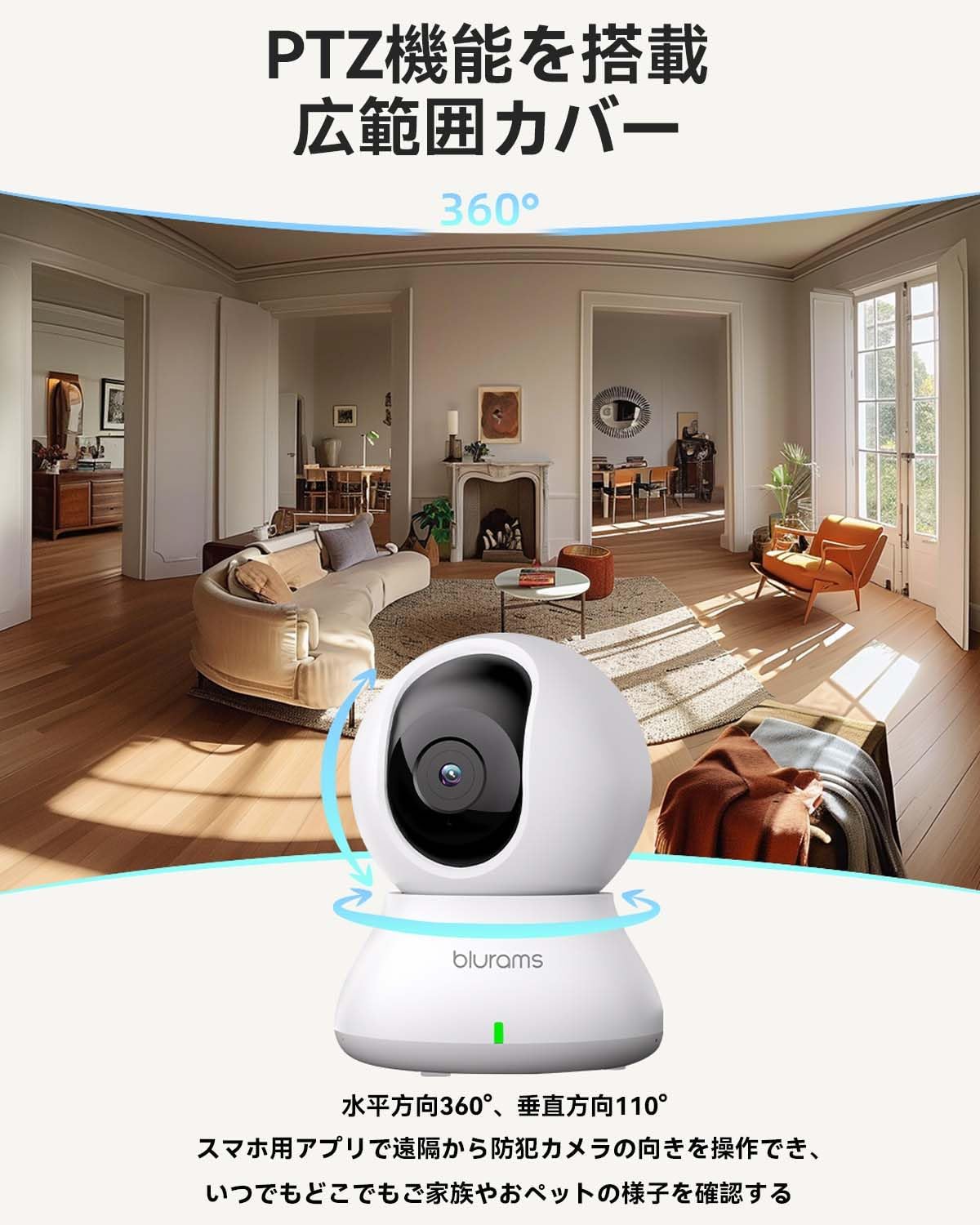
Image: A dog looking at the blurams A31 camera, with a speech bubble indicating two-way audio communication.
4. Motion, Sound, and Human Detection & Alerts
The camera is equipped with AI detection systems for motion, sound, and human recognition. Enable notifications in the app to receive real-time alerts on your smartphone when activity is detected.
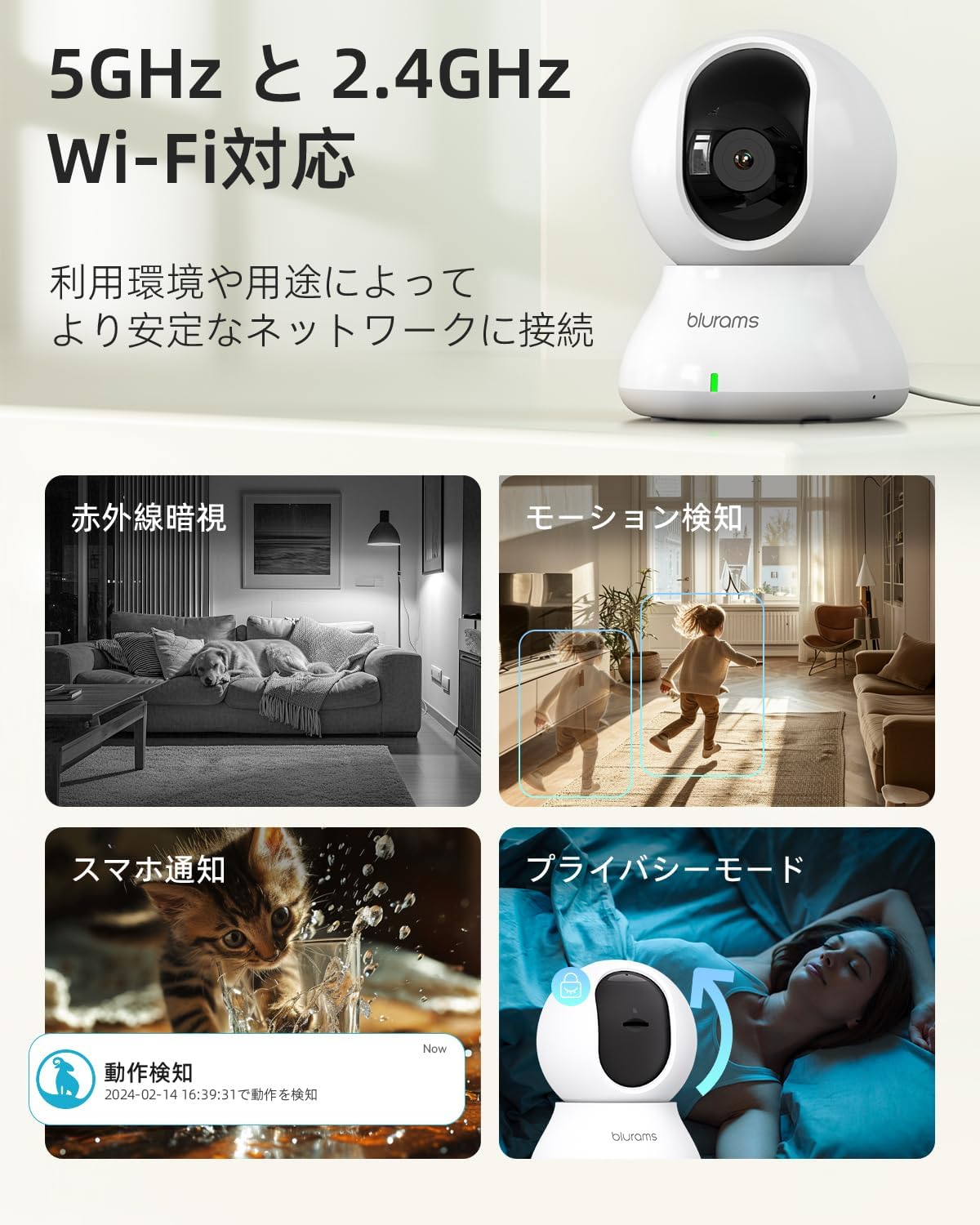
Image: Visual representation of the camera's features including 2.4/5GHz WiFi, motion detection, night vision, and privacy mode.
5. Night Vision Modes
The camera features 6*850nm infrared LEDs for night vision up to 10 meters. It automatically switches between color images in bright conditions and monochrome images in dark conditions. You can also manually select different night vision modes via the app.
6. Privacy Mode
For privacy, you can manually turn off the camera lens via the app, physically blocking the view and stopping recording.
7. Recording & Storage
Recordings can be saved to a microSD card (up to 256GB, sold separately) for 24-hour continuous recording, or to the optional paid cloud storage service. The product also records past 24-hour motion events (approx. 12 seconds) without a microSD card or cloud service.

Image: Comparison of H.265 and H.264 compression, and a close-up of the microSD card slot on the camera.
8. Sharing Access
You can share camera access with multiple users through the app, allowing family members to monitor simultaneously.


