
1. Introduction and Overview
The FNX Wireless Smart Security Alarm System is designed to provide robust and convenient protection for your home or property. This system integrates advanced wireless technology with smart home capabilities, allowing for remote monitoring and control via a smartphone application. It offers comprehensive security through various sensors and alert mechanisms.
Key features include WiFi and GSM connectivity, support for multiple wireless zones, a loud siren, and compatibility with popular smart home ecosystems.

Image: Main components of the FNX Wireless Smart Security Alarm System.

Image: Illustration of the FNX security system protecting a home, highlighting sensor placement and alarm panel.
2. Package Contents
Please verify that all items listed below are included in your package:
- Alarm Panel (Built-in battery)
- PIR Detector (Battery & Bracket Included)
- Door Magnetic Sensors (Battery Included)
- Remote Control Keyfobs (Battery Included)
- Power Adapter
- User Manual
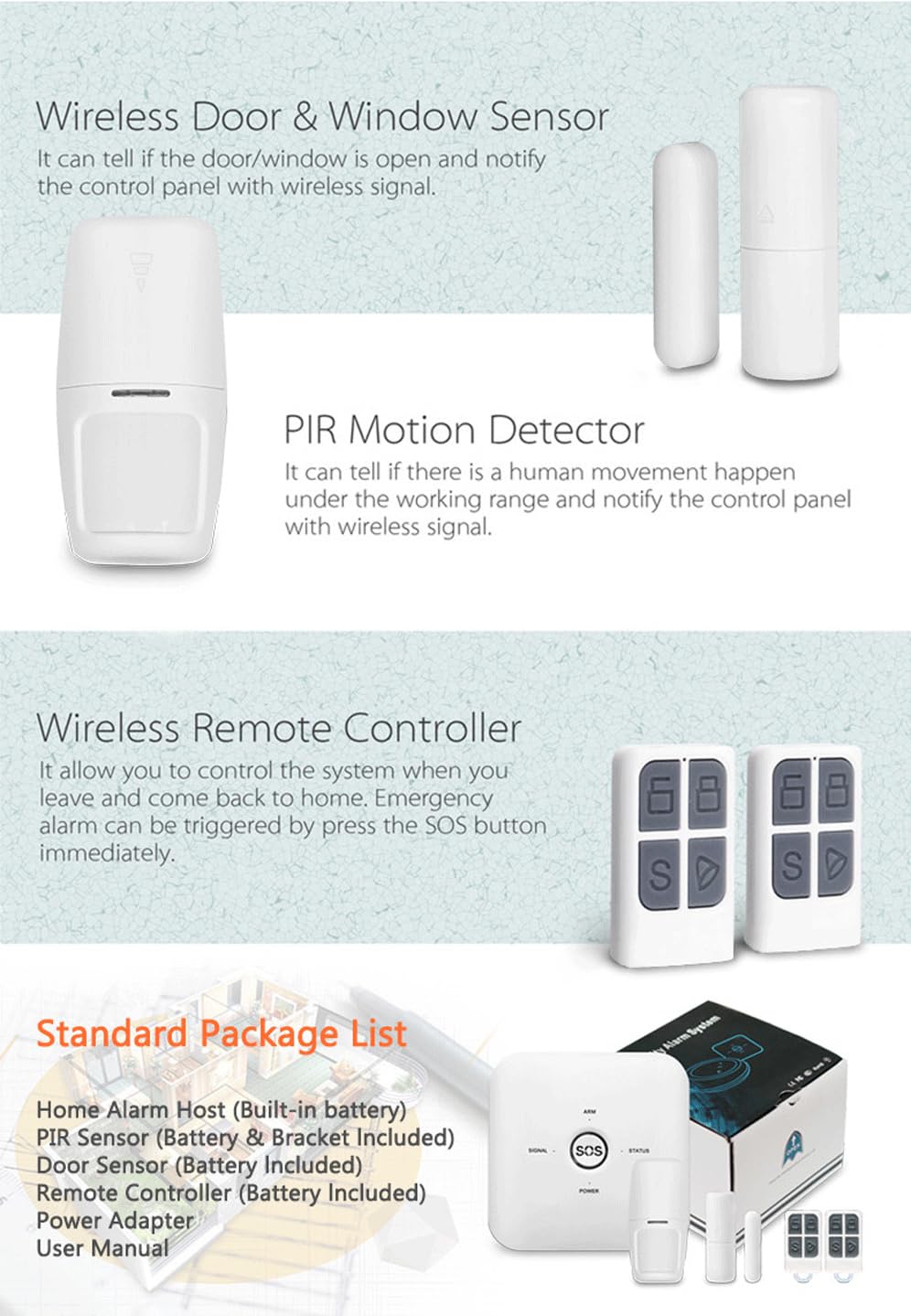
Image: Detailed view of included sensors and remote controls, along with a list of package contents.
3. Product Features
- Wireless Connectivity: Connects to your 2.4G WiFi network for app control via "Smart Life" or "Tuya Smart" applications.
- Extensive Zone Support: Monitors up to 24 wireless sensors and 10 remote controls, allowing comprehensive coverage.
- Backup Power: Equipped with a DC3.7V Lithium Battery to ensure continuous operation during power outages.
- High-Decibel Siren: Features a 100dB siren for effective deterrence during an intrusion.
- Smart Home Integration: Seamlessly compatible with Amazon Alexa, Google Home, and IFTTT for voice control and home automation.
- GSM Cellular Technology: Supports a valid SIM card for remote control and alarm notifications via SMS and voice calls.
- Advanced Motion Detection: PIR (Passive Infrared) detector identifies human or animal movement within a 7-meter range and 120° angle, providing real-time monitoring day and night.
- Door/Window Monitoring: Magnetic sensors detect when doors or windows are opened or invaded, sending immediate notifications. Includes a low voltage reminder for sensor batteries.

Image: System connectivity and sensor types supported by the alarm panel.

Image: Illustration of the PIR motion sensor's detection capabilities.

Image: Door/window sensor with low voltage reminder.
4. Setup
4.1 Initial Setup
- Power On: Connect the alarm panel to power using the provided power adapter.
- SIM Card Insertion (Optional): If you wish to use GSM cellular features (SMS/calls), insert a valid SIM card into the designated slot on the alarm panel. Ensure the SIM card is active and has sufficient balance.
- App Download: Download the "Smart Life" or "Tuya Smart" app from your device's app store (available on Apple App Store and Google Play).
- App Registration: Open the app and register a new account or log in if you already have one.
- Add Device: Follow the in-app instructions to add the alarm panel. Typically, this involves selecting "Security & Sensor" or "Alarm" category and following the WiFi pairing process (e.g., AP mode or EZ mode). Ensure your phone is connected to a 2.4G WiFi network.
4.2 Sensor Pairing
Once the alarm panel is connected to the app, you can add the wireless sensors:
- Enter Pairing Mode: In the app, navigate to the alarm panel settings and find the option to add or pair new sensors. The panel may enter a pairing state indicated by a light or sound.
- Activate Sensor: For PIR detectors, trigger them by moving in front of them. For door/window sensors, separate the two magnetic parts. For remote controls, press any button. The panel should acknowledge the pairing.
- Name Sensors: Assign descriptive names to each sensor in the app (e.g., "Living Room PIR," "Front Door").
- Install Sensors: Mount the PIR detector in a corner or on a wall where it can cover the desired area. Install door/window sensors on frames, ensuring the two parts are aligned and close when the door/window is closed.
5. Operating the System
5.1 Arming and Disarming
- Via App: Use the "Smart Life" or "Tuya Smart" app to arm (activate security), disarm (deactivate security), or set home arm mode (activates perimeter sensors while allowing movement inside).
- Via Remote Control: Use the dedicated buttons on the remote control keyfobs to arm or disarm the system.
5.2 SOS Function
In case of emergency, press the SOS button on the alarm panel or the remote control. This will immediately trigger the alarm and send emergency notifications to pre-set contacts.
5.3 Smart Home Integration
Link your FNX alarm system with Amazon Alexa or Google Home through the respective smart home apps. This allows for voice commands to arm or disarm the system (with voice PIN for security) and integrate with other smart devices via IFTTT.
5.4 Alarm Notifications
When a sensor is triggered while the system is armed, the 100dB siren will sound, and the system will send instant notifications:
- App Push Notifications: Receive alerts directly on your smartphone.
- SMS Alerts: Text messages sent to pre-configured phone numbers (requires SIM card).
- Voice Calls: Automated calls made to pre-configured phone numbers (requires SIM card).

Image: Overview of smart features and control options.
6. Maintenance
- Battery Replacement: Sensors (PIR, Door/Window, Remote) are battery-powered. Replace batteries promptly when the app indicates a low battery warning or when the sensor fails to respond. Refer to the individual sensor's compartment for battery type.
- Cleaning: Gently wipe the alarm panel and sensors with a soft, dry cloth. Avoid using abrasive cleaners or solvents.
- System Check: Periodically test your system by triggering a sensor while armed to ensure the alarm sounds and notifications are received.
- Firmware Updates: Check the "Smart Life" or "Tuya Smart" app regularly for any available firmware updates for the alarm panel to ensure optimal performance and security.
7. Troubleshooting
- System not connecting to WiFi:
- Ensure your WiFi network is 2.4GHz. The system does not support 5GHz.
- Check WiFi password accuracy.
- Move the alarm panel closer to your WiFi router.
- Restart the alarm panel and your router. - Sensors not triggering alarm:
- Verify sensors are properly paired with the alarm panel (refer to Section 4.2).
- Check sensor battery levels in the app. Replace if low.
- Ensure the system is in an armed state (Arm or Home Arm mode).
- Confirm sensor placement is correct and not obstructed. - No alarm notifications (SMS/Calls):
- Ensure a valid and active SIM card is inserted correctly into the alarm panel.
- Check SIM card balance and network signal strength.
- Verify that emergency contact numbers are correctly configured in the app.
- Ensure the alarm panel has sufficient power. - Siren is not sounding:
- Check if the siren volume is set to an audible level in the app settings.
- Ensure the system is armed and a sensor is triggered. - Remote control not working:
- Check the battery in the remote control. Replace if necessary.
- Ensure the remote control is paired with the alarm panel.
8. Specifications
| Brand | FNX |
| Model Number | home security alarm system |
| Colour | Black |
| Power Source | Battery Powered (Alarm Panel: DC3.7V Lithium Battery) |
| Compatible Devices | Smartphone (Android/iOS), Amazon Alexa, Google Home |
| Connectivity Technology | WiFi (2.4G), GSM |
| Installation Type | Wall-Mounted |
| Alert Type | Motion and Entry, SMS, Voice Call, App Notification |
| Voltage | 3.7 Volts |
| Control Method | App, Remote Control, Voice Control |
| Noise Level | 100 dB |
9. Warranty and Support
For any product-related inquiries, technical support, or warranty claims, please contact the manufacturer directly:
Manufacturer: AUSHA EXPORTS P LTD
Address: 140, Sector 27, Gurugram-122009
Customer Support: 08048977694
Please retain your purchase receipt for warranty purposes.
10. Application Scenarios
The FNX Wireless Smart Security Alarm System is versatile and suitable for various environments:
- Residential Homes: Ideal for securing houses and villas.
- Apartments: Provides effective security for individual apartment units.
- Small Offices/Shops: Can be used to protect commercial spaces.

Image: Examples of where the FNX security system can be effectively deployed.