
Taffio TJ-XC6D-R
Taffio 8.8" Android Touchscreen Navigation System
Model: TJ-XC6D-R | Brand: Taffio
1. Introduction
This manual provides detailed instructions for the installation, operation, and maintenance of your Taffio 8.8-inch Android Touchscreen Navigation System, model TJ-XC6D-R. This system is specifically designed for Volvo XC60 (2009-2010) Right-Hand Drive (RHD) vehicles, integrating advanced navigation, multimedia, and connectivity features into your car's dashboard.
Please read this manual thoroughly before installation and use to ensure proper operation and to maximize your experience with the device.
2. Product Overview
2.1 Key Features
- Compatibility: Designed for Volvo XC60 (2009-2010) RHD vehicles.
- Operating System: Android 10 with Octa-core 1.8 GHz processor, 4GB RAM, and 64GB internal memory.
- Display: 8.8-inch touchscreen display.
- Navigation: Integrated 3D GPS navigation with up-to-date map material and free lifetime updates.
- Smartphone Integration: Built-in Wireless Apple CarPlay and Android Auto functionality (no additional adapter required).
- Connectivity: Integrated Wi-Fi and 4G LTE SIM card slot for mobile internet.
- Vehicle Integration: Supports original steering wheel controls, vehicle settings, indicators, and original reverse camera (if installed).
- Ease of Installation: Plug and Play design for straightforward installation.
2.2 Components Included
The following components are included with your Taffio multimedia system:
- Android Multimedia System (Main Unit)
- Power Cable + CAN-BUS Decoder
- RCA Plugs + SIM Slot Cable
- Rear Camera Input Cable
- 2x USB Cables
- GPS Antenna
- 4G Antenna
- PDF Mounting Instructions (may not be in English)

Figure 2.2.1: Overview of all components included in the package. This includes the main Android multimedia unit, various cables for power, data, and connectivity, and antennas for GPS and 4G.
3. Setup and Installation
The Taffio multimedia system is designed for Plug and Play installation, simplifying the setup process. However, professional installation is recommended to ensure correct wiring and integration with your vehicle's existing systems.
3.1 Pre-Installation Checklist
- Ensure your vehicle is a Volvo XC60 (2009-2010) RHD model.
- Gather all included components as listed in Section 2.2.
- Turn off the vehicle's ignition and disconnect the battery before starting installation.
- Refer to the provided PDF mounting instructions for detailed, step-by-step guidance.
3.2 Installation Steps (General Overview)
While specific steps may vary, the general installation process involves:
- Remove Original Unit: Carefully remove the original radio/display unit from your Volvo XC60 dashboard.
- Connect Main Unit: Connect the Taffio Android Multimedia System to the original main unit and LCD plug using the provided cables (A, B, C in diagram).
- CAN-BUS Decoder: Connect the CAN-BUS decoder to ensure compatibility with vehicle controls.
- Antenna Connections: Connect the GPS antenna and 4G antenna to the designated ports on the main unit. Position antennas for optimal signal reception.
- USB & RCA Connections: Connect the USB cables and RCA/SIM slot cable as needed for external devices and SIM card insertion.
- Rear Camera Input: If installing a rear camera, connect its input cable to the system.
- Secure Unit: Carefully place and secure the new Taffio unit into the dashboard opening, ensuring all cables are properly routed and not pinched.
- Reconnect Battery: Reconnect the vehicle battery and test the system.
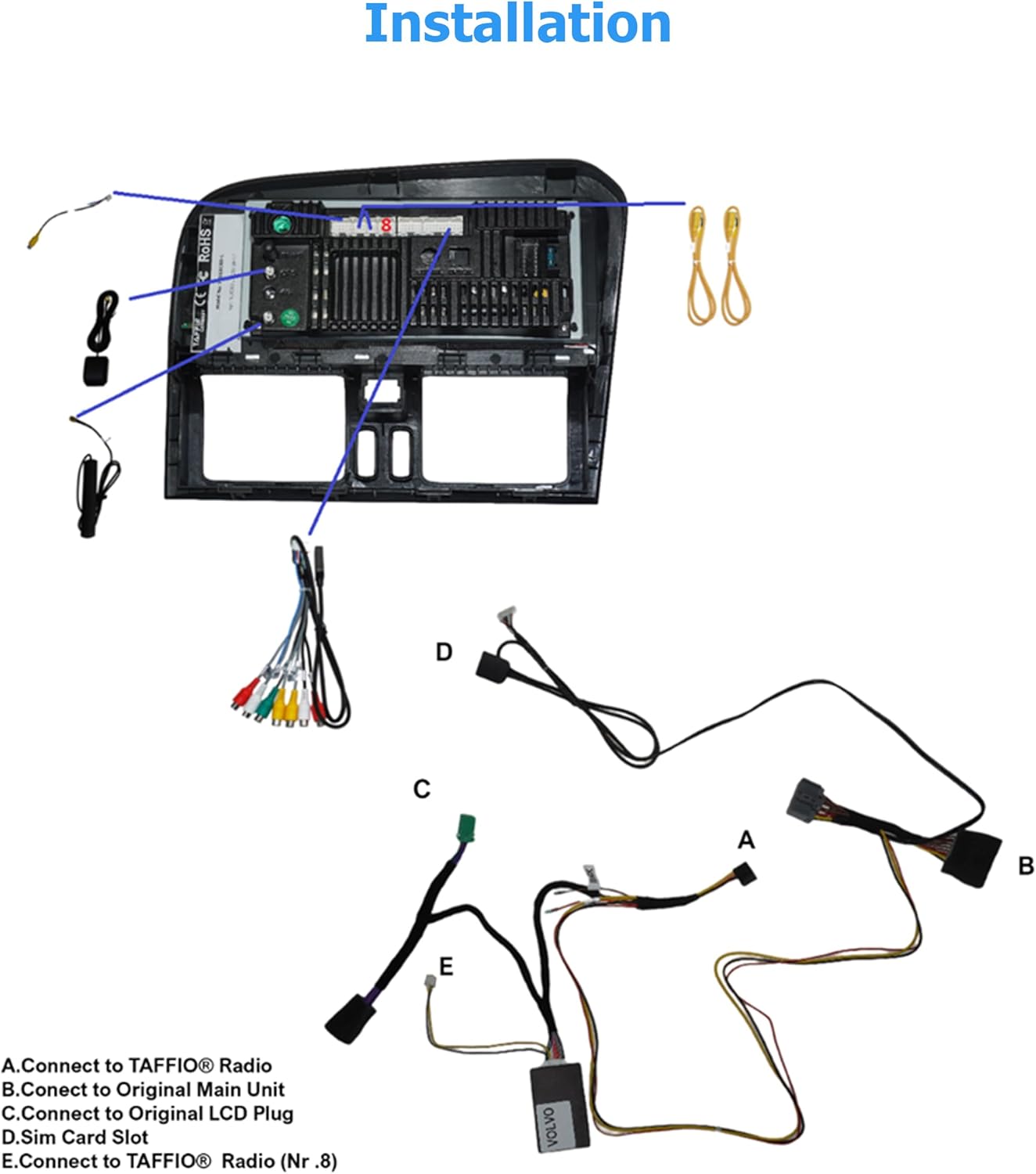
Figure 3.2.1: General installation diagram showing connection points for the Taffio system. A: Connect to Taffio Radio, B: Connect to Original Main Unit, C: Connect to Original LCD Plug, D: SIM Card Slot, E: Connect to Taffio Radio (Nr.8).

Figure 3.2.2: Visual comparison of the Volvo XC60 dashboard before and after the Taffio system installation, highlighting the integrated look.
4. Operating Instructions
Your Taffio Android system offers a wide range of functionalities accessible via its 8.8-inch touchscreen. The interface is designed to be intuitive, similar to a modern smartphone or tablet.
4.1 Basic Operation
- Power On/Off: The system typically powers on and off with your vehicle's ignition.
- Touchscreen Navigation: Use taps, swipes, and pinch-to-zoom gestures to navigate the interface.
- Home Screen: The main screen provides quick access to core functions like Navigation, Music, Radio, Bluetooth, and Settings.

Figure 4.1.1: The main user interface of the Taffio Android system, showing icons for Navi, Music, Radio, Bluetooth, and Settings.
4.2 Navigation (GPS)
The system comes with pre-installed 3D GPS navigation and global map data. To use:
- Tap the "Navi" icon on the home screen.
- Enter your destination using the on-screen keyboard.
- Follow voice prompts and on-screen directions. Map updates are provided free for life.

Figure 4.2.1: Example of a navigation application running on the system, demonstrating map display and route information.
4.3 Apple CarPlay & Android Auto
The system supports both Wireless Apple CarPlay and Android Auto without the need for additional adapters. Connect your smartphone via Bluetooth or USB to access compatible apps, navigation, music, and messaging directly on the system's display.
- Apple CarPlay: Connect your iPhone wirelessly via Bluetooth and Wi-Fi, or via USB.
- Android Auto: Connect your Android phone wirelessly via Bluetooth and Wi-Fi, or via USB.

Figure 4.3.1: The Android Auto interface displayed on the Taffio system, showing various compatible applications.
4.4 Multimedia Playback
Access various media options from the home screen or the "Apps" menu:
- Music/Video: Play audio and video files from internal storage, USB drives, or streaming apps.
- Radio: Tune into FM radio stations.
- Bluetooth: Connect your phone for hands-free calling and audio streaming.
- Equalizer: Adjust audio settings for optimal sound quality.

Figure 4.4.1: Media applications menu showing options for Video, File, Picture, Equalizer, and Apps.
4.5 Vehicle Settings & Personalization
The system integrates with your vehicle's original settings and controls. Access these through the "Settings" or "Vehicle Personalization" menu.
- Steering Wheel Controls: Your original steering wheel controls remain functional.
- Original Reverse Camera: If your vehicle has an original reverse camera, it will be supported by the system.
- Vehicle Information: Access information such as tire information, oil mileage, and other car control settings.

Figure 4.5.1: Vehicle personalization settings menu, including options for Tire Information, Oil mileage, Car in the control settings, and Reverse setting.
4.6 App Management
With Android OS, you can download and install various applications from the Play Store. The system supports multitasking for faster operation.

Figure 4.6.1: A comprehensive view of various applications available on the Taffio system, including communication, navigation, and utility apps.
5. Maintenance
To ensure the longevity and optimal performance of your Taffio multimedia system, follow these general maintenance guidelines:
- Cleaning: Use a soft, lint-free cloth to clean the touchscreen. Avoid abrasive cleaners or solvents that could damage the screen.
- Software Updates: Periodically check for software updates through the system's settings menu or the manufacturer's website. Keeping the software updated ensures access to the latest features and bug fixes.
- Temperature: Avoid exposing the unit to extreme temperatures for prolonged periods.
- Power Cycle: If the system becomes unresponsive, try turning off your vehicle's ignition, waiting a few minutes, and then restarting.
6. Troubleshooting
If you encounter issues with your Taffio multimedia system, refer to the following common troubleshooting steps:
- No Power:
- Check all power connections to ensure they are secure.
- Verify the vehicle's battery is properly connected and charged.
- Check vehicle fuses related to the radio/multimedia system.
- No Sound:
- Ensure the volume is not muted or set too low.
- Check speaker connections.
- Verify audio output settings in the system menu.
- GPS Signal Lost/Inaccurate:
- Ensure the GPS antenna is properly connected and has a clear view of the sky (not obstructed by metal or other objects).
- Move the vehicle to an open area to acquire satellite signals.
- CarPlay/Android Auto Not Connecting:
- Ensure Bluetooth and Wi-Fi are enabled on your smartphone and the system.
- Try forgetting the device on both the phone and the system, then re-pairing.
- If using USB, try a different USB cable.
- System Unresponsive/Frozen:
- Perform a soft reset by holding the power button (if available) or by turning off the vehicle's ignition and restarting after a few minutes.
- If issues persist, a factory reset may be necessary (note: this will erase all user data and settings).
For persistent issues not covered here, please contact Taffio customer support or the seller.
7. Specifications
| Feature | Description |
|---|---|
| Brand | Taffio |
| Model Name | TJ-XC6D-R |
| Vehicle Service Type | Car (Volvo XC60 2009-2010 RHD) |
| Screen Size | 8.8 Inches |
| Special Feature | Touchscreen |
| Connectivity Technology | Bluetooth, USB, Wi-Fi, 4G LTE |
| Map Type | Global (3D GPS) |
| Mounting Type | Dashboard Mount (Custom Fit) |
| Operating System | Android 10 |
| Processor | Octa-core 1.8 GHz |
| RAM | 4 GB |
| Internal Memory | 64 GB |
| Included Components | Android Multimedia System, Power Cable + CAN-BUS Decoder, RCA Plugs + SIM Slot Cable, Rear Camera In Cable, 2x USB Cables, GPS Antenna, 4G Antenna, PDF Mounting Instructions. |
8. Warranty and Support
Your Taffio multimedia system comes with a 2-year warranty from the date of purchase. This warranty covers manufacturing defects and ensures the product functions as intended under normal use.
For warranty claims, technical support, or any questions regarding your product, please contact the seller, REALMEDIASHOP, through the platform where you made your purchase. Please have your purchase details and product model number (TJ-XC6D-R) ready when contacting support.
Related documentsTJ-XC6D-R


Ask a question about this manual
Ask about setup, troubleshooting, compatibility, parts, safety, or missing instructions. Manuals+ will review the question and use this page’s manual context to help answer it.