
BTF-LIGHTING SP530E
BTF-LIGHTING SP530E LED Controller Instruction Manual
Model: SP530E
1. Product Overview
The BTF-LIGHTING SP530E is a versatile LED controller designed to manage various types of LED strips and matrices. It supports both PWM (Pulse Width Modulation) and SPI (Serial Peripheral Interface) LED types, offering extensive compatibility and dynamic lighting effects. Control is available via WiFi, Bluetooth, and third-party voice assistants like Alexa and Google Home.

Figure 1: SP530E LED Controller with included screwdriver and packaging. The packaging highlights IoT LED Controller features, PWM/SPI LED Strip compatibility, and support for Amazon Alexa and Google Assistant.
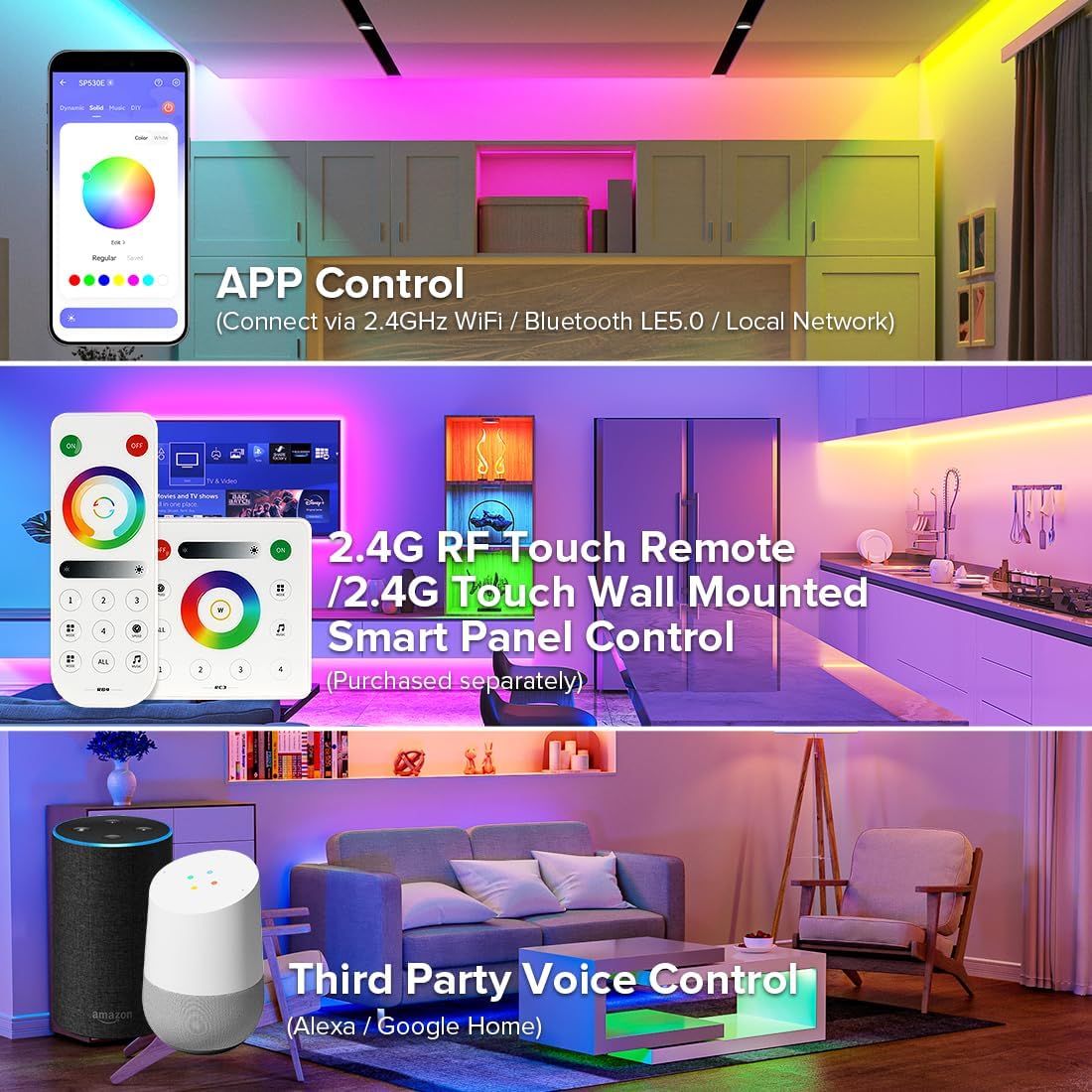
Figure 2: The SP530E controller demonstrating compatibility with various LED strip types including Single Color, CCT, RGB, RGBW, RGBCCT, SPI RGB+PWM Single Color, and SPI RGB+PWM CCT. The image shows the controller connected to different LED strips, illustrating its wide range of supported configurations.
2. Specifications
| Feature | Description |
|---|---|
| Model | SP530E |
| Input Voltage | DC 5V-24V |
| Output Current | 6A/Channel, Max 12A Total |
| Supported LED Types | PWM (Monochrome, CCT, RGB, RGBW, RGBCCT), SPI (WS2811, WS2812B, WS2813, WS2814, WS2815, SK6812, etc.), Mixed SPI+PWM |
| Max SPI Pixels | 1800 (Single Color), 600 (CCT), 1200 (RGB), 900 (RGBW), 600 (RGBCCT) |
| Connectivity | WiFi (2.4GHz), Bluetooth LE5.0 |
| Control Methods | Smartphone App (BanlanX), Voice Control (Alexa, Google Home), RF Remote (purchased separately) |
| Working Temperature | -10°C to 60°C |
3. Setup Guide
3.1 Wiring Instructions
Ensure the power supply matches the voltage requirements of your LED strip (DC 5V-24V). Connect the LED strip to the corresponding output terminals on the SP530E controller. Use the provided screwdriver for secure connections.
- PWM LED Strip (No IC Chip): Connect V+ to V+, and R, G, B, CW, WW to their respective terminals based on your strip type (Monochrome, CCT, RGB, RGBW, RGBCCT).
- SPI TTL IC Chip LED Strip/Matrix: Connect V+ to V+, Data to DAT, and GND to GND. For 4-pin strips, connect Backup Data to BDAT if applicable.
- Mixed SPI+PWM LED Strip: Connect both types of strips to their respective terminals as described above.

Figure 3: Wiring diagram for a PWM Single Color LED Strip (e.g., 5050 SMD LED Strip) to the SP530E controller. Shows connection of V+ and V- (GND) from the power supply to the controller, and then V+ and the single color output to the LED strip.

Figure 4: Wiring diagram for a PWM CCT LED Strip (e.g., FCOB CCT LED Strip) to the SP530E controller. Illustrates connections for V+, CW (Cool White), and WW (Warm White) from the controller to the LED strip.

Figure 5: Wiring diagram for a PWM RGB LED Strip (e.g., 5050 RGB LED Strip) to the SP530E controller. Shows connections for V+, R (Red), G (Green), and B (Blue) from the controller to the LED strip.

Figure 6: Wiring diagram for a PWM RGBW LED Strip (e.g., 5050 RGBW LED Strip) to the SP530E controller. Details connections for V+, R, G, B, and W (White) from the controller to the LED strip.

Figure 7: Wiring diagram for a PWM RGBCCT LED Strip (e.g., 5050 RGB CCT LED Strip) to the SP530E controller. Shows connections for V+, R, G, B, CW, and WW from the controller to the LED strip.

Figure 8: Wiring diagram for an SPI Single Color LED Strip (e.g., FCOB Warm White LED Strip) to the SP530E controller. Illustrates connections for V+, DIN (Data In), and GND from the controller to the LED strip.

Figure 9: Wiring diagram for an SPI CCT LED Strip (e.g., FCOB IC CCT LED Strip) to the SP530E controller. Shows connections for V+, DIN, and GND from the controller to the LED strip.

Figure 10: Wiring diagram for an SPI RGB LED Strip (e.g., WS2812B RGB LED Strip) to the SP530E controller. Illustrates connections for V+, DIN, and GND from the controller to the LED strip.

Figure 11: Wiring diagram for an SPI RGBW LED Strip (e.g., WS2814 RGBW LED Strip) to the SP530E controller. Shows connections for V+, DIN, and GND from the controller to the LED strip.

Figure 12: Wiring diagram for an SPI RGBCCT LED Strip (e.g., SPI WS2805 RGBCCT LED Strip) to the SP530E controller. Details connections for V+, DIN, BIN (Backup Data In), and GND from the controller to the LED strip.
3.2 App Installation and Connection
The SP530E controller is primarily controlled via the BanlanX smartphone application. Scan the QR code on the controller or packaging to download the app, or search for "BanlanX" in your app store.
- Download and install the BanlanX app.
- Power on the SP530E controller.
- Open the BanlanX app and follow the on-screen prompts to add a new device. The app will guide you through connecting the controller via WiFi or Bluetooth.
- Once connected, you can rename the device and configure its settings.

Figure 13: Overview of control methods for the SP530E. Shows smartphone app control via 2.4GHz WiFi / Bluetooth LE5.0 / Local Network, 2.4G RF Touch Remote / 2.4G Touch Wall Mounted Smart Panel Control (purchased separately), and Third Party Voice Control (Alexa / Google Home).

Figure 14: Screenshots of the BanlanX app interface, showing Dynamic, Static, Music, DIY, and Settings pages. This illustrates the various modes and customization options available within the application.
4. Operating Instructions
4.1 App Functions
- Dynamic Modes: Explore a variety of pre-set dynamic lighting effects.
- Static Color: Select any static color from the color wheel.
- Music Effects: Synchronize lights with music using the phone's microphone or built-in microphone.
- DIY Effects: Create custom lighting effects by combining colors, modes, brightness, and speed.
- Timer Function: Schedule lights to turn on/off at specific times.
- Color Calibration: Adjust colors if they appear inconsistent with the app's display.
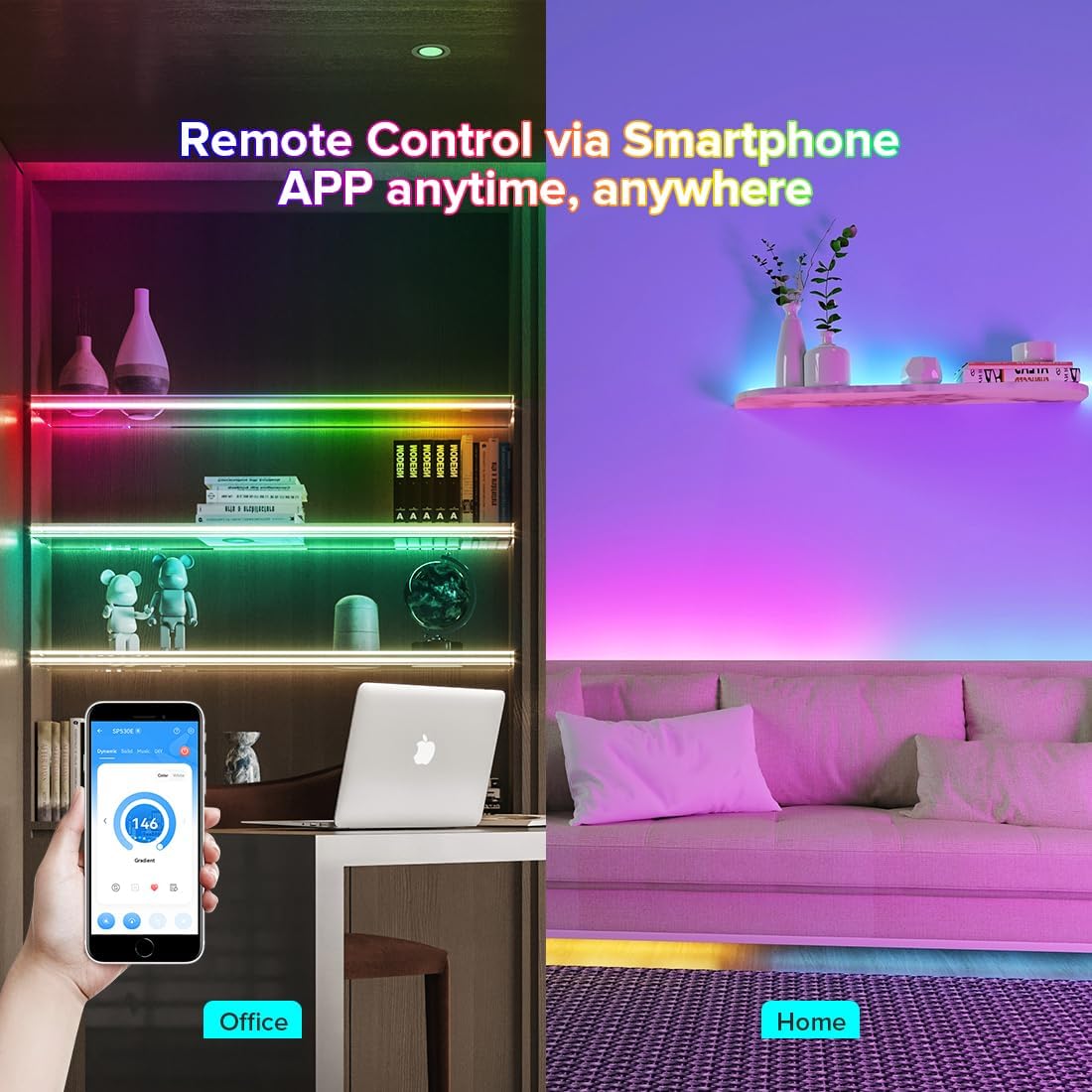
Figure 15: The SP530E controller's newly upgraded music effects. It supports multi-segment LED strip music effects and Matrix LED music spectrum effects, utilizing player streaming, mobile microphone, or built-in microphone for audio input.

Figure 16: The SP530E controller's timer function, allowing users to adjust the time for automatic light flashing when the light is turned off. The app interface for setting schedules is shown.
4.2 Voice Control Integration (Alexa/Google Home)
To enable voice control, link your BanlanX account with your Amazon Alexa or Google Home app.
- Open the Alexa or Google Home app.
- Search for the "BanlanX" skill/service.
- Enable the skill and log in with your BanlanX account credentials.
- Discover devices to add your SP530E controller.

Figure 17: Step-by-step guide on how to connect the SP530E controller to Alexa via the BanlanX app. It shows navigating to Third-Party Voice Services, selecting Amazon Alexa, and using the Quick Link option to connect the account.
5. Maintenance
- Keep the controller in a dry environment, away from moisture and extreme temperatures.
- Clean the controller with a soft, dry cloth. Do not use harsh chemicals or abrasive cleaners.
- Ensure proper ventilation around the controller to prevent overheating.
- Regularly check wiring connections for looseness or damage.
6. Troubleshooting
| Problem | Possible Cause | Solution |
|---|---|---|
| LED strip not lighting up. | No power, incorrect wiring, faulty LED strip. | Check power supply, verify wiring connections, test LED strip with another power source. |
| App cannot connect to controller. | WiFi/Bluetooth off, incorrect network, controller not in pairing mode. | Ensure WiFi/Bluetooth is enabled, check network settings, restart controller to enter pairing mode. |
| Colors are inconsistent. | Incorrect LED type selected in app, color calibration needed. | Go to app settings -> Modify Light Type and select correct LED type. Perform color calibration. |
| Voice control not working. | BanlanX skill not enabled, account not linked, network issue. | Verify BanlanX skill is enabled and linked in Alexa/Google Home app. Check internet connection. |
7. Official Product Videos
Watch these official videos from BTF-LIGHTING for visual guides and demonstrations of the SP530E controller's features.
Video 1: SP530E BT WiFi Controller. This video provides an overview of the SP530E Bluetooth and WiFi controller, showcasing its main functionalities and how it integrates with smart home systems.
8. Warranty and Support
For warranty information and technical support, please refer to the official BTF-LIGHTING website or contact their customer service directly. You can also find additional resources and FAQs on their brand store page on Amazon.
- Official Manual: document.ledhue.com/banlanx/manual/5xx/53x/sp530e.html
- BTF-LIGHTING Amazon Store: amazon.com/stores/BTF-LIGHTING
Related documentsSP530E


Ask a question about this manual
Ask about setup, troubleshooting, compatibility, parts, safety, or missing instructions. Manuals+ will review the question and use this page’s manual context to help answer it.