
1. Overview
The JMDHKK M8000 is a professional-grade 4-in-1 multifunctional device designed for detecting hidden cameras, listening devices, magnetic GPS trackers, and other surveillance tools. Its advanced bug sweeping technology and AI-enhanced detection mode provide reliable privacy protection in various environments. The device features a durable aluminum casing, ensuring stable performance and portability for on-the-go security.
2. Package Contents
Ensure all items are present in your package:
- Main Unit (JMDHKK M8000 Detector)
- RF Antenna
- GS Probe (Magnetic Detection Probe)
- Charging Cable (DC charging cable for main unit)
- USB Charging Cable (for camera lens finder)
- Camera Lens Finder
- User Manual

Image: The JMDHKK M8000 main unit, RF antenna, magnetic detection probe, charging cables, and camera lens finder laid out on a surface.
3. Product Features
- Professional Hidden Camera & Bug Detection: Advanced technology for accurate detection of hidden cameras, listening devices, and other surveillance tools.
- 4-in-1 Multifunctional Surveillance Detector: Combines hidden camera detection, microphone detection, magnetic field detection, and RF signal detection.
- AI-Enhanced Detection Mode: Triggers alerts upon detecting five suspicious signals of the same frequency, providing extra security against intermittent transmitters.
- Portable, Durable, and User-Friendly: Lightweight aluminum casing, easy to carry, and simple step-by-step instructions for hassle-free operation.
- Compact Design for On-the-Go Privacy: Ideal for use in hotels, vehicles, offices, or personal spaces to safeguard privacy.
4. Component Identification
Main Unit

Image: A close-up view of the JMDHKK M8000 detector's front panel, highlighting the LED bars, detection mode switch, and power/sensitivity knobs.
- RF Antenna Interface: Connects the RF antenna for wireless signal detection.
- Magnetic Detection Probe Socket: Connects the GS Probe for magnetic field detection.
- Detection Mode Switch Button: Toggles between RF signal detection (RF) and Magnetic Field Detection (MA).
- AI Auto Scan Button: Activates the AI-enhanced automatic scanning mode.
- LED Bars: Indicate signal strength during detection.
- Power Switch & Sensitivity Knob: Turns the device on/off and adjusts detection sensitivity.
- Balance Tuner: Fine-tunes sensitivity for magnetic field detection.
- Charging Port: For connecting the DC charging cable.
- Charging Indicator: Lights up during charging.
Camera Lens Finder
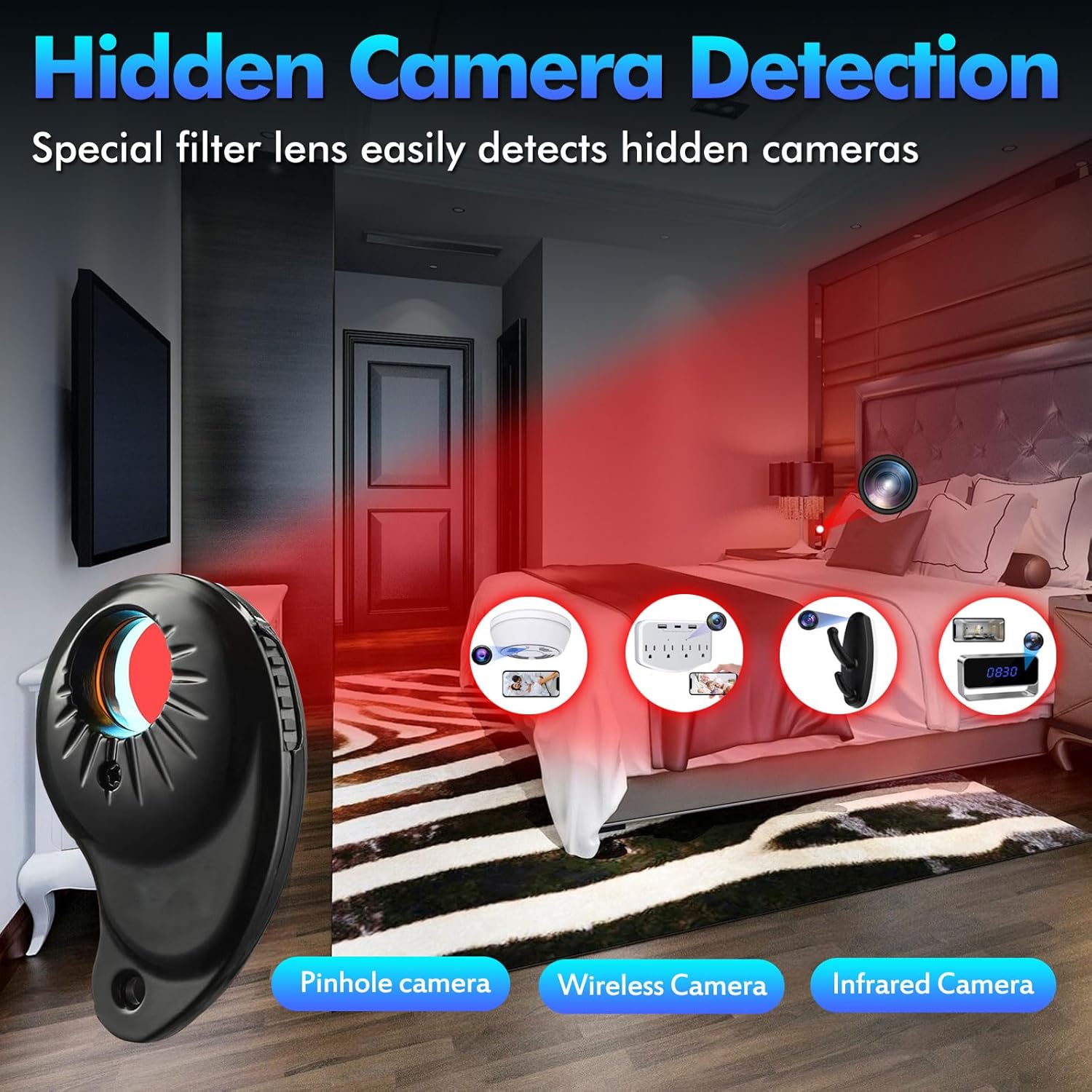
Image: The small, black camera lens finder with multiple red LEDs and a viewing window.
- Infrared Light Switch: Activates and cycles through the red LED flashing modes.
- Viewing Window: Used to look through while scanning for hidden camera lenses.
- Charging Port: For connecting the USB charging cable.
5. Setup
- Charge the Devices: Ensure both the main unit and the camera lens finder are fully charged before first use. Refer to the 'Charging' section for details.
- Attach RF Antenna: For RF Signal Detection, screw the RF antenna into the designated interface on the main unit.
- Attach Magnetic Detection Probe: For Magnetic Field Detection, plug the GS Probe into the magnetic detection probe socket on the main unit.
6. Operating Instructions
6.1 RF Signal Detection
This mode detects wireless signals from hidden cameras, listening devices, and other RF transmitters.
- Ensure the RF antenna is attached.
- Slide the Detection Mode Switch to the RF position.
- Turn the Power Switch & Sensitivity Knob clockwise to power on the detector.
- Adjust the Sensitivity Knob counter-clockwise until the 2nd or 3rd green LED bar flashes and the beeping stops. This calibrates the device to your environment.
- Slowly scan the area. The LED bars will light up and the device will beep when a signal is detected. The rate of beeping and the number of lit LEDs increase as you get closer to the source.
- To pinpoint the source, reduce the sensitivity as you approach the signal, allowing for more precise localization.
Video: This video demonstrates the process of setting up the RF antenna, adjusting sensitivity, and using the JMDHKK M8000 to detect RF signals from a mobile phone, showing how the LED bars and beeping indicate signal strength.
6.2 Magnetic Field Detection
This mode is used to detect magnetic GPS trackers or magnetic mini cameras, often hidden in vehicles or under furniture.
- Ensure the GS Probe is plugged into the magnetic detection probe socket.
- Slide the Detection Mode Switch to the MA position. The magnetic probe light will turn on.
- Turn the Power Switch & Sensitivity Knob clockwise to power on the detector.
- Adjust the Balance Tuner counter-clockwise until the 5th or 6th LED lights up and the beeping stops. This calibrates the device for magnetic detection.
- Slowly move the magnetic probe over suspected areas (e.g., under a car, behind furniture). The detector will emit a continuous beep when the probe is 0-5 inches away from a magnetic object.
Video: This video illustrates how to connect the magnetic detection probe, activate the magnetic field detection mode, calibrate the sensitivity, and use the probe to locate magnetic GPS trackers in a vehicle.
6.3 Camera Lens Finder
This small, separate device helps locate hidden camera lenses, both wired and wireless, by reflecting light off their optics.
- Short press the Infrared Light Switch on the camera lens finder to turn on the 4 red LEDs. Repeated short presses will cycle through different flashing frequencies or turn them off.
- Select a flickering frequency appropriate for your environment, or keep the infrared lights solid on.
- Look through the viewing window of the camera lens finder with one eye.
- Slowly move around the room, pointing the infrared lights straight at any area where a hidden camera is suspected (e.g., smoke detectors, power outlets, mirrors).
- Hidden camera lenses will reflect the red LEDs, appearing as a bright, distinct spot in the viewing window. Manually verify any bright spots found.
Video: This video demonstrates how to operate the camera lens finder by activating its red LEDs, adjusting the flashing frequency, and using it to visually identify hidden camera lenses through its viewing window.
6.4 AI Auto Scan Mode
This mode automatically scans for RF signals and alerts you to potential threats.
- Ensure the RF antenna is attached.
- Turn the Power Switch & Sensitivity Knob clockwise to power on the detector.
- Briefly press the AI Auto Scan Button. The blue indicator light will flicker, indicating the mode is active.
- Place the detector in areas or vehicles suspected of having hidden transmitters.
- When the detector detects a strong signal within 10 feet, it will flash the entire LED strip for a moment, then leave one LED strip blinking steadily. A continuous "beep" sound indicates the presence of a strong signal nearby.
- To exit AI Auto Scan Mode and return to RF Signal Detection for pinpointing, press and hold the AI Auto Scan Button for 6 seconds.
Video: This video demonstrates how to activate the AI Auto Scan mode, showing the blue indicator light and how the device responds to a strong RF signal from a mobile phone with LED flashes and continuous beeping.
7. Charging
7.1 Charging the Main Unit
Use the provided DC charging cable to charge the JMDHKK M8000 main unit.
- Plug the DC charging cable into the charging port on the main unit.
- Connect the other end of the cable to a compatible USB power adapter (e.g., wall charger, computer USB port).
- The orange charging indicator light will illuminate during charging. It will automatically turn off once the device is fully charged.
7.2 Charging the Camera Lens Finder
Use the provided USB charging cable to charge the camera lens finder.
- Plug the USB charging cable into the charging port on the camera lens finder.
- Connect the other end of the cable to a compatible USB power adapter.
- The charging indicator light on the camera lens finder will show its charging status (e.g., red for charging, blue for full).
8. Troubleshooting
- Device not turning on: Ensure the device is fully charged. Connect to the charger and check if the charging indicator lights up.
- No signal detection: Check if the correct antenna/probe is attached for the selected mode (RF antenna for RF, GS probe for Magnetic). Adjust sensitivity settings. Ensure no known electronic devices are causing interference.
- False alarms/Too many beeps: Reduce the sensitivity using the Sensitivity Knob. Move away from known electronic devices like Wi-Fi routers, cellphones, or microwaves.
- Camera lens finder not working: Ensure it is charged. Press the Infrared Light Switch to activate the LEDs.
9. Specifications
| Feature | Specification |
|---|---|
| Model Name | M8000 Signal detector |
| Brand | JMDHKK |
| Item Model Number | M8000 |
| Product Dimensions | 3.9 x 2.05 x 0.83 inches |
| Item Weight | 7.7 ounces |
| Material | Acrylonitrile Butadiene Styrene (ABS) |
| Power Source | Battery Powered (1 Lithium Ion battery required) |
| Voltage | 3.7 Volts |
| Wattage | 4.07 watts |
| Connectivity Technology | Wireless |
| Connectivity Protocol | Wi-Fi |
| Alert Type | Audio Only |
| Light Source Type | Infrared (for camera lens finder) |
| Recommended Uses | Indoor Security, Outdoor Security |
10. Support
For any questions or technical assistance, please contact JMDHKK customer support:
- Email: techsupport@jmdhkk.com
- WhatsApp: 31633457300


