
MSI Pro MP161 E2
MSI PRO MP161 E2 Portable Monitor User Manual
Model: Pro MP161 E2 | Brand: MSI
Introduction
The MSI PRO MP161 E2 portable monitor is designed to enhance productivity and entertainment on the go. Featuring a 15.6-inch Full HD (1920 x 1080) IPS panel, it delivers sharp visuals with eye-friendly technologies such as Less Blue Light and anti-flicker. Its versatile design includes an ergonomic fold-out kickstand for various orientations and multiple connectivity options for broad device compatibility.

The MSI PRO MP161 E2 Portable Monitor, showcasing its slim design and key features like IPS panel, anti-flicker, Type-C display, tripod mount support, L-shaped cable, lengthened kickstand, and built-in speakers.
What's in the Box
Ensure all items are present upon unboxing:
- Pro MP161 E2 Widescreen LCD Monitor
- 1 x L-Shaped Mini HDMI™ to HDMI™ cable
- 1 x L-Shaped Type-C to Type-C cable
- 1 x Protective Case
- 1 x Quick Guide
The retail packaging of the MSI PRO MP161 E2, indicating the included accessories and protective case.
Setup and Connectivity
Connecting to Devices
The MSI PRO MP161 E2 offers versatile connectivity options:
- USB Type-C: Use the provided L-shaped Type-C to Type-C cable to connect to compatible laptops, smartphones, or other devices. This single cable can transmit both video signal and power.
- Mini-HDMI: Use the provided L-shaped Mini HDMI™ to HDMI™ cable to connect to devices with an HDMI output, such as gaming consoles (PS5, PS4, Xbox), PCs, or cameras. An additional USB Type-C cable may be required for power if the HDMI source does not provide sufficient power.

Close-up view of the MSI PRO MP161 E2's connectivity ports, including two USB Type-C ports and one Mini-HDMI port.
Adjusting the Kickstand and Tripod Mount
The integrated fold-out kickstand allows for flexible positioning of the monitor:
- Orientation: The kickstand supports both horizontal (landscape) and vertical (portrait) display orientations. Simply adjust the monitor's position and rotate the screen in your device's display settings if needed.
- Angle Adjustment: The kickstand can be lengthened and adjusted from 0° to 180°, providing a wide range of viewing angles.
- Tripod Support: A 1/4-inch tripod mount is integrated into the kickstand, allowing you to securely attach the monitor to a standard camera tripod for elevated or more stable setups.
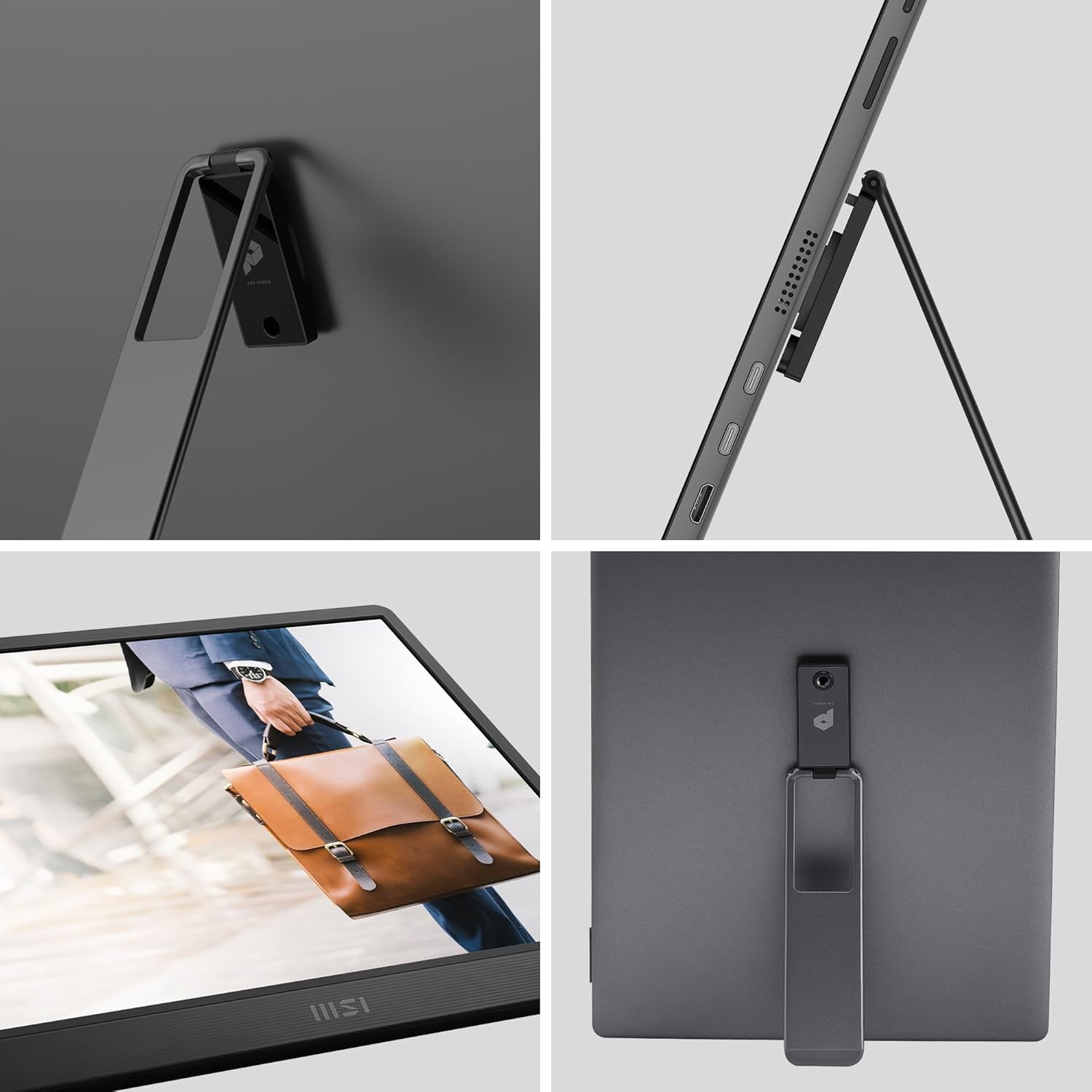
Detailed views of the MSI PRO MP161 E2's versatile kickstand, demonstrating its ability to fold out and support the monitor in different angles and orientations.

The MSI PRO MP161 E2 monitor securely attached to a tripod, showcasing its 1/4-inch tripod mount support for flexible positioning.
Operating the Monitor
Basic Controls and OSD Menu
The monitor features intuitive buttons on its side for power, volume, and brightness adjustments. Pressing the main button will bring up the On-Screen Display (OSD) menu, allowing you to access various settings:
- Professional: Adjust display modes (e.g., Photo, Movie, Game, Standard, User).
- Image: Control brightness, contrast, sharpness, image enhancement, Low Blue Light, HDCR, and color temperature.
- Input Source: Select between HDMI and USB Type-C inputs.
- Navi Key: Customize button functions.
- Settings: Configure language, transparency, OSD timeout, power button behavior, and audio volume.
Display Features and Usage Scenarios
The MSI PRO MP161 E2 is equipped with features to enhance your viewing experience and adapt to different uses:
- Eye-Friendly Technologies: TÜV Rheinland Eye Comfort certified Less Blue Light and anti-flicker technologies reduce eye strain during prolonged use. The anti-glare screen finishing further minimizes reflections.
- Night Vision: A smart black tuner feature enhances visibility in dark areas of the screen, providing better detail in low-light scenes.
- Productivity: Utilize the monitor in portrait mode for coding, document review, or social media feeds, allowing for more vertical content display.
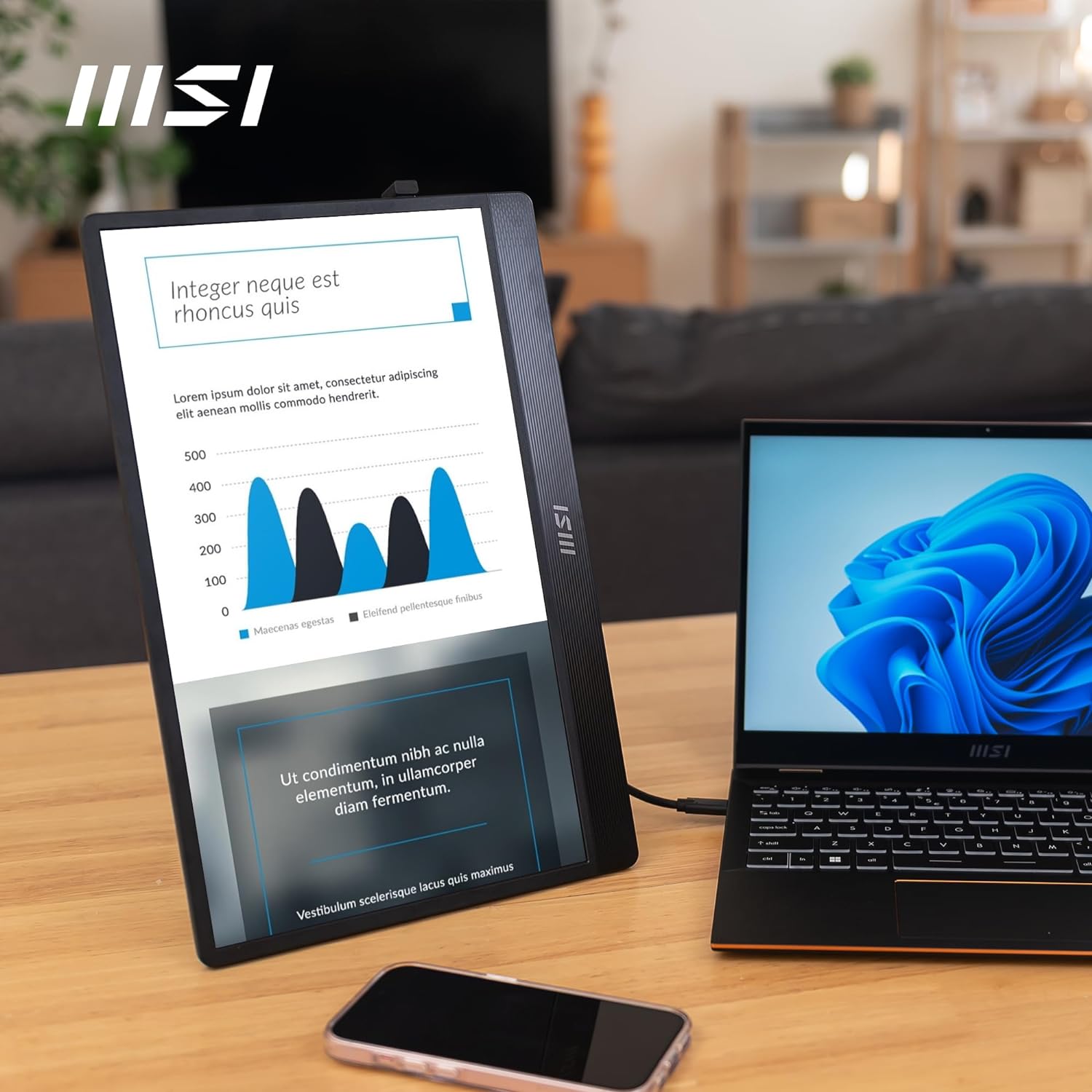
The MSI PRO MP161 E2 in portrait orientation, ideal for displaying long lines of code or documents, enhancing productivity.
- Media Consumption: The built-in 1.5W speakers provide audio for videos, music, or conference calls. The monitor can serve as a dedicated media display, keeping your main screen clear for work.
- Gaming: Connect your gaming console or mobile device for an expanded gaming experience. The 4ms GtG response time ensures smooth visuals.
- Camera Monitor: With its 1/4-inch tripod mount and versatile display, the monitor can function as an external monitor for cameras, providing a larger view for framing and focus during content creation.
Specifications
| Brand | MSI |
| Model | Pro MP161 E2 |
| Screen Size | 15.6 Inches |
| Screen Resolution | 1920 x 1080 (Full HD) |
| Panel Type | IPS |
| Refresh Rate | 60Hz |
| Response Time | 4ms (GtG) |
| Brightness | 250 nits |
| Connectivity | 2x USB Type-C, 1x Mini-HDMI 2.0b |
| Speakers | Dual 1.5W Built-in Speakers |
| Weight | 1.98 pounds (approx. 0.9 kg) |
| Dimensions (LxWxH) | 0.7 x 14.26 x 9.17 inches |
| Special Features | Ergonomic Fold-out Kickstand (0°-180°), 1/4-inch Tripod Mount Support, Less Blue Light, Anti-Flicker, Anti-Glare, Night Vision |
Troubleshooting
If you encounter issues with your MSI PRO MP161 E2 monitor, try the following solutions:
- No Signal: Ensure the cables are securely connected to both the monitor and the source device. Try a different port or cable. Verify the input source selected in the OSD menu matches your connection.
- No Power: Check if the monitor is receiving power via the USB Type-C connection. Some devices may require an external power adapter for the monitor if they cannot supply enough power through the video cable.
- Display Issues (Flickering, Blurriness): Adjust display settings like refresh rate, resolution, and anti-flicker options in the OSD menu. Ensure your source device's display settings are compatible with the monitor's capabilities.
- No Audio/Low Audio: Check the volume settings on both the monitor and the connected device. Ensure the correct audio output is selected on your source device.
- Incorrect Orientation: If the display is upside down or sideways, adjust the orientation in your connected device's display settings (e.g., Windows Display Settings, macOS Display Preferences).
Maintenance
To ensure the longevity and optimal performance of your monitor:
- Cleaning: Use a soft, lint-free cloth to gently wipe the screen and exterior. For stubborn marks, slightly dampen the cloth with water or a screen-cleaning solution. Avoid harsh chemicals or abrasive materials.
- Storage: When not in use, store the monitor in its protective case to prevent scratches and damage.
- Handling: Handle the monitor with care, especially when adjusting the kickstand or connecting cables, to avoid putting undue stress on the ports or hinges.
Warranty and Support
The MSI PRO MP161 E2 Portable Monitor comes with a 3-Year Limited Warranty. For detailed warranty terms, technical support, or service inquiries, please refer to the official MSI website or contact MSI customer support directly.
You can visit the official MSI store for more information: MSI Store on Amazon
Related documentsPro MP161 E2


Ask a question about this manual
Ask about setup, troubleshooting, compatibility, parts, safety, or missing instructions. Manuals+ will review the question and use this page’s manual context to help answer it.