
Introduction
Thank you for purchasing the WISCENT WTB795-UK Cassette Player. This device combines classic cassette playback with modern features such as USB, Bluetooth, and AM/FM radio. It also includes a cassette to MP3 converter function, allowing you to digitize your old tape collection. This manual provides detailed instructions for setup, operation, and maintenance to ensure optimal performance and longevity of your device.
Safety Information
- Read all instructions carefully before using the device.
- Keep this manual for future reference.
- Do not expose the device to rain, moisture, or extreme temperatures.
- Avoid placing the device near heat sources such as radiators, heat registers, stoves, or other apparatus (including amplifiers) that produce heat.
- Use only attachments/accessories specified by the manufacturer.
- Unplug the device during lightning storms or when unused for long periods.
- Do not open the casing. Refer all servicing to qualified service personnel.
- Dispose of batteries properly, following local regulations.
Package Contents
- WISCENT WTB795-UK Cassette Player
- AC Power Cable
- Instruction Manual
Product Features
- Cassette Player/Recorder: Play your old tapes and audiobooks with fast forward, rewind, and auto-stop functions. Supports tape recording.
- Cassette to MP3 Converter: Convert old cassettes to MP3 format directly onto a USB flash drive without additional devices or software.
- AM/FM Radio: Equipped with a long telescopic antenna and advanced DSP chip for excellent reception across AM 520-1710 KHz and FM 87-108 MHz frequencies.
- Bluetooth Connectivity: Wirelessly stream music from Bluetooth-enabled devices.
- USB Playback: Play MP3, WAV, WMA audio files from a USB flash drive.
- Built-in Microphone: Record audio directly to a USB drive or blank tape.
- High-Quality Stereo Sound: Features two 3-inch, 6W speakers for clear and dynamic audio.
- Portable Design: Compact with a comfortable handle for easy transport.
- Dual Power Options: Operates via AC power (included cable) or 4 x C-cell batteries (not included).
- Headphone Jack: For private listening.

Figure 1: Overview of WISCENT WTB795-UK main functions.
Controls and Functions
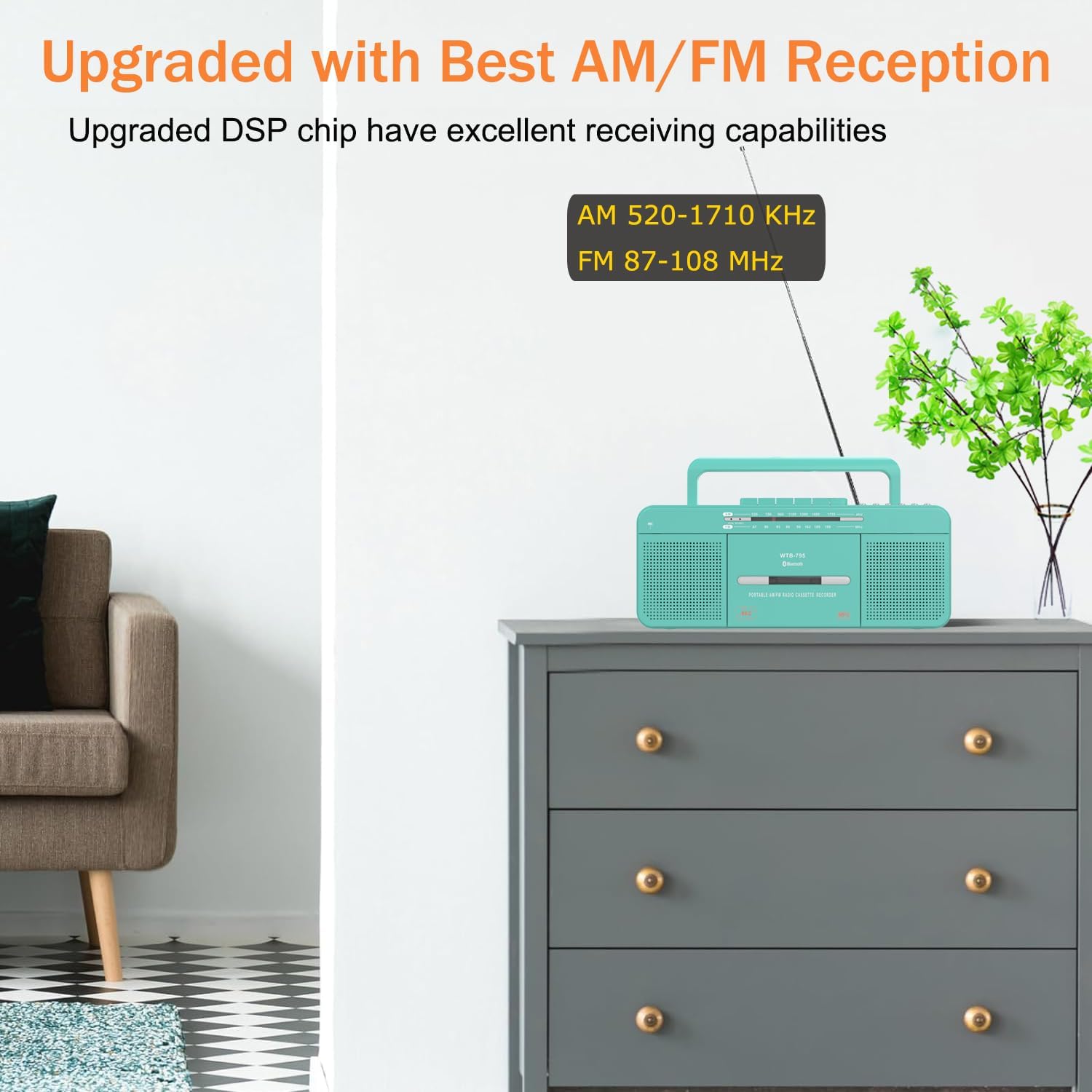
Figure 2: Front and side view of the WISCENT WTB795-UK controls.
Front Panel Controls
- FUNCTION Switch: Selects between USB/Bluetooth, Radio, or Tape/Off modes.
- BAND Switch: Selects AM or FM radio band.
- Cassette Control Buttons:
- PAUSE: Temporarily stops cassette playback/recording.
- STOP/EJECT: Stops cassette operation and opens the cassette door.
- F.FWD (Fast Forward): Advances the tape quickly.
- F.REW (Fast Rewind): Rewinds the tape quickly.
- PLAY: Starts cassette playback.
- REC (Record): Initiates recording onto a cassette (requires a blank tape).
- USB Control Buttons:
- USB: USB port for flash drives.
- PREV: Skips to the previous track on USB.
- PLAY/PAUSE: Plays or pauses USB playback.
- NEXT: Skips to the next track on USB.
- REC/STOP: Starts or stops recording to USB.
- FILE: Used for file management or mode selection within USB function.
- Tuning Knob: Adjusts radio frequency.
- Volume Control Knob: Adjusts audio output level.
Side/Rear Panel Controls
- External Earphone Jack: 3.5mm output for headphones.
- AC Power Input: Connects the AC power cable.
- Battery Compartment: Holds 4 x C-cell batteries.
- Telescopic Antenna: Extends for improved radio reception.
Setup
Powering the Device
The WISCENT WTB795-UK can be powered by either AC electricity or batteries.

Figure 3: AC and Battery Power Options.
AC Power
- Ensure the unit is switched OFF (FUNCTION switch to TAPE/OFF).
- Insert the AC power cable into the AC input jack on the back of the unit.
- Plug the other end of the cable into a standard AC 220V-50Hz wall outlet.
Battery Power
- Ensure the unit is switched OFF (FUNCTION switch to TAPE/OFF).
- Open the battery compartment cover on the back of the unit.
- Insert 4 x C-cell batteries (not included), ensuring correct polarity (+/-).
- Close the battery compartment cover securely.
Operating Instructions
Cassette Playback
- Set the FUNCTION switch to TAPE/OFF.
- Press the STOP/EJECT button to open the cassette door.
- Insert a cassette tape with the open edge facing upwards.
- Close the cassette door.
- Press the PLAY button to start playback.
- Adjust the Volume Control knob to your desired listening level.
- Use F.FWD or F.REW for fast winding.
- Press PAUSE to temporarily stop playback. Press again to resume.
- Press STOP/EJECT to stop playback and eject the tape.
AM/FM Radio Operation
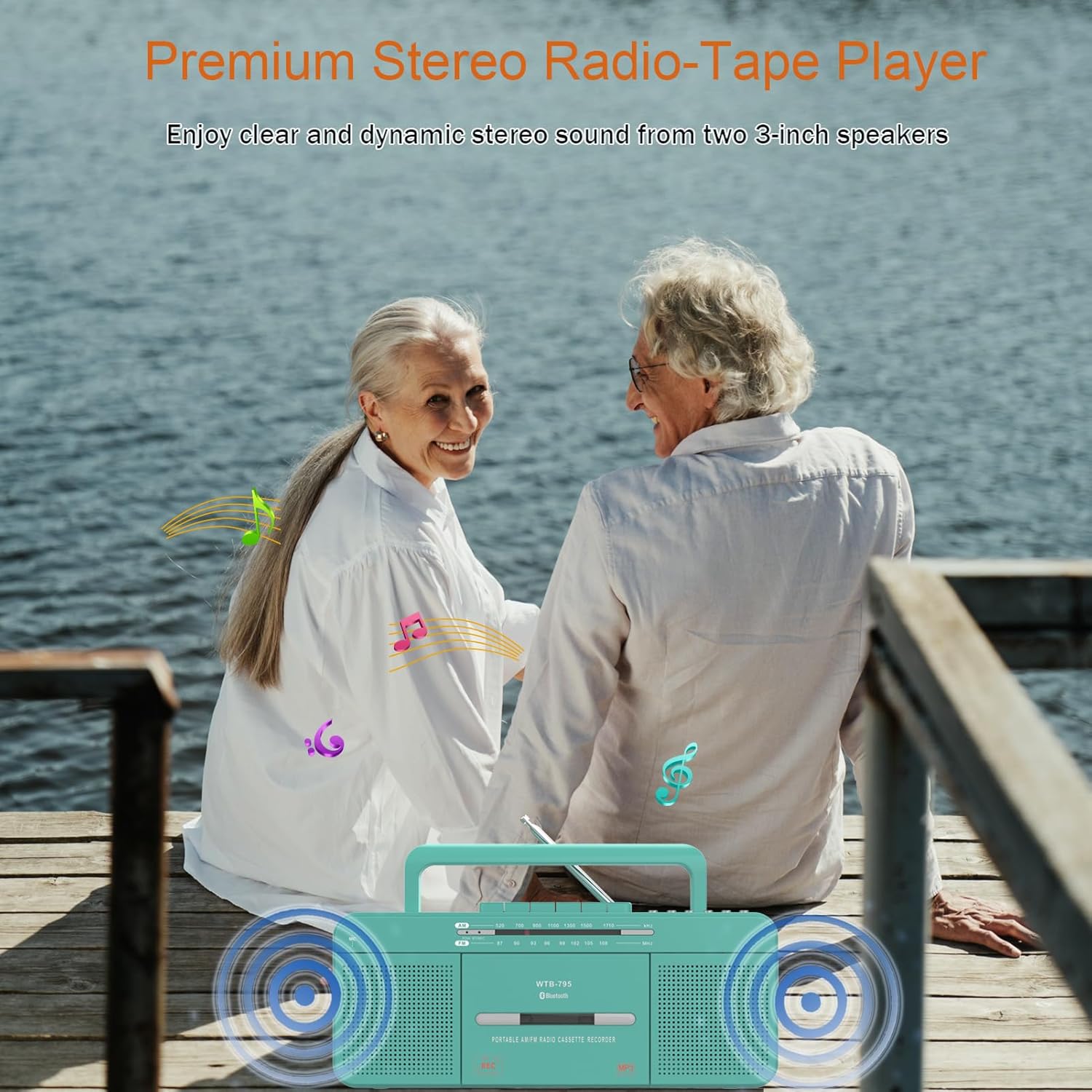
Figure 4: Extending the telescopic antenna for improved radio reception.
- Set the FUNCTION switch to RADIO.
- Select the desired band (AM or FM) using the BAND switch.
- Extend the telescopic antenna for better FM reception. For AM, rotate the unit for best reception.
- Rotate the Tuning Knob to find your desired radio station.
- Adjust the Volume Control knob.
Bluetooth Pairing and Playback
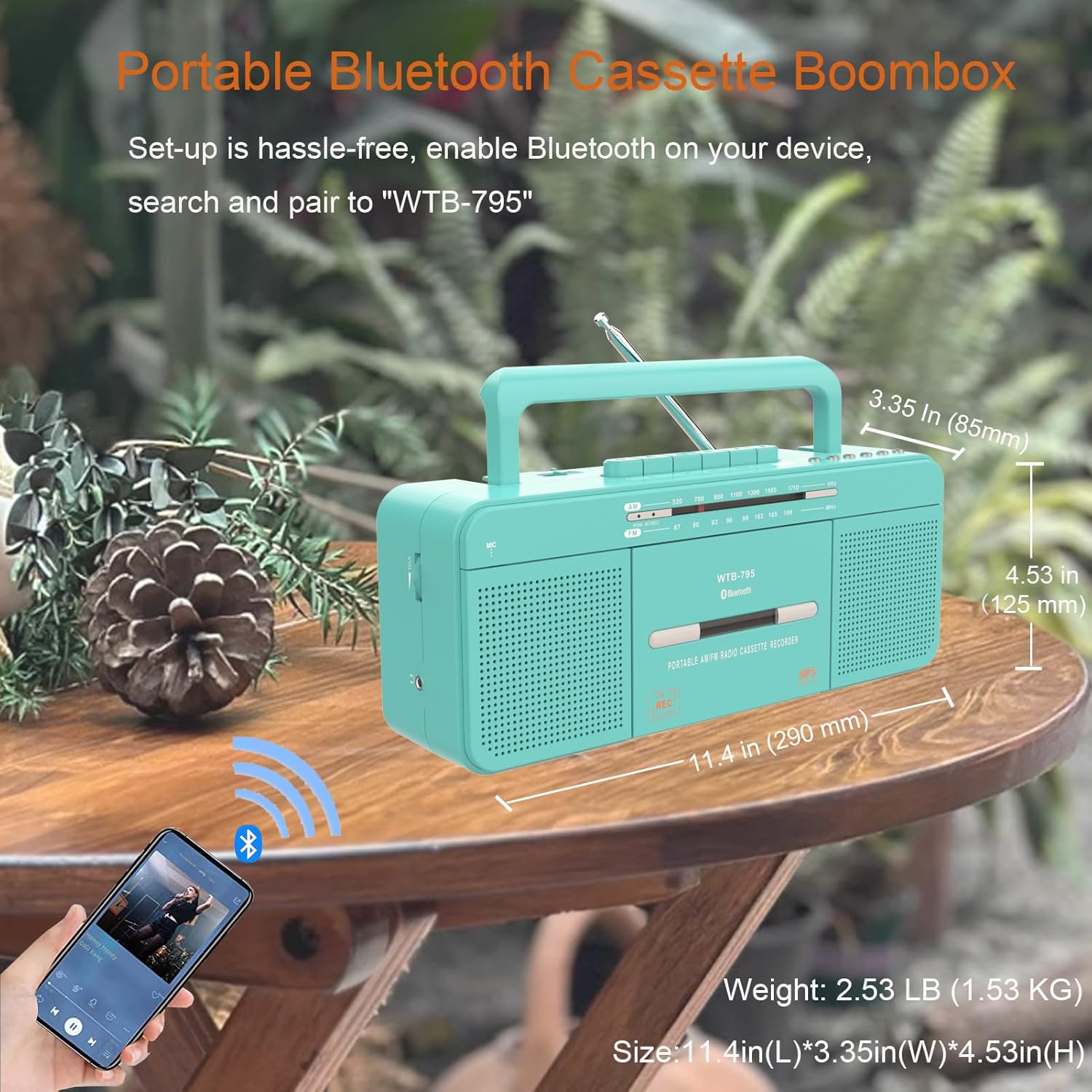
Figure 5: Bluetooth connectivity with a smartphone.
- Set the FUNCTION switch to USB/Bluetooth. The unit will enter Bluetooth pairing mode, indicated by a flashing Bluetooth indicator.
- On your Bluetooth-enabled device (e.g., smartphone, tablet), enable Bluetooth and search for available devices.
- Select "WTB-795" from the list of devices to pair.
- Once paired, the Bluetooth indicator will stop flashing and remain solid.
- Start playing music on your connected device. The audio will stream through the WTB795-UK.
- Adjust volume using the Volume Control knob on the unit or your connected device.
USB Playback
- Set the FUNCTION switch to USB/Bluetooth.
- Insert a USB flash drive into the USB port. The unit will automatically switch to USB mode and begin playing compatible audio files (MP3, WAV, WMA).
- Use the PREV and NEXT buttons to skip tracks.
- Press the PLAY/PAUSE button to pause or resume playback.
- Adjust the Volume Control knob.
Recording Functions

Figure 6: Recording methods supported by the WTB795-UK.
1. Cassette to MP3 (USB Recording)

Figure 7: Cassette to MP3 conversion via USB.
- Insert a USB flash drive into the USB port.
- Insert the cassette tape you wish to record into the cassette compartment.
- Set the FUNCTION switch to TAPE/OFF.
- Press the PLAY button on the cassette player.
- Press the REC/STOP button on the USB control panel to start recording. The recording indicator will light up.
- Press REC/STOP again to stop recording. The recorded file will be saved on the USB drive.
2. Microphone to MP3 (USB Recording)
- Insert a USB flash drive into the USB port.
- Set the FUNCTION switch to USB/Bluetooth.
- Press the REC/STOP button on the USB control panel to start recording from the built-in microphone.
- Press REC/STOP again to stop recording.
3. Radio to Cassette Recording
- Insert a blank cassette tape into the cassette compartment.
- Set the FUNCTION switch to RADIO.
- Tune to your desired radio station.
- Press the REC button on the cassette control panel to start recording the radio broadcast onto the tape.
- Press the STOP/EJECT button to stop recording.
4. Microphone to Cassette Recording
- Insert a blank cassette tape into the cassette compartment.
- Set the FUNCTION switch to TAPE/OFF.
- Press the REC button on the cassette control panel to start recording from the built-in microphone onto the tape.
- Press the STOP/EJECT button to stop recording.
Maintenance
- Cleaning: Use a soft, dry cloth to clean the exterior of the unit. Do not use abrasive cleaners or solvents.
- Cassette Head Cleaning: Periodically clean the cassette head, pinch roller, and capstan with a cotton swab lightly dampened with isopropyl alcohol to ensure optimal sound quality and prevent tape damage.
- Battery Care: If the unit will not be used for an extended period, remove the batteries to prevent leakage and damage.
- Storage: Store the unit in a cool, dry place away from direct sunlight and dust.
Troubleshooting
| Problem | Possible Cause | Solution |
|---|---|---|
| No power | AC cable not connected; Batteries depleted or incorrectly inserted; FUNCTION switch is OFF. | Check AC connection; Replace batteries or check polarity; Set FUNCTION switch to RADIO or USB/Bluetooth. |
| Poor radio reception | Antenna not extended; Weak signal; Interference. | Extend the telescopic antenna fully; Rotate the unit for AM; Try moving the unit to a different location. |
| Cassette tape not playing/recording | Tape incorrectly inserted; Tape damaged; Cassette mechanism dirty. | Re-insert tape correctly; Try a different tape; Clean cassette head and mechanism. |
| Bluetooth not connecting | Device not in pairing mode; Bluetooth disabled on external device; Out of range. | Ensure FUNCTION switch is on USB/Bluetooth; Enable Bluetooth on your device; Move devices closer. |
| USB playback issues | USB drive not inserted correctly; Incompatible file format; USB drive corrupted. | Re-insert USB drive; Ensure files are MP3, WAV, or WMA; Try a different USB drive. |
| Recording quality is poor | Input source quality is low; Microphone obstructed; Tape quality is poor. | Ensure the source audio is clear; Check microphone area; Use a new, high-quality blank tape. |
Specifications
| Feature | Detail |
|---|---|
| Model Number | WTB795-UK |
| Dimensions (L x W x H) | 30.5 x 12.7 x 12.7 cm (12 x 5 x 5 inches) |
| Weight | 1.53 kg (3.37 lbs) |
| Power Source | AC 220V-50Hz or 4 x C-cell batteries |
| Speaker Type | Stereo |
| Speaker Output | 6 Watts (2 x 3W speakers) |
| Connectivity Technology | Bluetooth |
| Radio Frequencies | AM: 520-1710 KHz, FM: 87-108 MHz |
| Compatible Audio Formats | Cassette Tapes, MP3, WAV, WMA |
| Headphone Jack | 3.5mm |
| Country of Origin | China |
Warranty and Support
This WISCENT product comes with an 18-month warranty from the date of purchase. This warranty covers manufacturing defects and workmanship under normal use. It does not cover damage caused by misuse, accidents, unauthorized modifications, or normal wear and tear.
For warranty claims, technical support, or any questions regarding your WISCENT WTB795-UK Cassette Player, please contact your retailer or the WISCENT customer service team. Please have your purchase receipt and model number (WTB795-UK) ready when contacting support.