
1. Introduction
This manual provides comprehensive instructions for the installation, operation, and maintenance of your Taffio 8.8-inch Touchscreen Android Navigation System. This system is designed to integrate seamlessly into your Volvo V40, enhancing your driving experience with advanced multimedia and navigation capabilities.
Please read this manual carefully before installation and use to ensure proper function and to avoid damage to the unit or your vehicle.
2. Compatibility
This Taffio Android Navigation System (Model TJ-V40A-L) is compatible with Volvo V40 models manufactured between 2015 and 2019.
Important: After purchase, please confirm if your vehicle is equipped with an AUX connection. This is crucial for proper audio integration.
For Volvo V40 models manufactured between 2011 and 2014, a different product (EAN: 4262370645762) is required.
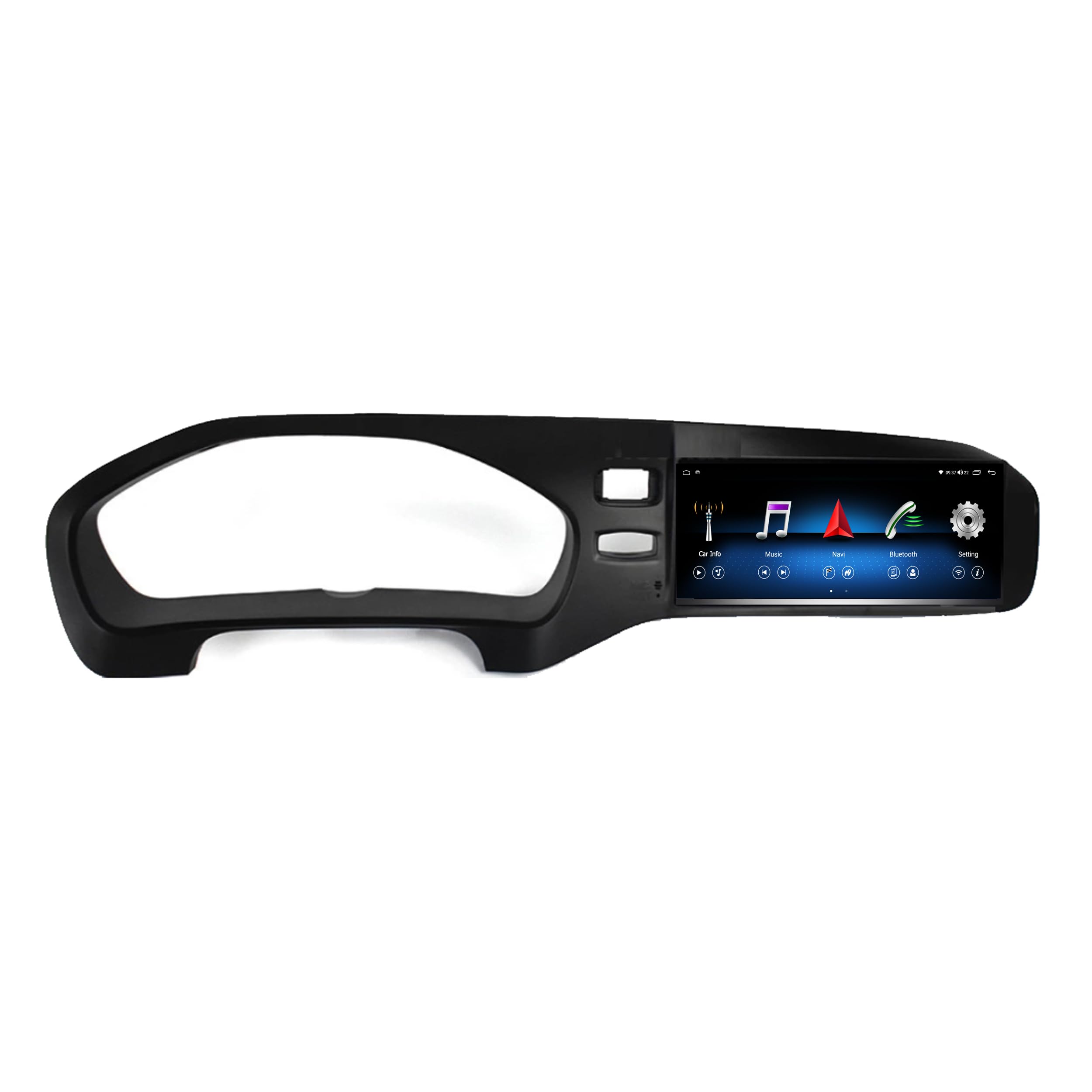
Image 2.1: Compatibility check. The system is compatible with vehicles that have the globe button (left, indicated by green checkmark) and not compatible with vehicles missing this button (right, indicated by red cross). The bottom image shows the system installed in a compatible Volvo V40 dashboard.
3. Delivery Content
Please check the package contents against the list below to ensure all components are present:
- Android Multimedia System (Main Unit)
- Power Cable
- RCA Plugs + SIM Slot Cable
- GPS Antenna
- 4G Antenna
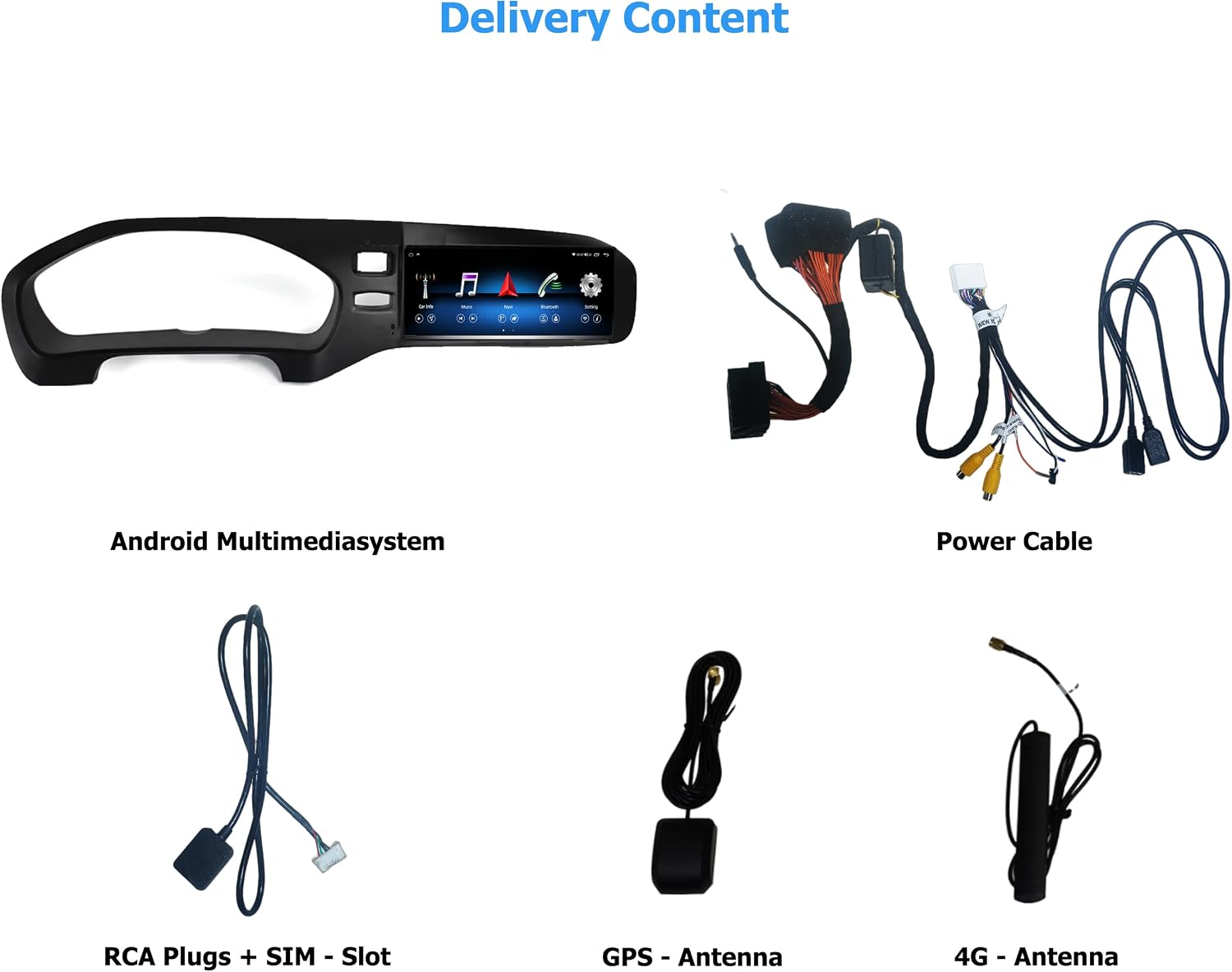
Image 3.1: Overview of included components. From top left: Android Multimedia System, Power Cable, RCA Plugs + SIM Slot, GPS Antenna, 4G Antenna.
4. Setup and Installation
The Taffio Android Navigation System is designed for a simple, plug-and-play installation without requiring modifications, restrictions, or coding of the original vehicle system. No external box or complex measures are needed, only the screen and connection cables.
4.1. General Installation Steps
- Carefully remove the original display and associated components from your vehicle's dashboard.
- Connect the provided cables to the new Android Multimedia System and the vehicle's wiring harness.
- Mount the GPS and 4G antennas in suitable locations, ensuring clear signal reception.
- Insert the new Android Multimedia System into the dashboard opening.
- Secure the unit and reassemble any removed trim pieces.
- Test all functions before finalizing the installation.
4.2. Connection Diagram

Image 4.1: Detailed connection diagram for the Android Multimedia System.
- A: Power Connector
- B: Connect to Original Radio Unit
- B1: Connect to Original Radio Plug (from the original unit)
- C: GPS Antenna
- D: 4G Antenna
- E: Original LVDS (Insert the original display cable here)
- F: Plug it to Android Display
- 1: Rear Camera IN
- 2: DVR Camera IN
- 3: USB Cable
- 4: Micro-SIM Card Slot
5. Operating Instructions
The Taffio system runs on Android 10, featuring an Octa-Core 1.8GHz CPU, 4 GB RAM, and 64 GB integrated storage. It provides access to the Play Store for various Android applications.
5.1. System Switching
The system allows for easy switching between the original Volvo infotainment system and the new Android system. Refer to the on-screen interface for the dedicated switch button or gesture.
5.2. CarPlay & Android Auto
The unit features integrated Wireless CarPlay and Android Auto functionality, eliminating the need for additional adapters. Connect your compatible smartphone wirelessly to access navigation, music, messages, and more directly on the 8.8-inch display.

Image 5.1: Wireless CarPlay interface displaying common apps like Phone, Maps, Messages, and Music.
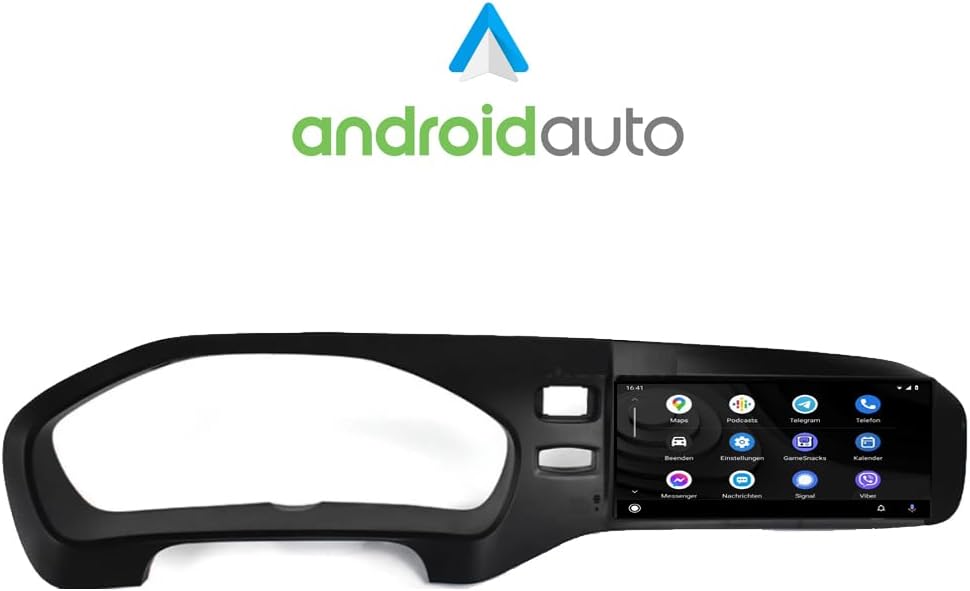
Image 5.2: Android Auto interface showing various applications such as Maps, Podcasts, and Messenger.
5.3. Navigation (GPS)
The system includes current 3D GPS navigation with worldwide map material. Free, lifelong map updates are provided by Taffio. Access navigation through the dedicated app on the Android interface or via CarPlay/Android Auto.
5.4. Connectivity (WIFI & 4G LTE)
WIFI (WLAN): Integrated WIFI allows direct connection to WLAN hotspots or your smartphone's hotspot for internet access.
3G / 4G LTE: A dedicated SIM card slot provides the fastest surfing and streaming experience directly from the unit.
5.5. Original System Support
The Taffio system supports original radio functions, steering wheel controls, and all vehicle displays and settings, ensuring no loss of original functionality.
5.6. Audio Settings
Customize your audio experience using the built-in equalizer. Adjust frequency bands, field, surround, bass enhancement, and bass filter settings to your preference.

Image 5.3: Audio equalizer settings, allowing fine-tuning of sound output.
6. Maintenance
To ensure the longevity and optimal performance of your Taffio Android Navigation System, follow these maintenance guidelines:
- Cleaning: Use a soft, dry cloth to clean the touchscreen. For stubborn smudges, lightly dampen the cloth with water or a screen-safe cleaner. Avoid harsh chemicals or abrasive materials.
- Software Updates: Regularly check for and install software updates to ensure you have the latest features, security patches, and performance improvements. Updates are typically available through the system's settings menu or via the manufacturer's website.
- Temperature: Avoid exposing the unit to extreme temperatures for extended periods.
- Power Cycle: If the system becomes unresponsive, perform a soft reset by turning off your vehicle's ignition and restarting it after a few minutes.
7. Troubleshooting
If you encounter issues with your Taffio Android Navigation System, refer to the following common troubleshooting steps:
- No Power: Ensure all power cables are securely connected. Check your vehicle's fuse box for any blown fuses related to the infotainment system.
- No Sound: Verify that the AUX connection is properly established and selected as the audio source in your original vehicle system. Check volume levels on both the Taffio unit and your vehicle's audio system.
- GPS Signal Issues: Ensure the GPS antenna is mounted in a location with a clear view of the sky, free from obstructions. Allow time for the system to acquire satellites after startup.
- CarPlay/Android Auto Not Connecting: Ensure Bluetooth and Wi-Fi are enabled on both the Taffio unit and your smartphone. Try restarting both devices. For Android Auto, ensure the app is updated on your phone.
- System Freezes/Slow Performance: Close unnecessary background applications. Perform a system restart. If issues persist, consider a factory reset (note: this will erase all user data and settings).
- Original System Functions Not Working: Double-check all connections, especially those related to the original radio unit and LVDS cable. Ensure the system is correctly switched to the original mode if applicable.
If these steps do not resolve the issue, please contact Taffio customer support.
8. Specifications
| Brand | Taffio |
| Model Name | Navigation System |
| Model Number | TJ-V40A-L |
| Operating System | Android 10 |
| CPU | Octa-Core 1.8GHz |
| RAM | 4 GB |
| Storage Capacity | 64 GB |
| Screen Size | 8.8 inches |
| Display Type | Capacitive Touch Screen |
| Connectivity Technology | Auxiliary, Bluetooth, USB, WIFI, 4G LTE |
| Special Features | Integrated CarPlay & Android Auto, System Switching, Original System Support, 3D GPS Navigation |
| Supported Navigation System | GPS (Worldwide Maps) |
| Mounting Type | Dashboard Mount |
| Control Type | Touch |
| Weight | 3 Kilograms |
9. Warranty and Support
Your Taffio Android Navigation System comes with a 2-year warranty from the date of purchase. Please retain your invoice with VAT as proof of purchase for warranty claims.
For technical support, warranty inquiries, or any questions regarding your product, please contact Taffio customer service through the retailer where you purchased the product or visit the official Taffio website for contact information.