PELADN Mini PC WI-6 User Manual
Model: N95/16GB+512GB
Brand: PELADN
1. Introduction
Thank you for choosing the PELADN Mini PC WI-6. This compact and powerful desktop computer is designed for a wide range of applications, from office work and online education to home entertainment. Featuring the 12th Gen Intel Alder Lake-N95 processor, 16GB DDR4 RAM, and a 512GB SSD, it offers efficient performance in a small form factor. This manual provides essential information for setting up, operating, maintaining, and troubleshooting your new Mini PC.
2. What's in the Box
Please check the contents of your package to ensure all items are present:
- 1 x PELADN WI-6 Mini PC (N95/16GB+512GB)
- 1 x HD Cable
- 1 x VESA Mount with Screws
- 1 x Power Adapter
- 1 x User Manual

Image: All items included in the PELADN Mini PC WI-6 package.
3. Product Overview
3.1 Front and Rear Ports
Familiarize yourself with the various ports on your PELADN Mini PC:
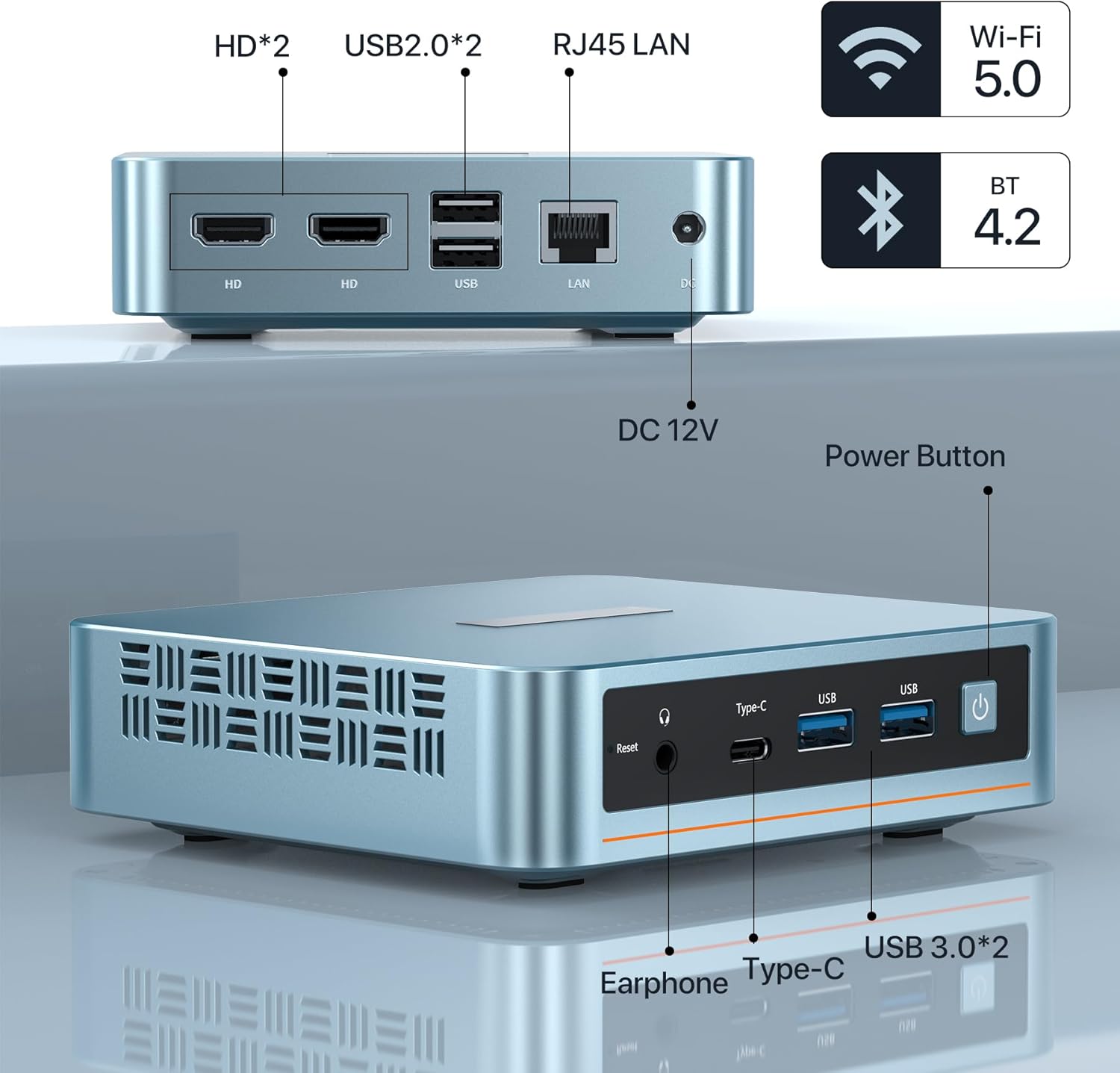
Image: Front and rear view of the PELADN Mini PC showing all available ports.
- Front Ports:
- Audio Jack (HP&MIC): For headphones and microphone.
- Type-C: Multi-functional port for data and video output.
- USB 3.0 (x2): High-speed data transfer ports.
- Power Button: To turn the device on/off.
- Reset Button: For system reset.
- Rear Ports:
- HD (x2): For connecting displays via HDMI.
- USB 2.0 (x2): Standard USB ports for peripherals.
- RJ45 1000M LAN: For wired network connection.
- DC Jack: For power input (12V).
3.2 Key Features

Image: Overview of the PELADN Mini PC's core specifications.
- Processor: 12th Gen Intel Alder Lake-N95 (4C/4T, up to 3.4GHz, 6W TDP).
- Graphics: Intel UHD Graphics, supporting 4K 60Hz.
- RAM: 16GB DDR4 (3200MHz).
- Storage: 512GB M.2 2280 SSD (supports up to 2TB).
- Connectivity: WiFi 5, Bluetooth 4.2, RJ45 1000M LAN.
- Cooling: Efficient fan cooling system for silent operation and performance.
- Operating System: Pre-installed OS, also supports Linux, Ubuntu.
3.3 Internal Components

Image: An exploded view illustrating the internal layout and components of the Mini PC.
The PELADN Mini PC features a well-designed internal structure, including the Alder Lake-N95 processor, a 512GB M.2 2280 SSD, 16GB DDR4 RAM, and an efficient cooling fan to maintain optimal operating temperatures.
4. Setup
4.1 Initial Connection
- Connect Power: Plug the power adapter into the DC Jack on the rear of the Mini PC, then plug the adapter into a power outlet.
- Connect Display: Use the provided HD cable to connect your monitor to one of the HD ports on the Mini PC. For triple display, use both HD ports and the Type-C port with compatible adapters/cables.
- Connect Peripherals: Plug in your USB keyboard and mouse into the available USB ports.
- Network Connection: For a wired connection, plug an Ethernet cable into the RJ45 LAN port. For wireless, ensure Wi-Fi is enabled in the operating system settings after initial boot.
- Power On: Press the power button on the front of the Mini PC.
4.2 VESA Mount Installation
The included VESA mount allows you to attach the Mini PC to the back of a compatible monitor or to a wall, saving desk space.

Image: Step-by-step guide for attaching the VESA mount to the Mini PC and a display.
- Attach Bracket to Mini PC: Secure the VESA bracket to the back of the Mini PC using the provided screws.
- Attach to Display/Wall: Fix the bracket to the VESA mounting holes on the back of your display or to a wall using appropriate screws. Ensure it is securely fastened.

Image: Various placement options for the Mini PC, including VESA mount, desktop, and wall mount.
5. Operating Instructions
5.1 Power On/Off
- To Power On: Press the power button on the front of the Mini PC. The power indicator light will illuminate.
- To Power Off: For safe shutdown, use the operating system's shutdown function. Alternatively, press and hold the power button for 5-7 seconds to force a shutdown (use only when necessary to prevent data loss).
5.2 Connecting Peripherals
The Mini PC supports a variety of peripherals via its USB, Type-C, and audio ports. Simply plug in your devices such as external hard drives, USB flash drives, printers, or speakers.
5.3 Triple-Display Setup
The PELADN Mini PC supports up to three 4K displays simultaneously, enhancing your productivity and entertainment experience.

Image: A visual representation of the Mini PC driving three independent displays.
Connect your displays using the two HD ports and the Type-C port. Ensure your cables and monitors support 4K resolution for optimal performance. Once connected, configure display settings within your operating system.
5.4 Usage Scenarios
The PELADN Mini PC is versatile and suitable for various applications:

Office Work

Online Education

Home Theater
6. Maintenance
To ensure the longevity and optimal performance of your PELADN Mini PC, follow these maintenance guidelines:
- Cleaning: Regularly clean the exterior of the Mini PC with a soft, dry cloth. Use compressed air to gently clear dust from ventilation openings to prevent overheating. Do not use liquid cleaners directly on the device.
- Ventilation: Ensure the Mini PC is placed in a well-ventilated area. Do not block the air vents. Avoid placing it on soft surfaces like carpets or blankets that can obstruct airflow.
- Software Updates: Keep your operating system and drivers updated to the latest versions. This improves security, performance, and compatibility.
- Safe Shutdown: Always shut down the Mini PC properly through the operating system to prevent data corruption.
- Temperature: Operate the Mini PC within recommended temperature ranges. Avoid extreme hot or cold environments.
7. Troubleshooting
This section addresses common issues you might encounter with your PELADN Mini PC.
| Problem | Possible Cause | Solution |
|---|---|---|
| Mini PC does not power on. | No power, faulty power adapter, loose connection. | Check power cable and adapter connection. Ensure power outlet is working. Try a different power outlet. |
| No display on monitor. | Incorrect cable connection, monitor input not selected, faulty cable/monitor. | Ensure HD/Type-C cable is securely connected. Select correct input source on monitor. Test with a different cable or monitor if possible. |
| Slow performance. | Too many applications running, low disk space, outdated drivers, overheating. | Close unnecessary applications. Free up disk space. Update drivers and OS. Ensure proper ventilation. |
| Wi-Fi/Bluetooth not working. | Drivers not installed, disabled in OS, hardware issue. | Check device manager for driver status. Ensure Wi-Fi/Bluetooth is enabled in settings. Restart the Mini PC. |
| USB devices not recognized. | Faulty USB port, driver issue, device incompatibility. | Try a different USB port. Update USB drivers. Test the device on another computer. |
8. Specifications
Detailed technical specifications for the PELADN Mini PC WI-6:
| Feature | Specification |
|---|---|
| Processor | Intel Alder Lake-N95 (4 Cores, 4 Threads, up to 3.4GHz) |
| Graphics | Intel UHD Graphics (4K@60Hz Triple-Display Support) |
| RAM | 16GB DDR4 (3200MHz) |
| Storage | 512GB M.2 2280 SSD (Expandable up to 2TB) |
| Operating System | Pre-installed OS (Supports Windows 11, Linux, Ubuntu) |
| Wireless Connectivity | WiFi 5, Bluetooth 4.2 |
| Wired Connectivity | 1x RJ45 1000M LAN Port |
| USB Ports | 2x USB 3.0, 2x USB 2.0 |
| Video Output | 2x HD 2.0, 1x Type-C |
| Audio Port | 1x Audio Jack (HP&MIC) |
| Power Input | DC 12V |
| Dimensions (LxWxH) | 4.88 x 1.38 x 4.41 inches (124 x 35 x 112 mm) |
| Weight | Approx. 2 pounds (0.9 kg) |
| Color | Blue |
9. Warranty and Support
Your PELADN Mini PC comes with a 1-year warranty. For warranty service or technical support, please follow these steps:
- Login to your account on the platform where you purchased the product.
- Navigate to "My Orders".
- Find the order ID for your PELADN Mini PC.
- Click on "Contact Seller" to reach out to PELADN's support team.
PELADN aims to provide professional technical support and typically responds to inquiries within 24 hours. Additionally, the product may be eligible for a 30-day return and exchange policy, depending on the retailer's terms.


