
1. Introduction
The Yoidesu USB Receiver is designed to provide a stable 2.4 GHz wireless connection for compatible Logitech mice and keyboards. This manual provides essential instructions for the setup, operation, and maintenance of your USB receiver, ensuring optimal performance and longevity.

Image 1.1: The Yoidesu USB Receiver.
2. Compatibility
This Yoidesu USB Receiver is compatible with the following Logitech devices:
- Logitech MX Series Mice: M590, M720, M570
- Logitech MK Series Keyboards: K230, K270, K375S, K400PLUS, K780, K580

Image 2.1: Yoidesu USB Receiver and its compatible devices.
3. Setup Instructions
The Yoidesu USB Receiver features plug-and-play functionality, requiring no additional software installation for most operating systems.
- Locate a USB Port: Identify an available USB-A port on your computer (desktop, laptop, etc.).
- Insert the Receiver: Gently but firmly insert the Yoidesu USB Receiver into the chosen USB port. Ensure it is fully seated.
- Automatic Detection: Your computer should automatically detect the new hardware and install the necessary drivers. This process typically takes a few moments.
- Connect Device: Once the receiver is recognized, ensure your compatible Logitech mouse or keyboard is powered on. The device should automatically connect to the receiver. If not, refer to the troubleshooting section or your Logitech device's specific pairing instructions.

Image 3.1: Yoidesu USB Receiver connected to a laptop.
4. Operating the Receiver
The Yoidesu USB Receiver operates using 2.4 GHz wireless technology, providing a stable and reliable connection for your compatible Logitech devices. This technology facilitates efficient data transmission, ensuring a responsive and seamless user experience without the need for cables.
Once connected, the receiver continuously maintains communication with your paired mouse or keyboard, allowing for immediate input recognition.
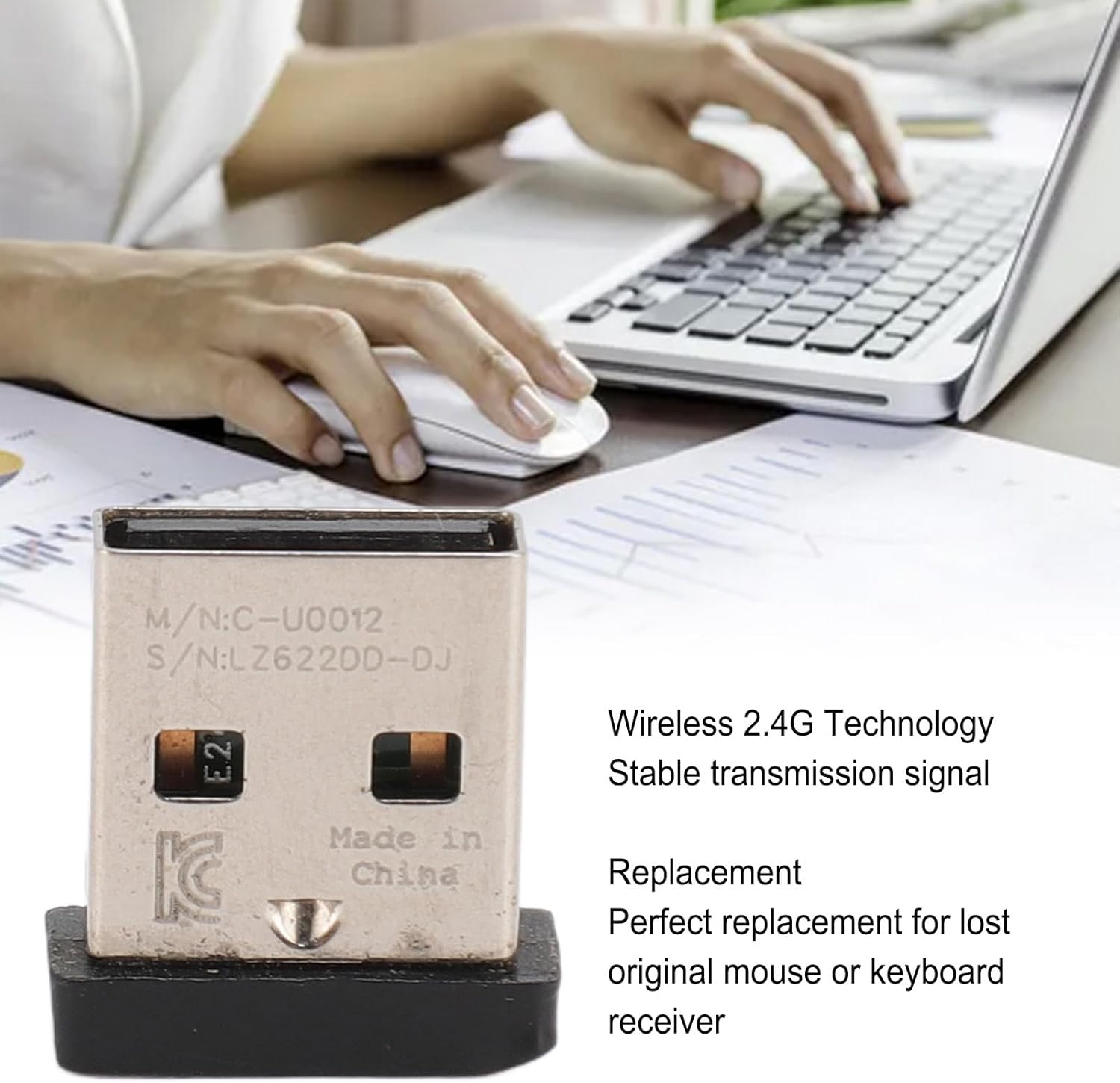
Image 4.1: The receiver's 2.4 GHz wireless technology ensures stable signal transmission.
5. Maintenance
To ensure the longevity and optimal performance of your Yoidesu USB Receiver, follow these simple maintenance guidelines:
- Cleaning: Keep the receiver clean and free from dust and debris. Use a soft, dry cloth to wipe its surface. Avoid using liquid cleaners or abrasive materials.
- Environmental Conditions: Avoid exposing the receiver to extreme temperatures, direct sunlight, or high humidity.
- Storage: When not in use, store the receiver in a safe place to prevent physical damage or loss.
- Handling: Handle the receiver with care. Avoid dropping it or applying excessive force when inserting or removing it from a USB port.
6. Troubleshooting
If you encounter issues with your Yoidesu USB Receiver, please refer to the following common solutions:
- Device Not Connecting:
- Ensure the receiver is fully inserted into a functional USB port.
- Try plugging the receiver into a different USB port on your computer.
- Verify that your Logitech mouse or keyboard is powered on and has sufficient battery life.
- If your Logitech device requires a specific pairing process, consult its original instruction manual for details on how to pair with a new receiver.
- Intermittent Connection or Lag:
- Ensure there are no significant physical obstructions (e.g., metal objects, large electronic devices) between your wireless device and the receiver.
- Avoid placing the receiver near other wireless devices (e.g., Wi-Fi routers, cordless phones) that may cause signal interference.
- Move the receiver closer to your mouse or keyboard if possible.
- Receiver Not Recognized by Computer:
- Restart your computer and try inserting the receiver again.
- Check your computer's Device Manager (Windows) or System Information (macOS) to see if the USB device is listed, even if with an error.
- Ensure your operating system is up to date.
7. Specifications
| Feature | Specification |
|---|---|
| Item Type | USB Receiver |
| Material | ABS, Metal |
| Connection Type | 2.4 GHz Wireless |
| Hardware Interface | USB |
| Data Link Protocol | USB |
| Package Dimensions | 5.12 x 3.15 x 1.85 inches |
| Item Weight | 2.71 ounces (0.08 Kilograms) |
| Manufacturer | Yoidesu |
| Model Number | Yoidesu4m1fk2ranp |