
1. Introduction
The Eseesmart Fingerprint Padlock offers a secure and convenient keyless locking solution. This smart padlock features biometric fingerprint recognition, Bluetooth connectivity for mobile app control, and a durable, water-resistant design. It is suitable for various applications including gym lockers, school lockers, luggage, bags, toolboxes, and storage units. This manual provides detailed instructions for setting up, operating, and maintaining your Eseesmart Fingerprint Padlock.
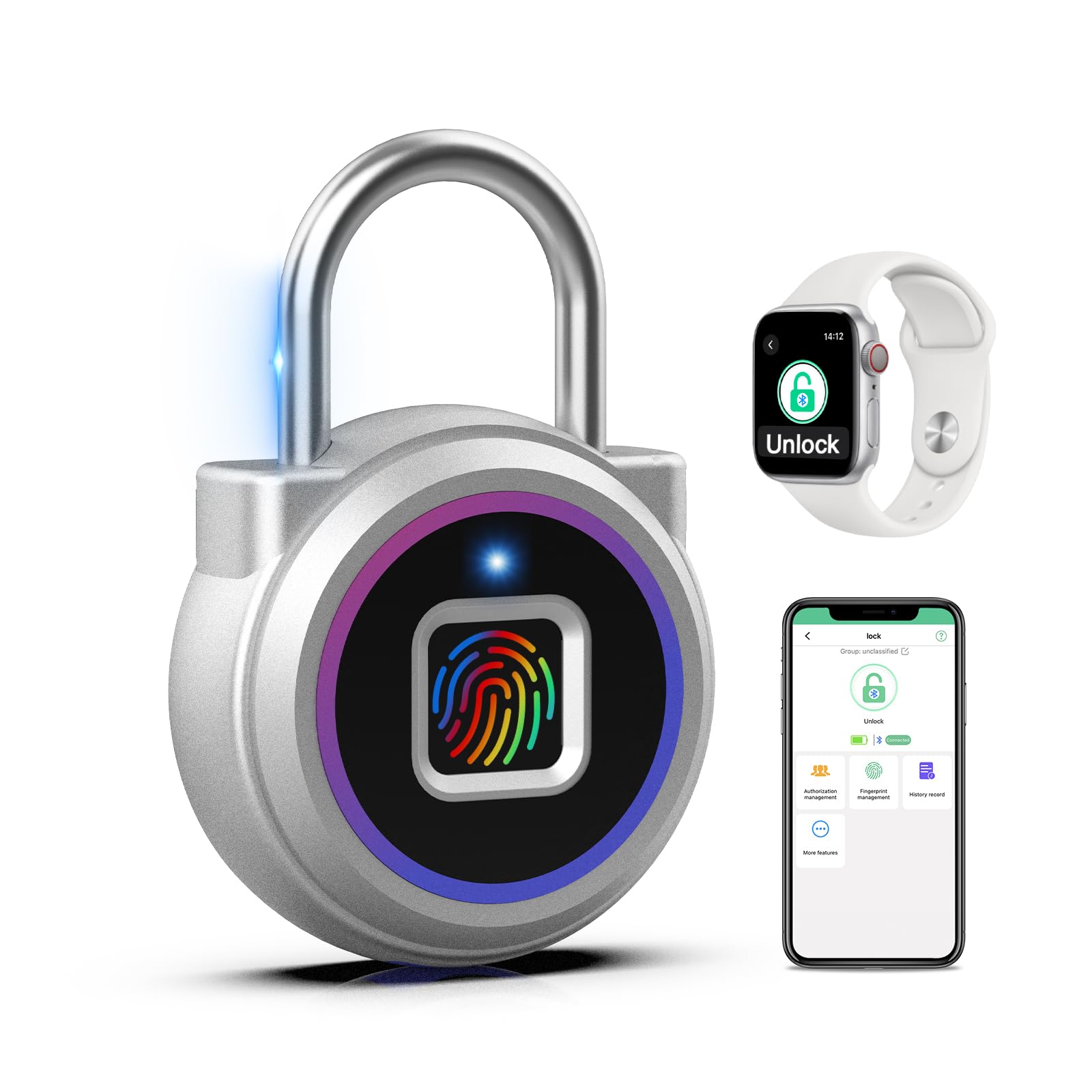
Image: Eseesmart Fingerprint Padlock, front view.
2. Setup
2.1 Initial Charging
Before first use, fully charge the padlock. The padlock has a 110MAH rechargeable lithium battery. Use the provided USB cable to connect the padlock to a power source (e.g., USB charger, power bank). A full charge typically takes approximately 30 minutes and supports over 2000 unlocks or 6 months of standby time.

Image: The padlock connected to a USB charging cable, showing the battery indicator.
2.2 App Download and Installation
Download the "Eseesmart Lock" or "iLock" application from your smartphone's app store (available for both iOS and Android devices). Follow the on-screen instructions to install the app.

Image: A smartphone showing the Eseesmart app interface for managing the padlock.
2.3 Pairing the Padlock with the App
- Ensure your phone's Bluetooth is enabled.
- Open the Eseesmart Lock app.
- Wake up the padlock by touching the fingerprint sensor. The LED will illuminate.
- In the app, select "Add Device" or similar option to search for nearby padlocks.
- Select your padlock from the list of discovered devices to pair.
- Follow any on-screen prompts in the app to complete the pairing process.
2.4 Registering Fingerprints
The padlock can store up to 20 different fingerprints. The first registered fingerprint will be the administrator. It is recommended to register multiple fingerprints for convenience and as a backup.
- In the Eseesmart Lock app, navigate to "Fingerprint Management" or "Add Fingerprint".
- Follow the app's instructions to place your finger on the padlock's sensor multiple times from different angles until the registration is successful. The padlock's LED will indicate successful registration (e.g., green light).
- Repeat the process for any additional fingerprints you wish to register.
Video: Demonstrates the process of setting up the Eseesmart Fingerprint Padlock and programming fingerprints via the mobile app.
3. Operation
3.1 Unlocking with Fingerprint
- Place a registered finger on the fingerprint sensor.
- The padlock will unlock within approximately 0.2 seconds if the fingerprint is recognized. The LED will turn green.
- If the fingerprint is not recognized, the LED may turn red. Try again with a registered finger.

Image: A finger placed on the padlock's sensor, indicating fingerprint unlock functionality.
3.2 Unlocking with Mobile App
You can unlock the padlock remotely via the Eseesmart Lock app, or authorize others to unlock it.
- Ensure your phone's Bluetooth is on and the padlock is within range.
- Open the Eseesmart Lock app.
- Wake up the padlock by touching the fingerprint sensor.
- In the app, tap the "Unlock" button. The padlock will unlock.
- The app also allows you to view unlocking records, check battery status, and manage users.

Image: A smartphone displaying the unlock function within the Eseesmart app, with the padlock nearby.
3.3 Locking the Padlock
To lock the padlock, simply push the shackle down into the lock body until it clicks into place. No fingerprint or app interaction is required for locking.
4. Maintenance
4.1 Charging
Monitor the battery level via the mobile app. When the battery is low, the LED indicator on the padlock may flash a specific color (e.g., red) or the app will notify you. Recharge the padlock using the provided USB cable and a standard USB power source.
4.2 Cleaning
Wipe the padlock body and fingerprint sensor with a soft, dry cloth. Avoid using abrasive cleaners or solvents that could damage the finish or electronic components.
4.3 Water Resistance
The Eseesmart Fingerprint Padlock is designed to be water-resistant. However, it is not fully waterproof and should not be submerged in water for extended periods. Ensure the USB charging port cover is securely closed to maintain water resistance.

Image: The padlock with water droplets, illustrating its water-resistant design.
5. Troubleshooting
| Problem | Possible Cause | Solution |
|---|---|---|
| Padlock does not unlock with fingerprint. | Fingerprint not registered, sensor dirty, or finger placement incorrect. | Ensure the finger is registered. Clean the sensor. Try different angles of finger placement. |
| Padlock does not respond. | Battery is low or depleted. | Charge the padlock using the USB cable. |
| Cannot connect to the app. | Bluetooth is off, padlock is out of range, or app issue. | Ensure Bluetooth is on and the padlock is nearby. Restart the app or your phone. |
| Need to reset the lock. | To clear all data or resolve persistent issues. | Refer to the app's settings for a factory reset option. This will delete all registered fingerprints. |
6. Specifications
| Feature | Detail |
|---|---|
| Brand | Eseesmart |
| Model | 1''Shackle Fingerprint Padlock |
| Lock Type | Biometric, Smart Lock |
| Special Features | Fingerprint, Keyless, Rechargeable, Bluetooth App Control |
| Material | Zinc Alloy body, Stainless Steel shackle |
| Dimensions (L x W x H) | 1.6 x 0.6 x 2.5 inches |
| Item Weight | 2.4 ounces (68.04 Grams) |
| Battery | 110MAH Lithium Polymer (rechargeable) |
| Standby Time | Up to 6 months |
| Unlocks per Charge | Over 2000 times |
| Fingerprint Capacity | Up to 20 fingerprints |
| Connectivity | Bluetooth |
| Control Method | App, Fingerprint |

Image: The padlock with its compact dimensions (1.7" width, 2.5" height, 0.6" depth) and weight (0.15lb) indicated.
7. Warranty & Support
Eseesmart is committed to providing quality products and customer satisfaction.
- Return Policy: 30-day no-reason return and exchange.
- Warranty: 180-day warranty to protect your rights against manufacturing defects.
- Lifetime Maintenance: The product includes lifetime maintenance for worry-free after-sales support.
- Customer Support: For any questions, issues, or support needs, please contact Eseesmart customer service.

Image: Graphic detailing Eseesmart's customer service, return policy, and warranty information.
8. Durability Test (Informational)
This section provides an external demonstration of the padlock's shackle durability against common cutting tools. It is for informational purposes only and does not recommend attempting to cut the padlock.
Video: A demonstration of the padlock's shackle resistance against various cutting tools, highlighting its robust construction.

