Introduction & Overview
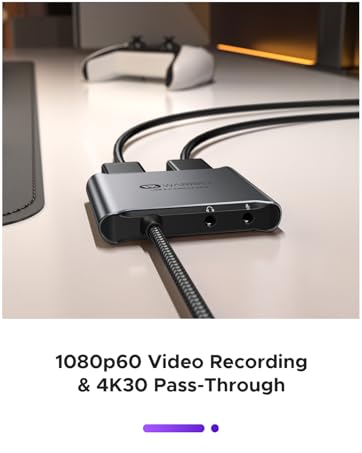
The WARRKY USB 3.0 Capture Card is designed to enhance your game streaming and content creation experience. It allows you to record gameplay in stunning 1080p at 60 frames per second, ensuring seamless and smooth visuals. Additionally, it supports a 4K 30FPS pass-through feature, enabling you to stream while simultaneously viewing your content on another display without latency.
This device features a thermal-conductive aluminum shell for efficient heat dissipation, ensuring stable and prolonged use during gameplay or live streaming. Its unique and futuristic design, crafted with CNC integrated molding, ensures durability and a screw-free body.

The WARRKY 4K HDMI Capture Card, showcasing its compact design and integrated cable.

Illustration of the capture card setup, demonstrating 1080P 60Hz recording and 4K pass-through capabilities for gaming and streaming.

A detailed view of the capture card's thermal-conductive aluminum alloy case, highlighting its heat dissipation properties for stable recording and streaming.
Official product video showcasing the WARRKY 4K HDMI Capture Card USB3.0 and its key features.
Setup
The WARRKY Capture Card offers a seamless plug-and-play experience, requiring no driver installation. Its fixed built-in cable connects directly to the IC chip, enhancing stability and transmission rates while preventing file corruption. The durable nylon braided jacket ensures a longer lifespan. An included USB to USB-C adapter ensures compatibility with both USB-A and USB-C ports on your devices.

Visual representation of the capture card's direct connect solution for stable signal transmission, featuring a 2-in-1 USB-A and USB-C compatible cable with a durable nylon braided jacket.

A diagram illustrating how to connect your devices (microphone, headphones, phone, tablet, PC, projector, monitor, TV, camera, game console) to the WARRKY Capture Card's various ports (Audio In, Audio Out, USB 3.0 Type-A/C, HDMI In, HDMI Out).

Overview of the capture card's universal compatibility across different operating systems (Windows, macOS, Android), streaming software (OBS Studio, Potplayer, XSplit), and platforms (Twitch, Zoom, YouTube).
OBS Studio Setup Steps:
- Step 1: Add sources to your scenes

In your Sources Box, click the "+" button to add a new source. Choose "Video Capture Device" and name the source if necessary, then click "OK".
- Step 2: Configure video capture source

Select "WARRKY USB 3.0" from the device drop-down list. Set Resolution/FPS Type to "Custom" and select the recommended property settings (e.g., 1920x1080, 60 FPS). Check "Use custom audio device" box and select "Digital Audio Interface (WARRKY USB 3.0)".
- Step 3: Adjust audio monitoring

In your Audio Mixer section, click the gear icon in the lower left corner. Select "Monitor and Output" for "Video Capture Device" and "Desktop Audio" to ensure proper audio monitoring for both streamer and audience.
Official video demonstrating OBS Studio operation steps for setting up the WARRKY Capture Card.
Operating
The WARRKY Capture Card is an excellent companion for all your audio and video needs, whether for game streaming, video conferences, or live broadcasting. It's compatible with all mainstream game consoles, offering a plug-and-play solution for various setups.

Diagram illustrating how to stream games from a game console to a PC and view it on a monitor using the capture card.

Setup showing how to use the capture card for live broadcasting with a DSLR camera connected to a laptop.

Illustration of connecting a Nintendo Switch to an iPad screen via the capture card for portable gaming.

Setup demonstrating live streaming mobile games to a laptop using the capture card.
Official product video providing a comprehensive overview of the WARRKY USB 3.0 Video Capture Card's capabilities for 1080p 60fps recording.
Maintenance
The WARRKY Capture Card is designed with a thermal-conductive aluminum shell, which helps dissipate heat efficiently during long gaming or streaming sessions. This design extends the device's lifespan by 50%. The fixed built-in cable features a braided nylon construction, tested for over 16,000 bends, offering three times the durability of PVC or rubber cables.
To ensure longevity, avoid extreme bending or pulling of the cable. Keep the device in a clean, dry environment. For optimal performance, ensure your device's USB 3.0 port is used for 1080P60Hz video transmission.
Troubleshooting (FAQ)

Frequently Asked Questions regarding the WARRKY Capture Card.
- What is the difference between YUY2 and MJPEG?
YUY2 is an uncompressed format that offers high-quality video without loss of detail. MJPEG, on the other hand, is a compressed format that reduces file size by discarding some data, resulting in lower video quality. Thus, we recommend recording in the YUY2 format for optimal video quality.
- Slight image delay on streaming software?
Slight image delay on streaming software is inevitable for all capture cards due to the compression and conversion of the HDMI signal before it is outputted to your PC. This is why our capture card utilizes pass-through ports to duplicate and output raw HDMI signals to another monitor so that users can enjoy lag-free and native pictures while recording.
- What should I do If I encounter a problem while in use?
You are welcome to ask us for help. Our customer support team will respond within 18 hours. To help us solve your issue, please provide us with the specific model of your setup and a detailed description of your issue.
Specifications

Detailed specifications for the WARRKY Capture Card.
| Feature | Detail |
|---|---|
| USB Interface | USB 3.0 Type A with USB Type C Adapter |
| Video In / Out Interface | HDMI 1.4 |
| Max Pass-Through Resolution | 4K 30fps |
| Max Capture Resolution | 1080p 60fps |
| Video Format | YUY2, MJPEG |
| Audio In Port | 3-Pole 3.5mm Jack |
| Audio Out Port | 3-Pole/4-Pole 3.5mm Jack |
| Dimensions (W x D x H) | 68.4 x 52.3 x 12.2 mm (4.76 x 6.32 x 0.85 in) |
| Built-in Cable | 70 cm (2.3 ft) |
| Weight | 72 g (2.5 oz) |
| Compatible System | Windows 8.1/10/11, macOS, Linux, Android 5.0 or above |
| Compatible Recording Software | OBS Studio, XSplit, Potplayer, QuickTime Player and more |
Warranty & Support
WARRKY is committed to delivering exceptional quality products. We offer a hassle-free longtime returns or replacements, even after the Amazon 30-day window. Experience our fast and reliable customer support, with a response time of just 18 hours!
WARRKY is dedicated to customer satisfaction, offering unlimited lifetime warranty, no-hassle replacements/returns, and 7/24 customer help.
For any problem, get immediate tech support by contacting us at support@warrky.com. We keep listening to your needs and are here to listen at official@warrky.com.


