
1. Introduction
Thank you for purchasing the Jazmm Portable Multi-Band Worldband Radio. This device is designed to provide a versatile listening experience, supporting a wide range of radio bands including AIR, VHF, SW, WB, AM, and FM. It also features Bluetooth connectivity, APP control, TF card playback, AUX-IN, and a recording function. This manual will guide you through the setup, operation, and maintenance of your new radio.
2. Safety Information
- Do not expose the radio to extreme temperatures, direct sunlight, or high humidity.
- Avoid dropping or subjecting the radio to strong impacts.
- Do not attempt to disassemble or modify the radio. This will void the warranty.
- Use only the specified Type-C 5V/1A power adapter for charging.
- Keep the radio away from strong magnetic fields.
- Dispose of the battery according to local regulations.
3. Package Contents
Please check the package for the following items:
- Jazmm Portable Multi-Band Worldband Radio (Model a320+898g)
- Type-C Charging Cable
- Wire Antenna (9.85 Ft)
- Storage Bag
- Lanyard
- User Manual
4. Product Overview
Familiarize yourself with the components and controls of your radio.

Figure 4.1: Front Panel Controls and Display
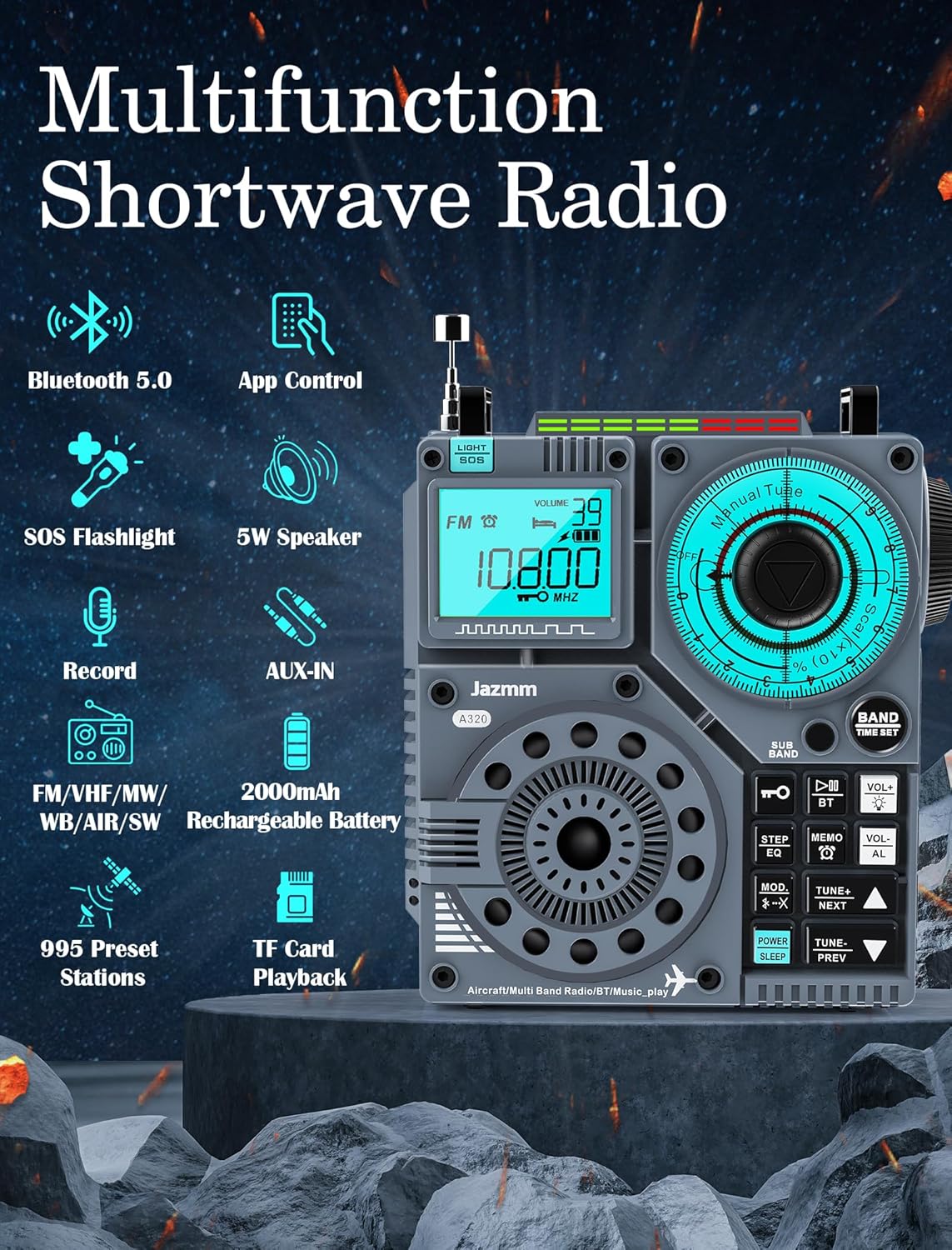
Figure 4.2: Key Features Overview
4.1 Controls and Ports
- Display Screen: Shows frequency, volume, battery level, and mode.
- Tuning Dial: Large rotary knob for precise frequency tuning.
- Band Button: Switches between AIR, VHF, SW, WB, AM, FM bands.
- Power/Sleep Button: Turns the radio on/off and activates sleep timer.
- Volume +/- Buttons: Adjusts audio output level.
- Light/SOS Button: Activates flashlight and SOS alarm.
- BT Button: Activates Bluetooth pairing mode.
- STEP/EQ Button: Adjusts tuning step or cycles through EQ sound effects.
- MEMO/AL Button: Accesses memory functions and alarm settings.
- MOD./-X Button: Changes playback mode or other functions.
- TUNE+/NEXT Button: Tunes up or skips to next track/station.
- TUNE-/PREV Button: Tunes down or skips to previous track/station.
- Type-C Port: For charging the internal battery.
- TF Card Slot: For inserting a MicroSD card for audio playback.
- AUX-IN Port: For connecting external audio devices.
- Antenna Jack: For connecting the external wire antenna.
5. Setup
5.1 Charging the Battery
The radio has a built-in 2000 mAh rechargeable battery. Before first use, fully charge the battery.
- Connect the provided Type-C charging cable to the radio's Type-C port.
- Connect the other end of the cable to a 5V/1A USB power adapter (not included).
- The charging indicator on the display will show charging status. A full charge takes approximately 4 hours.
- Once fully charged, the radio can operate for more than 23 hours, depending on usage.
5.2 Antenna Connection
For optimal reception, especially on SW and AIR bands, connect the external wire antenna.
- Locate the antenna jack on the radio.
- Insert the plug of the wire antenna firmly into the jack.
- Extend the wire antenna fully and position it for best signal reception.
6. Operating Instructions
6.1 Power On/Off
Press and hold the POWER/SLEEP button to turn the radio on or off.
6.2 Band Selection
Press the BAND button repeatedly to cycle through the available radio bands: AIR, VHF, SW, WB, AM, FM.
6.3 Tuning
- Manual Tuning: Rotate the large tuning dial to manually adjust the frequency.
- Automatic Scan: Press the MEMO/AL button (or similar scan function) to automatically scan and store available stations. Refer to the display for scan progress.
- Preset Stations: The radio supports up to 995 memory presets. To save a station, tune to the desired frequency, then press and hold the MEMO/AL button. Use the tuning dial or TUNE+/- buttons to select a memory slot, then press MEMO/AL again to confirm. To recall a station, short press MEMO/AL and use TUNE+/- to navigate through saved stations.
6.4 Bluetooth Connectivity
The radio features Bluetooth 5.0 for wireless audio streaming.

Figure 6.1: Bluetooth and APP Control
- Press the BT button to enter Bluetooth pairing mode. The display will indicate Bluetooth status.
- On your smartphone or other Bluetooth device, search for "Jazmm Radio" (or similar name) in the Bluetooth settings.
- Select the radio to pair. Once connected, you can play audio from your device through the radio's speaker.
- The Bluetooth connection is stable up to 20 meters.
6.5 APP Control
Control your radio remotely using the dedicated mobile application (compatible with iOS, Android, and HarmonyOS).
- Scan the QR code in the product packaging or search for the official Jazmm radio app in your device's app store.
- Install and open the app. Ensure Bluetooth is enabled on your phone and the radio is in Bluetooth mode.
- Follow the in-app instructions to connect to your radio.
- Through the app, you can tune, select bands, record broadcasts, preset stations, and synchronize your phone's time with the radio.
6.6 Multiple Play Modes
The radio supports various audio playback modes beyond radio reception.
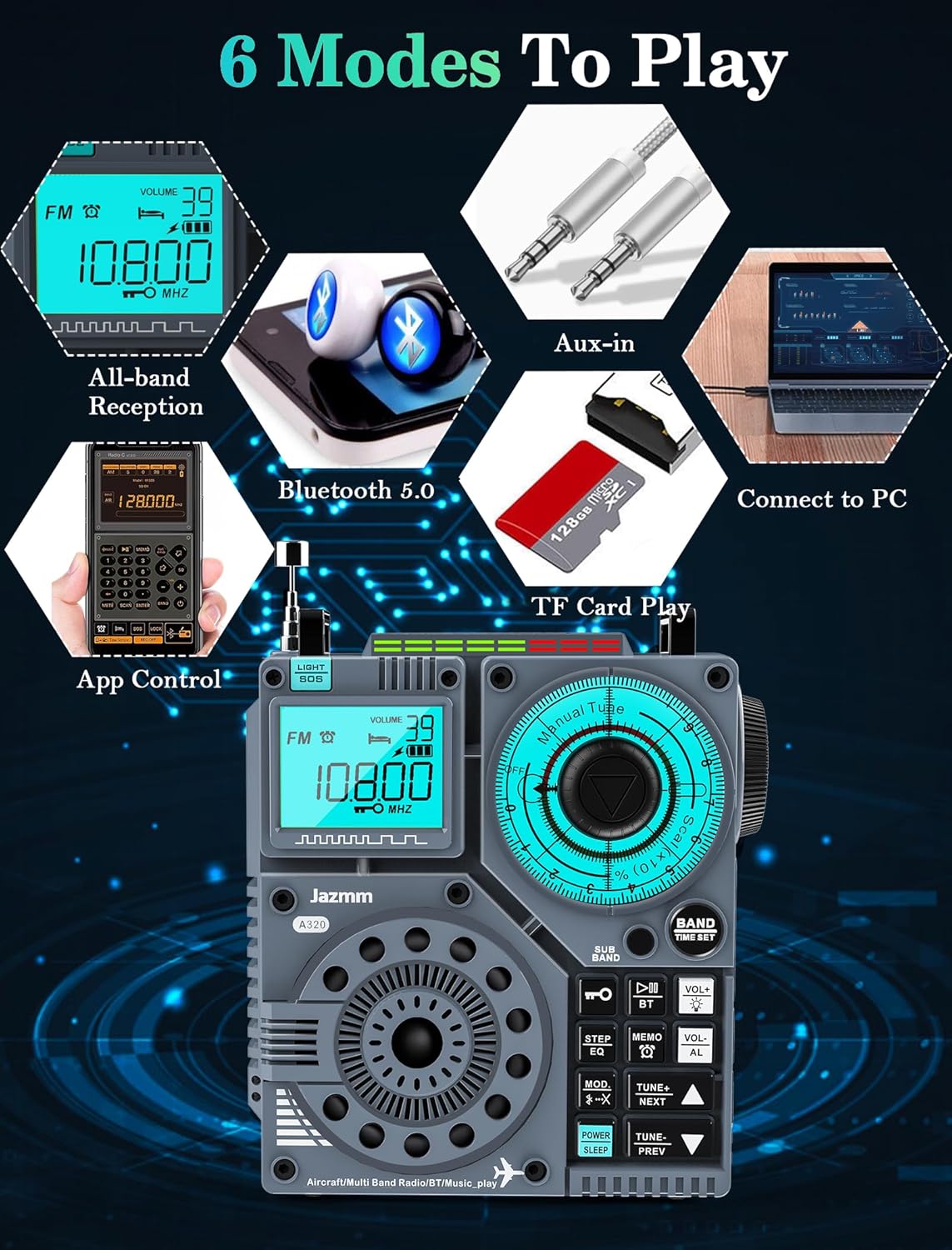
Figure 6.2: Six Play Modes
- TF Card Playback: Insert a MicroSD card (up to 256GB) containing MP3, WMA, WAV, APE, FLAC audio files into the TF card slot. The radio will automatically switch to TF card mode and begin playback. Use TUNE+/- buttons to skip tracks.
- AUX-IN: Connect an external audio source (e.g., smartphone, MP3 player) to the radio's AUX-IN port using a 3.5mm audio cable. The radio will function as an external speaker.
- Connect to PC: Connect the radio to a computer via the Type-C cable for file transfer to/from a TF card inserted in the radio.
6.7 Recording Function
The radio allows you to record current broadcasts, primarily via the APP control.
- Ensure a TF card is inserted for storage.
- Use the recording function within the mobile application to record the currently playing radio broadcast.
6.8 Flashlight and SOS Function
- Short press the LIGHT/SOS button to turn the built-in flashlight on or off.
- Press and hold the LIGHT/SOS button to activate the SOS alarm, which emits a loud siren sound and flashing light for emergency situations. Press again to deactivate.
6.9 EQ Sound Effects
In music playback mode (Bluetooth, TF card, AUX-IN), press the STEP/EQ button to cycle through 6 different stereo sound effects.
7. Maintenance
7.1 Cleaning
Wipe the radio with a soft, dry cloth. Do not use abrasive cleaners, waxes, or solvents.
7.2 Storage
When not in use for extended periods, store the radio in a cool, dry place, away from direct sunlight and extreme temperatures. It is recommended to fully charge the battery every 3 months to maintain its lifespan.
7.3 Battery Care
To prolong battery life, avoid fully discharging the battery frequently. Recharge the battery when the low battery indicator appears on the display.
8. Troubleshooting
| Problem | Possible Cause | Solution |
|---|---|---|
| Radio does not power on. | Battery is depleted. | Charge the radio using the Type-C cable and a 5V/1A adapter. |
| Poor radio reception. | Weak signal; antenna not extended/connected. | Extend the telescopic antenna fully or connect the external wire antenna. Reposition the radio for better signal. |
| Bluetooth not connecting. | Radio not in pairing mode; device too far. | Ensure radio is in Bluetooth pairing mode. Move device closer to the radio (within 20m). Restart both devices. |
| TF card not playing. | Unsupported file format; card not inserted correctly. | Ensure audio files are MP3, WMA, WAV, APE, or FLAC. Reinsert the TF card firmly. Check if the card is corrupted. |
| No sound. | Volume too low; Mute activated. | Increase volume using the VOL+ button. Check if the radio is muted. |
9. Specifications
| Feature | Detail |
|---|---|
| Model Number | a320+898g |
| Radio Bands Supported | AIR, VHF, SW, WB, AM, FM |
| Speaker Output | 5W Bass Speaker |
| Battery Capacity | 2000 mAh Rechargeable Battery |
| Charging Time | Approx. 4 hours (with 5V/1A adapter) |
| Usage Time | More than 23 hours |
| Bluetooth Version | 5.0 |
| Bluetooth Range | Up to 20 meters |
| TF Card Support | Up to 256GB (MP3, WMA, WAV, APE, FLAC) |
| Antenna | Built-in telescopic, External 9.85 Ft wire antenna |
| Product Dimensions | 7.5 x 6.2 x 4.3 inches |
| Color | Black |
10. Warranty and Support
Jazmm products are manufactured with high-quality standards. For warranty information and technical support, please refer to the contact details provided with your purchase or visit the official Jazmm website. Keep your purchase receipt as proof of purchase for warranty claims.

