
Introduction
Thank you for choosing the TECKNET Wireless Rechargeable Silent Mouse. This manual provides detailed instructions to help you get the most out of your new device. Please read it carefully before use and keep it for future reference.
Package Contents
- TECKNET Wireless Rechargeable Silent Mouse
- USB Receiver
- USB-C Charging Cable
- User Manual (this document)
Product Overview
Familiarize yourself with the mouse components:
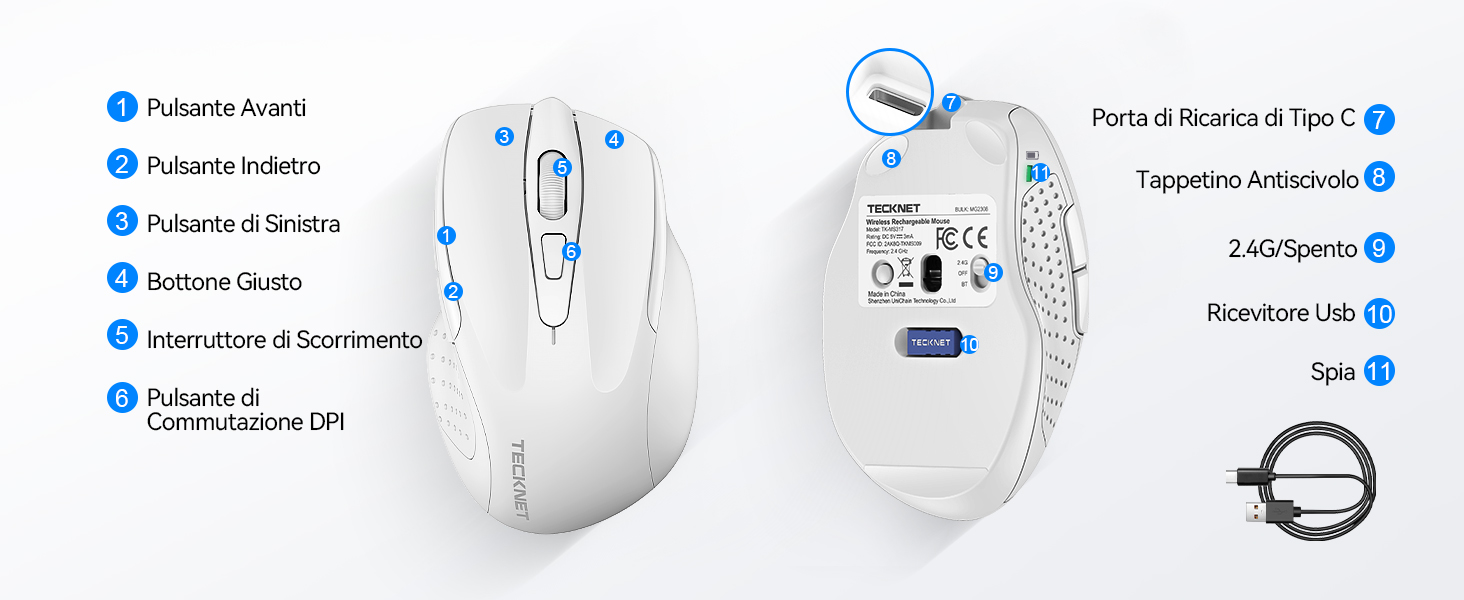
Figure 1: Mouse Components Diagram
- Forward Button
- Backward Button
- Left Button
- Right Button
- Scroll Wheel
- DPI Switch Button
- Type-C Charging Port
- Anti-slip Pad
- 2.4G/Off Switch
- USB Receiver Storage
- Indicator Light
Setup Instructions
1. Charging the Mouse
Before first use, it is recommended to fully charge the mouse. Connect the provided USB-C charging cable to the mouse's Type-C charging port and the other end to a USB power source (e.g., computer USB port, USB wall adapter).

The mouse features a 700mAh built-in battery, providing extended usage on a single charge. The indicator light will show charging status.
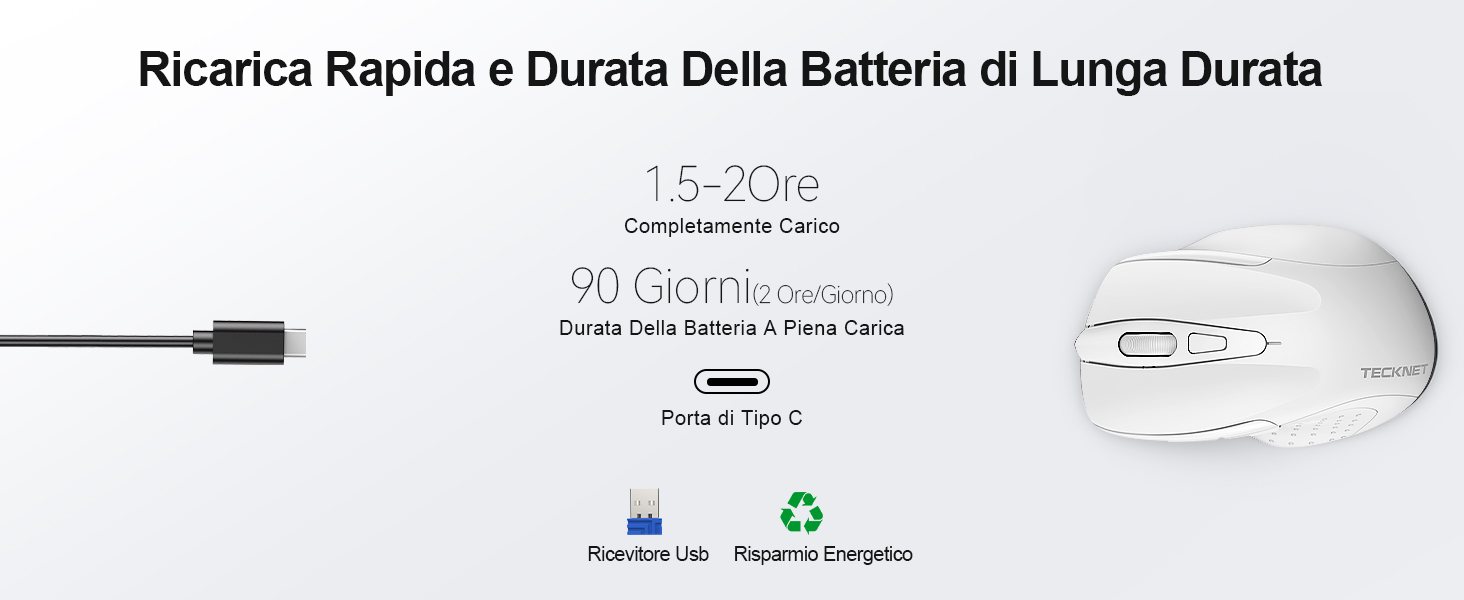
A full charge takes approximately 1.5-2 hours and can last up to 90 days (based on 2 hours/day usage).
2. Connecting the USB Receiver
The mouse uses a 2.4GHz wireless connection for reliable data transmission.
- Locate the USB receiver stored in the compartment on the underside of the mouse.
- Plug the USB receiver into an available USB port on your computer (PC, laptop, Chromebook, etc.).
- Turn on the mouse using the 2.4G/Off switch located on the underside.
- Your computer should automatically detect and install the necessary drivers. The mouse is plug-and-play, requiring no additional software.

The effective working distance is up to 15 meters.

Ensure the mouse is switched on after plugging in the receiver.
Operating Instructions
DPI Adjustment
The mouse features 6 adjustable DPI levels (800/1200/1600/2400/3200/4800) to suit various tasks, from precise targeting to fast gaming movements. Press the DPI switch button (Component 6 in Figure 1) to cycle through the DPI settings.

Adjust DPI for optimal cursor speed and precision.
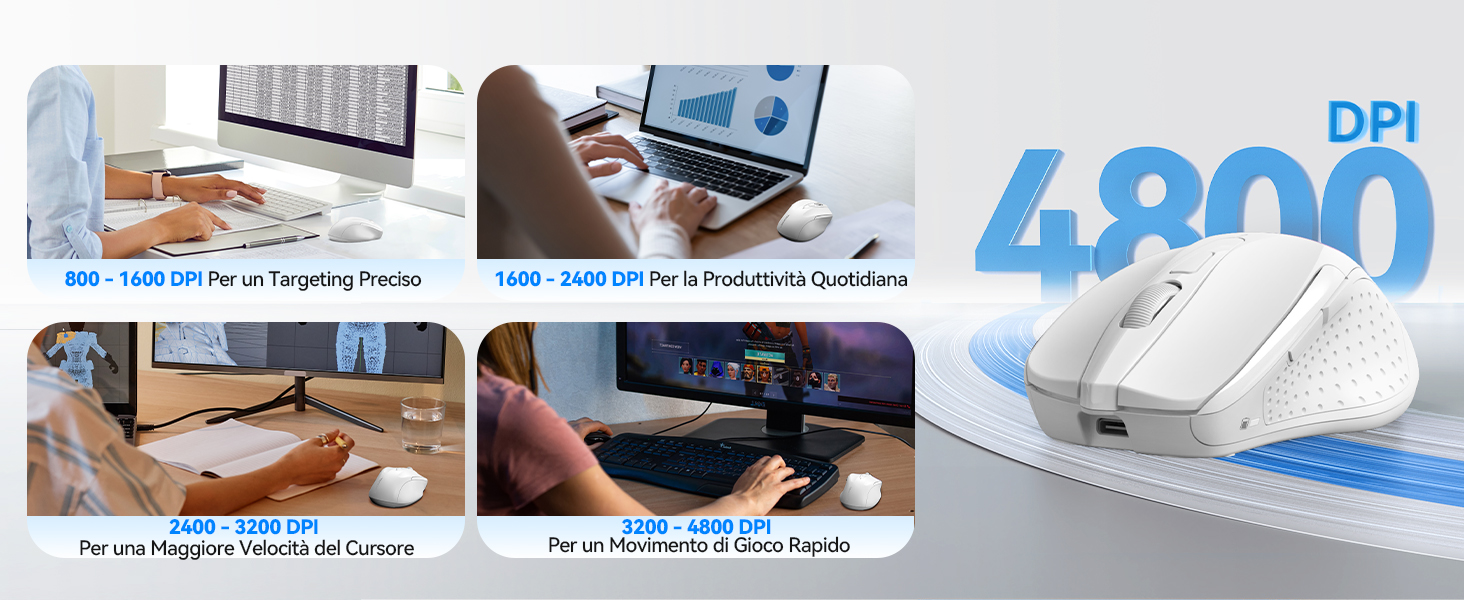
DPI settings for different usage scenarios.
Silent Click Feature
The mouse is designed for silent operation, reducing click noise by up to 90%. This allows for a quiet working environment without disturbing others.

Enjoy a quiet working experience.

Sound level comparison demonstrating reduced click noise.
Ergonomic Design
The mouse is ergonomically designed to fit the natural curvature of your hand, reducing muscle pressure by up to 30% and ensuring comfortable use for extended periods. Soft natural rubber grips on the sides provide a secure and comfortable hold.

Ergonomic shape for comfortable use.
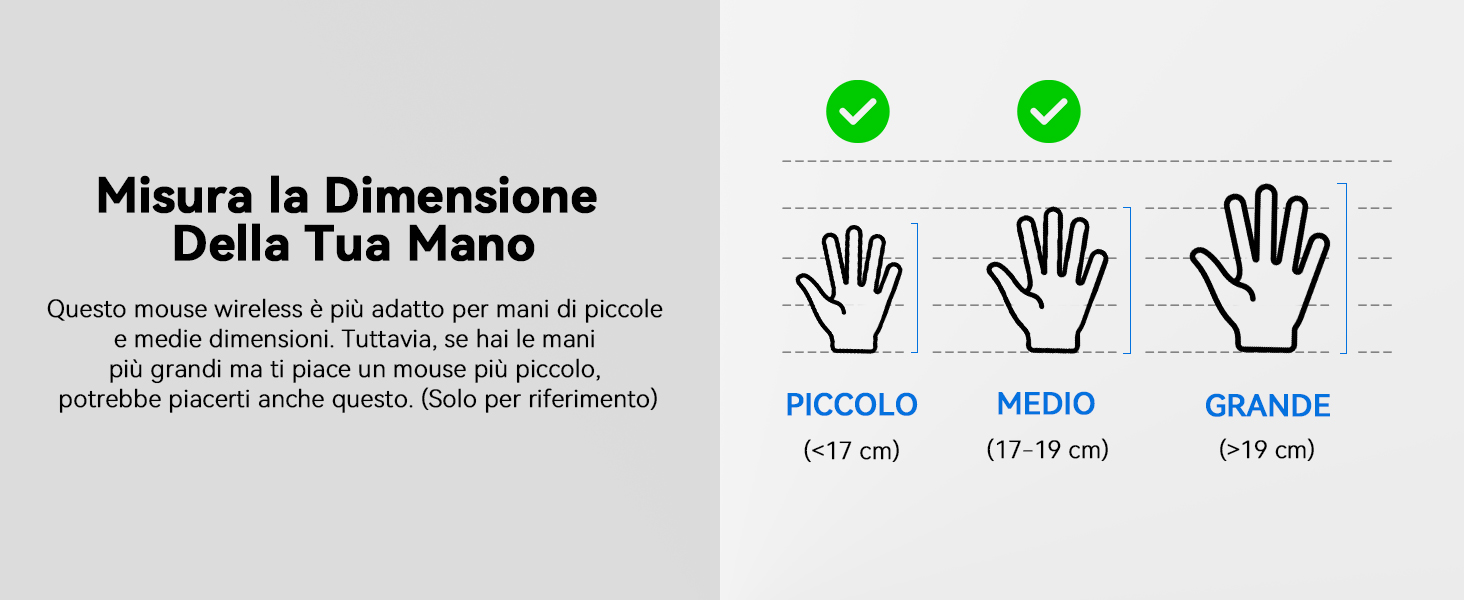
This mouse is suitable for small to medium hand sizes. Refer to the guide for reference.
Power Saving Features
The mouse includes intelligent power-saving features:
- Auto Sleep Mode: If inactive for 10 seconds, the mouse enters standby mode. After 10 minutes of inactivity, it enters deep sleep mode to conserve battery.
- Wake-up Function: Press any button to wake the mouse from sleep mode.
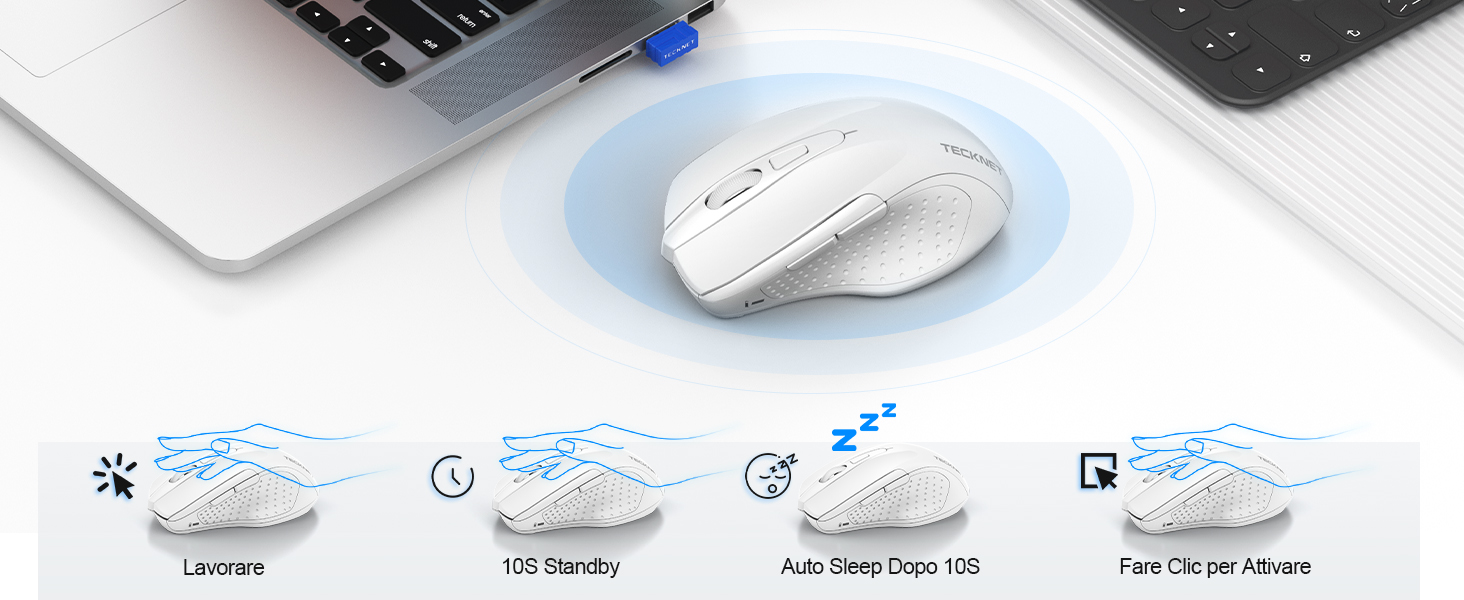
Power saving modes for extended battery life.
Maintenance
- Cleaning: Use a soft, dry cloth to clean the mouse. For stubborn dirt, a slightly damp cloth can be used, ensuring no moisture enters the device.
- Charging: Recharge the mouse when the indicator light signals low battery. Avoid completely draining the battery frequently to prolong its lifespan.
- Storage: When not in use for extended periods, turn off the mouse and store the USB receiver in its designated compartment.
Troubleshooting
| Problem | Possible Cause | Solution |
|---|---|---|
| Mouse not responding | Low battery; USB receiver not connected; Mouse switched off; Driver issue. | Charge the mouse; Ensure USB receiver is securely plugged in; Turn on the mouse; Try a different USB port; Restart computer. |
| Intermittent connection or lag | Interference from other wireless devices; Distance from receiver; Obstructions. | Move closer to the receiver; Remove obstructions; Avoid using near other 2.4GHz devices; Try a different USB port. |
| Cursor movement is erratic or imprecise | Dirty optical sensor; Unsuitable surface; Incorrect DPI setting. | Clean the optical sensor; Use a mouse pad or a smooth, non-reflective surface; Adjust DPI settings. |
| Mouse does not charge | Faulty charging cable; Faulty USB port; Mouse issue. | Try a different USB-C cable; Try a different USB power source; Contact customer support if the issue persists. |
Specifications
| Brand | TECKNET |
| Model Number | TK-MS009 |
| Color | White |
| Connectivity Technology | 2.4GHz Wireless (USB Receiver) |
| Special Features | Rechargeable, Long Battery Life, Silent Click, Ergonomic Design |
| Movement Detection Technology | Optical |
| Number of Buttons | 6 |
| Hand Orientation | Right-handed |
| Compatible Devices | Laptop, PC, Chromebook, Computer |
| Operating Systems | Windows 11/10/8.1/8/7/Vista/XP, Linux, Mac OS (side buttons not available on Mac OS) |
| Average Battery Life | 1050 Hours (approx. 1-2 months on 2-hour charge) |
| Max Sensitivity | 4800 DPI |
| Wireless Range | 15 meters |
| Dimensions (L x W) | 10.6L x 6.8W cm |
| Material | Plastic |
Warranty and Support
TECKNET offers a 36-month warranty for registered users. If you encounter any issues during the use of your mouse, please contact our professional customer service team as soon as possible. We are committed to assisting you in resolving any problems.
For support, please visit the official TECKNET website or refer to the contact information provided with your product packaging.
Online Resources:


