
1. Introduction
This manual provides detailed instructions for the installation, operation, and maintenance of your Xprinter XP-370B Thermal Barcode Sticker Printer. Please read this manual thoroughly before using the printer to ensure proper functionality and to prevent damage.
2. Safety Information
- Always connect the printer to a grounded power outlet.
- Do not expose the printer to water or high humidity.
- Avoid placing the printer in direct sunlight or near heat sources.
- Use only Xprinter approved accessories and power adapters.
- Keep the printer away from children.
- Do not attempt to disassemble or repair the printer yourself. Contact qualified service personnel for assistance.
3. Package Contents
Verify that all items are present in the package:
- Xprinter XP-370B Thermal Barcode Sticker Printer
- Power Adapter
- USB Cable
- Quick Start Guide (if included)
4. Product Overview
The Xprinter XP-370B is a compact and efficient thermal printer designed for barcode and sticker printing. It features high-speed printing capabilities and supports various connectivity options.

Figure 4.1: Front-right view of the Xprinter XP-370B Thermal Barcode Sticker Printer.

Figure 4.2: Side view illustrating the power button and top cover key for accessing the media compartment.
5. Setup
5.1 Unpacking and Placement
- Carefully remove the printer from its packaging.
- Place the printer on a stable, flat surface with adequate ventilation.
- Ensure there is enough space around the printer for cable connections and media loading.
5.2 Connecting the Printer
- Connect the power adapter to the printer's power port and then plug it into a power outlet.
- Connect the printer to your computer using the provided USB cable. The printer also supports Serial, Ethernet, and Bluetooth connectivity options depending on the model.
- Turn on the printer using the power button located on the side (refer to Figure 4.2).
5.3 Loading Print Media
- Press the top cover key (refer to Figure 4.2) to open the printer's top cover.
- Place the roll of thermal labels into the media compartment. The maximum label diameter supported is 100mm.
- Adjust the paper guide to fit the width of your labels securely.
- Pull a small length of labels past the print head.
- Close the top cover until it clicks into place.
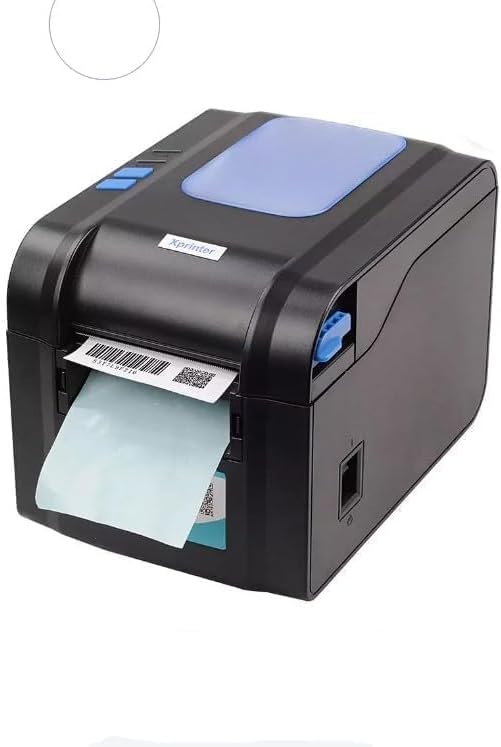
Figure 5.3: The printer demonstrating a label being fed out after printing.
5.4 Driver Installation
- For Windows systems, insert the driver CD (if provided) or download the latest drivers from the official Xprinter website. Follow the on-screen instructions for installation.
- For Android and iOS devices, download the appropriate printing application from your device's app store.
6. Operating Instructions
6.1 Basic Printing
- Ensure the printer is powered on and connected to your device.
- Open the document or application from which you wish to print.
- Select the Xprinter XP-370B from your list of available printers.
- Adjust print settings such as label size, orientation, and density as needed.
- Initiate the print command. The printer will begin printing at speeds up to 152mm/s.
7. Maintenance
7.1 Cleaning the Printer
- Turn off and unplug the printer before cleaning.
- Use a soft, lint-free cloth dampened with isopropyl alcohol to gently clean the print head.
- Clean the exterior of the printer with a soft, dry cloth.
- Do not use abrasive cleaners or solvents.
8. Troubleshooting
- Printer not responding: Check power connection, USB/Serial/Ethernet/Bluetooth connection, and ensure drivers are correctly installed.
- Poor print quality: Clean the print head, ensure correct media type is used, and check print density settings.
- Paper jam: Open the top cover, carefully remove any jammed labels, and re-load the media correctly.
- Labels not feeding: Ensure labels are loaded correctly and the paper guide is adjusted properly. Check for any obstructions.
9. Specifications
| Feature | Specification |
|---|---|
| Brand | Xprinter |
| Model Number | XP-370B |
| Printer Technology | Thermal |
| Connectivity Technology | USB, Serial, Bluetooth, Ethernet (options vary) |
| Maximum Print Speed | Up to 152 mm/s |
| Maximum Media Size | 4 x 6 inch |
| Maximum Label Diameter | 100 mm |
| Print Media | Labels |
| Printer Output | Monochrome |
| Item Dimensions (D x W x H) | 15D x 7W x 10H centimeters |
| Item Weight | 300 g |
| Supported Operating Systems | Windows, Android, iOS |
10. Warranty and Support
For warranty information and technical support, please refer to the documentation provided with your purchase or visit the official Xprinter website. Keep your purchase receipt as proof of purchase for warranty claims.