
1. Introduction
The YOJOCK USB C Tester Power Meter is a versatile digital multimeter designed to accurately measure various electrical parameters of USB Type-C devices and chargers. This device helps users verify the performance of their charging equipment and cables, ensuring optimal and safe power delivery. It is an essential tool for digital enthusiasts and professionals alike.
Key Features:
- Upgraded Version: Records Max Watt, Current, and Voltage during charging. Detects voltage, current, capacity, electric quantity, power, temperature, and charging time.
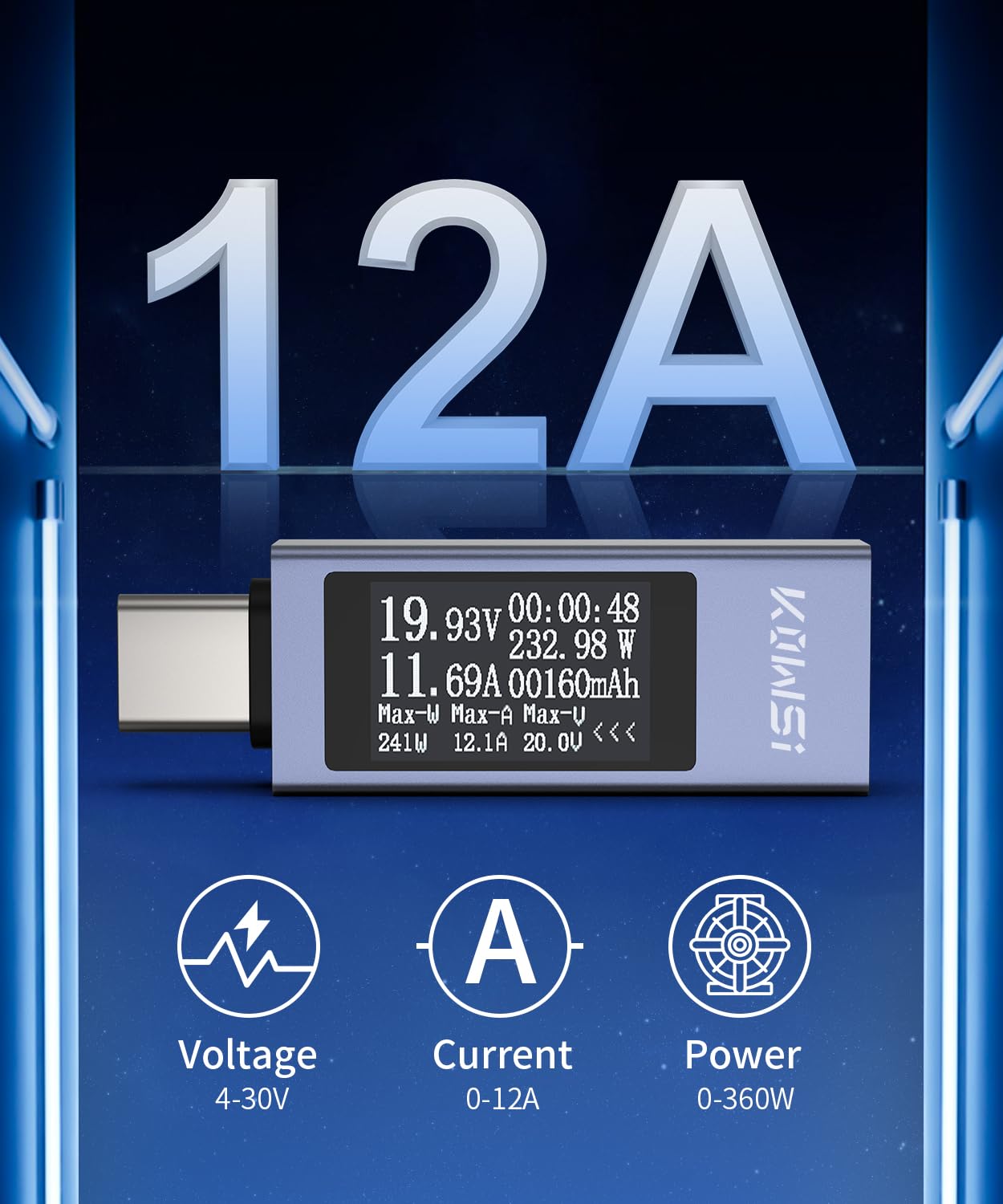
- Wide Applicability: Equipped with a 12A high current terminal. Measures current from 0-12A and voltage from 4V-30V. Compatible with a broad range of 3C digital peripheral products.
- Fast Charging Protocol Detection: Supports PD2.0/3.0, QC2.0/3.0, FCP, SCP, AFC, PE, DASH VOOC, and Super VOOC protocols. Note: The name of the fast charging protocol will not be displayed on the USB tester.
- Data Storage: Power-off storage function retains capacity and energy data for later viewing and testing.
- User-Friendly Interface: Multi-interface LCD display with intuitive button functions for screen switching, rotation, and data clearing.
2. Product Overview
The YOJOCK USB C Tester features a compact design with a clear LCD display and multiple input/output ports for comprehensive testing. Understanding its components is crucial for proper operation.
Components:
- USB-C Input Port
- USB-C Output Port
- USB-A Input Port
- USB-A Output Port
- Micro USB Input Port (for external power if needed, or specific testing scenarios)
- Multi-interface LCD Display
- Control Button


3. Setup
To begin using your YOJOCK USB C Tester, follow these steps to connect it correctly to your charging setup.
Basic Connection:
- Connect the USB-C input of the tester to your power source (e.g., wall charger, power bank, computer USB port).
- Connect your device (e.g., smartphone, tablet, laptop) to the USB-C output of the tester using a compatible charging cable.
- The display on the tester will automatically light up and begin showing real-time measurements.
Using with PD Chargers:
When connecting to a Power Delivery (PD) charger, ensure both the input and output of the USB tester are connected for the screen to light up and display readings. If only the USB-C input is inserted into a PD charger without a device connected to the output, the screen may not activate.

Unboxing and Initial Connection (Video):
4. Operating Instructions
The USB C Tester provides real-time data and various functions accessible through its single control button.
Display Modes and Button Functions:
- Single Click: Press the button once to cycle through different display screens, showing various parameters like voltage, current, power, capacity, energy, temperature, and time.
- Double Click: Double-click the button to rotate the displayed content 180 degrees, useful for viewing the screen from different orientations.
- Long Press (3 seconds): Press and hold the button for 3 seconds to clear all accumulated capacity, electric quantity, and time data. This is useful for starting new measurement cycles.
Measuring Parameters:
The tester displays the following parameters:
- Voltage (V): The electrical potential difference.
- Current (A): The flow rate of electric charge.
- Power (W): The rate at which electrical energy is transferred.
- Capacity (mAh): The total charge delivered over time.
- Energy (mWh): The total energy delivered over time.
- Charging Time: Duration of the charging process.
- CPU Temperature: Internal temperature of the tester.
- Max Watt/Current/Voltage: Records the peak values observed during testing.

Fast Charging Protocol Identification:
While the tester supports various fast charging protocols (PD2.0/3.0, QC2.0/3.0, FCP, SCP, AFC, PE, DASH VOOC, Super VOOC), it will display the voltage and current values corresponding to the active protocol, but not the protocol name itself. This allows you to confirm if your charger and device are engaging in fast charging by observing higher voltage or current outputs.

5. Maintenance
Proper care and maintenance will extend the lifespan and accuracy of your USB C Tester.
- Cleaning: Use a soft, dry cloth to clean the device. Avoid using abrasive cleaners or solvents.
- Storage: Store the tester in a cool, dry place, away from direct sunlight and extreme temperatures. Use the provided storage case to protect it from dust and physical damage.
- Handling: Handle the device with care. Avoid dropping it or subjecting it to strong impacts.
- Connection Ports: Ensure the USB ports are free from dust and debris before connecting cables.
6. Troubleshooting
If you encounter issues with your YOJOCK USB C Tester, refer to the following common problems and solutions:
| Problem | Possible Cause | Solution |
|---|---|---|
| Tester screen does not light up. |
|
|
| Inaccurate readings or no current/voltage displayed. |
|
|
| Tester runs warm at high wattage. | High power transfer generates heat, especially at wattages above 60W. | This is normal for high-power applications. Ensure adequate ventilation around the tester. If the temperature becomes excessively high (e.g., above 90°C CPU temp), reduce the load or discontinue use to prevent potential damage. |
| USB-C connector becomes loose over time. | Wear and tear from frequent use. | Handle connections gently. Avoid excessive force or wiggling. If the connection becomes unreliable, it may indicate physical damage to the port. |
7. Specifications
Detailed technical specifications for the YOJOCK USB C Tester Power Meter (Model 2301C-en).
| Parameter | Value |
|---|---|
| Model Number | 2301C-en |
| Brand | YOJOCK |
| Voltage Measurement Range | 4V - 30V |
| Current Measurement Range | 0A - 12A |
| Power Measurement Range | 0W - 360W |
| Measurement Accuracy | 0.01 |
| Item Weight | 30 g |
| Parcel Dimensions | 8.6 x 8.2 x 1.9 cm |
| Color | Silver |
| Power Source Type | Corded Electric |
| Included Components | USB C Tester |
| Certifications | CE, EN 61010-1 |

8. Warranty Information
YOJOCK products are designed for reliability and performance. For specific warranty details, including coverage period and terms, please refer to the warranty card included with your product or visit the official YOJOCK website. Keep your purchase receipt as proof of purchase for any warranty claims.
9. Customer Support
If you have any questions, require technical assistance, or need to report an issue with your YOJOCK USB C Tester, please contact our customer support team. Contact information can typically be found on the product packaging, the official YOJOCK website, or through your retailer's support channels.


