
Product Overview
The TECKNET WM389-Programmable Wireless Gaming Mouse is designed for precision and comfort, suitable for various computing tasks from intense gaming to daily office work. It features adjustable DPI settings, programmable buttons, and an ergonomic design for extended use.

Image: TECKNET Wireless Gaming Mouse with its USB Nano Receiver.
Setup Guide
1. Battery Installation
The mouse requires two AA batteries (not included). To install:
- Locate the battery compartment on the underside of the mouse.
- Open the battery compartment cover.
- Insert two AA batteries, ensuring correct polarity (+/-).
- Close the battery compartment cover securely.
2. Connecting the Nano Receiver
The mouse connects wirelessly via a 2.4G USB Nano Receiver.
- Remove the Nano Receiver from its storage slot on the underside of the mouse.
- Plug the Nano Receiver into an available USB port on your computer (laptop or desktop PC).
- Turn on the mouse using the ON/OFF switch located on the underside.
- Your computer should automatically detect and install the necessary drivers. No additional software installation is typically required for basic functionality.

Image: Underside view of the mouse, highlighting the battery compartment and the USB Nano Receiver storage slot.
Operating Instructions
DPI Adjustment
The mouse features 6 adjustable DPI levels for precise tracking and responsiveness. You can switch between these levels on-the-fly to suit your needs, whether for gaming or general tasks.
- Available DPI settings: 800, 1600, 2400, 3200, 4800, 8000.
- Use the dedicated DPI adjustment buttons (DPI+ and DPI-) located near the scroll wheel to cycle through the settings.

Image: Visual representation of the 6 adjustable DPI levels.
Programmable Buttons
The mouse is equipped with 8 programmable buttons, allowing you to assign macros and secondary functions for enhanced efficiency. This is particularly useful for gaming, enabling quick execution of commands like push-to-talk or specific in-game actions.
- Buttons include: Left Click, Right Click, Middle Button (Scroll Wheel), DPI+, DPI-, Forward Button, Backward Button, and Rapid Fire Button.
- Programming functionality typically requires dedicated software, which can be downloaded from the TECKNET official website.
- Note: The side buttons (Forward and Backward) may not function on Mac OS.

Image: Example of the software interface for customizing button functions and DPI settings.
Ergonomic Design
The mouse features an ergonomic design optimized for palm fit, aiming to reduce wrist fatigue during prolonged use. The right side incorporates an anti-slip process to ensure a firm grip, enhancing stability and comfort during intensive operations.

Image: Illustration highlighting the ergonomic and anti-slip design elements of the mouse.
Maintenance
To ensure the longevity and optimal performance of your TECKNET Wireless Gaming Mouse, follow these simple maintenance guidelines:
- Cleaning: Use a soft, dry cloth to wipe the surface of the mouse. For optical sensor, use a cotton swab lightly dampened with rubbing alcohol to gently clean the lens. Ensure no liquid enters the mouse.
- Battery Replacement: Replace batteries when the mouse performance degrades or the indicator light (if present) signals low power. Always use fresh AA batteries.
- Storage: When not in use for extended periods, turn off the mouse using the ON/OFF switch to conserve battery life. Store the USB Nano Receiver in its dedicated slot to prevent loss.
Troubleshooting
If you encounter issues with your TECKNET Wireless Gaming Mouse, try the following solutions:
- Mouse Not Responding:
- Ensure the mouse is turned ON.
- Check if the batteries are correctly installed and have sufficient charge. Replace if necessary.
- Verify the USB Nano Receiver is securely plugged into a working USB port on your computer. Try a different USB port.
- Restart your computer.
- Erratic Cursor Movement:
- Clean the optical sensor lens on the underside of the mouse.
- Ensure you are using the mouse on a suitable surface. Avoid highly reflective or transparent surfaces.
- Check for interference from other wireless devices. Move the mouse closer to the receiver.
- Programmable Buttons Not Working (Mac OS):
- As noted in the specifications, side buttons may not be functional on Mac OS. This is a system limitation.
Specifications
| Feature | Detail |
|---|---|
| Model Number | WM389-Programmable |
| Connectivity Technology | 2.4G Wireless (USB Nano Receiver) |
| Movement Detection | Optical |
| DPI Levels | 800/1600/2400/3200/4800/8000 |
| Number of Buttons | 8 (Programmable) |
| Durability | 20 Million Clicks |
| Power Source | 2 x AA Batteries |
| Compatibility | Windows 11/10/8/7/Vista/XP, Mac systems (side buttons limited on Mac OS) |
| Item Weight | 3.84 ounces |
| Package Dimensions | 5.28 x 3.07 x 1.85 inches |
| Color | GRAY |
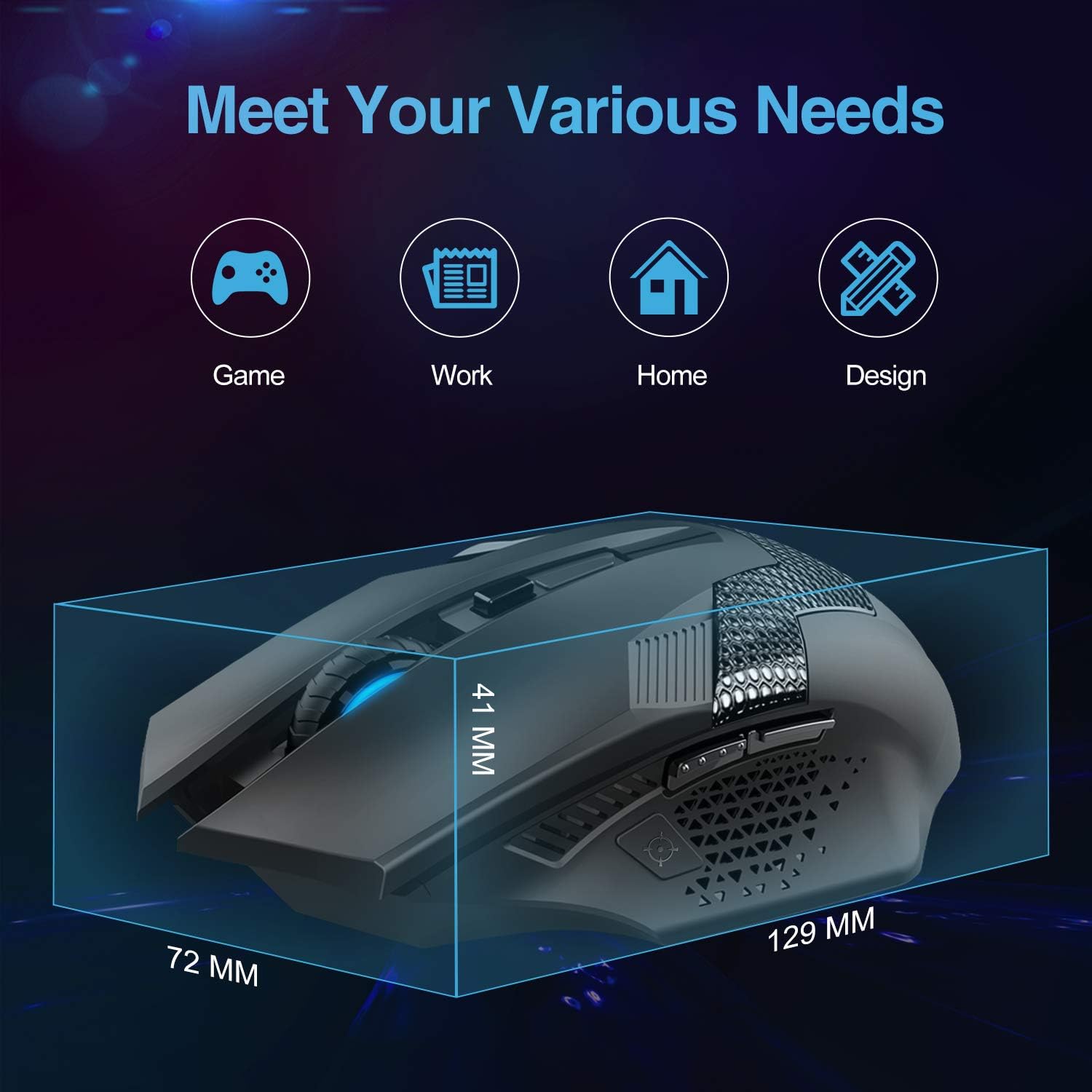
Image: Diagram showing the dimensions of the mouse.

Image: Visual highlighting compatibility with various operating systems and durability.
Warranty and Support
TECKNET offers a 36-month warranty for registered products. If you encounter any problems while using the product, please feel free to contact our professional customer service team for assistance.
For support, please refer to the contact information provided with your product packaging or visit the official TECKNET website.


