
1. Introduction
This manual provides comprehensive instructions for the SUPVAN KATASYMBOL T50M Pro/T50M Plus thermal label tapes. These self-adhesive labels are designed to offer a durable and versatile labeling solution for various applications in home, office, and school environments when used with compatible SUPVAN label makers.
2. Compatibility
These label tapes are specifically designed for seamless integration and optimal performance with SUPVAN KATASYMBOL T50M Pro and T50M Plus label makers.
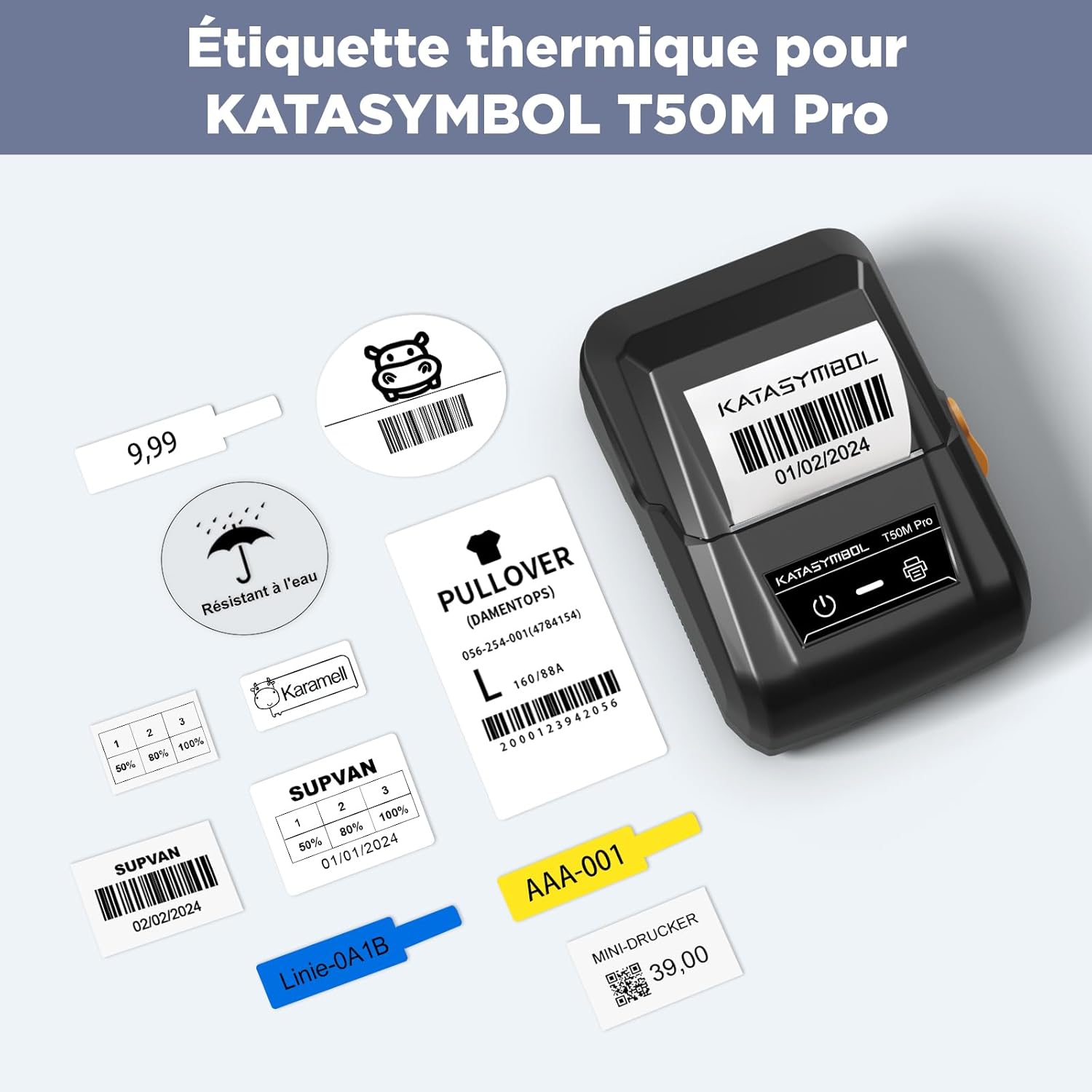
Image: The SUPVAN KATASYMBOL T50M Pro label printer demonstrating various printed labels, including barcodes, dates, and text, showcasing the versatility of the label tapes.
3. Key Features
3.1. Durability
- Multi-layer Synthetic Material: Constructed from high-quality synthetic material for enhanced resilience.
- Extended Lifespan: Engineered for a service life exceeding 5 years under normal conditions.
- Waterproof and Oil-Resistant: Provides protection against moisture and oil, ensuring label integrity.
- Strong Adhesion: Features robust adhesive properties for secure attachment to various surfaces.
- Temperature Resistance: Maintains performance across a wide range of high and low temperatures.

Image: A hand washing a glass bottle with a label attached, illustrating the label's water-resistant properties as water beads off the surface.
3.2. Versatile Applications
- Suitable for a broad range of uses in home, office, and school settings.
- Meets safety standards for baby products, making them safe for labeling food, cosmetics, and household items.
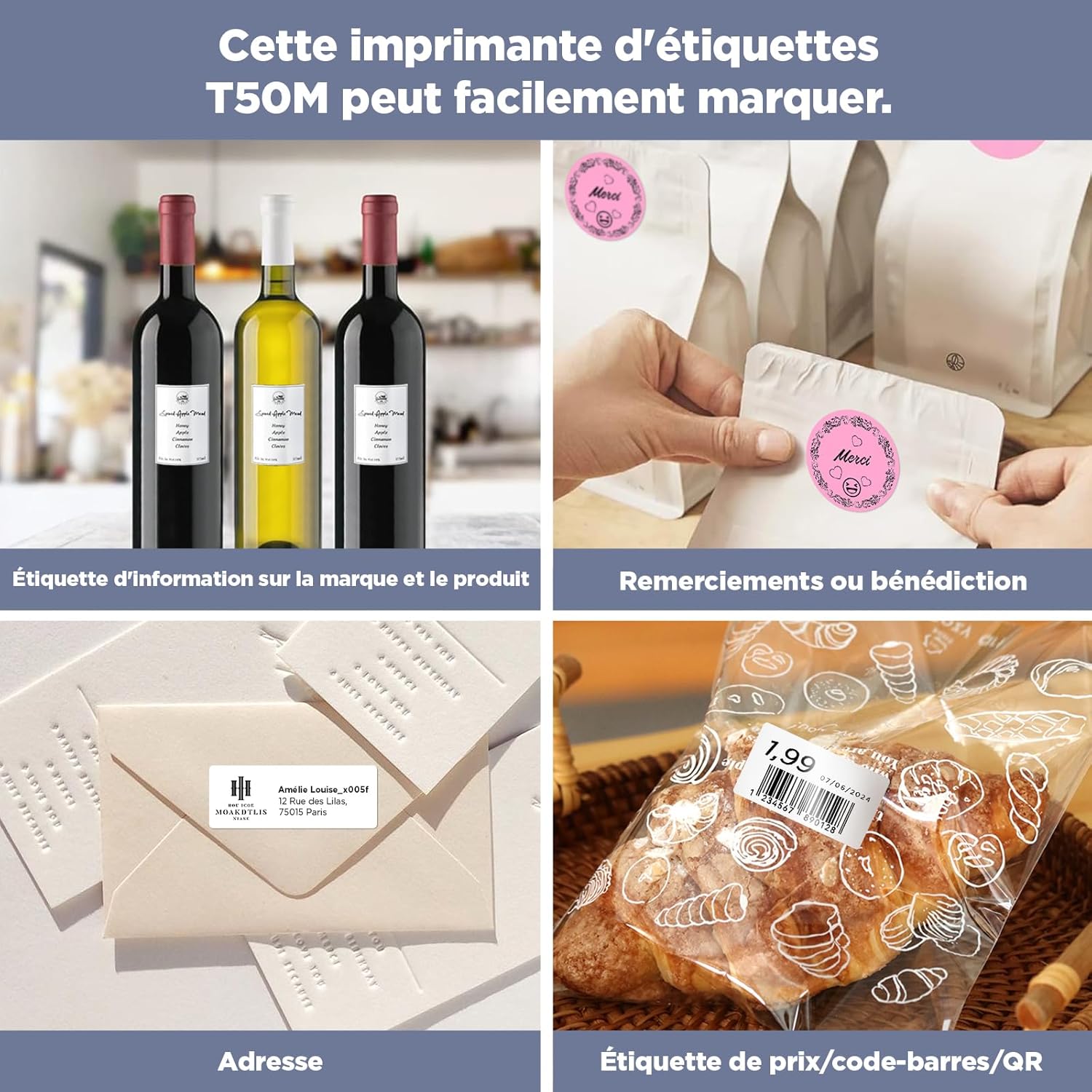
Image: A collage showcasing diverse applications of the labels, such as product information on wine bottles, 'Thank You' labels on gift bags, address labels on envelopes, and price/barcode labels on baked goods.

Image: A collage illustrating practical uses in home and office, including labels for spice jars, organized cable labels, categorized book tabs, and personalized decorative labels.
3.3. Cost-Effectiveness
- Utilizes thermal printing technology, eliminating the need for costly ink or toner cartridges.
- Ensures high print clarity while significantly reducing overall operational costs.
3.4. Ease of Use
- The dedicated "Katasymbol" application automatically identifies the label type and size upon insertion.
- Offers a rich library of over 150 templates, 40+ fonts, and 700+ icons for extensive customization.
- Important Note: Do not remove the sticker located on the back of the label roll. The application relies on this smart chip sticker for automatic identification and proper functionality.

Image: A hand gently peeling a label from a glass jar, demonstrating that the label can be removed cleanly without leaving any sticky residue behind.
4. Setup and Installation
4.1. Loading the Label Tape
- Open the label maker's cover according to the specific instructions provided in your label printer's user manual.
- Insert the SUPVAN KATASYMBOL label tape roll into the designated compartment. Ensure that the print side of the label tape is correctly oriented as indicated by your label maker.
- Close the cover securely until it clicks into place.
- Verify that the label tape is properly aligned and ready for printing.

Image: A roll of white label tape, with a single 'Thank you' label partially unrolled, illustrating the product's appearance before installation.
5. Operating Instructions
5.1. Using the Katasymbol Application
- Download and install the "Katasymbol" application on your smartphone or tablet from your device's app store.
- Connect your SUPVAN label maker to the application via Bluetooth, following the pairing instructions in the app.
- Once connected, the application will automatically detect the installed label tape (28 mm x 89 mm) using its smart chip.
- Select a pre-designed template or create a custom label using the extensive library of fonts, icons, and design tools.
- Enter your desired text, numbers, or other data into the label design interface.
- Preview the label on your screen to ensure the design and content are accurate before printing.
- Initiate the printing process directly from the application.
For detailed instructions on specific app features, advanced customization options, or troubleshooting app-related issues, please refer to the Katasymbol app's in-app help section or the label maker's comprehensive user manual.
6. Care and Maintenance
To ensure the optimal performance, print quality, and longevity of your SUPVAN KATASYMBOL label tapes, please adhere to the following care and maintenance guidelines:
- Storage: Store unused label rolls in a cool, dry place, away from direct sunlight, high humidity, and extreme temperatures. Proper storage prevents adhesive degradation and print quality issues.
- Handling: Handle label rolls by their edges to avoid touching the adhesive surface or the thermal print surface, which can lead to smudges or reduced adhesion.
- Chemical Exposure: Avoid exposing the labels to harsh chemicals, solvents, or abrasive cleaning materials, as these can damage the label material or print.
- Smart Chip Integrity: As mentioned in the features section, do not attempt to remove or damage the smart chip sticker on the back of the label roll, as it is crucial for printer recognition.
7. Troubleshooting
7.1. Common Issues and Solutions
| Issue | Possible Cause | Solution |
|---|---|---|
| Label not printing | Incorrect tape loading, low battery (printer), app not connected, smart chip not detected. | Re-load tape correctly, ensure printer is charged, verify Bluetooth connection, check smart chip sticker. |
| Poor print quality | Dirty print head (printer), damaged tape, incorrect print density settings. | Clean printer print head (refer to printer manual), replace tape roll, adjust print density in app. |
| App not detecting tape | Smart chip sticker removed or damaged, tape not fully inserted. | Ensure smart chip sticker is intact on the back of the roll. Reinsert tape fully. Replace roll if damaged. |
| Labels not adhering properly | Application surface is dirty, oily, or textured; extreme temperatures during application. | Clean and dry the surface thoroughly before application. Apply labels in suitable room temperature conditions. |
For further assistance or issues not covered here, please contact SUPVAN customer support or refer to your label maker's user manual.
8. Product Specifications
| Feature | Detail |
|---|---|
| Brand | SUPVAN |
| Model Compatibility | SUPVAN KATASYMBOL T50M Pro/T50M Plus |
| Label Dimensions | 28 mm x 89 mm |
| Labels per Roll | 90 Pieces |
| Color | Black print on White tape |
| Material Type | Synthetic |
| Adhesion | Strong |
| Resistance | Waterproof, Oil-resistant, Temperature-resistant |
| Special Features | BPA-free, No sticky residue upon removal |
| Manufacturer Model Number | T53145E |
| Item Weight | 50 g |
| Product Dimensions (L x W x H) | 3 x 5 x 3 cm |

Image: A diagram illustrating the label dimensions of 28 mm x 89 mm and highlighting key features such as water resistance, oil resistance, BPA-free composition, and scratch resistance.
9. Warranty and Support
For detailed warranty information, terms and conditions, or to access customer support, please refer to the official SUPVAN website or contact your authorized retailer. It is recommended to retain your purchase receipt for any warranty claims or service requests.
Official SUPVAN Website: SUPVAN Brand Store