
1. Product Overview
The FOSA HD 1080P Door Peephole Camera is designed to enhance home security by providing a wide-angle view of your doorstep. It features 1080P HD video resolution, a 220-degree wide-angle lens, and supports both 5.0GHz and 2.4GHz Wi-Fi networks for seamless integration with the Tuya Smart APP. Equipped with infrared night vision and motion detection, this camera ensures clear monitoring day and night, with real-time notifications sent to your smartphone.

Image 1.1: The FOSA Door Peephole Camera demonstrating its day and night vision functionality.
Video 1.1: An overview of the FOSA Door Peephole Camera, highlighting its design and features.
2. Package Contents
Verify that all items are present in the package:
- 1 x Door Peephole Camera
- 1 x Power Cable (Micro USB)
- 1 x User Manual
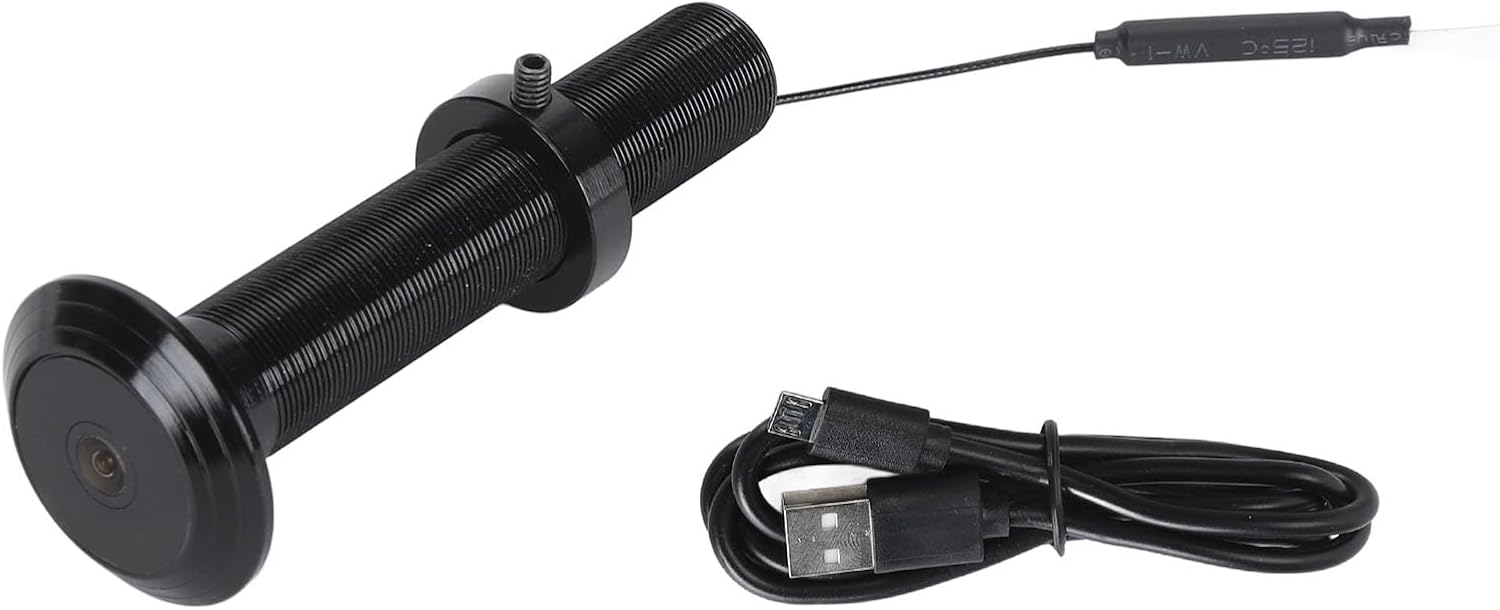
Image 2.1: The FOSA Door Peephole Camera and its included Micro USB power cable.
3. Installation
Before installation, ensure your door meets the following requirements:
- Door Panel Thickness: 2 cm to 7.9 cm (with a 0.5 cm error tolerance).
- Peephole Diameter: 15 mm to 30 mm (with a maximum error of 2 mm).
Installation Steps:
- Rotate and unscrew the fixing ring from the camera body.
- From the outside of the door, insert the camera lens into the existing peephole. Ensure there are no gaps between the lens and the door panel.
- From the inside of the door, rotate and install the fixing ring onto the camera's tail bolt. Tighten the fixings securely to hold the camera in place.
- Connect the power cable to the camera's Micro USB interface.

Image 3.1: Close-up view of the camera lens, which is inserted from the outside of the door.

Image 3.2: The threaded body of the camera where the fixing ring is attached from the inside.

Image 3.3: Detail of the camera's cable, connecting to the power supply.
4. Operating Instructions
The FOSA Door Peephole Camera operates via the Tuya Smart APP, providing remote monitoring and control.
4.1 App Setup
- Scan the QR code provided in the physical user manual with your smartphone to download the Tuya Smart APP.
- Open the Tuya Smart APP and register or log in to your account.
- Click the "+" icon in the upper right corner of the app to add a new device.
- Follow the on-screen instructions within the Tuya Smart APP to complete the device setup and connect the camera to your Wi-Fi network (supports both 5.0GHz and 2.4GHz).
4.2 Remote Monitoring and Notifications
Once connected, you can remotely monitor your front door from anywhere using the Tuya Smart APP. The camera provides a 220-degree wide-angle view, ensuring comprehensive coverage.
- Motion Detection: The camera is equipped with motion detection. When someone approaches your door, you will receive real-time notifications on your smartphone via the Tuya Smart APP.
- Night Vision: High-power infrared night vision lights and an ICR infrared filter enable the camera to automatically switch between day and night modes, capturing clear footage even in low-light or pitch-black conditions.

Image 4.1: The camera's remote detection feature sending alarm messages to a mobile app.
4.3 Storage
The camera supports both cloud storage and built-in storage options for recording video footage. If using built-in storage (e.g., a microSD card, if supported by the specific model), the system will automatically cover previous video files when the storage is full.

Image 4.2: Illustration of the camera's storage capabilities, including recording and playback.
5. Specifications
| Feature | Specification |
|---|---|
| Item Type | Door Peephole Camera |
| Material | Aluminum Alloy, Glass |
| Weight | Approx. 84g / 2.96 ounces |
| Resolution | 1920 x 1080 (1080P HD) |
| Lens Angle | 220 Degrees |
| Night Vision | Supported (Infrared) |
| Connection | Mobile App (Tuya Smart) |
| Wi-Fi Version | 5.0GHz or 2.4GHz (Both Compatible) |
| Storage | Cloud Storage or Built-in Storage |
| Charging Interface | Micro USB |
| Door Panel Thickness Support | 2 cm to 7.9 cm (0.5 cm error tolerance) |
| Peephole Diameter Support | 15 mm to 30 mm (2 mm error tolerance) |
| Model Number | fosac08mf3yipr-11 |
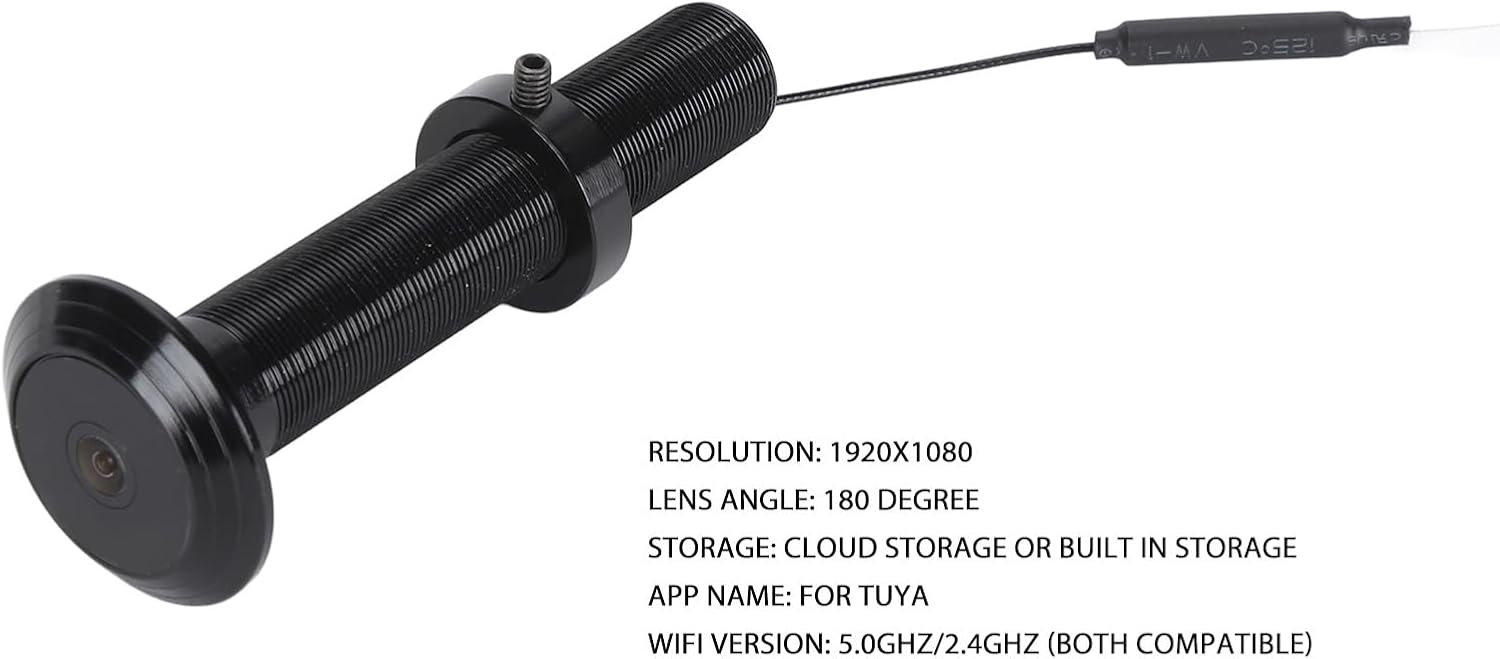
Image 5.1: The FOSA Door Peephole Camera highlighting its resolution, lens angle, storage, and app compatibility.
6. Maintenance
To ensure optimal performance and longevity of your FOSA Door Peephole Camera, follow these maintenance guidelines:
- Cleaning: Gently wipe the camera lens and body with a soft, dry cloth. Avoid using abrasive cleaners or solvents that could damage the surface or lens.
- Firmware Updates: Regularly check the Tuya Smart APP for any available firmware updates for your camera. Keeping the firmware updated ensures you have the latest features and security enhancements.
- Power Supply: Ensure the camera is connected to a stable power source. Avoid frequent disconnections or power fluctuations.
- Environmental Conditions: While the camera is designed for outdoor use, extreme weather conditions (e.g., heavy rain, snow, direct prolonged sunlight) may affect its performance. Ensure proper installation to minimize exposure to harsh elements.
7. Troubleshooting
If you encounter issues with your FOSA Door Peephole Camera, refer to the following common troubleshooting steps:
- Camera Not Connecting to Wi-Fi:
- Ensure your Wi-Fi network is active and within range.
- Verify that you are entering the correct Wi-Fi password.
- Confirm your router supports either 2.4GHz or 5.0GHz, and the camera is attempting to connect to a compatible band.
- Restart your router and the camera, then attempt to reconnect via the Tuya Smart APP.
- No Image/Poor Image Quality:
- Check the camera lens for any obstructions or dirt and clean it if necessary.
- Ensure adequate lighting conditions. If it's dark, verify that night vision is activating automatically.
- Check your internet connection speed; a slow connection can affect live stream quality.
- Motion Detection Not Working:
- Ensure motion detection is enabled in the Tuya Smart APP settings for your camera.
- Adjust the motion detection sensitivity settings within the app.
- Verify that the camera's field of view is not obstructed.
- App Notifications Not Received:
- Check your smartphone's notification settings to ensure the Tuya Smart APP has permission to send notifications.
- Verify that notifications are enabled within the Tuya Smart APP for your camera.
- Ensure your phone has an active internet connection.
8. Warranty and Support
For warranty information and technical support, please refer to the documentation included with your purchase or contact FOSA customer service through their official channels. Keep your purchase receipt as proof of purchase for warranty claims.
For further assistance, visit the FOSA Store on Amazon.